Appearance
Form System
Type: Explanation | Audience: Interface builder user | Goal: Understand how forms work in Interface Builder
What is a form?
A form in Interface Builder is a group of input fields whose values are collected together and either sent to a server or handed to another view. You build a form visually on the canvas -- there is no HTML to write.
Why Form Start and Form End?
Interface Builder uses a row-based layout. Forms are not drag-and-drop containers -- they are defined by two special marker rows shown on the canvas: Form Start and Form End. Every regular row placed between these two markers belongs to the form.
This design lets you arrange input blocks freely across multiple rows and column layouts while still grouping them into a single form for submission.
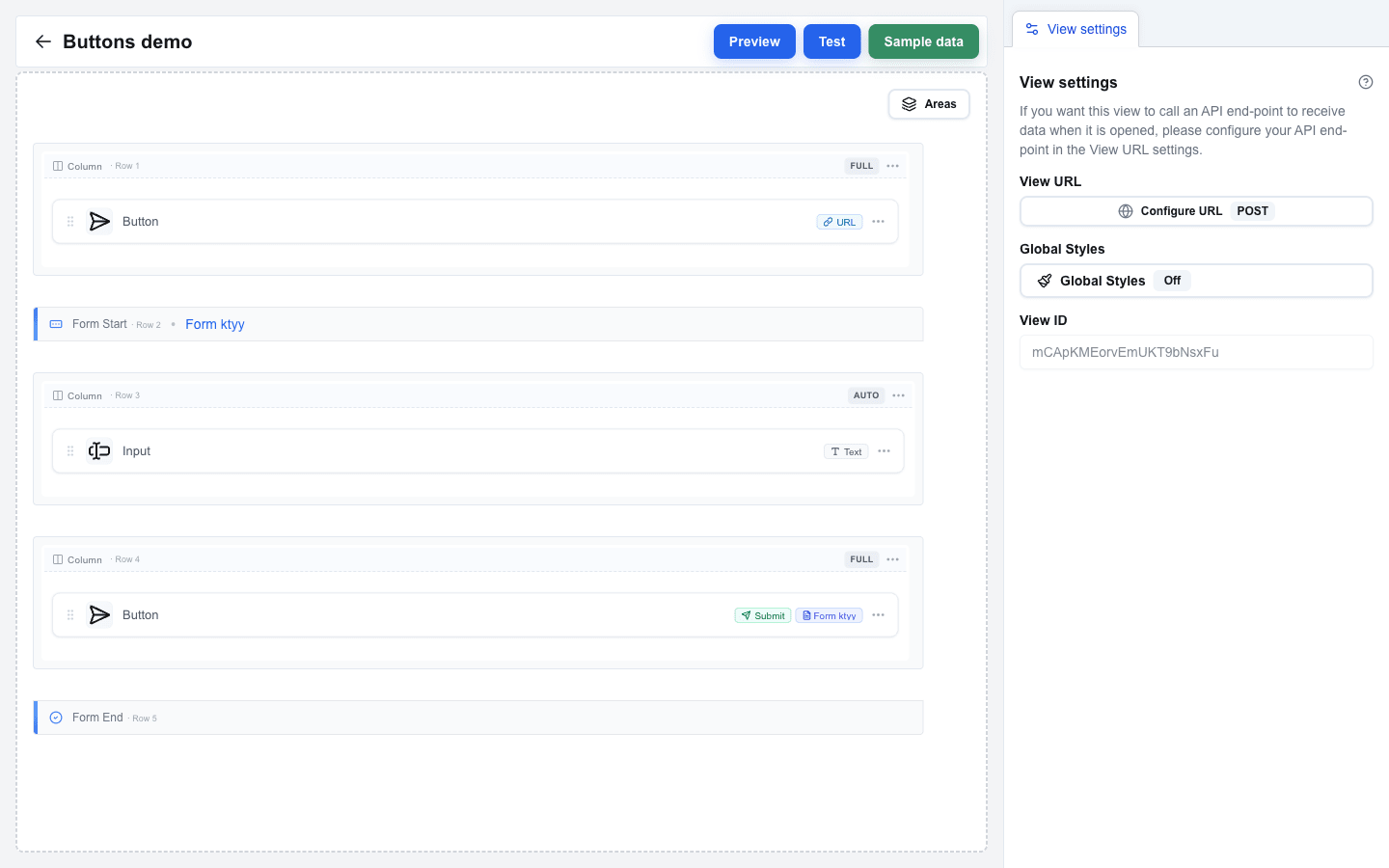
Clicking either the Form Start or Form End row opens the Form Settings tab in the right panel. The most important setting there is the Form Identifier -- a unique name that connects Submit and Reset buttons to this specific form. The Form Identifier also shows up next to Form Start on the canvas as a small inline label. Form Settings also lets you adjust the form's inner padding (Padding Top / Bottom / Left / Right, in pixels).
How Buttons Connect to a Form
A button becomes a submit button when its Button Type is set to Form Submit Button. The button settings then show a Form dropdown listing every form in the view by its Form Identifier. Pick the form this button should submit.
- A submit button does not need to live inside the form's Form Start / Form End boundaries. It can sit anywhere in the view.
- Multiple submit buttons can point at the same form.
- A Form Reset Button works the same way: its own Form dropdown selects which form to reset.
What the Builder Validates
When you save a view, the builder checks these rules and surfaces warnings directly on the canvas if any are broken:
- Every form needs a matching Form Start and Form End pair.
- A form must contain at least one input block between its markers. The warning on the canvas is Missing input field.
- A form must have at least one submit button somewhere in the view that targets its Form Identifier. The warning is Missing submit button.
- Input blocks must sit between Form Start and Form End. An input placed outside any form is a validation error.
- Each input inside a form has a unique internal name. The builder generates these names automatically when you drop a block, so you normally never see this detail unless you manually copy blocks in a way that breaks uniqueness.
- When the submit button's Form Type is Open view with form data, file-type inputs are not allowed -- that mode passes every value as a URL search parameter and cannot carry file uploads.
Submit and Reset buttons that point to a Form Identifier with no matching form also trigger a validation error.
Form Type: How Data Is Sent
The submit button's Form Type setting decides how form data leaves the browser.
JSON
Sends a POST request to the configured Submit URL with the form values in the request body. This is the default choice for most forms without file uploads.
Multipart/Form-Data
Same as JSON, but explicitly intended for forms that include file uploads. Files are attached as individual parts of the request. Use this whenever any input in the form has Type = File.
Open view with form data
Does not send an HTTP request at all. Instead, the submit button navigates to another view inside the same interface and passes every input value as URL search parameters. Useful for multi-step workflows where one form's answers become the starting data for the next view. File inputs are not supported in this mode.
After Submission: What Happens Next
For JSON and Multipart/Form-Data, the submit button's After submission setting decides what happens once the request is sent.
Select view
Navigates the user to a specific View ID immediately after sending the request. You can pass static parameters to the target view, and optionally turn on an option that forwards every input value as search parameters to that view.
Wait for response
Waits up to Timeout (s) seconds (10--60) for the server to reply, then acts on the response:
- If the response contains a redirect to another view, the user is navigated there.
- If the response contains a message, it is displayed either as a replacement alert where the form was, or as a toast notification -- controlled by Show message after submission.
- Turning on Disable form after submission blocks the user from re-submitting while the response is being processed.
For Open view with form data, there is no server response to wait for -- the after-submission behavior is always a view navigation.
For the exact response payloads the builder understands (redirects, messages, polling), see the HTTP Response Format reference. For the request shape your endpoint receives, see the Form Submission Types reference.
How a Submit Reaches Your Endpoint
Validation runs first. Then the request goes out — unless the Form Type is Open view with form data, in which case there is no request and the user simply navigates to the target view with the input values attached as search parameters.
Validation errors (Required missing, Pattern mismatch, file too large or of the wrong type, "Open view with form data" containing a file input) stop the flow before the request is made. The submit button's Disable form after submission option freezes the form between the request and the response so the user cannot trigger a duplicate submit.
Input Fields
Input blocks live between Form Start and Form End and provide the fields users actually fill in. Every input has at minimum:
- Label -- the visible text shown above the field.
- Type -- one of Text, Textarea, Email, Number, URL, Date, File, Hidden, Checkbox, Radio, Single Select, Multi Select.
Depending on the type, additional settings appear -- for example Options Type for selection inputs, Allow multiple files and the file limits for file uploads, or Min / Max for numbers. Full details are in the Input Block Reference.
Allow multiple files is off by default and appears on the File type only. It does two things at once: it lets one field carry several files, and it decides that field's shape on the wire -- a shape that follows the setting rather than the number of files the user happened to pick, so a receiving integration never has to branch. That is also why turning it on for a field an integration already reads is a breaking change for that integration. The shapes themselves are in File Fields.
Accepted file types narrows a File input to the extensions and MIME types the author lists. It is a check in the browser only: the file dialog offers only those types, and a selected file of another type holds back the submit. The server that forwards the submission never reads the list, so a request that skips the browser can carry any type. A Submit URL that must refuse a file type has to check the type itself. The list format and messages are in File Type Limits.
Selection Inputs: Static vs. Dynamic Options
Checkbox, Radio, Single Select, and Multi Select inputs need a list of options. The Options Type setting picks between:
- Static -- a fixed list of label/value pairs you enter in the builder.
- Dynamic -- a template label and value pair that expands at render time from Data Picker data.