Appearance
Building Your First Interface
Type: Tutorial | Audience: New end-user | Goal: Create and save a simple interface with Title and Paragraph blocks
Opening the Application
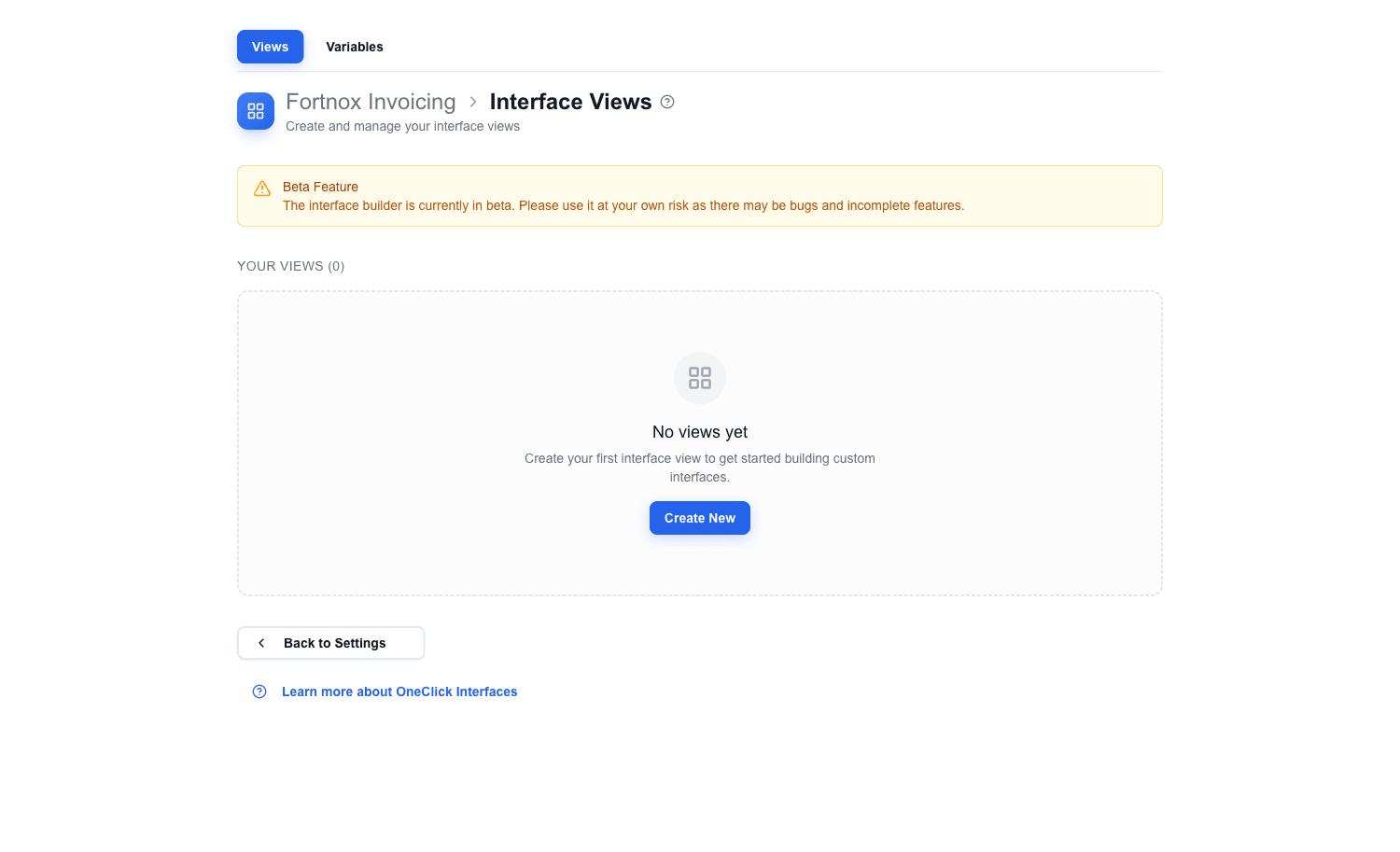
Interface Builder is accessed from Pipedrive via a OneClick button. When the app loads, you land on the Interface Selection Page, which lists all views belonging to this button. You will see two tabs at the top: Views and Variables.
Creating a New Interface
- On the Interface Selection Page, click the Create New button next to the Your Views heading.
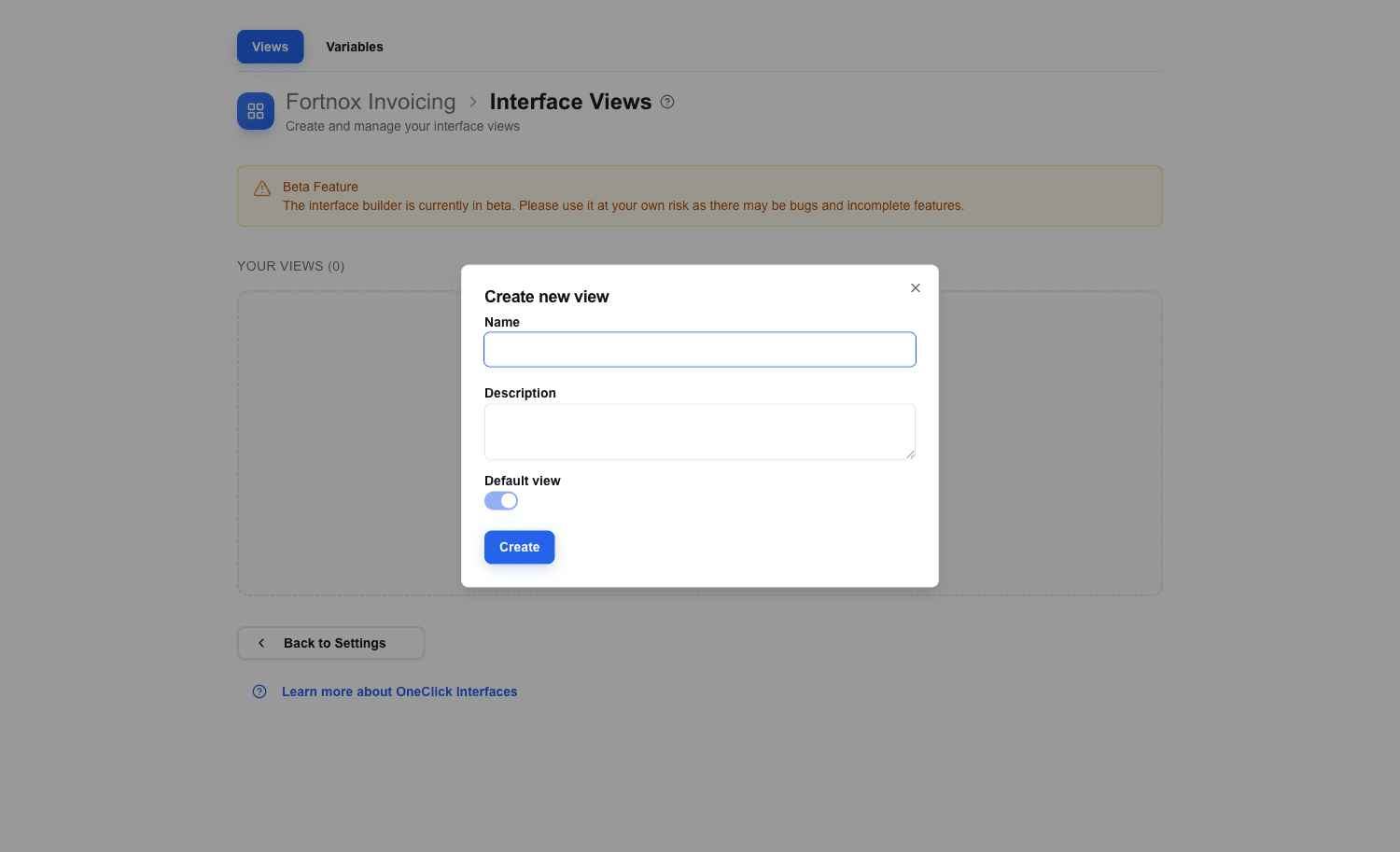
- The Create new view dialog opens.
- Enter a descriptive Name — this name is how you will reference it later when setting up navigation between views. The optional Description and Default view toggle can be left at their defaults.
- Click Create. The new view opens in the Builder.
Understanding the Builder
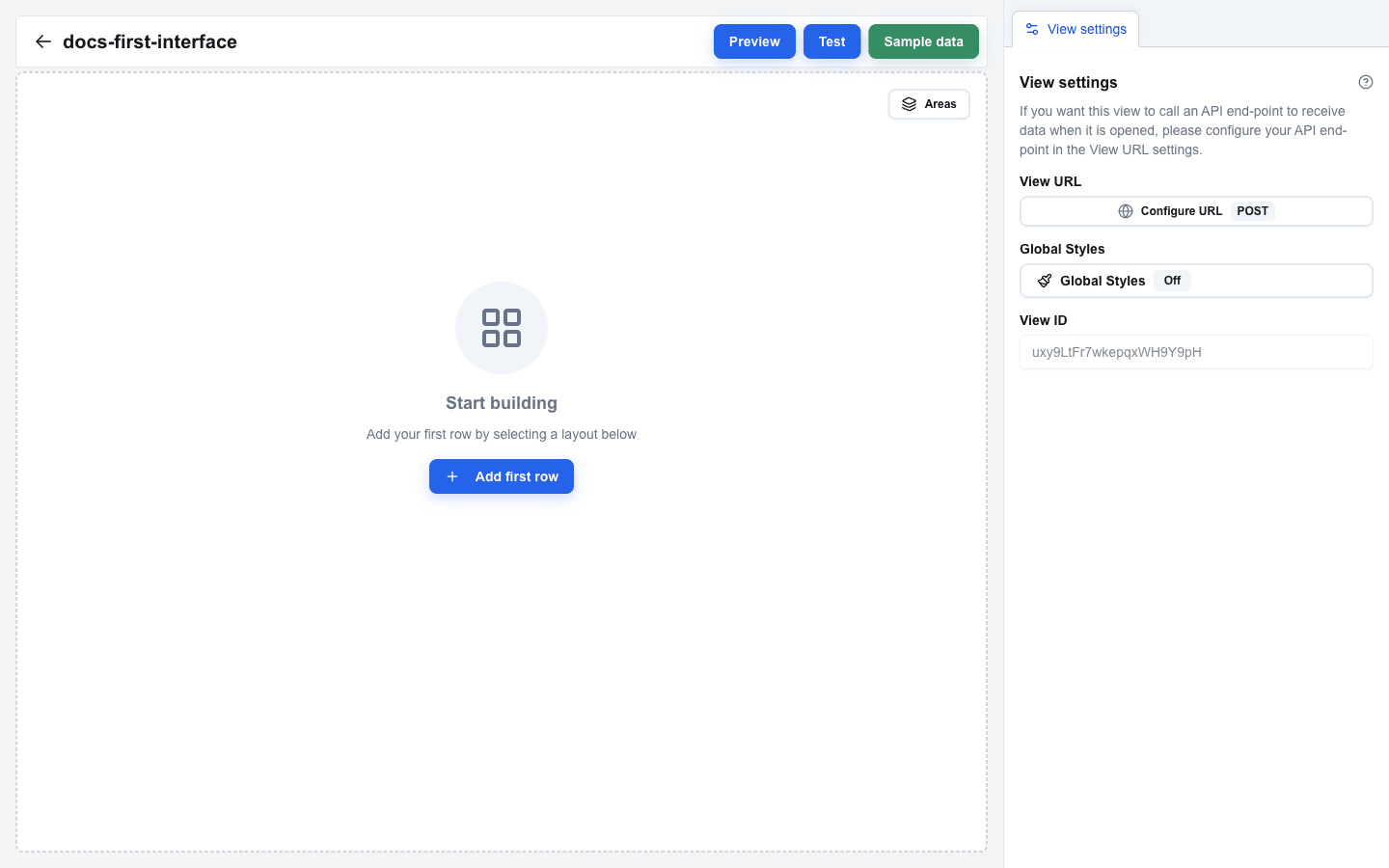
When you open a view, the Builder loads with three main areas:
- Canvas (left side) — the main working area where you build your interface by arranging rows and blocks.
- Sidebar (right side) — shows configuration options for whatever is selected. It has two main tabs at the top: the current selection tab (Block Settings, Row Settings, etc.) and View settings.
- Top Bar — a navigation bar at the top of the canvas with the interface name, a back arrow to return to the view list, and three buttons on the right: Preview, Test, and Sample data.
The top bar also shows a Saving... spinner indicator whenever your changes are being auto-saved.
Adding a Row
Before you can place any content blocks, you need a row. Rows define the column layout of your interface.
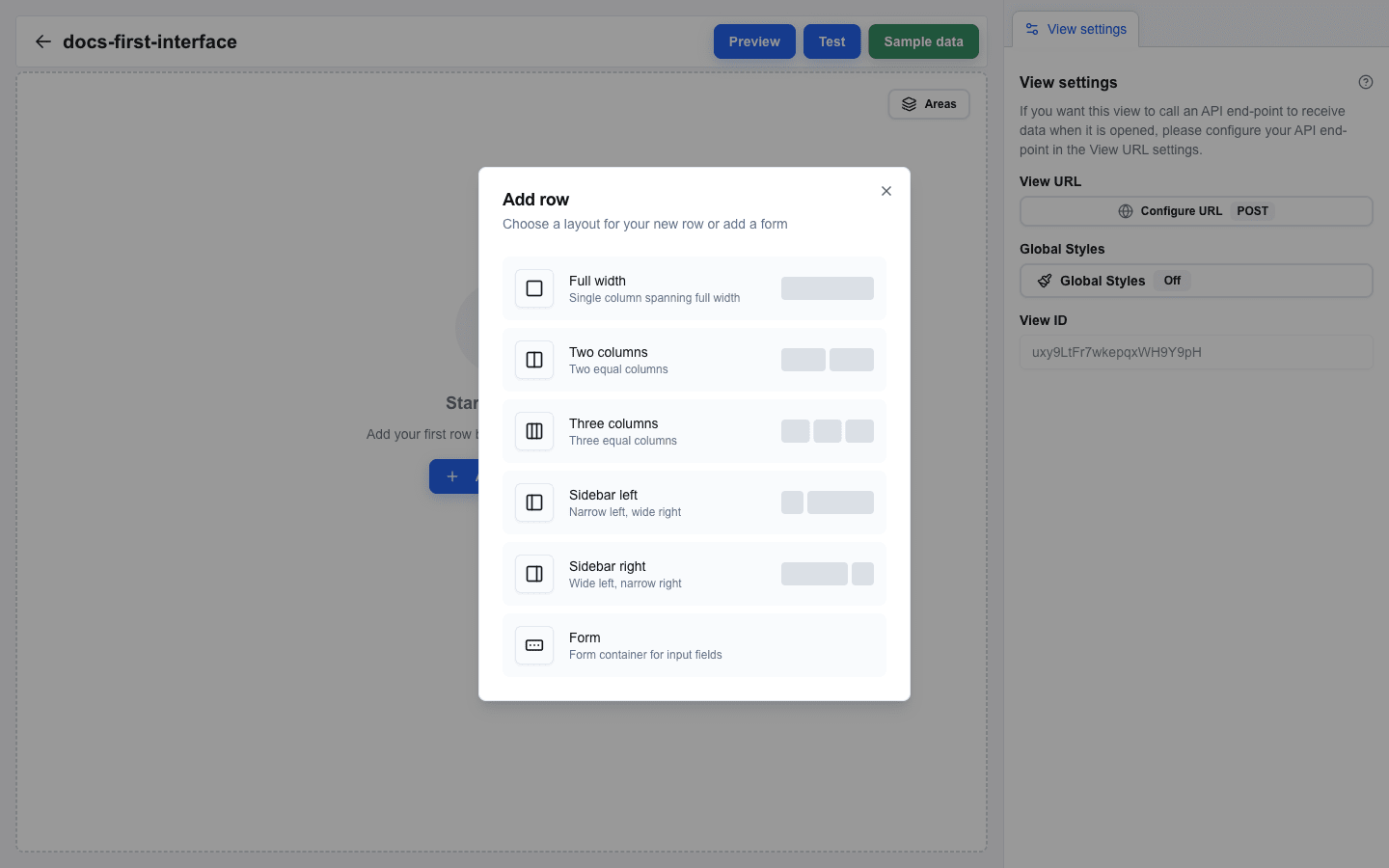
- On an empty canvas, click the Add first row button. On a non-empty canvas, hover the gap between two rows and click the
+button that appears. - The Add row dialog opens.
- Pick a layout:
- Full width — a single column at 100% width
- Two columns — two equal 50/50 columns
- Three columns — three equal 33/33/33 columns
- Sidebar left — 25/75 split
- Sidebar right — 75/25 split
- Form — adds a Form Start + Form End marker pair (covered in Building a Form)
- The dialog closes and the new row appears on the canvas as an empty container with a grey column placeholder.
Adding a Title Block
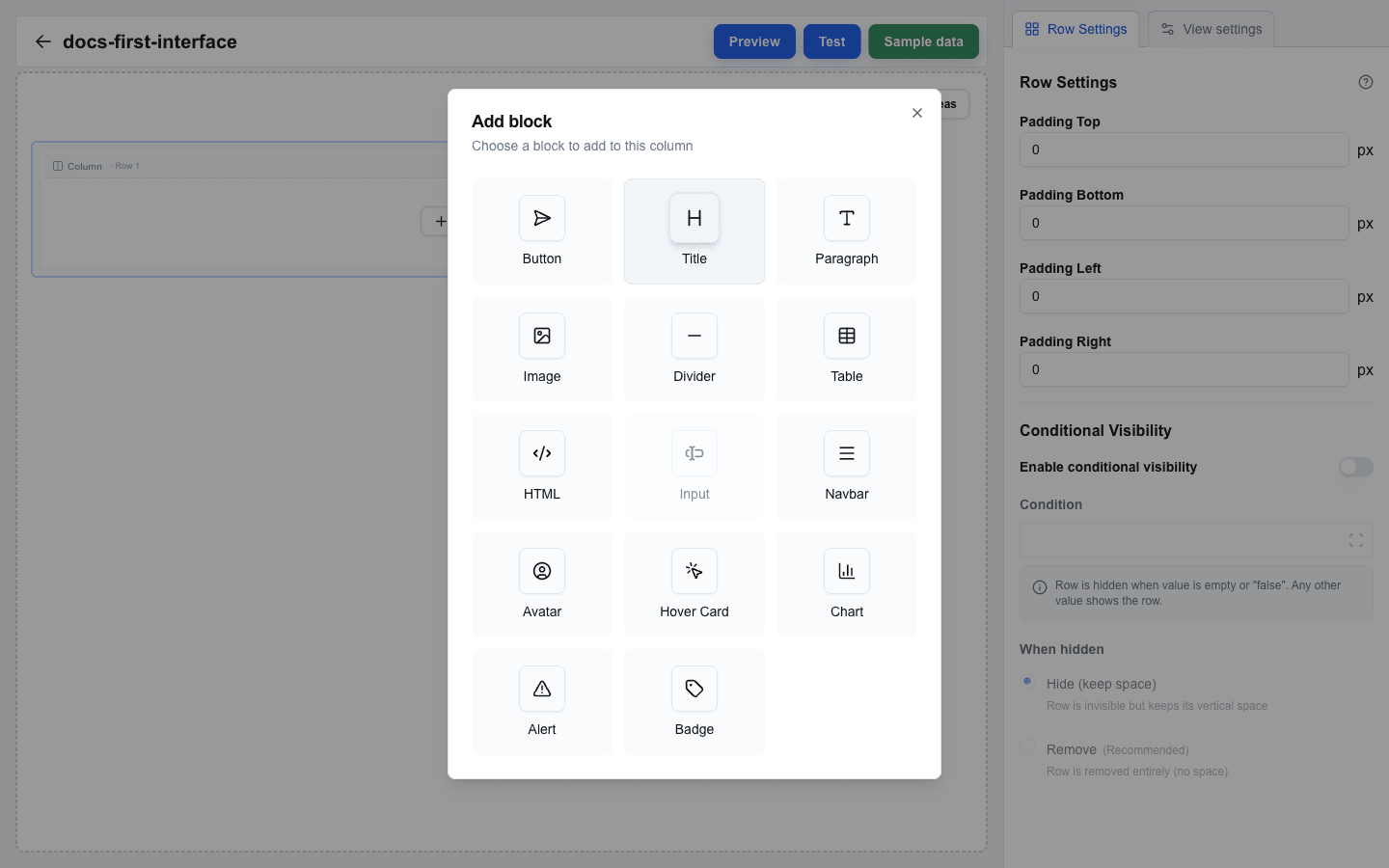
- Click an empty column inside the row you just created. The Add block dialog opens.
- Pick Title from the list.
- The block appears on the canvas with an empty text value.
Editing Block Content
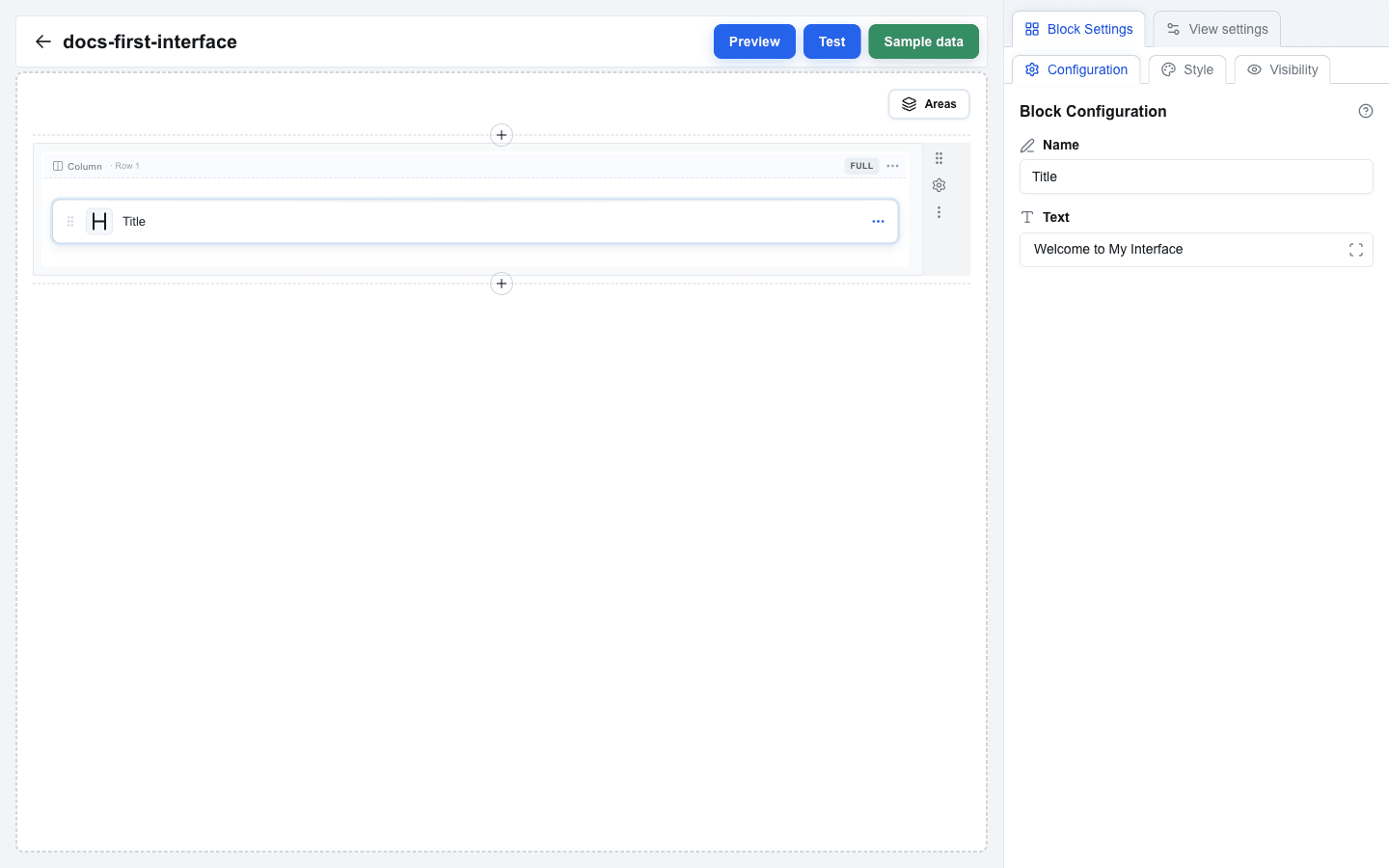
- Click on the Title block in the canvas to select it.
- The sidebar switches to the Block Settings tab.
- You will see a Text field. This is a Data-Picker-enabled input that supports both static text and dynamic data placeholders.
- Type your title text, for example:
Welcome to My Interface. - The canvas updates in real-time to reflect your changes.
Adding a Paragraph Block
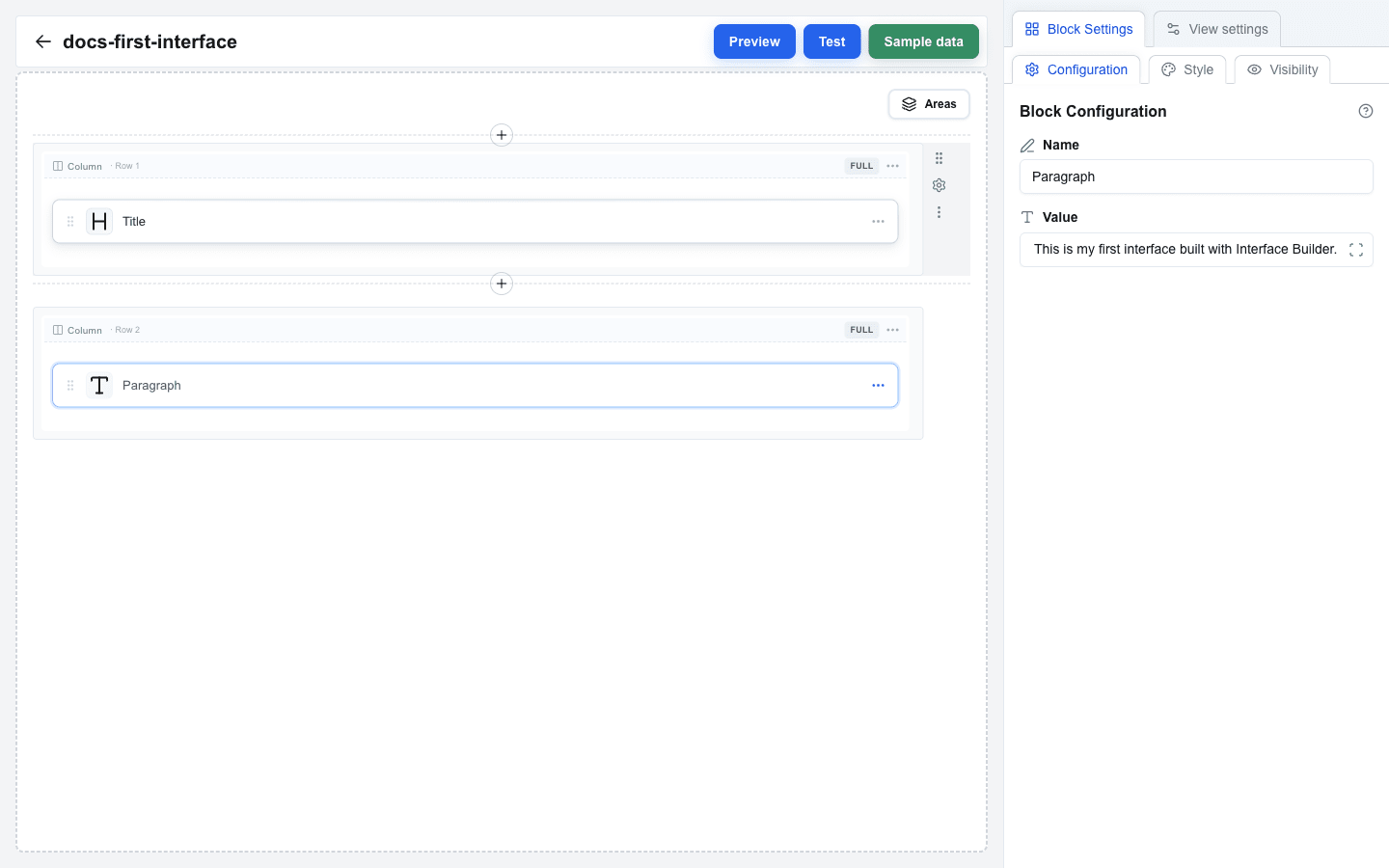
- Add another row using the
+button (or use a multi-column row from before). - Click an empty column to open Add block and pick Paragraph.
- Click the new Paragraph block to select it.
- In the Block Settings tab you will see a Value field — the same Data-Picker-enabled input as the Title block's Text field.
- Type your paragraph text, for example:
This is my first interface built with Interface Builder.
Previewing Your Interface
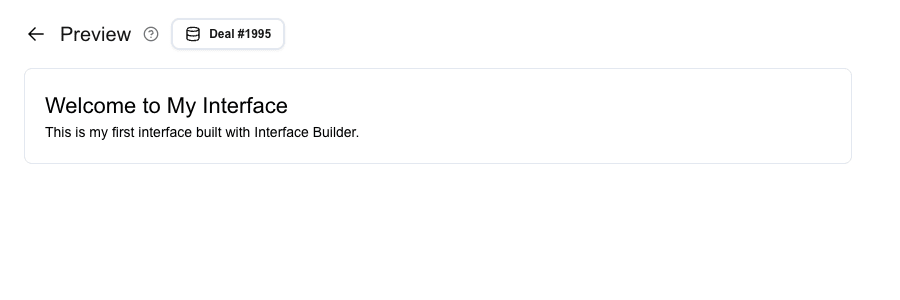
- Click the Preview button in the top bar.
- The view switches from the Builder to Preview mode.
- In Preview mode, you see your interface rendered as it will appear to end users. Click the Pipedrive resource button at the top to pick a specific deal, person, or organization to test with.
- To return to the Builder, click the back arrow at the top-left of the Preview screen.
Saving
Your work is saved automatically. After a brief pause in editing, the Builder saves your latest changes to the server. You will see a Saving... indicator with a spinner in the top bar while the save is in progress.
There is no manual save button — just keep building and your changes are persisted.
Summary
In this tutorial you learned to:
- Open Interface Builder from the Interface Selection Page
- Create a new view via the Create New button and the Create new view dialog
- Understand the Builder layout: canvas, sidebar, and top bar
- Add rows from the Add row dialog and pick column layouts
- Add Title and Paragraph blocks from the Add block dialog
- Edit block content via the sidebar
- Preview your interface
- Rely on auto-save for persisting your work