Appearance
Building a Form
Type: Tutorial | Audience: End-user | Goal: Create a complete form with inputs and a submit button
How Forms Are Structured
A form in Interface Builder is defined by two marker rows on the canvas -- Form Start at the top and Form End at the bottom -- with your content rows in between. Every input placed between those markers belongs to the form. A Submit button links to the form by its Form Identifier and is what users click to send their answers.
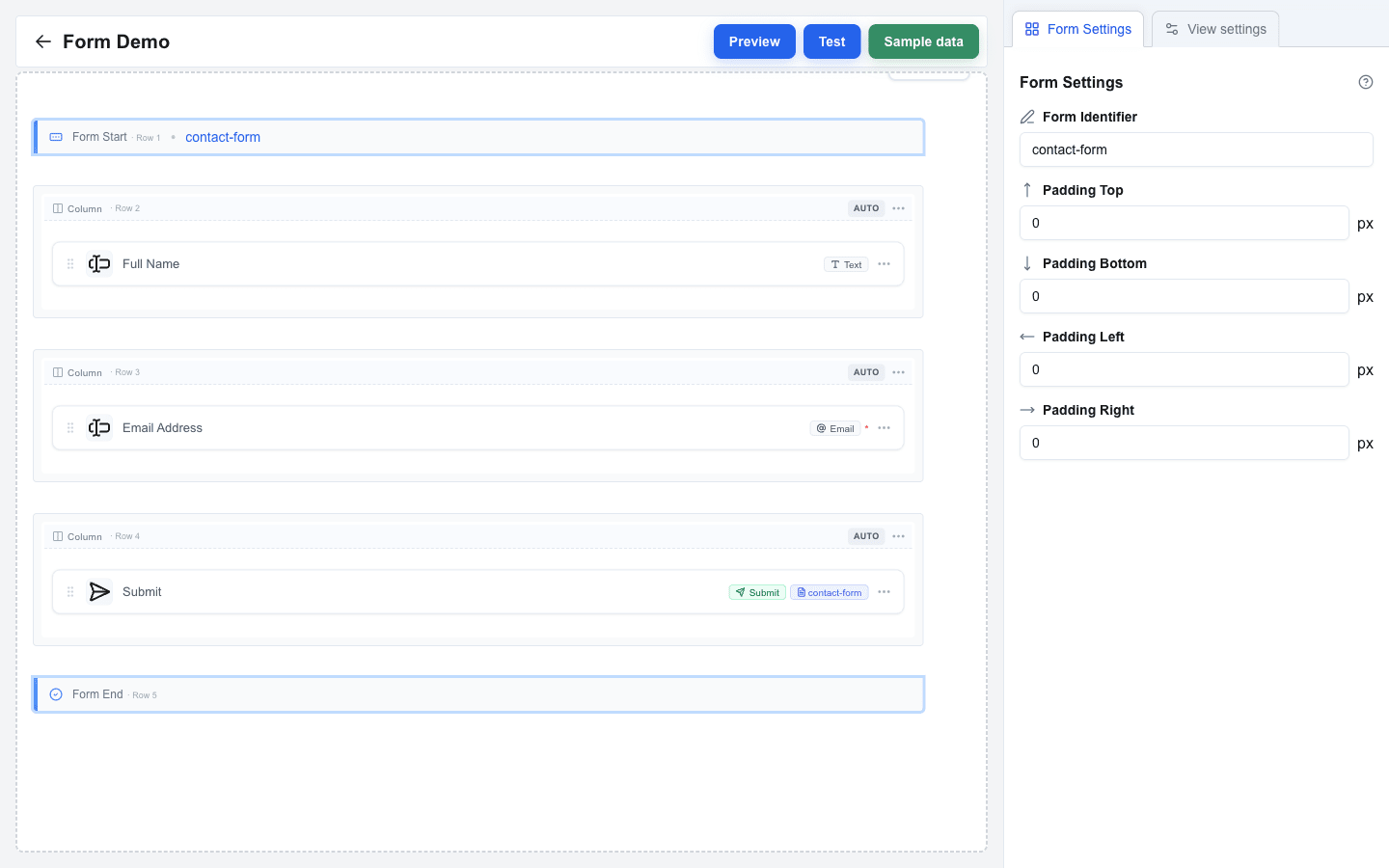
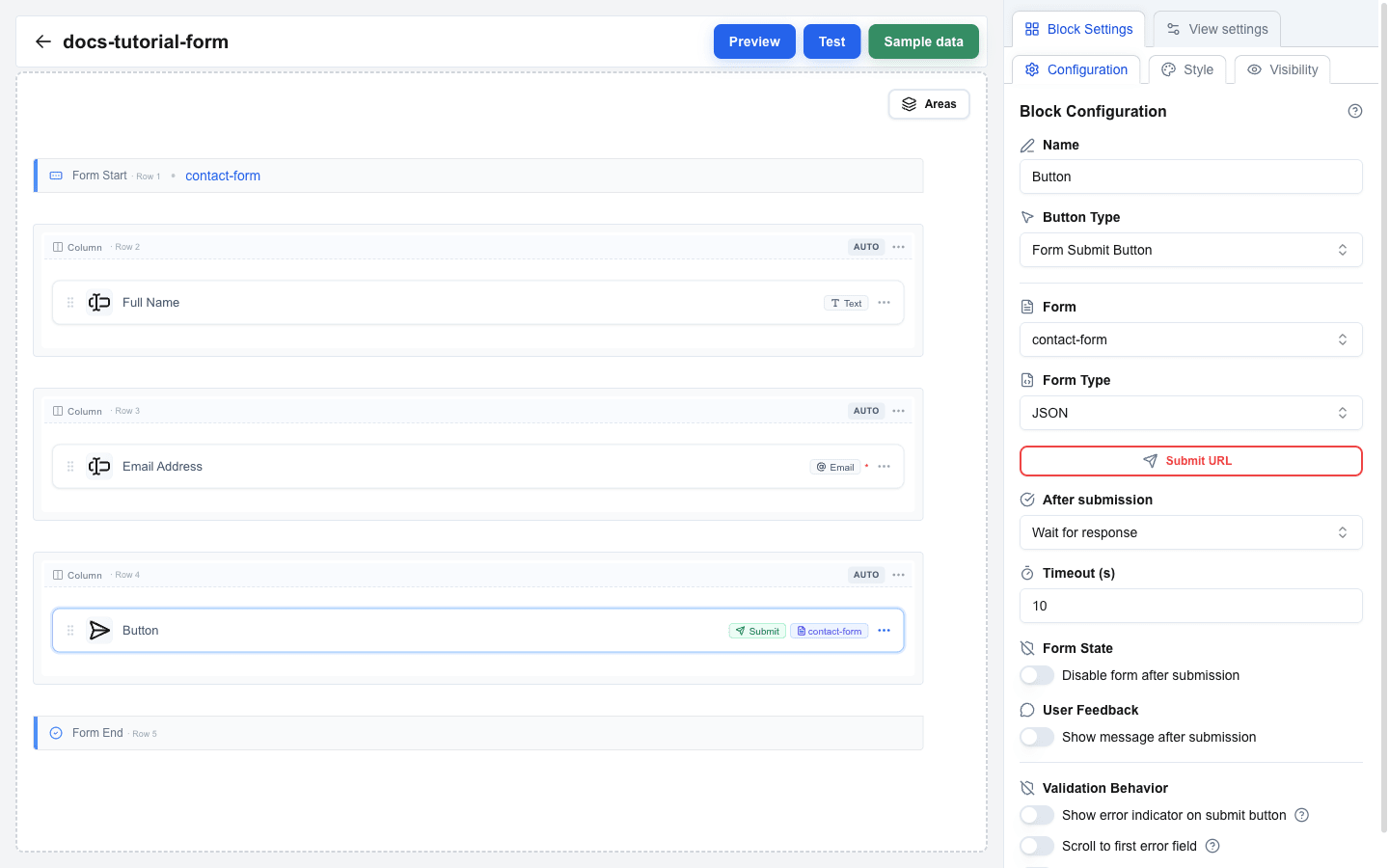
The screenshot below shows the finished tutorial form on the canvas: Form Start carries the contact-form identifier badge, and the Submit button shows the same contact-form badge — that match is how the button knows which form to send.
Step 1: Add a Form Element
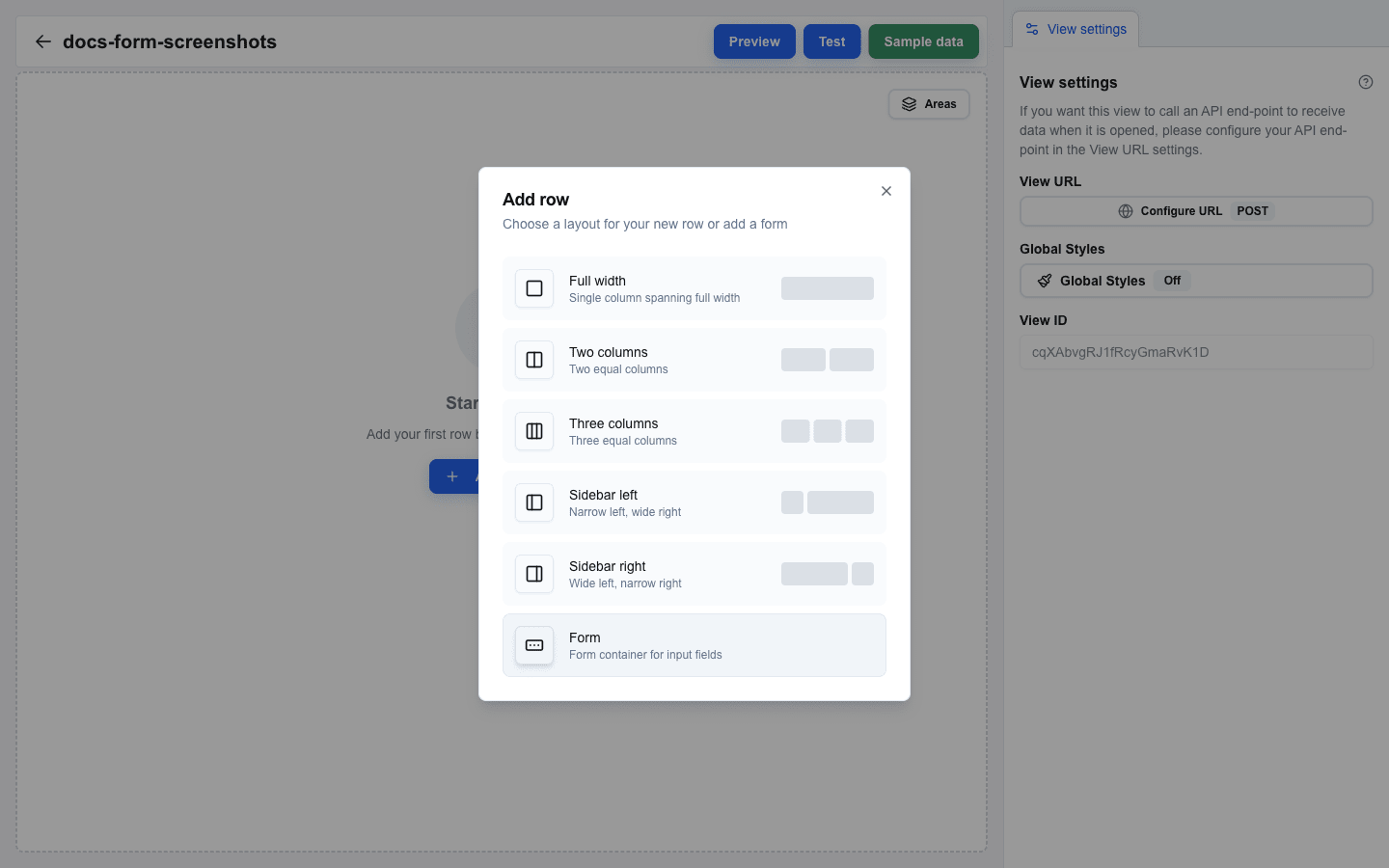
- Hover the canvas (or the gap between two rows) to reveal a small
+button. - Click
+to open the Add row dialog. - Pick Form from the layout list.
Two marker rows appear on the canvas: Form Start on top and Form End at the bottom, with empty space between them.
Step 2: Give the Form an Identifier
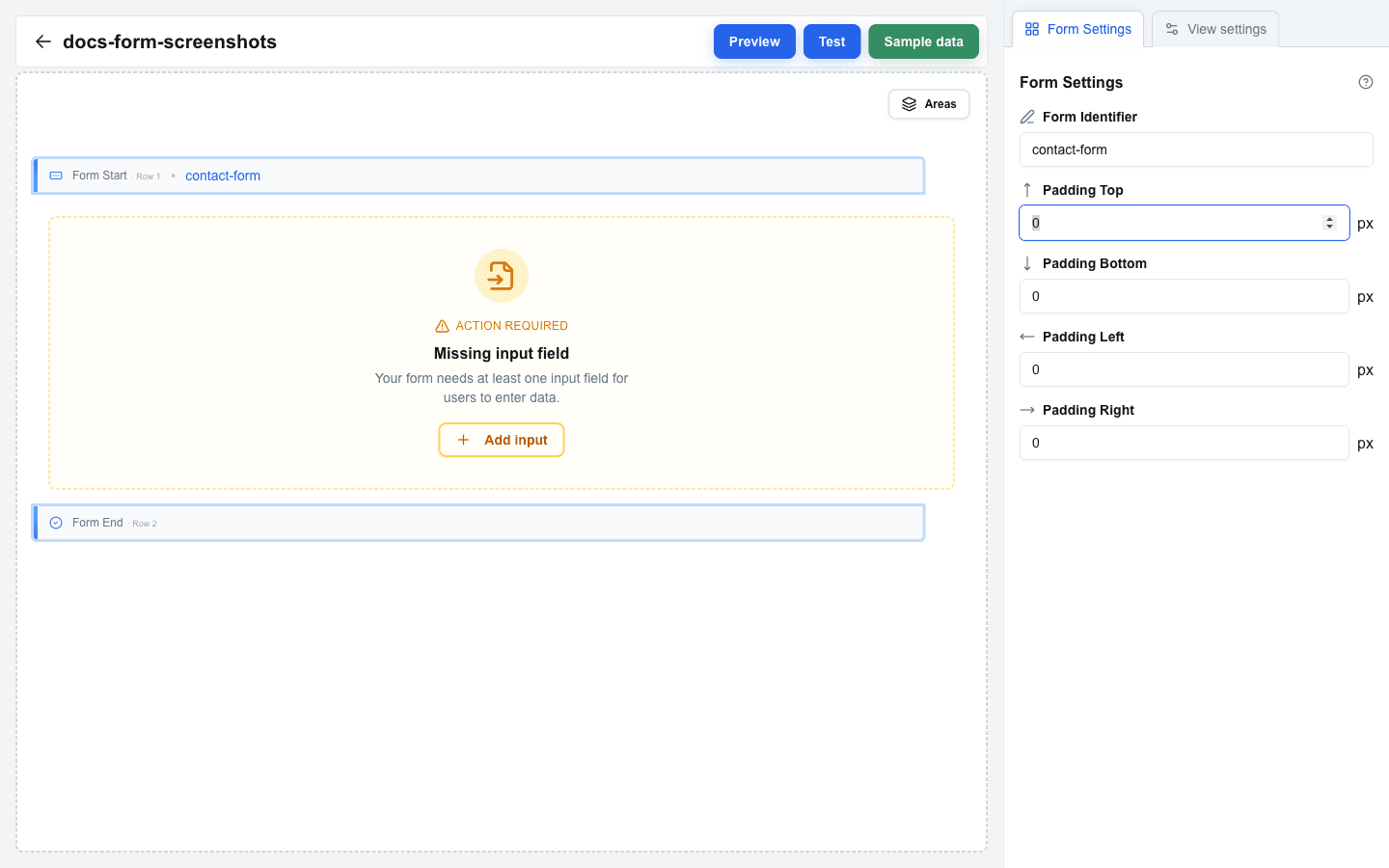
- Click the Form Start row (Form End works too).
- The sidebar switches to Form Settings.
- In the Form Identifier field, enter a descriptive name. For this tutorial, use
contact-form.
The identifier shows up as a badge on Form Start on the canvas, and it is how the Submit button (added later) will find the correct form.
Step 3: Add a Full-Name Input
- Hover the area between Form Start and Form End — a
+button appears. - Click
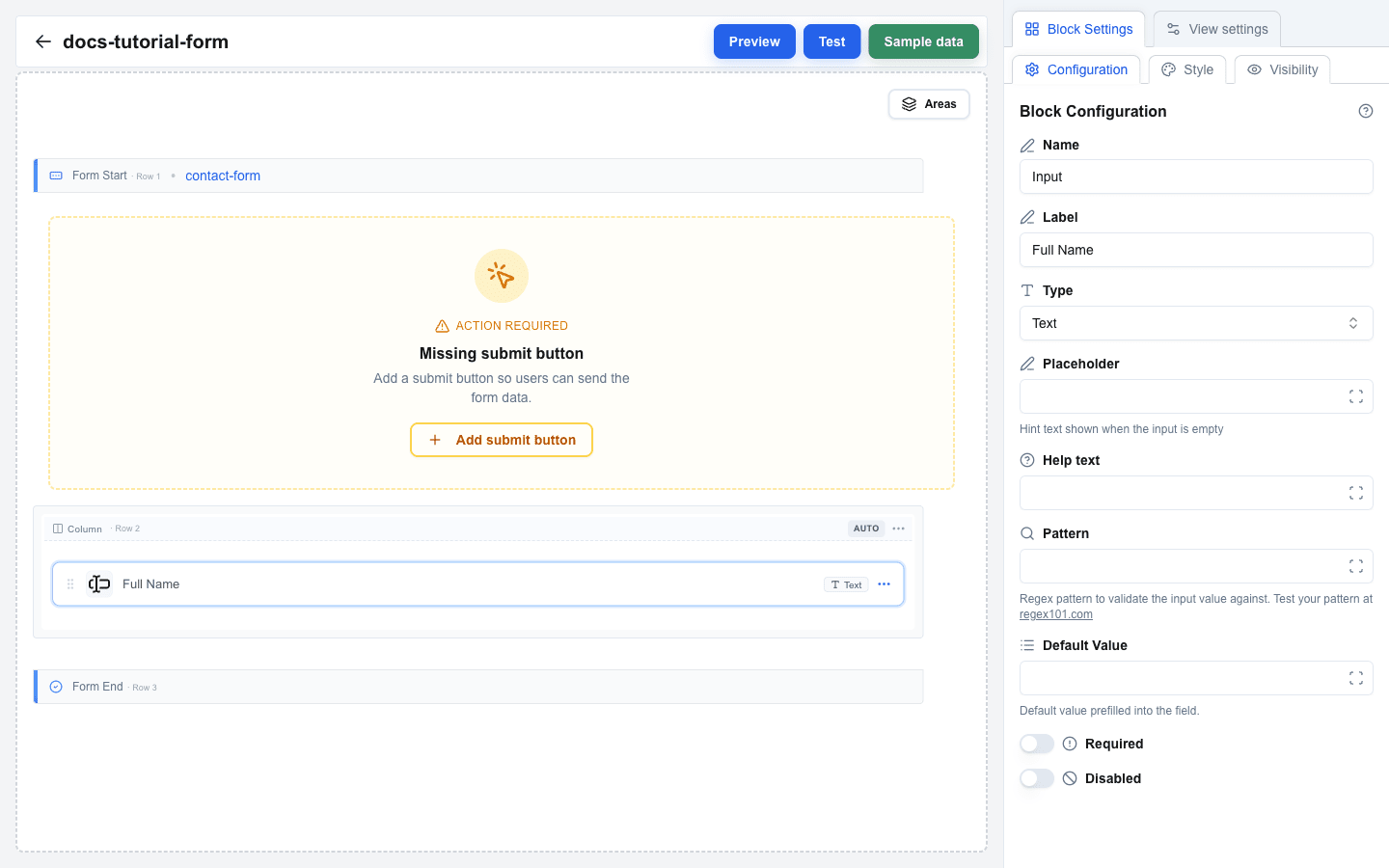
+, pick a one-column Full layout in the Add row dialog. - Click the empty column inside that new row to open the Add block dialog and pick Input.
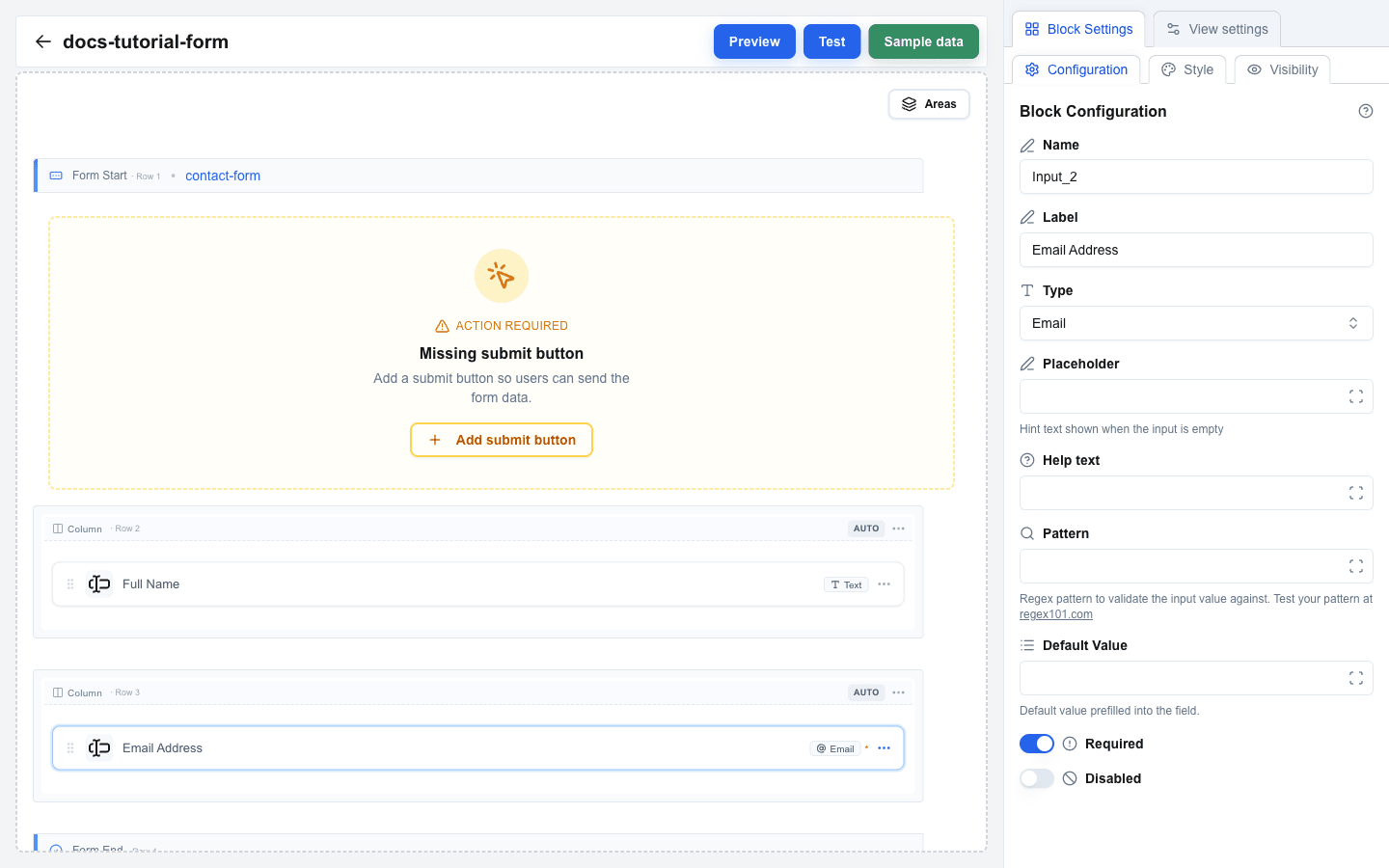
- Click the new Input block to open its settings. You will see fields for Label, Type, Placeholder, Help text, Default Value, Required, and Disabled.
- Set Label to
Full Name. - Leave Type as Text.
Step 4: Add an Email Input
- Repeat the same steps to add another row inside the form.
- Add a second Input block in the new column.
- Set Label to
Email Address. - Change Type to Email.
- Turn on the Required switch.
Step 5: Add a Selection Input (Optional)
If you want a drop-down or multi-choice field, pick one of these selection types for Type: Single Select, Multi Select, Checkbox, or Radio. An Options Type selector then appears with two choices:
- Static -- you define label/value pairs manually. Use the options editor that appears to add each pair.
- Dynamic -- options come from data at render time using the Data Picker. Enter Data Picker expressions for Labels and Values.
Step 6: Add Pattern Validation (Optional)
For the simple input types (Text, Email, Number, URL, Date) you can add regex validation:
- In the input settings, scroll to the Pattern field and enter a regex (for example,
^[A-Za-z ]+$). - Optionally fill Pattern Error with a custom message shown when the pattern fails.
Test your regex at regex101.com before pasting it in.
Step 7: Add a Submit Button
- Add a new row using the
+button. It can be inside or outside the form boundaries — both work. - Click an empty column in the new row, then pick Button in the Add block dialog.
- Click the new Button to open its settings. Set Button Type to Form Submit Button.
- A Form dropdown appears. Pick
contact-formfrom the list.
Step 8: Configure Submission
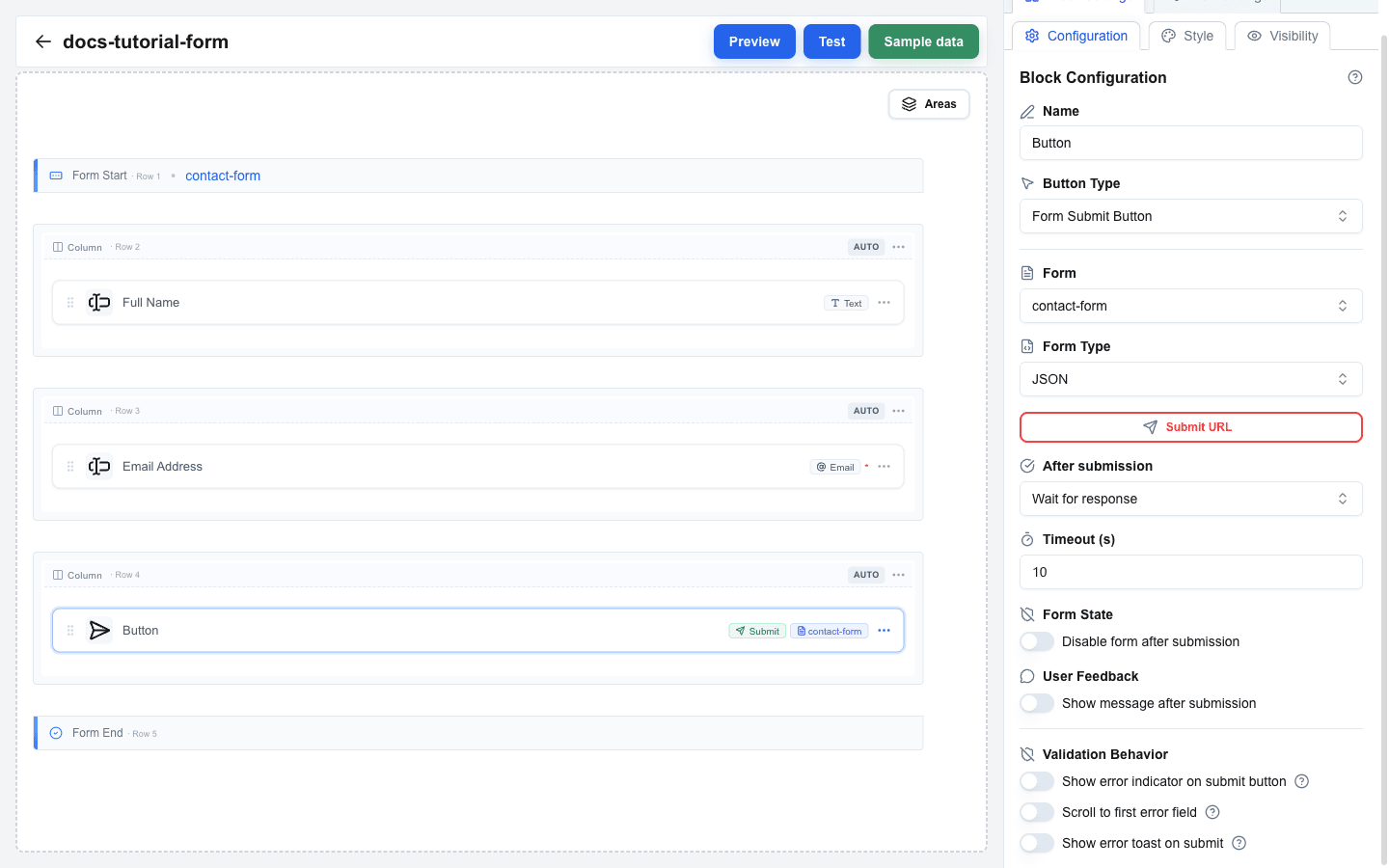
Once Button Type is Form Submit Button, extra settings appear. You will set Form Type, Submit URL, and an After submission behavior.
Form Type
- JSON (default) -- posts form values as a JSON payload to the Submit URL.
- Multipart/Form-Data -- use this whenever any input has Type = File.
- Open view with form data -- instead of posting anywhere, navigates to another view and passes input values as URL search parameters.
Submit URL
For JSON and Multipart/Form-Data, enter the endpoint in Submit URL. Opening the URL input reveals an advanced dialog where you can also add:
- Headers -- custom HTTP headers (key/value pairs; values support the Data Picker).
- Query parameters -- additional query string pairs.
After submission
Pick one of:
- Wait for response -- waits up to Timeout (s) seconds (10--60) for the server to reply. You can turn on Disable form after submission (prevents double-submits) and Show message after submission (displays the server's confirmation).
- Select view -- immediately navigates to a chosen View ID after sending. You can pass static parameters, and optionally forward every input value as search parameters to the target view.
Step 9: Add a Reset Button (Optional)
To let users clear the form:
- Add another Button block (use the
+button to add a row, then Add block → Button). - Set Button Type to Form Reset Button.
- In the Form dropdown, pick
contact-form.
Step 10: Test the Form
- Click Preview in the top bar. The form renders with live inputs.
- Fill in the fields and click the submit button to see the behavior you configured.
- For an end-to-end test, click Test in the top bar -- test mode runs the interface closer to production.

Summary
In this tutorial you learned how to:
- Pick Form in the Add row dialog and work with the Form Start / Form End markers on the canvas
- Set a Form Identifier to name the form
- Add Input blocks with different Types (Text, Email, and selection types)
- Configure selection inputs with Options Type (Static or Dynamic)
- Add Pattern validation with a custom Pattern Error message
- Add a Form Submit Button and link it to the form
- Configure Form Type, Submit URL, Headers, and After submission
- Add a Form Reset Button to clear the form
- Test the form in Preview and Test modes