Appearance
Building a Table View
Type: Tutorial | Audience: End-user | Goal: Create a data table with columns and actions
When to Use Tables
The Table block displays array data in a structured grid with rows and columns. Common use cases include:
- Displaying deal products or line items
- Showing lists of related contacts or organizations
- Rendering any array data from Pipedrive or custom sources
Tables support configurable columns, per-row actions, sorting, conditional visibility, and custom styling.
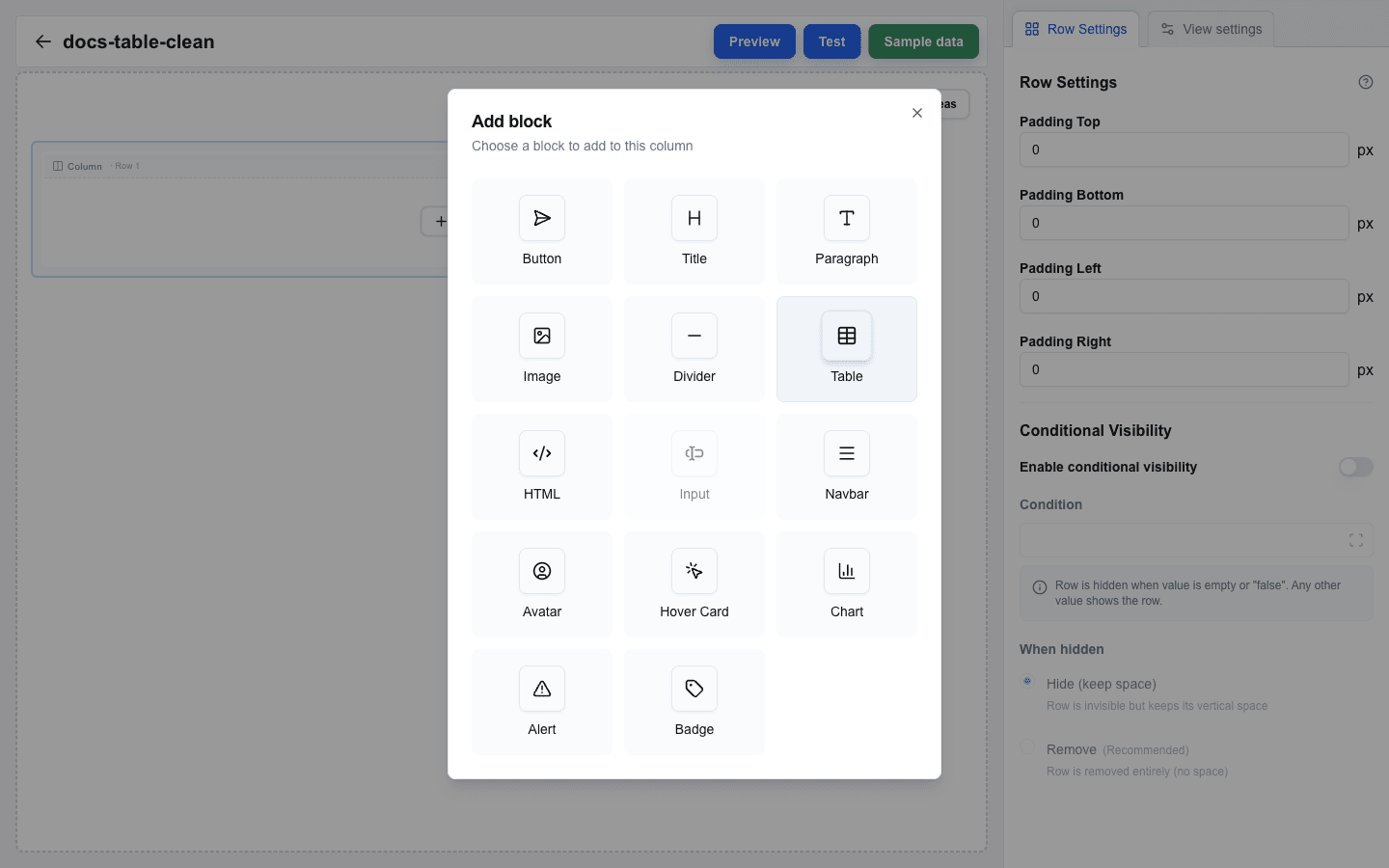
Adding a Table Block
- Hover the canvas (or the gap between rows) to reveal the
+button. Click it and pick Full in the Add row dialog — full-width works best for tables. - Click the empty column inside the new row to open Add block, then pick Table.
- Click the Table block to open its settings in the sidebar.
Setting the Data Source
The table needs an array data source to iterate over.
- In Table settings, find the Target Array field. This is a Data Picker input that specifies which array to display.
- Click the Target Array field to open the Data Picker.
- Navigate to an array field. For example, under the Deal tab, find a field that contains array data (such as deal products or a custom field that returns a list).
- You can also use the Custom tab if your data comes from a custom JSON source.
- Select the array field. The placeholder is inserted into the Target Array field.
The table renders one row per item in the array.
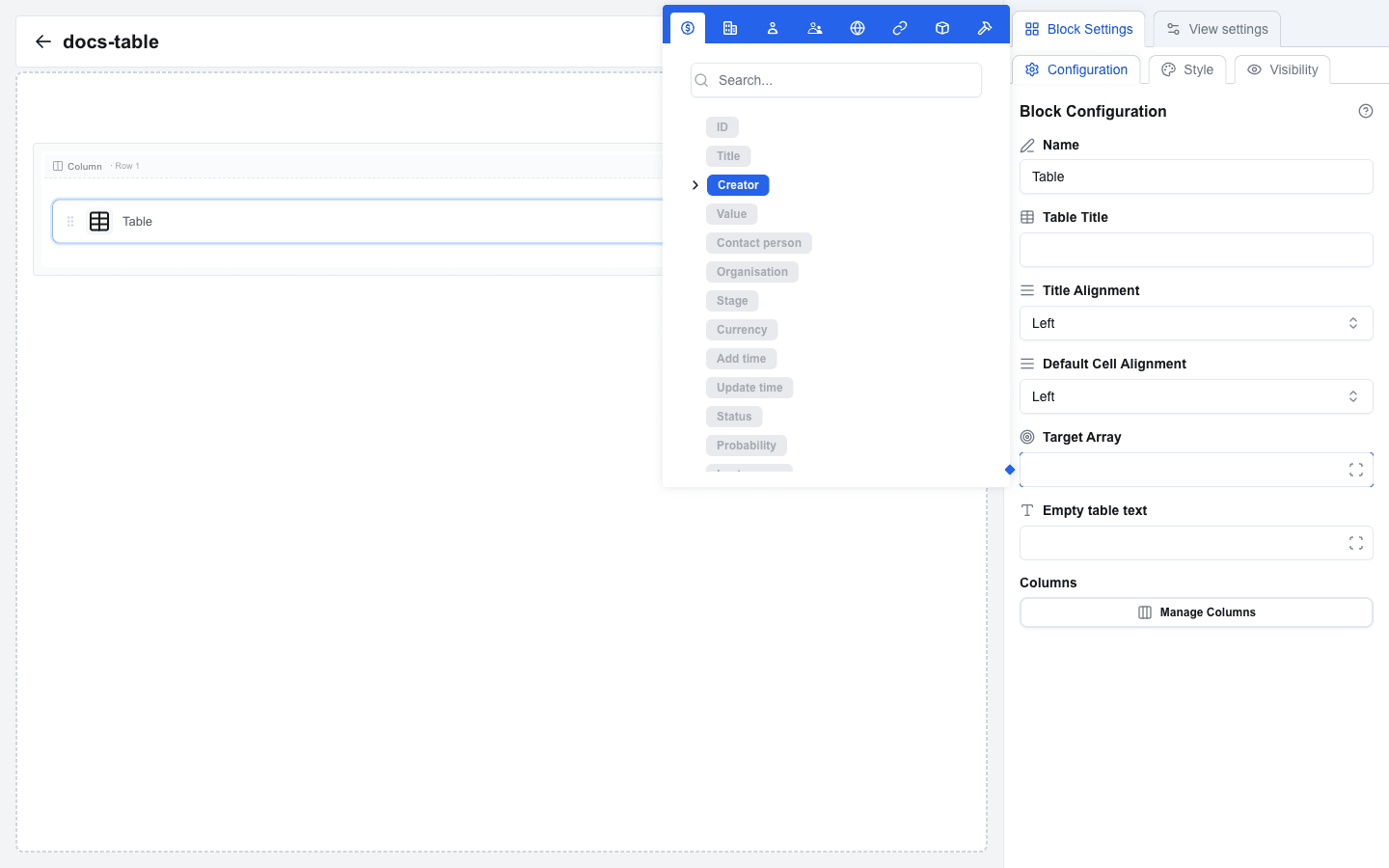
Table Header (Optional)
Above the data source, the sidebar exposes:
- Table Title — optional text rendered above the table, for example
Deal Products. It is plain text: the Data Picker is not available here. - Title Alignment — Left, Center, or Right alignment for the title text.
- Default Cell Alignment — fallback alignment applied to every column that does not set its own alignment. Choose Left, Center, or Right.
- Empty table text — text shown when the Target Array resolves to an empty list. This is a Data Picker input and supports dynamic values.
Configuring Columns
Columns define what data appears in each table column. Use the Manage Columns dialog to add and configure them.
- Click the Manage Columns button in Table settings.
- The dialog opens with a column list on the left and a settings panel on the right.
- Click the Add dropdown to add a new column. You can choose between:
- Add value column — displays data from each array item.
- Add action column — displays clickable action icons.
- Add subrow — displays an extra row of text rendered below each row (useful for descriptions or secondary info).
- Select a column on the left to edit its settings on the right.
Columns can be reordered by dragging the grip handle, duplicated with the copy icon, or deleted with the trash icon. Subrow columns cannot be reordered — they always render below the main row.
Each column has its settings split across four tabs in the right panel:
- General — the data fields that drive the column.
- Styling — width, cell alignment, and cell padding.
- Sorting — whether the column is sortable and how.
- Conditional — when the column is visible.
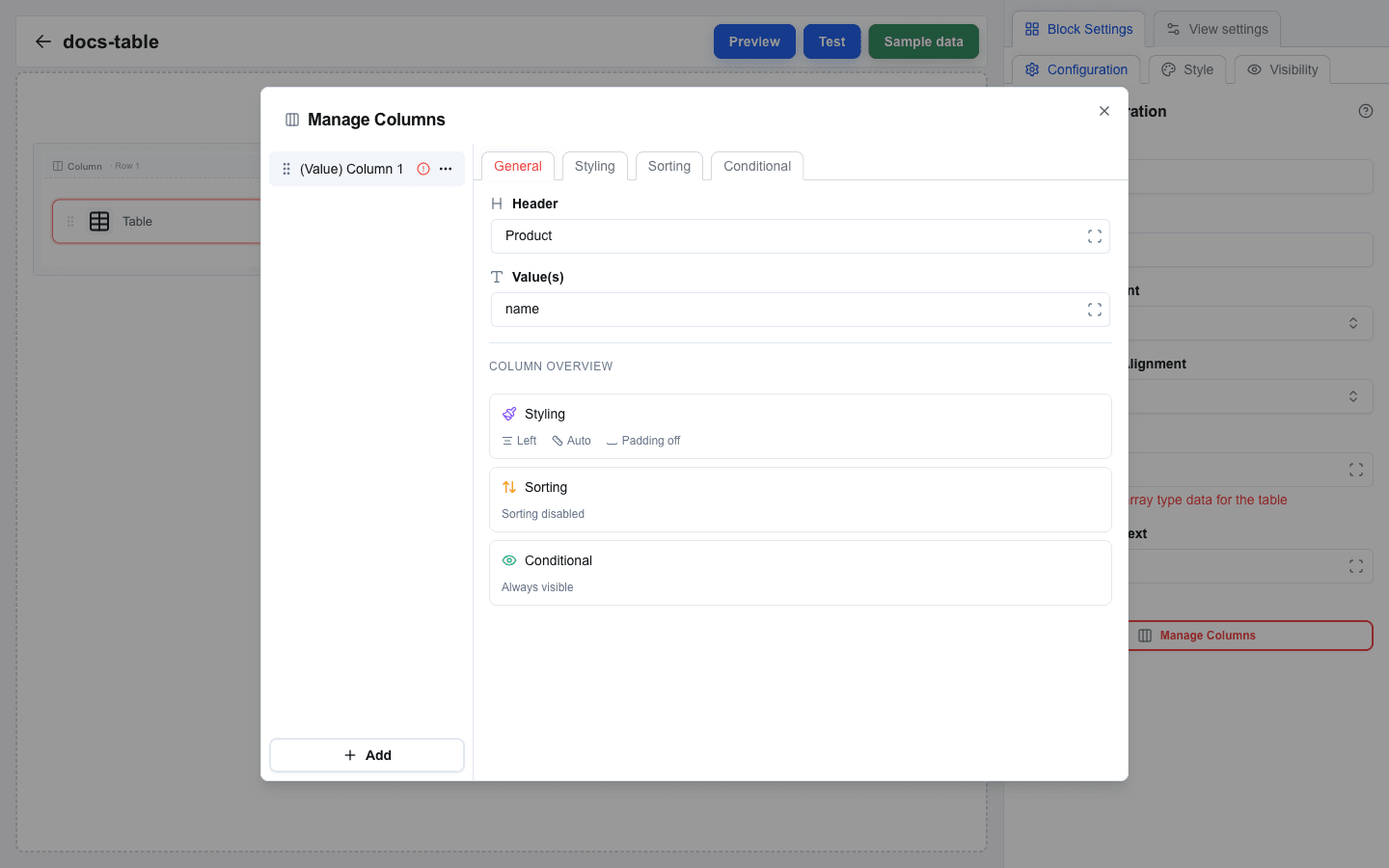
Value Columns: General Tab
For each value column, fill in:
- Header — the column header text. This is a Data Picker input, so you can use static text or dynamic values.
- Value(s) — the data field to display for each row. This is a Data Picker input that resolves relative to each array item. For example, if your array contains objects with a
nameproperty, enternameor use the Data Picker to select the field.
Value Columns: Styling Tab
- Cell Alignment — Left, Center, or Right for the cell content.
- Column Width — pick Auto, or set a fixed width in
%orpx. - Cell padding — toggle to override the table default. When enabled, you can set Top, Right, Bottom, and Left padding individually.
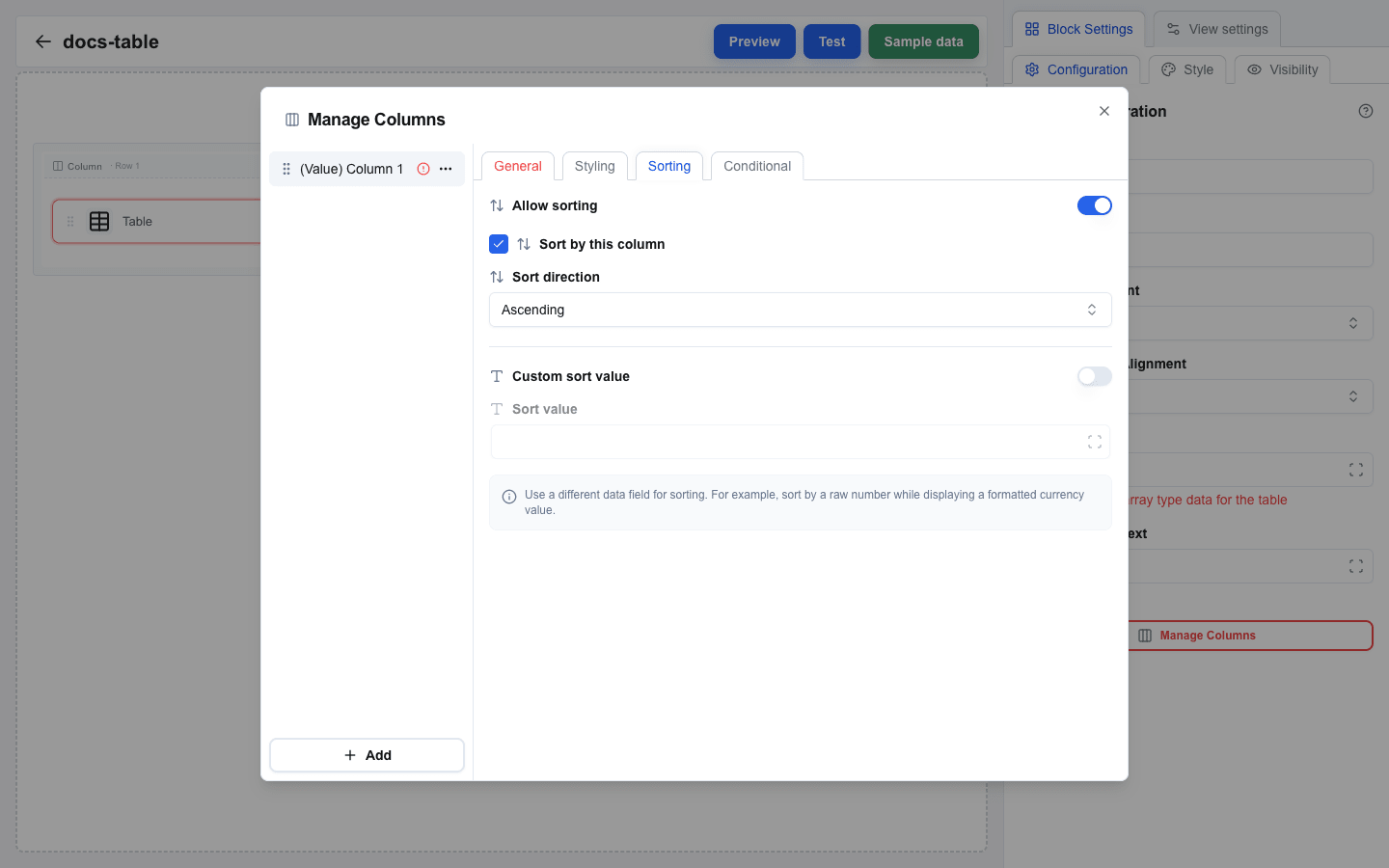
Value Columns: Sorting Tab
- Allow sorting — toggle to let end-users click the column header to reorder rows.
- Sort by this column — when enabled, this column is the table's default sort. Only one column can hold this flag.
- Sort direction — Ascending or Descending for the default sort.
- Custom sort value — when enabled, sort rows by a different value than the displayed one. Provide a Data Picker path for Sort value.
Value Columns: Conditional Tab
- Enable conditional visibility — toggle to hide the column based on a condition.
- Condition — Data Picker expression. The column is hidden when the value resolves to empty or
"false". Any other value shows the column.
Action Columns
Action columns add clickable buttons to each row, allowing users to perform operations on individual items. A button can show an icon, a text label, or both.
- In the Manage Columns dialog, click Add and select Add action column.
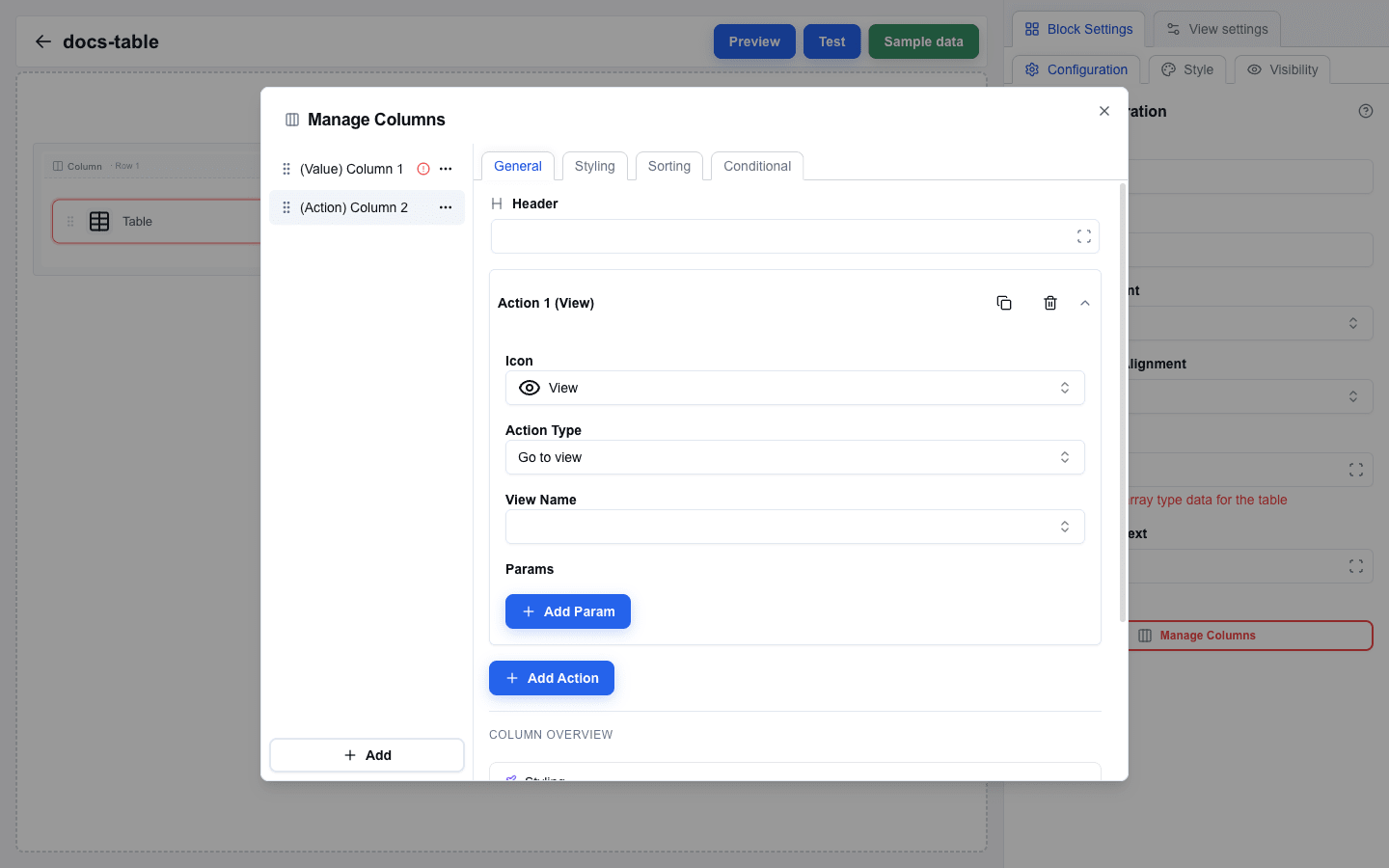
- The General tab shows the column's Header plus an accordion of actions. Each action has:
- Icon — choose from grouped Actions, Communication, Files, and Status icons. The set includes View, Edit, Delete, Add, Copy, Play, Refresh, External link, Mail, Send, Phone, Message, Bell, User, File, Folder, Download, Upload, Image, Attachment, Print, Archive, Check, Close, Warning, Info, Clock, Star, Heart, Lock, and Unlock. Select Custom to fill Custom Icon with an image URL through the Data Picker.
- Action Type — pick Go to view to navigate within the interface, Go to URL to open a URL, or Send request to send a POST without leaving the table.
- Label — optional button text, shown after you pick an Action Type. It supports the Data Picker and resolves per row. With a Label set, Icon position chooses which side the icon sits on, and the Icon picker offers No icon for a text-only button.
- View Name — when Action Type is Go to view, pick the destination from the dropdown. Optionally configure Parameters (key-value pairs passed to the target view; values reference fields from the current row).
- URL — when Action Type is Go to URL, fill the address. The URL field supports Data Picker expressions, so you can construct URLs with row data.
- Request URL — when Action Type is Send request, enter an absolute HTTP or HTTPS endpoint. Use the Data Picker to include row values.
- Body Data — optionally configure a JSON payload as JSON or key-value pairs. Include the row's identifier because OneClick metadata identifies the view resource, not the row. Leave it empty for no configured body.
- Omit OneClick metadata envelope — leave off to send Body Data alongside OneClick metadata; turn on to send only Body Data. Test requests in the Test view; Preview shows them disabled.
- Require confirmation — when Action Type is Send request, turn this on to ask before the request is sent. The Title and Description support the Data Picker, so the dialog can name the row it acts on.
- Click Add Action to add more actions to the same column.
- Each action can be duplicated or deleted from the action's accordion menu.
The Styling, Sorting, and Conditional tabs apply to action columns in the same way as value columns.
Passing Row Data to Another View
When an action navigates to a view, you can pass data from the current table row:
- Set the action's Action Type to Go to view.
- Choose the target view from View Name.
- Expand the Parameters section.
- Add key-value pairs where the values reference fields from the current array item. The Data Picker context is scoped to the current row, so you can directly select fields from the row item.
Subrow Columns
A subrow column adds a second line of text below each main row — useful for descriptions, hints, or secondary details that do not need their own column.
- Path — the data field rendered as the subrow's text (Data Picker).
- The Styling tab supports Cell Alignment and Cell padding for the subrow text. Conditional visibility is not available for subrow columns.
Customizing Appearance
In addition to per-column styling, the Table block uses the standard block style settings:
- Background color
- Font size and color
- Borders — top, right, bottom, and left borders with width, style, and color
The table renders with structured headers and data rows. When the array is empty, the Empty table text (if configured) is shown.
Summary
In this tutorial you learned to:
- Add a Table block and set its data source via the Target Array field
- Configure the Table Title, Title Alignment, Default Cell Alignment, and Empty table text at the table level
- Add value, action, and subrow columns from the Manage Columns dialog
- Configure each column across the General, Styling, Sorting, and Conditional tabs
- Add Go to view, Go to URL, and Send request actions with per-row data
- Toggle Allow sorting, set a default sort column and direction, and use a custom sort value
- Hide columns conditionally using the Conditional tab