Appearance
How to Add and Configure Buttons
Type: How-to | Audience: End-user | Goal: Configure all button types
Adding a Button Block
- Add a row if you do not have one yet — hover the gap between two rows to reveal the
+button, click it, and pick a layout. - Click an empty column inside the row to open the Add block dialog.
- Pick Button from the list.
- Click the new block to open its settings in the sidebar.
- Choose a Button Type: URL Button, Action Button, Form Submit Button, or Form Reset Button.
URL Button
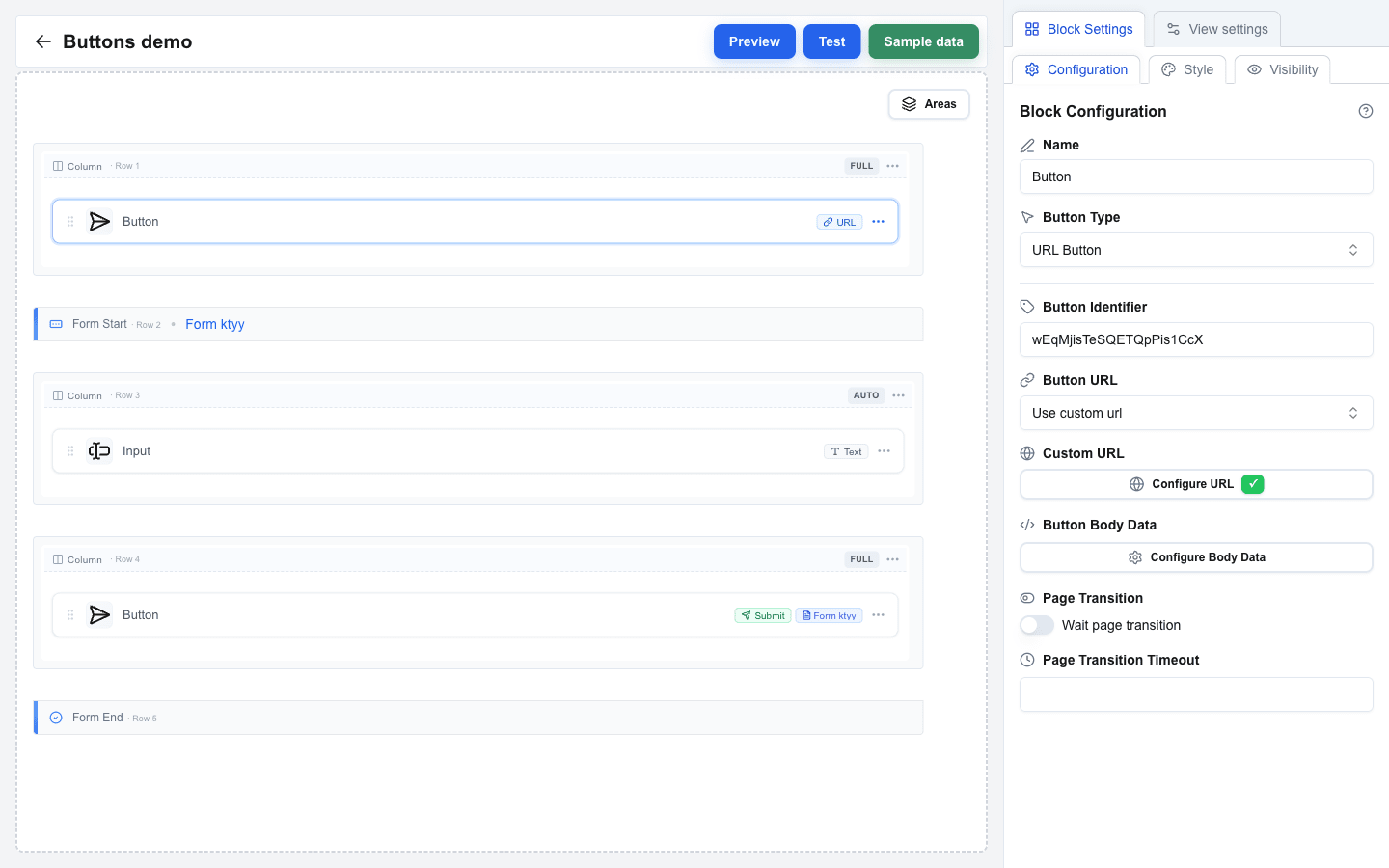
Opens a URL or makes an API call when clicked.
- Set Button Type to URL Button.
- Optionally fill Button Identifier -- a unique identifier for tracking this button.
- Choose the Button URL mode:
- Use view base url -- appends a path to your view's base URL.
- Use custom url -- a fully custom URL.
- For Use view base url, set Path. For Use custom url, set Custom URL. Both support the Data Picker for dynamic values.
- Optionally configure:
- Button Body Data -- JSON or form-encoded body sent with the request.
- Headers -- custom HTTP headers (key/value pairs). If the OneClick button this interface is attached to has its Headers toggle enabled, those headers are merged into the URL button's request automatically — see OneClick-Level Headers.
- Query parameters -- URL query parameters (key/value pairs).
- Wait page transition -- enable to wait for interstitial messages and redirects from your backend (see below).
- Page Transition Timeout -- how long to wait for the backend (in seconds).
How a URL button handles the response
For the request shape your endpoint receives and the polling loop that runs while Wait page transition is on, see URL Button Flow.
When the user clicks a URL button, Interface Builder calls your backend and then:
- If Wait page transition is off, the response is used once: a string body becomes a success toast, an
oneclick_dataresponse can show a toast and/or navigate the user. Nothing else happens. - If Wait page transition is on, Interface Builder keeps polling for updates from your backend for up to Page Transition Timeout seconds. Every time your backend writes a new message, the user sees it as a toast. If your backend eventually returns a redirect, the user is navigated there.
Use Wait page transition when the action behind the button takes time to complete and you want to show progress (for example, "Validating…", "Charging card…", "Creating invoice…") and then jump the user to a result page when done.
Response shapes:
json
{ "oneclick_data": { "message": "Item added to cart" } }Shown as a success toast.
json
{
  "oneclick_data": {
    "message": "Payment successful",
    "redirect_view": { "id": "receipt-view", "params": { "order_id": "4321" } }
  }
}
Shown as a toast, then user is navigated to receipt-view.
json
"Thanks!"A plain string response is shown as a success toast.
See HTTP Response Format for every shape the button accepts, and Messages & Toasts for how to format the message text.
If the backend times out or returns an error, the user sees an error toast. No navigation happens.
Action Button
Navigates between views in your interface.
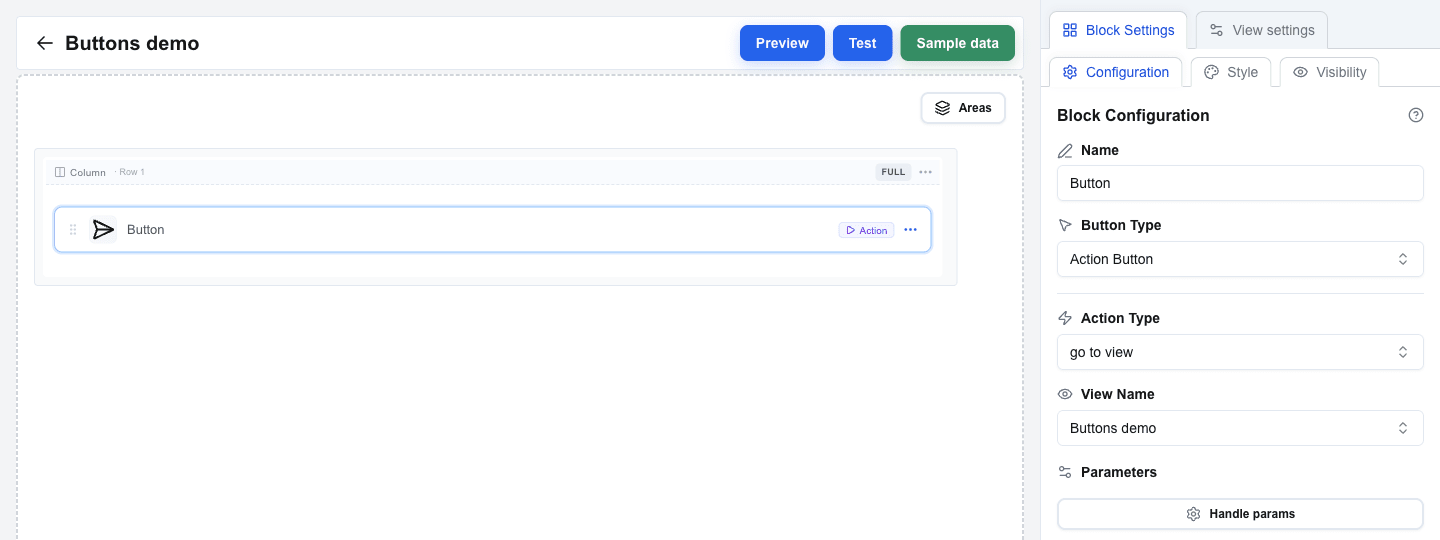
- Set Button Type to Action Button.
- Choose the Action Type:
- go to view -- navigate to a specific view.
- back -- go to the previous view.
- For go to view, select the target view from the View Name dropdown.
- Optionally add Parameters -- key-value pairs passed to the target view.
Form Submit Button
Submits a form's data.
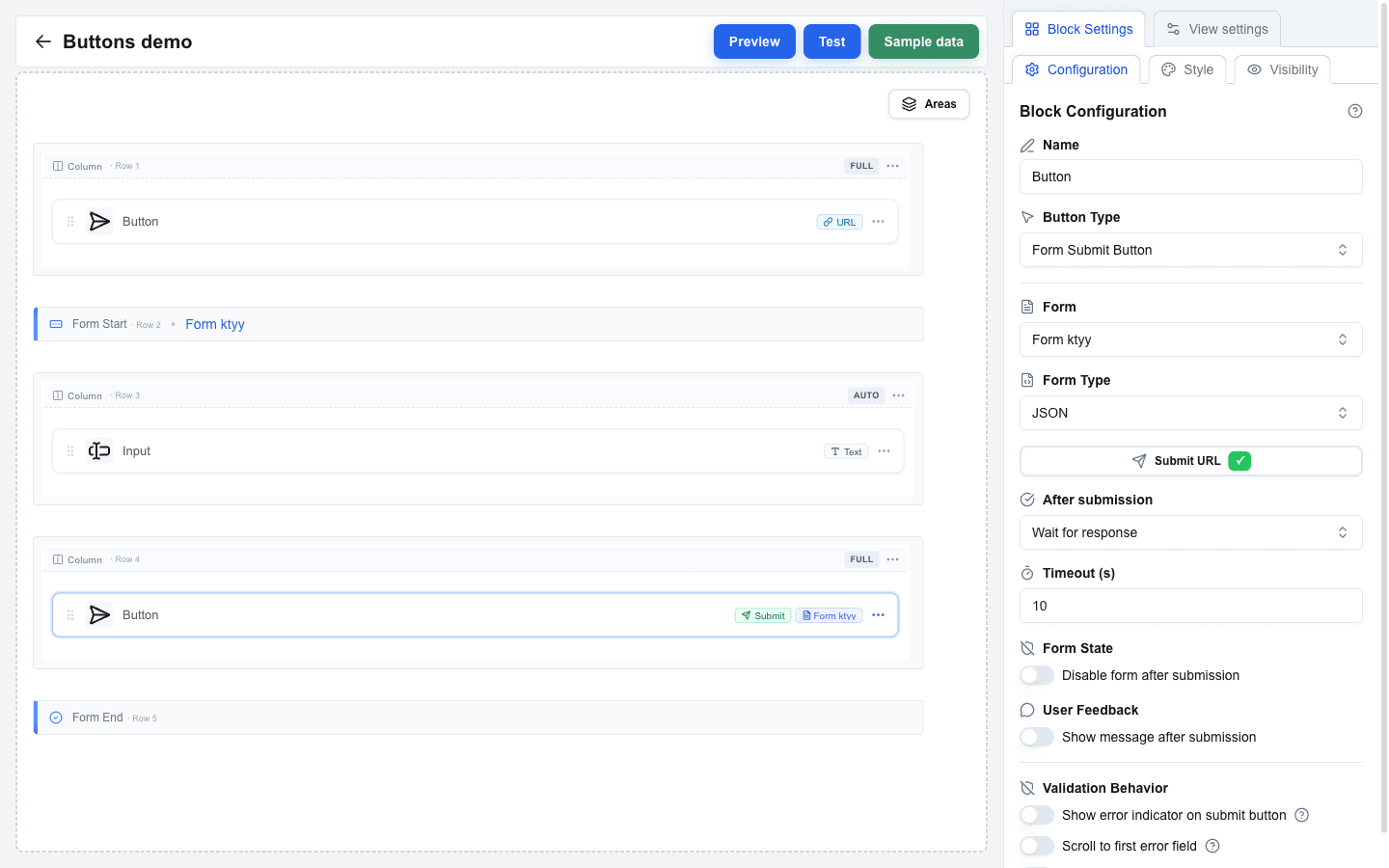
- Set Button Type to Form Submit Button.
- Select the target form from the Form dropdown. This links to the Form Identifier set on the form.
- Choose the Form Type:
- JSON (default) -- sends form data as JSON. Requires a Submit URL.
- Multipart/Form-Data -- sends as multipart data (use for file uploads). Requires a Submit URL.
- Open view with form data -- passes form data to another view without making an HTTP request. Submit URL is not required.
- For JSON and Multipart/Form-Data, set the Submit URL -- the endpoint that receives the data.
- Configure After submission:
- Select view -- navigate to a chosen view after submission. Optionally pass parameters or forward input values as search params.
- Wait for response -- wait for the server response (timeout: 10-60 seconds). Optionally enable Disable form after submission to prevent double-submits, or Show message after submission to display a confirmation.
- Optionally configure Headers and Query parameters for the request.
See Configuring Form Submission for full details on submission behavior.
Form Reset Button
Clears all fields in a form back to their default values.
- Set Button Type to Form Reset Button.
- Select the target form from the Form dropdown.
Asking for Confirmation
Use a confirmation when a click deletes, sends, approves, or clears something. The button then opens a dialog and runs its action only after the user confirms. It works on all four button types.
- Select the button and scroll to the Confirmation section at the bottom of the Configuration tab.
- Turn on Require confirmation. The dialog is filled in for you: "Are you sure?", Confirm, and Cancel, with the Confirm choice copying the button's own variant.
- Write the Title as the question the user answers, for example
Delete {{deal.title}}?. It supports the Data Picker, so a button inside an Area loop asks about that iteration's record. - Optional: add a Description with what will happen. It also supports the Data Picker and keeps its line breaks.
- Optional: adjust Confirm Button Label and Confirm Button Variant — pick Destructive for a delete — and the matching Cancel fields.
- Test the button in the Test view: the dialog must open, and the action must run only after Confirm.
Cancel and Escape close the dialog and change nothing. Turning Require confirmation back off keeps the texts you wrote, so removing the gate for a test costs nothing.
On a Form Submit Button
The dialog opens before the form is validated, so a user can confirm and then meet "field required". This is expected: the submission runs unchanged after the confirmation, validation and all. Keep the Title about the action ("Send the application?") rather than about the data being complete.
Pressing Enter in a text input opens the dialog too — the form clicks the gated button for you, so Enter cannot skip the question.
Button Appearance
Variant and size live on the Style tab in Block Settings (next to Configuration and Visibility).
Button Variant
Choose a visual style from the Button Variant selector:
- Default -- primary filled button
- Destructive -- red/danger style
- Outline -- bordered, no fill
- Secondary -- muted/secondary fill
- Ghost -- no border or fill, text only
- Link -- styled as a hyperlink
- Custom -- unlocks the rest of the Block Style panel (font size/weight/colours, etc.) so you can build your own look. The other variants ignore those custom style fields.
Button Size
Choose from: Small, Default, or Large.
Icons
Both icon slots sit on the same Style tab, between Button Size and Button Variant.
- Open Icon before text and pick a glyph, or Icon after text for a trailing one.
- Pick from the groups Actions, Navigation, Communication, Files and Status.
- Choose No icon to clear a slot again.
The glyph takes the button's text colour and is always 16 px, so every Button Variant works.
Making a button icon-only
Use this for a dense row of controls where the words cost more width than they earn.
- Pick a glyph in Icon before text.
- Turn Show text off.
The button becomes a square of the height its Button Size already had, keeping its variant colours.
What to expect:
- Show text stays unavailable until you pick an icon, and a note below it tells you so. A button with no text and no glyph would be empty.
- Icon after text becomes unavailable while the text is hidden. If your only glyph was in that slot, it moves to Icon before text when you hide the text.
- The block name is still the button's name: a screen reader announces it, and it appears as a tooltip on hover.
- Your service still receives the block name as the button name in the URL Button metadata.
- On a Form Submit Button with Show error indicator on submit, the hover reports the invalid field count while the form has errors; the name tooltip returns once the errors are fixed. The badge and the loading spinner are unaffected.