Appearance
How to Create a Form
Type: How-to | Audience: End-user | Goal: Set up a form structure on the canvas
Add the Form
- Hover the gap between two rows on the canvas (or above the first row). A small
+button appears. - Click
+to open the Add row dialog. - Pick Form from the layout list.
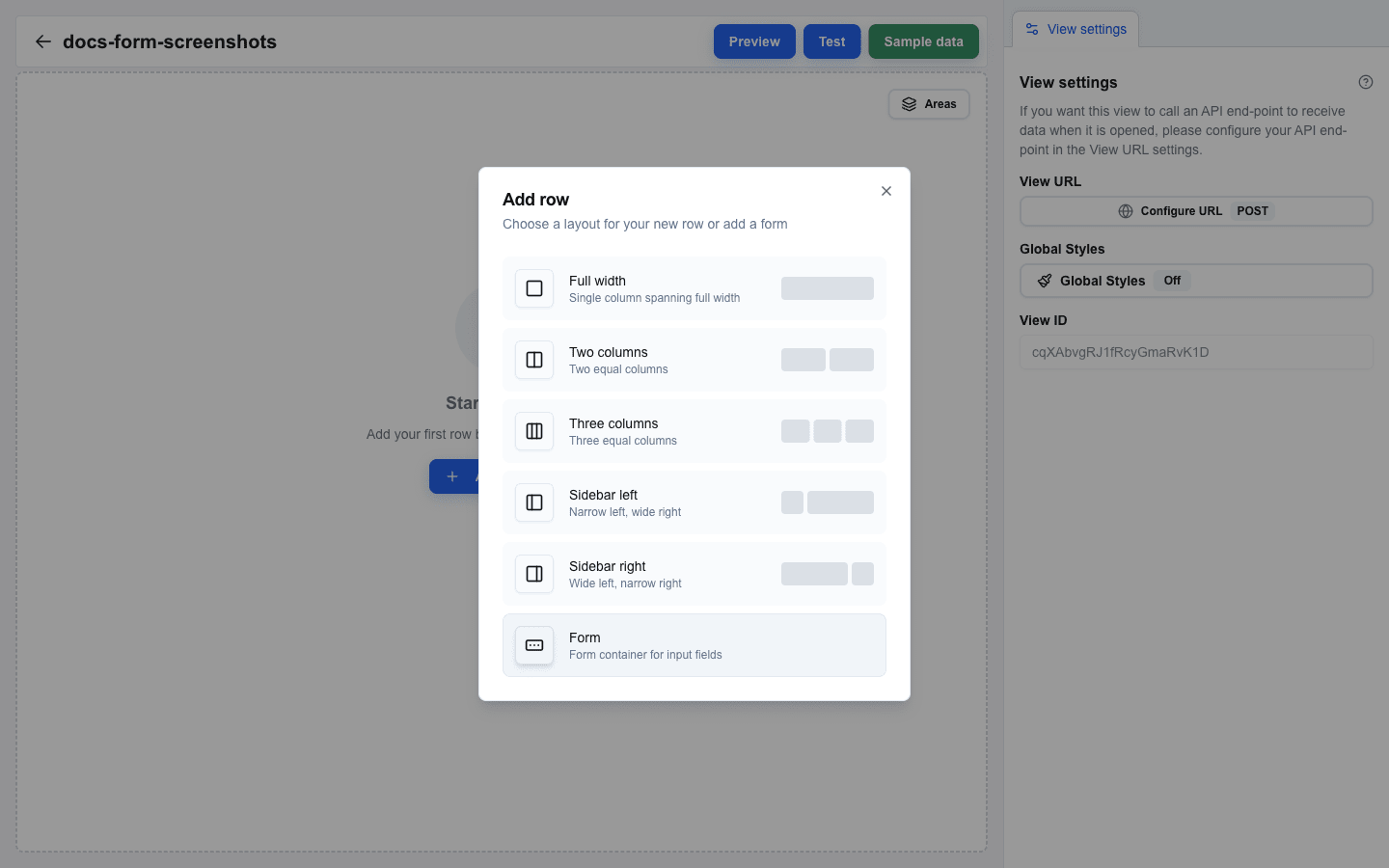
The dialog closes and two new marker rows appear on the canvas:
- Form Start — marks the beginning of the form (shown with a left-edge accent and a row label).
- Form End — marks the end of the form (shown with a left-edge accent and a row label).
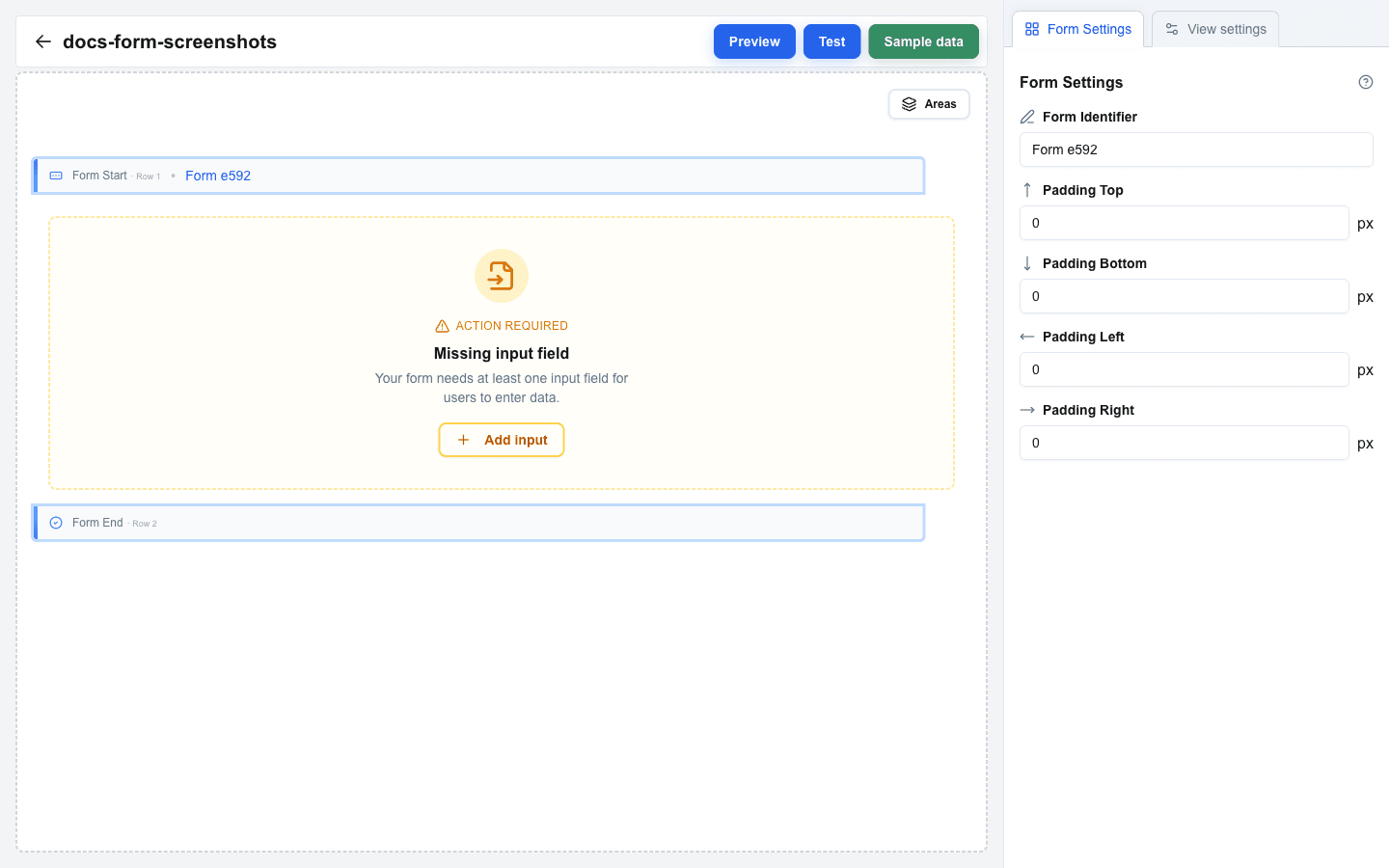
The Form option is hidden in the Add row dialog when you are already inside a form — forms cannot be nested.
Set the Form Identifier
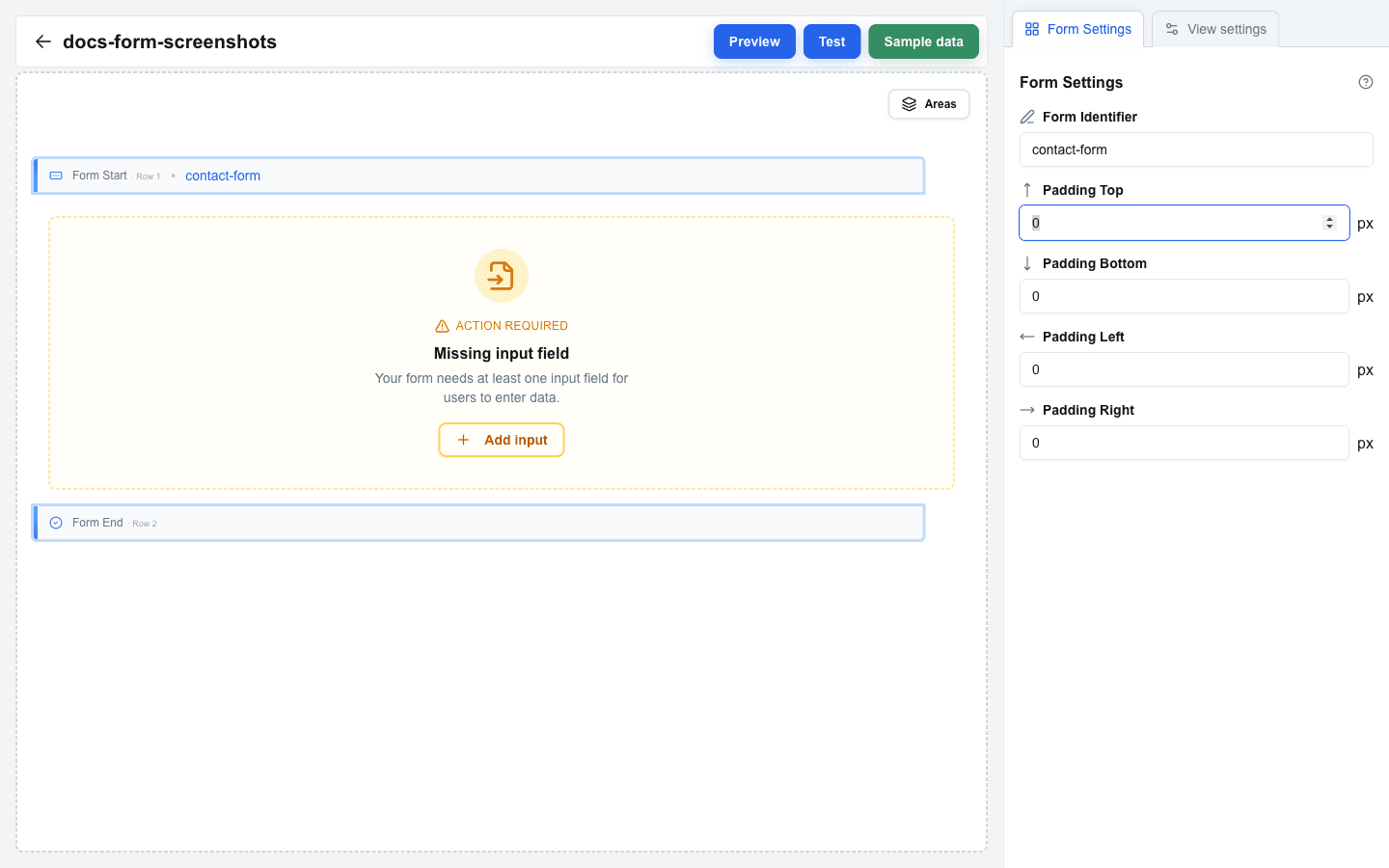
- Click either the Form Start or Form End row to open the Form Settings tab in the sidebar.
- Enter a unique name in the Form Identifier field — for example,
contact-form. - The identifier appears as a badge next to Form Start on the canvas and is used by Submit and Reset buttons to target this form.
Adjust Form Padding (Optional)
In the Form Settings tab you can set inner padding for the rendered form:
- Padding Top (px)
- Padding Bottom (px)
- Padding Left (px)
- Padding Right (px)
Add Rows Inside the Form
Hover the area between the Form Start and Form End markers, then click the + button that appears to open Add row. Pick any layout (Full, Two Column, etc.) — note that the Form option is hidden inside an existing form. Rows added in this area become part of the form.
Place Input Fields
Click an empty column inside the form to open Add block, then pick Input. The dialog only allows the Input block when the surrounding row is inside a form. For details on input types and settings, see Input Field Types.
Validation Warnings
While you build, the canvas highlights warnings when the form is incomplete. Each warning includes a quick action button to fix the problem:
- Missing input field — the form has no input blocks between Form Start and Form End. Add at least one Input block.
- Missing submit button — no button anywhere in the view targets this form's Form Identifier. Add a Button block, set its Button Type to Form Submit Button, and pick this form from the Form dropdown.