Appearance
Managing Rows and Columns
Type: How-to | Audience: End-user | Goal: Control layout structure
Adding a Row
Hover the gap between two rows on the canvas (or above the first row) — a small + button appears. Click it to open the Add row dialog and pick a layout:
| Layout | Description |
|---|---|
| Full width | Single column at 100% width |
| Two columns | Two equal columns, 50% each |
| Three columns | Three equal columns, 33% each |
| Sidebar left | 25% on the left, 75% on the right |
| Sidebar right | 75% on the left, 25% on the right |
| Form | Adds a Form Start + Form End marker pair (hidden when you are already inside a form) |
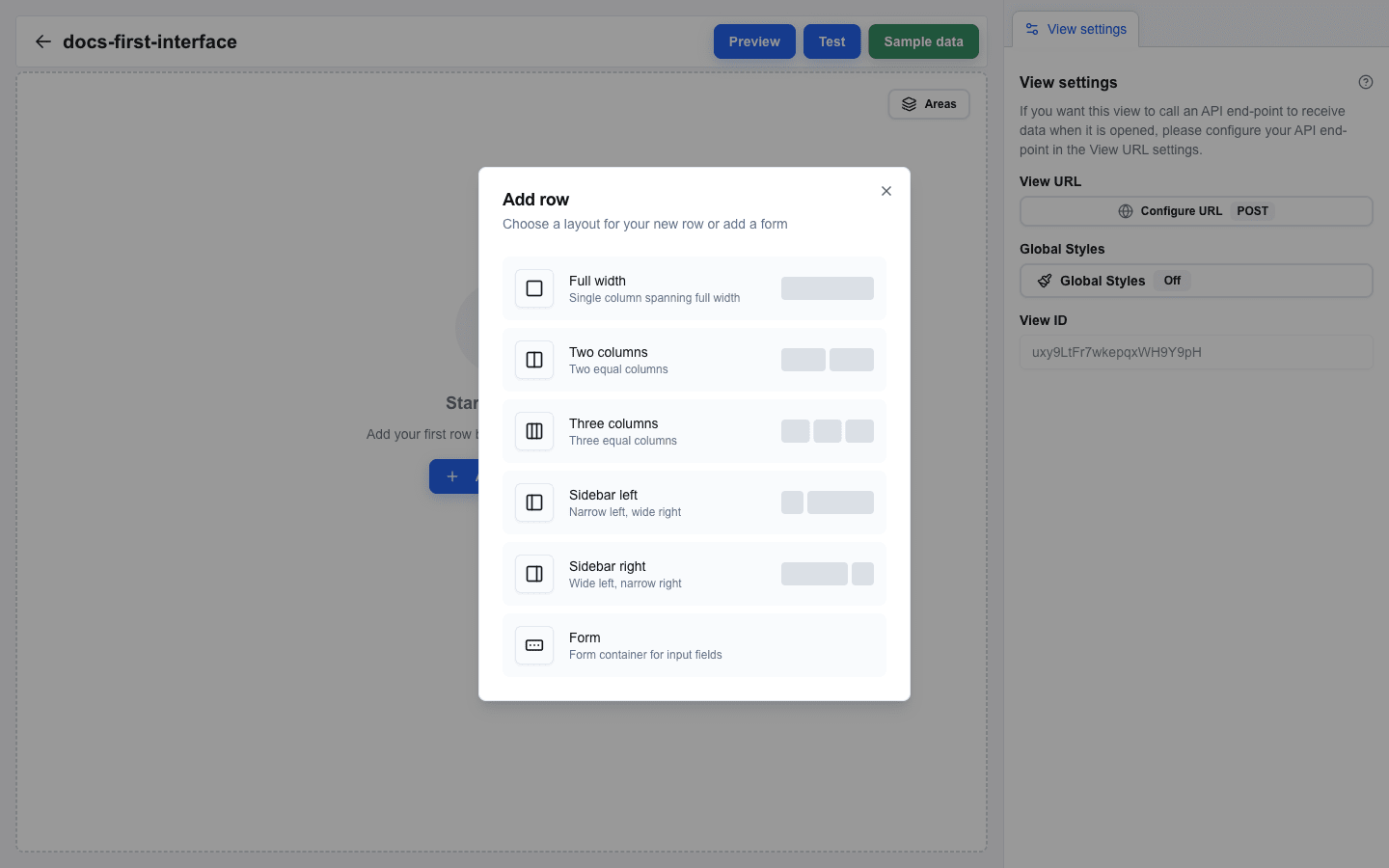
If you need a row with more than three equal columns, start with one of the layouts above and use Add column (see Adding More Columns to a Row below).
Reordering Rows
Drag a row up or down on the canvas to reorder it. Areas and form boundaries adjust automatically as the rows move.
Opening Column Settings
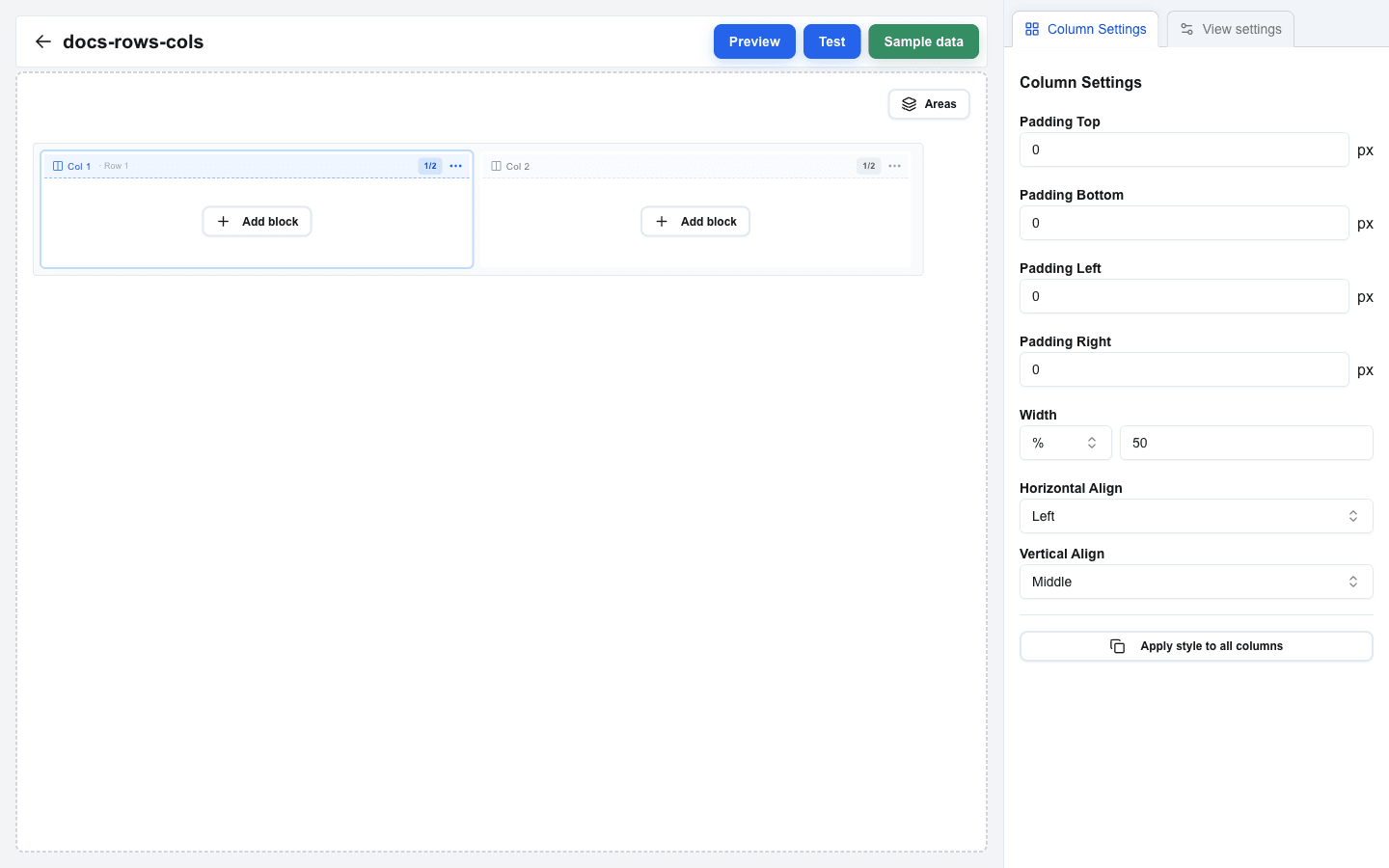
Each column has a small indicator bar above it that shows the column number and width. Click the indicator bar to select the column and open Column Settings in the right sidebar. You can also open the column's "…" menu on the right side of the indicator bar and pick Settings.
Column Width
In Column Settings, the Width control has three modes:
- Auto — the column sizes itself automatically.
- % — a percentage of the row's width (1 to 100).
- px — a fixed width in pixels (minimum 10).
Pick the mode from the Width dropdown, then type in the value.
Column Padding
Every column has its own inner padding, set from Column Settings:
- Padding Top (px)
- Padding Bottom (px)
- Padding Left (px)
- Padding Right (px)
Column Alignment
Two dropdowns in Column Settings control where inside the column its block sits:
- Horizontal Align — Left, Center, or Right.
- Vertical Align — Top, Middle, or Bottom.
When the row has multiple columns, click Apply style to all columns at the bottom of Column Settings to copy this column's padding, width, and alignment onto the other columns in the row.
Adding More Columns to a Row
Two ways to add a column to an existing row:
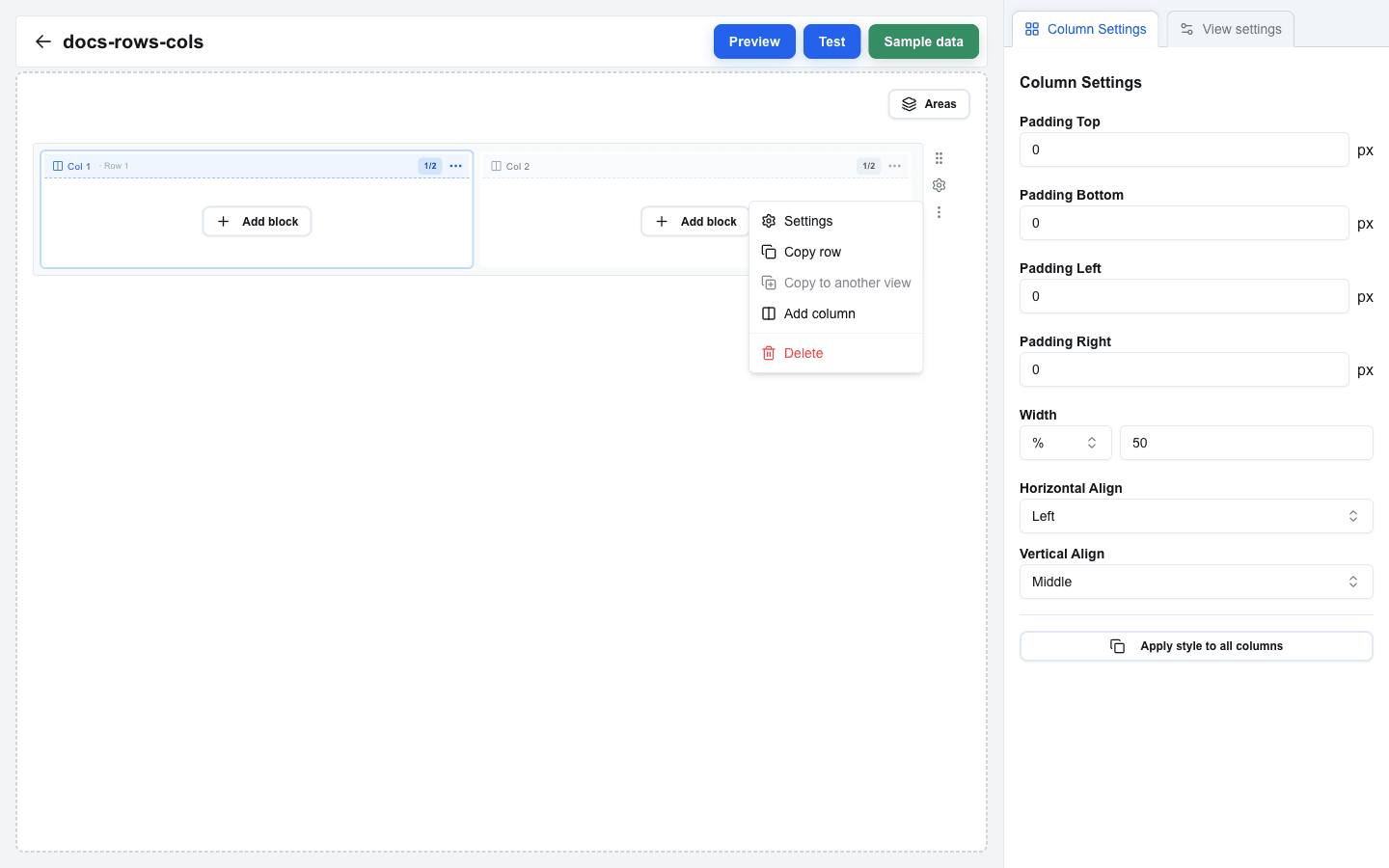
- From the row's "…" menu — open the row's dropdown menu (the three-dot button on the row label) and pick Add column. A new column is appended to the row.
- From a column's "…" menu — open a column indicator bar's dropdown menu and pick Add column left or Add column right to insert the new column relative to the selected one.
Existing columns keep their widths; the new column is added at Auto width, which you can adjust from its Column Settings.
Row Padding
Rows have their own padding too. Open the row's "…" menu (the three-dot button on the row label) and choose Settings to open Row Settings. You can also click the row label directly. The four Padding Top / Bottom / Left / Right fields apply around all columns in the row.
Moving Blocks Between Columns
Drag a block from one column onto another column to move it. The original column becomes empty and the destination column shows the moved block.