Appearance
Navigating Between Views
Type: How-to | Audience: End-user | Goal: Set up view navigation
Action Button
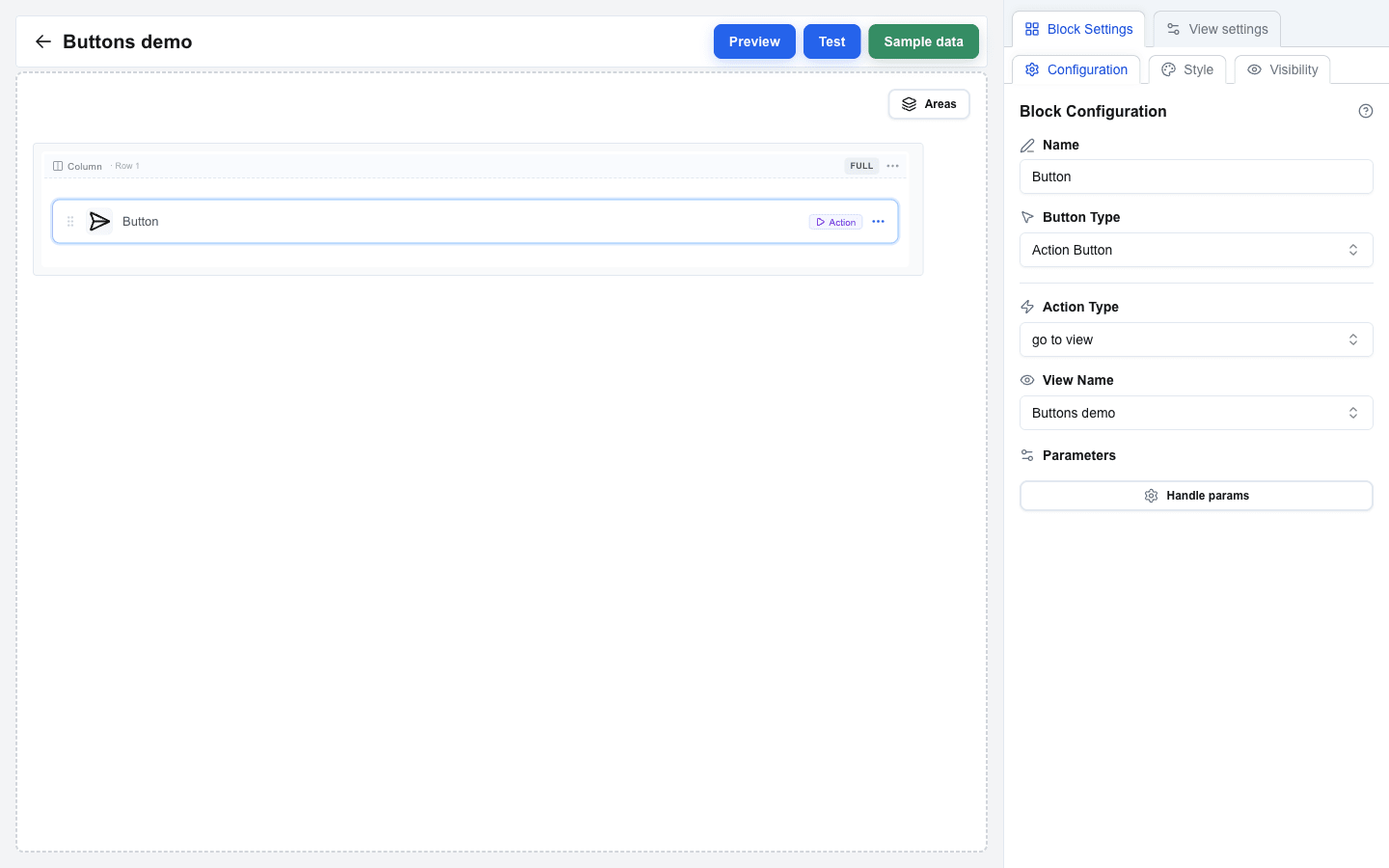
The Action Button is the primary way to navigate between views.
- Add a Button block to your view.
- Set Button Type to Action Button.
- Choose an Action Type:
- go to view -- navigates to a selected view. A View Name dropdown lists every view in the interface.
- back -- returns to the previous view.
- Optionally click Handle params under Parameters to add key/value pairs that get forwarded to the target view. Values support the Data Picker.
Navbar Links
The Navbar block supports interface-type links for view navigation:
- Add a Navbar block to your view.
- Click Manage Links in Block Settings to open the link manager dialog.
- Click Add and configure the new link:
- Label -- the clickable text shown on the navbar.
- Link Type -- pick Interface for in-interface navigation (or External URL for an outside link).
- Target Interface -- the destination view dropdown. Shown when Link Type is Interface.
- Parameters -- key/value pairs passed to the target view. Click Add Parameter to add rows.
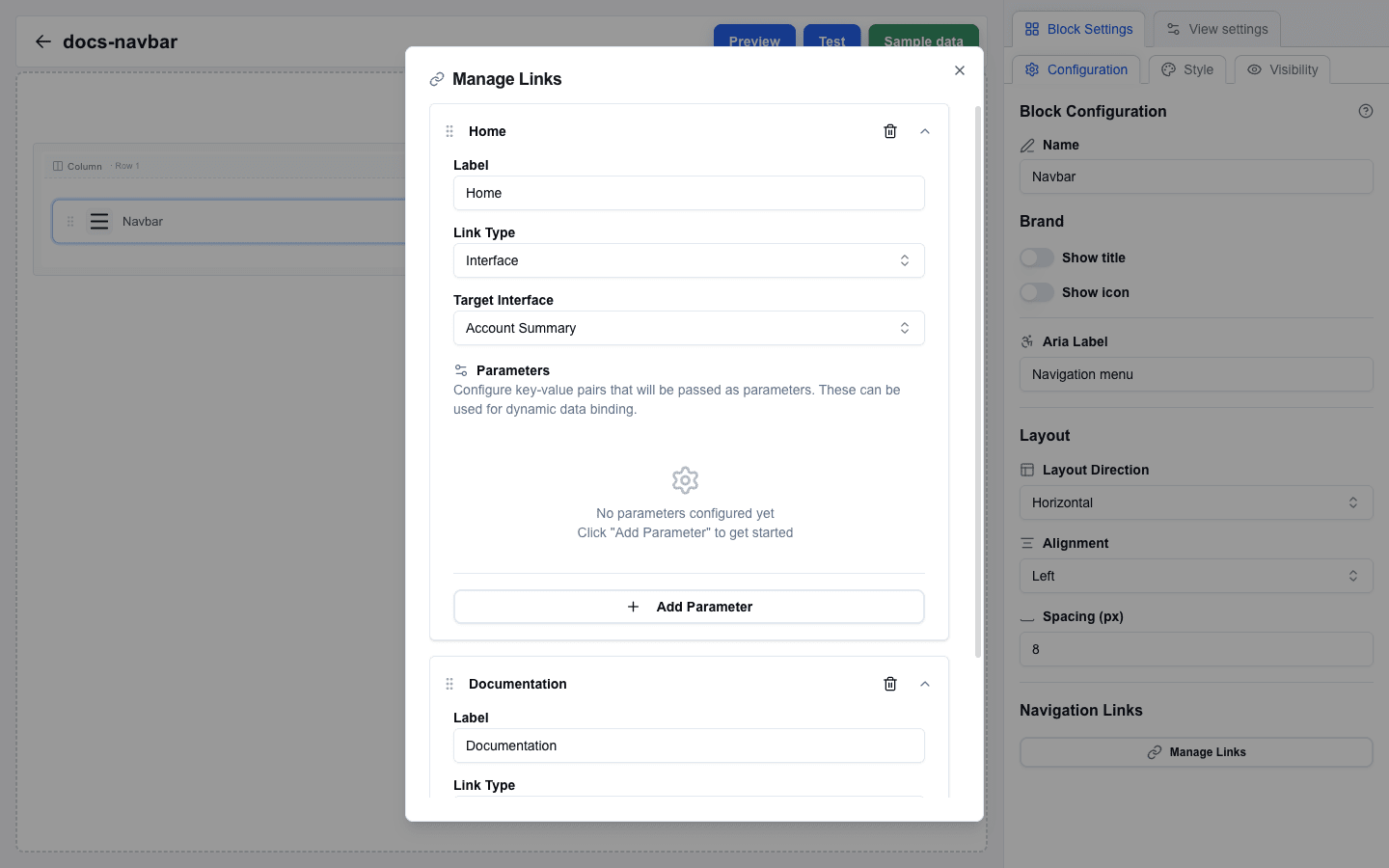
Table Actions
Table blocks can include row action columns that navigate to views. Configure a column as an action column, add an action with Action Type = Go to view, pick a View Name, and optionally add Params -- the action will navigate to the chosen view with those params, alongside the row's data, when a user clicks the icon.
Form After Submit
When a form is submitted, you can navigate to a different view:
- Set the submit button's After submission to Select view.
- Pick the target view from the View ID dropdown.
- Optionally add Parameters -- key/value pairs passed alongside the navigation.
- Turn on Use input values as search params to automatically forward every form field value as a URL search parameter on the navigation.
Alternatively, set Form Type to Open view with form data to skip the HTTP submission entirely. The submit button hides its Submit URL and After submission settings, forwards every form input value as a search parameter to the chosen view, and navigates immediately when the user clicks submit.
Passing Parameters
All navigation methods support passing parameters:
- Action Button -- click Handle params under Parameters and add key / value entries.
- Table action column -- each action has its own Params key / value editor.
- Navbar links -- each link has its own Parameters section inside the Manage Links dialog.
- Form Submit Button (After submission = Select view) -- use Parameters for explicit pairs and / or Use input values as search params to forward every form field.
The target view receives these as URL search parameters, accessible from the Data Picker's searchparams tab (icon-only) and compiled to key placeholders at render time.