Appearance
Conditional Visibility
Type: How-to | Audience: End-user | Goal: Show or hide blocks, rows, and areas based on data
Block Visibility
To conditionally show or hide a single block:
- Select the block in the builder.
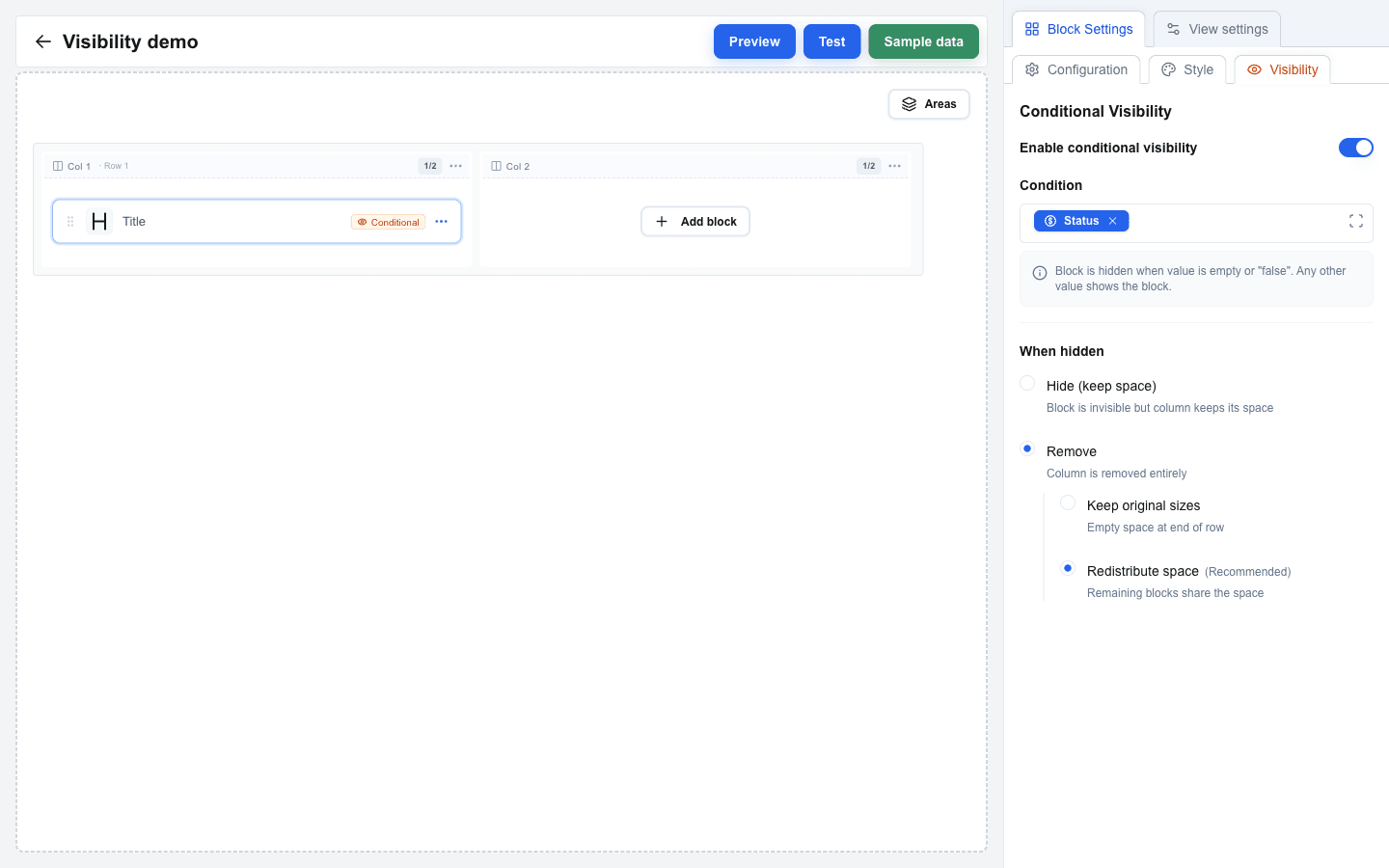
- In Block Settings, switch to the Visibility sub-tab (next to Configuration and Style).
- Toggle Enable conditional visibility on.
- In the Condition field, insert a Data Picker tag for the value that should drive visibility.
- Under When hidden, pick:
- Hide (keep space) -- the block becomes invisible but its column keeps the same space.
- Remove -- the block is removed from the layout.
- When the mode is Remove and the row has more than one column, choose how the freed column space is handled:
- Keep original sizes -- the empty space stays at the end of the row.
- Redistribute space (Recommended) -- the remaining blocks share the freed space.
Row Visibility
To conditionally show or hide an entire row:
- Open Row Settings -- click the row's column-header on the canvas, or pick Settings from the row's "..." menu.
- Scroll to the Conditional Visibility section.
- Toggle Enable conditional visibility on.
- In the Condition field, insert a Data Picker tag.
- Under When hidden, pick:
- Hide (keep space) -- the row is invisible but retains its vertical space.
- Remove (Recommended) -- the row is removed entirely so the layout closes up.

Area Visibility
Areas support the same visibility rules. When an area is hidden, every row inside it disappears together.
- Click the area's coloured badge on the canvas to open Area Settings.
- Toggle Enable conditional visibility on.
- Insert a Data Picker tag in the Condition field.
- Pick Hide (keep space) or Remove (Recommended).
See the Areas reference for full details on what areas can do.
Writing Conditions
The condition is evaluated at render time. The element is hidden when the value is empty or equals "false". Any other value shows the element.
Examples (the compiled syntax behind a Data Picker tag is shown):
| Condition | Shows when... |
|---|---|
| value | The deal has a value set (non-empty) |
| id | A user ID exists (always true for logged-in users) |
| status | The deal status field is not empty |
| is_premium | The custom data source returns a truthy is_premium field |
| show_section | The interface variable show_section is not empty or "false" |
Use the Data Picker to build conditions: click the Condition field, switch to the relevant tab (Deal, Variable, Custom, ...), and click the field. The tag is inserted as a blue chip; the curly-brace syntax above is what it compiles to at render time.
Empty Condition Warning
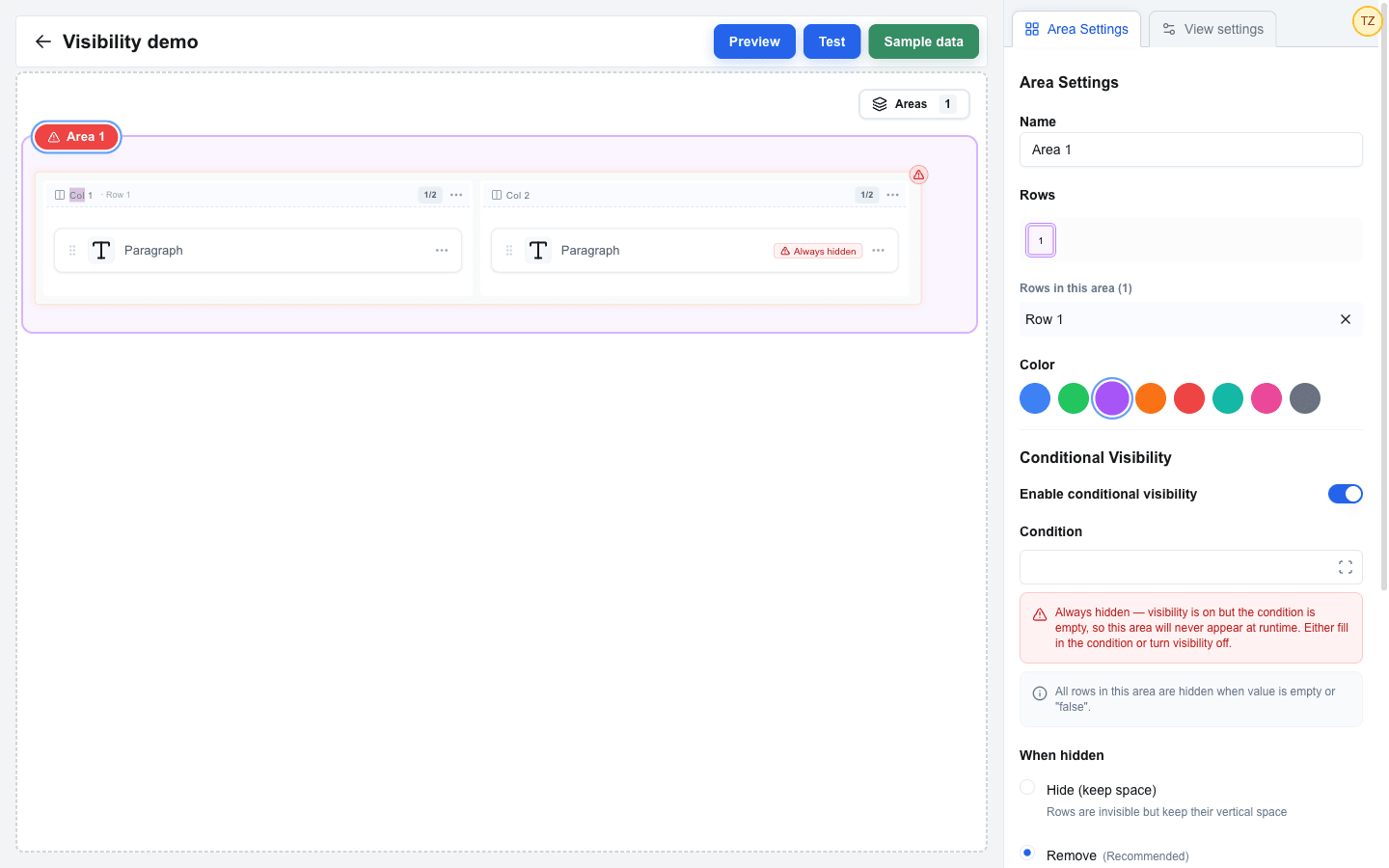
If you turn Enable conditional visibility on but leave the Condition field empty, the element will never appear at runtime — an empty condition resolves to "hidden" (see the Visibility System explanation). The builder flags this state on three surfaces so it doesn't ship by accident:
- An Always hidden banner appears under the Condition field in the visibility settings panel.
- The block, row, or area's eye indicator on the canvas turns red and switches to a warning triangle.
- An area badge with this state takes a red background regardless of its chosen colour.
The data still saves — the warning is purely a builder-time signal. Either fill in a condition or turn the toggle off to clear the warning.
Hide vs Remove
The two modes affect how the layout reacts when the element is hidden:
- Hide (keep space) -- the element becomes invisible but its slot is reserved. The surrounding layout doesn't shift, so nothing jumps when the condition flips. Use this when you need a stable layout.
- Remove -- the element is taken out of the layout entirely. Surrounding content reflows to fill the gap.
For blocks inside a multi-column row, the Remove mode adds a second choice -- Keep original sizes leaves an empty slot, Redistribute space (Recommended) lets the remaining blocks expand to fill the freed column.