Appearance
Configuring an External Data Source
Type: How-to | Audience: Advanced end-user | Goal: Connect to external APIs
Opening the URL Configuration Dialog
- Open the View settings tab in the right panel.
- Click the Configure URL button (next to View URL, with the active method shown as a
POST/GETbadge). The URL Configuration dialog opens.
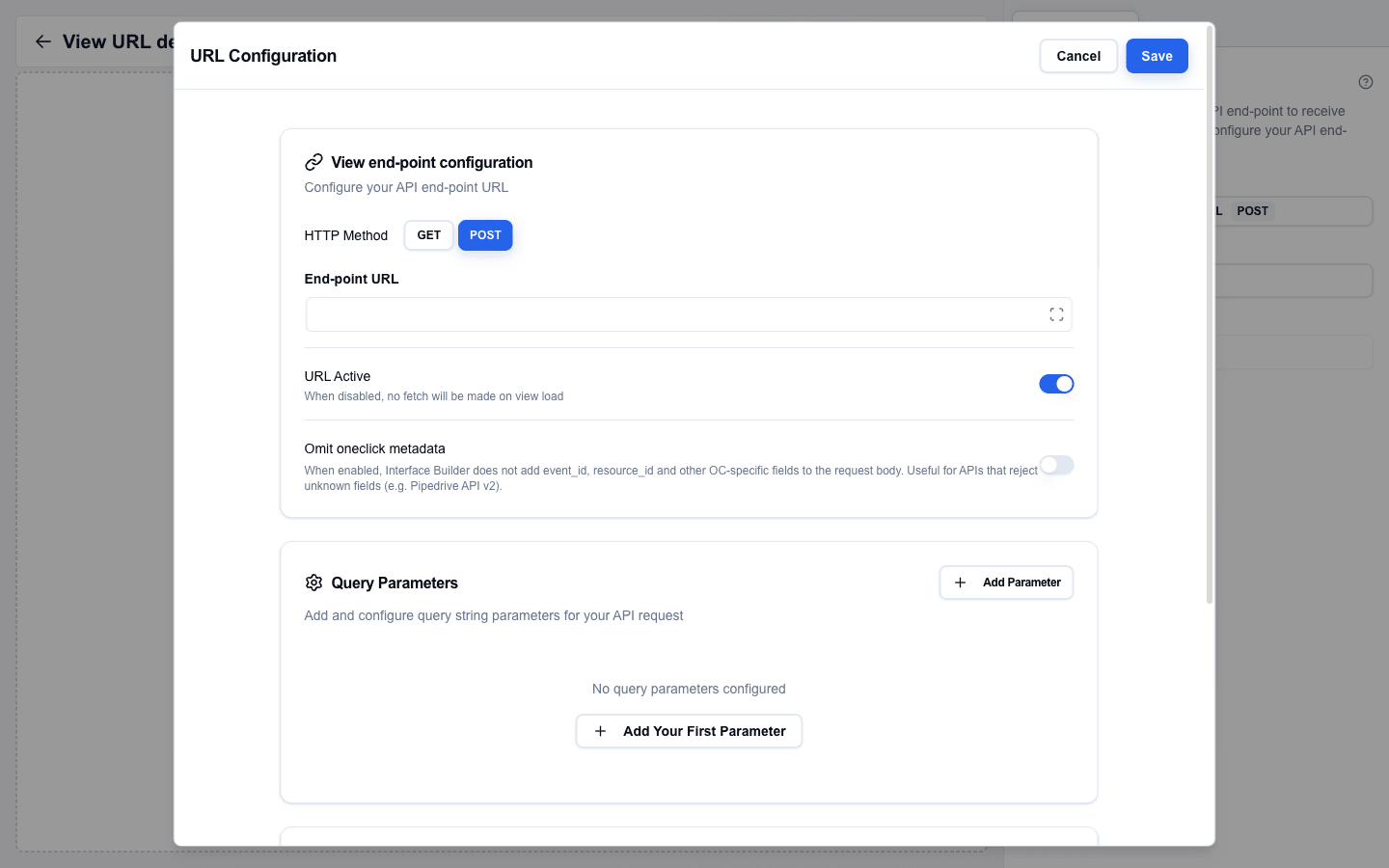
The dialog is divided into cards, in this order: View end-point configuration, Query Parameters, and Manage Headers. Click Save in the top-right to apply changes, or Cancel to discard them.
HTTP Method
In the View end-point configuration card, pick GET or POST with the toggle buttons next to HTTP Method (default: GET).
- POST -- sends a request body with deal/person/organization context.
- GET -- appends parameters to the URL.
End-point URL
Enter the full URL of the external API endpoint in the End-point URL field. This is the URL the view calls to fetch data when it opens. The field supports the Data Picker, so you can build the URL from variables.
URL Active
Turn on the URL Active switch to enable the external data source. The helper text reads "When disabled, no fetch will be made on view load." When off, no request is made and the Custom tab in the Data Picker remains empty.
Omit oneclick metadata
The Omit oneclick metadata switch tells Interface Builder not to add event_id, resource_id, or other OC-specific fields to the request body. Turn this on for APIs that reject unknown fields, such as the Pipedrive API v2.
Query Parameters
In the Query Parameters card, click Add Parameter (or Add Your First Parameter when the list is empty) to append a row.
- Each row has a Key input and a Value input. Values support the Data Picker.
- The Trash icon at the end of the row removes that parameter.
- Keys must be 1--255 characters, values 1--512 characters. Duplicate keys are flagged with
Duplicate key not allowed.
Manage Headers
In the Manage Headers card, click Add Header (the empty state shows "No headers configured yet"). Each header has:
- Key -- the header name. Must contain only letters, numbers, and hyphens, cannot start or end with a hyphen, and cannot start with
x-oc-(reserved for system headers). - Value -- the header value. Supports the Data Picker, so you can use dynamic values such as api_key.
OneClick-level headers are merged in automatically
If the OneClick button this interface is attached to has its Headers toggle enabled (configured outside the builder, on Pipedrive's Edit a Button page), every header listed there is sent with this request. You only need to set per-call headers here for values that differ between requests. See OneClick-Level Headers for the merge order and the reserved x-oc-* keys.
Using the Data
Once the URL is active, the external API response fields appear in the Data Picker under the Custom tab.
- Open any Data Picker field.
- Switch to the Custom tab.
- Browse the response fields and click to insert chips that compile to placeholders like field_name.
The data is fetched at render time using the configured method, headers, and parameters. The response is parsed and made available as selectable fields.
How the Response Reaches the View
When the view opens, the builder calls your data source URL and then waits for your response. The view stays in a loading state until the response arrives, and renders as soon as it does. The total wait is capped at roughly 20 seconds.
If nothing arrives in that window, the user sees a Request timed out. No custom data received. toast. If the data source URL returns an HTTP status outside 2xx, the user sees Data loading failed (status 500) (or whichever status came back).
For the exact request shape your endpoint receives — body, headers, system metadata — see the View Data Source reference. For the parallel-fetch state machine and the differences between Test, Preview, and live render, see External Data Flow.
Responding with a Message View
Sometimes the "data" you have for the user is a message, not records -- the record cannot be found, the session expired, or a step is still missing. Return a message-view response instead of real data:
json
{
  "oneclick_data": {
    "error_message": {
      "title": "Account not found",
      "message": "We could not find that account. <a href=\"/accounts\">Choose another</a>."
    }
  }
}
The view shows a full-page message view with your title and message, plus Go Back and Retry buttons. Use this instead of a toast when the user cannot proceed -- they cannot miss a full-page card. The object form also accepts optional hideRetry: true and hideBack: true flags to hide the corresponding button.
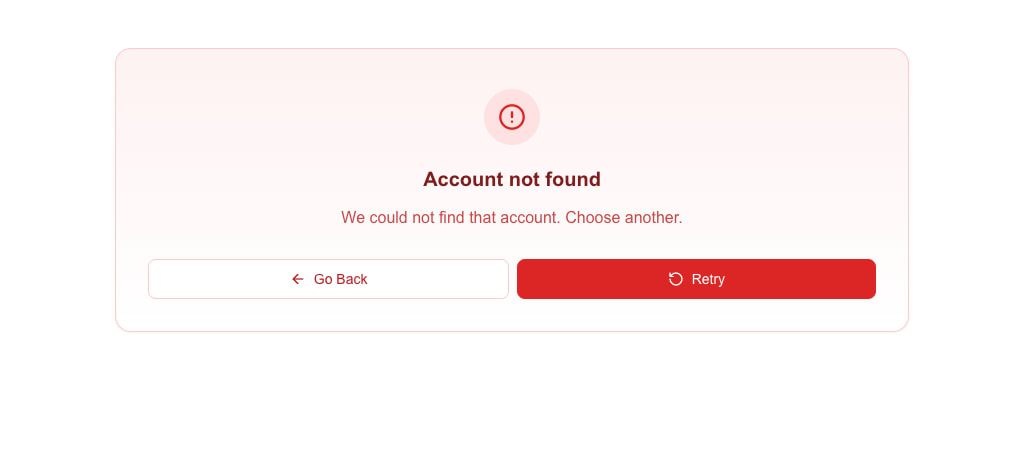
If you only need a single-line message, use the string form. It gets the title "Error":
json
{
  "oneclick_data": {
    "error_message": "Something went wrong"
  }
}
Lists and variants
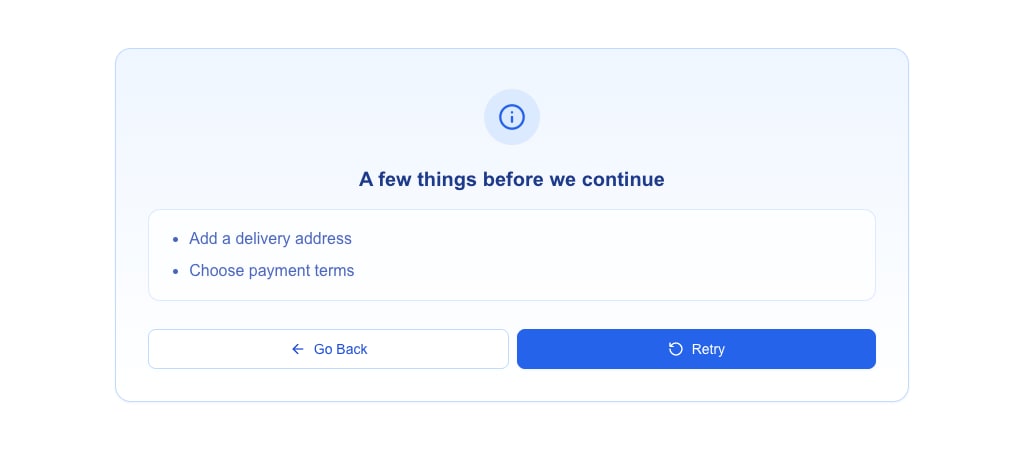
To list several items, send message as an array of strings. The message view shows them as a bullet list. Add variant to change the colours and icon -- destructive (default), warning, info, success or default:
json
{
  "oneclick_data": {
    "error_message": {
      "title": "A few things before we continue",
      "message": ["Add a delivery address", "Choose payment terms"],
      "variant": "info"
    }
  }
}
message_view for messages that are not errors
When the message is not an error -- for example a success or info note -- send it as message_view instead of error_message. The fields and the view are the same; only the name is neutral. message_view takes the object form only:
json
{
  "oneclick_data": {
    "message_view": {
      "title": "Almost there",
      "message": "Customer created. Add a contact person and press Retry.",
      "variant": "success"
    }
  }
}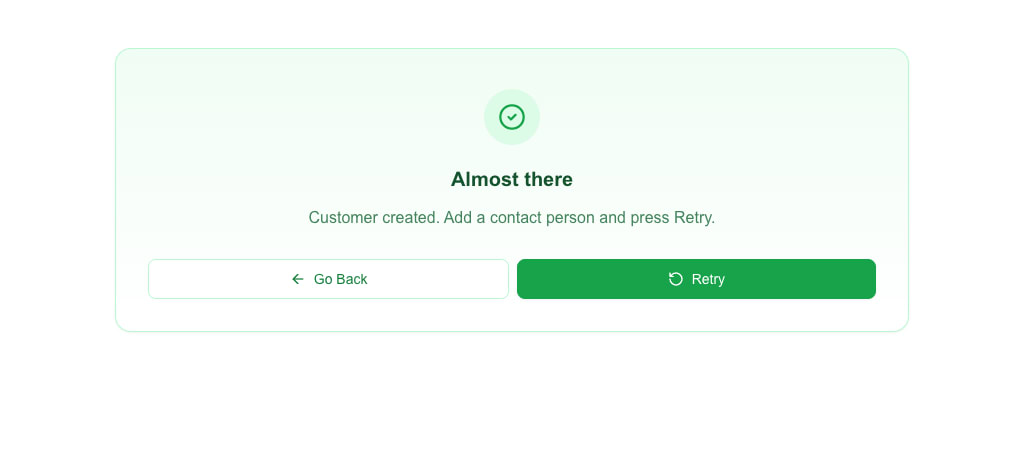
variantchanges the look only. The buttons stay Go Back and Retry, and the response is still not a success response.- A missing
variantisdestructive, as witherror_message. - If a response carries both fields,
error_messagewins andmessage_viewis ignored.
Both fields support a small HTML subset in the message text. See the Messages & Toasts reference for the allowed tags and link behaviour, and HTTP Response Format → message_view for all rules.
Responding with a Redirect
If the data source should divert the user to another view instead of rendering, return a redirect:
json
{
  "oneclick_data": {
    "redirect_view": {
      "id": "target-view-id",
      "params": { "deal_id": "123" }
    }
  }
}
The view shows a "Redirecting..." toast and navigates to the target view. If the target ID does not exist, the view falls back to a full-page message view with the message "View with ID ... was not found".
See HTTP Response Format for the full list of accepted shapes.