Appearance
Configuring Form Submission
Type: How-to | Audience: Interface builder user | Goal: Set up how the form sends data and what the user sees after they submit
A submit button's settings live in the Configuration sub-tab of the Block Settings sidebar. Open them by selecting a Form Submit Button on the canvas.
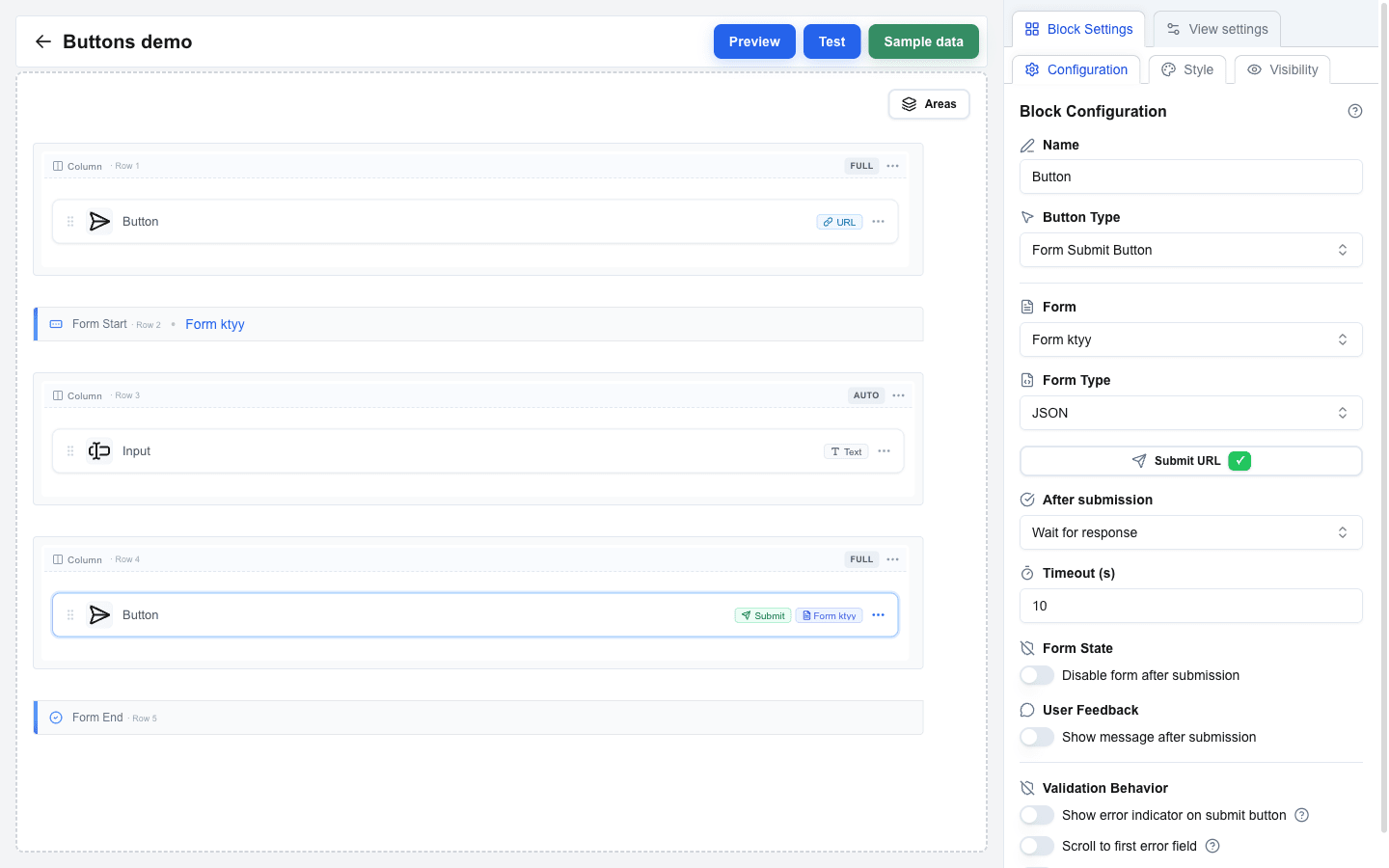
Pointing the Button at a Form
The Form dropdown lists every form on the view (each Form Start row). Pick the one this submit button should send.
Form Type
Set Form Type to control how data is sent:
- JSON (default) -- sends form data as a JSON payload. Requires a Submit URL.
- Multipart/Form-Data -- sends as multipart form data. Use this when the form includes file uploads. Requires a Submit URL.
- Open view with form data -- passes form data to another view as URL search parameters without making any HTTP request. The Submit URL and After submission settings are hidden in this mode; submission always opens a target view.
Full request shapes for each type: Form Submission Types reference.
Submit URL
For JSON and Multipart/Form-Data, click the Submit URL button to open the URL Configuration dialog. The dialog has three cards:
- Button end-point configuration -- the End-point URL the form posts to (supports the Data Picker), a URL Active toggle, and an Omit oneclick metadata switch (turn this on for APIs that reject extra fields like
event_idorresource_id, e.g. Pipedrive API v2). - Query Parameters -- key/value pairs appended to the Submit URL. Click Add Parameter to add a row; values support the Data Picker.
- Manage Headers -- custom HTTP headers sent with the request. Click Add Header to add a row. Header keys must contain only letters, numbers, and hyphens, cannot start or end with a hyphen, and cannot start with
x-oc-(reserved for system headers). Header values support the Data Picker, so you can use dynamic values like api_key.
OneClick-level headers are merged in automatically
If the OneClick button this interface is attached to has its Headers toggle enabled (configured outside the builder, on Pipedrive's Edit a Button page), every header listed there is sent with the form submit request. Use the per-call headers here only for values that differ between forms. See OneClick-Level Headers for the merge order and the reserved x-oc-* keys.
The Submit URL button shows a method badge (always POST for submit buttons) and a green ✓ when a URL is set; it turns red if the Submit URL is missing.
After Submission
For JSON and Multipart/Form-Data, the After submission dropdown picks what happens once the request is sent:
Select view
Navigates the user to another view as soon as the request finishes.
- View ID -- the target view dropdown.
- Parameters -- key/value pairs passed to the target view.
- Use input values as search params -- a design-time hint. When on, the form's inputs are listed under Expected Parameters from Views in the target view's URL Configuration dialog. Form input values are forwarded on the navigation regardless of this switch — toggling it off does not remove them from the URL.
Wait for response
Waits for the server to respond, then reacts to what came back.
- Timeout (s) -- how long to wait, between 10 and 60 seconds (default 10). The fetch is aborted if the response does not arrive in time.
- Form State > Disable form after submission -- when on, the submit button stays disabled after the response returns. Useful when the submit is final and you do not want the user to try again.
- User Feedback > Show message after submission -- when on and the response contains a message, replaces the whole form with an inline alert instead of showing a toast. See the Post-submit message section below.
What you return from the server decides what the user sees next. See HTTP Response Format for the response shapes.
Validation Behavior
The Validation Behavior group controls how validation errors and submission errors are surfaced before the request is even attempted. Each toggle has a tooltip explaining what it does.
| Switch | Effect |
|---|---|
| Show error indicator on submit button | Adds a red border and a tooltip with the error count to the submit button while there are validation errors on the form. A passive hint before the user clicks. |
| Scroll to first error field | When the user clicks submit on an invalid form, smoothly scrolls and focuses the first invalid field. The strongest way to draw attention to a long form's validation issue. |
| Show error toast on submit | Pops a toast with the number of invalid fields (for example 3 fields have errors). The toast does not say which fields -- combine it with Scroll to first error field to make that obvious. |
Combine Scroll to first error field with Show error toast on submit for the strongest feedback: the toast tells the user there are errors, the scroll-plus-focus shows which one to fix first.
Submission Feedback
While the submit is in flight
Once the user clicks submit on a Wait for response form, the submit button shows a spinner in place of its label (the label's width is preserved so the layout does not jump) and the whole form switches to a progress cursor so the user cannot mistake the state for idle. The submit button and every descendant input stay in that state until the response returns -- on success or error -- or the submission throws. A thrown network or JSON-parse error resets the state so the button never gets stuck.
Select view forms behave the same way up to the point of navigation; the spinner is visible until the browser leaves the page.
Backend error response feedback
When the backend returns oneclick_data.error_message or oneclick_data.message_view (see HTTP Response Format), two things happen:
- A full-page message view replaces the rendered content with the message's
titleandmessage, plus Go Back and Retry buttons.messagecan be an array, shown as a bullet list, andvariantsets the colours and the icon. You can suppress either button by returninghideRetry: trueorhideBack: trueon the object. - On error responses, an additional toast also appears with the response's top-level
message(orSomething went wrongwhen none was supplied).
Post-submit message
When After submission is set to Wait for response and the backend returns a message, how it is shown depends on Show message after submission:
| Show message after submission | Response has title? | User sees |
|---|---|---|
| Off | No | Toast with message |
| Off | Yes | Toast with title as primary text, message as description |
| On | No | Inline alert replacing the form, message only |
| On | Yes | Inline alert replacing the form, title + message |
When the inline alert appears, the view smoothly scrolls to it so the user does not miss the new content even if they were at the bottom of a long form.
The message and title can include a small amount of inline HTML -- bold, italic, line breaks, links, and inline code. See Messages & Toasts for how to format messages your backend returns.