Appearance
Styling Individual Blocks
Type: How-to | Audience: End-user | Goal: Customize a single block's appearance
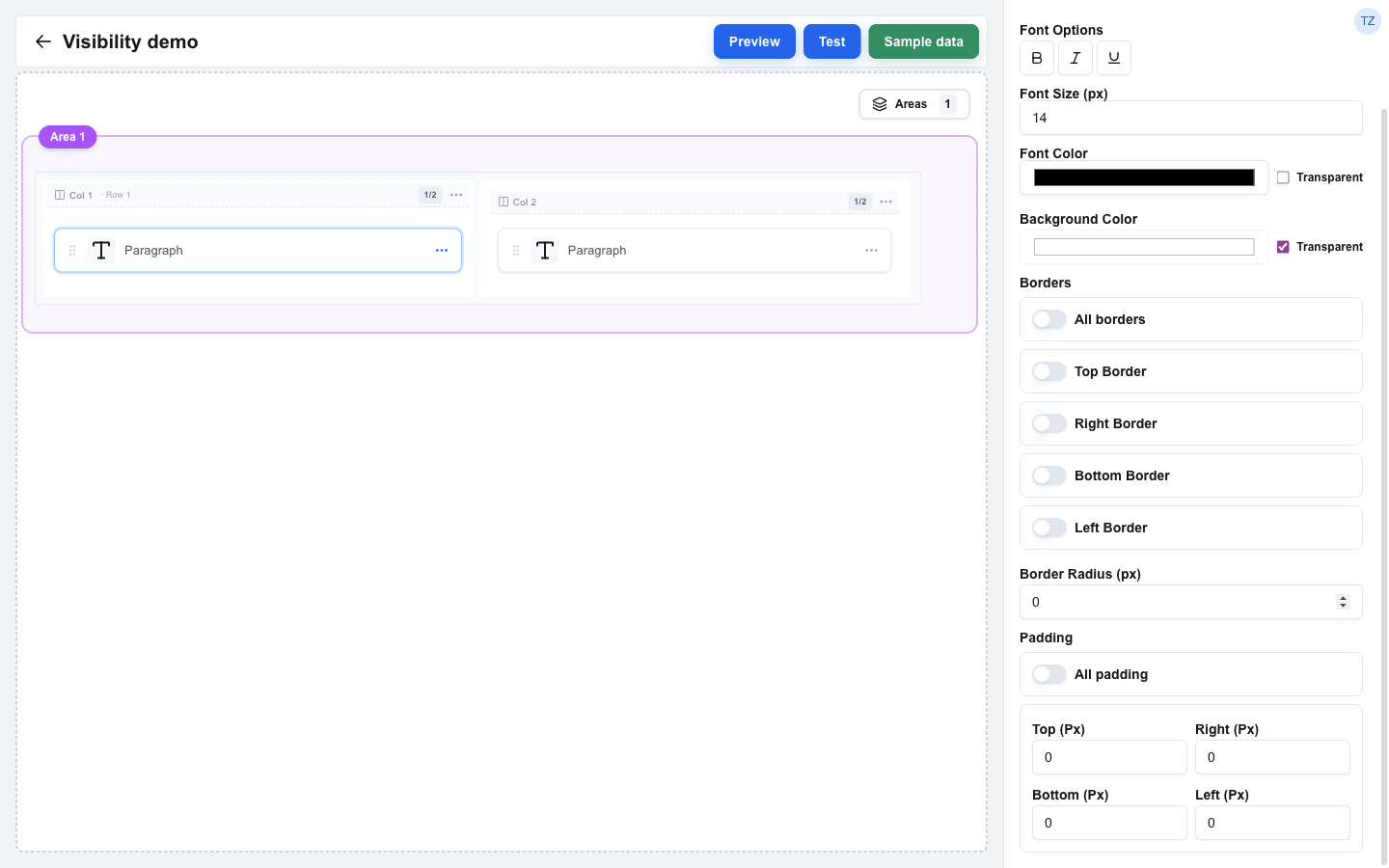
Opening the Style Sub-tab
- Select a block on the canvas.
- In the Block Settings panel, switch to the Style sub-tab (next to Configuration and Visibility).
Badge and Alert blocks use variant-based styling, so their Style sub-tab shows an info card explaining that custom block styles are not applied. See the Badge and Alert reference pages for the variants they offer instead.
Background Color
- Click the Background Color swatch and pick a colour.
- Tick the Transparent checkbox to clear the background.
The Image, Avatar, and Divider blocks omit the Background Color row entirely -- the Style sub-tab simply does not render it for them.
Font Settings
Text-based blocks (Title, Paragraph, Button, Input, HTML, Table, Hover Card, Chart, Navbar) have font controls:
| Setting | Description |
|---|---|
| Font Options | A toggle group with Bold, Italic, and Underline. |
| Font Size (px) | Text size in pixels. |
| Font Color | Pick a colour, or tick Transparent to clear the colour. |
The Image, Avatar, and Divider blocks have no text, so the font controls are hidden.
Borders
Each block has four independent border sides: Top Border, Right Border, Bottom Border, and Left Border.
- Turn a side on with its switch. The width / style / colour fields appear underneath.
- Configure:
- Width (px) -- border thickness in pixels. New blocks default to
1, so toggling a side on draws a visible border immediately. - Style -- pick Solid, Dashed, or Dotted.
- Color -- a colour picker.
- Width (px) -- border thickness in pixels. New blocks default to
All borders
Turn the All borders switch on (above the four side switches) to drive all four sides from a single Width / Style / Color card. The four per-side switches and their cards are hidden while All borders is on; turning it back off restores them with their previous values. Tables (which have extra Row / Cell border switches) do not show the All borders option.
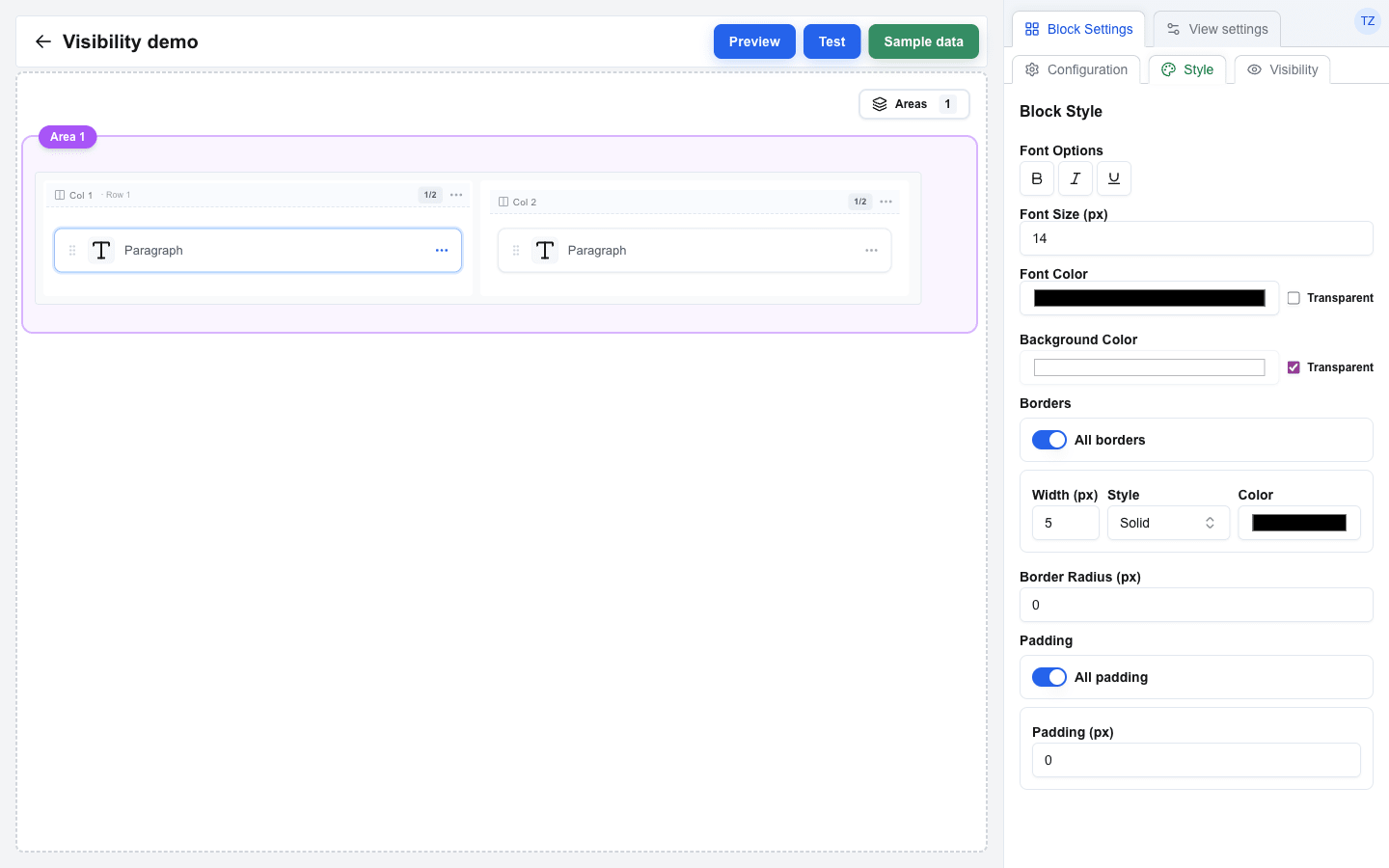
Table Borders and Padding
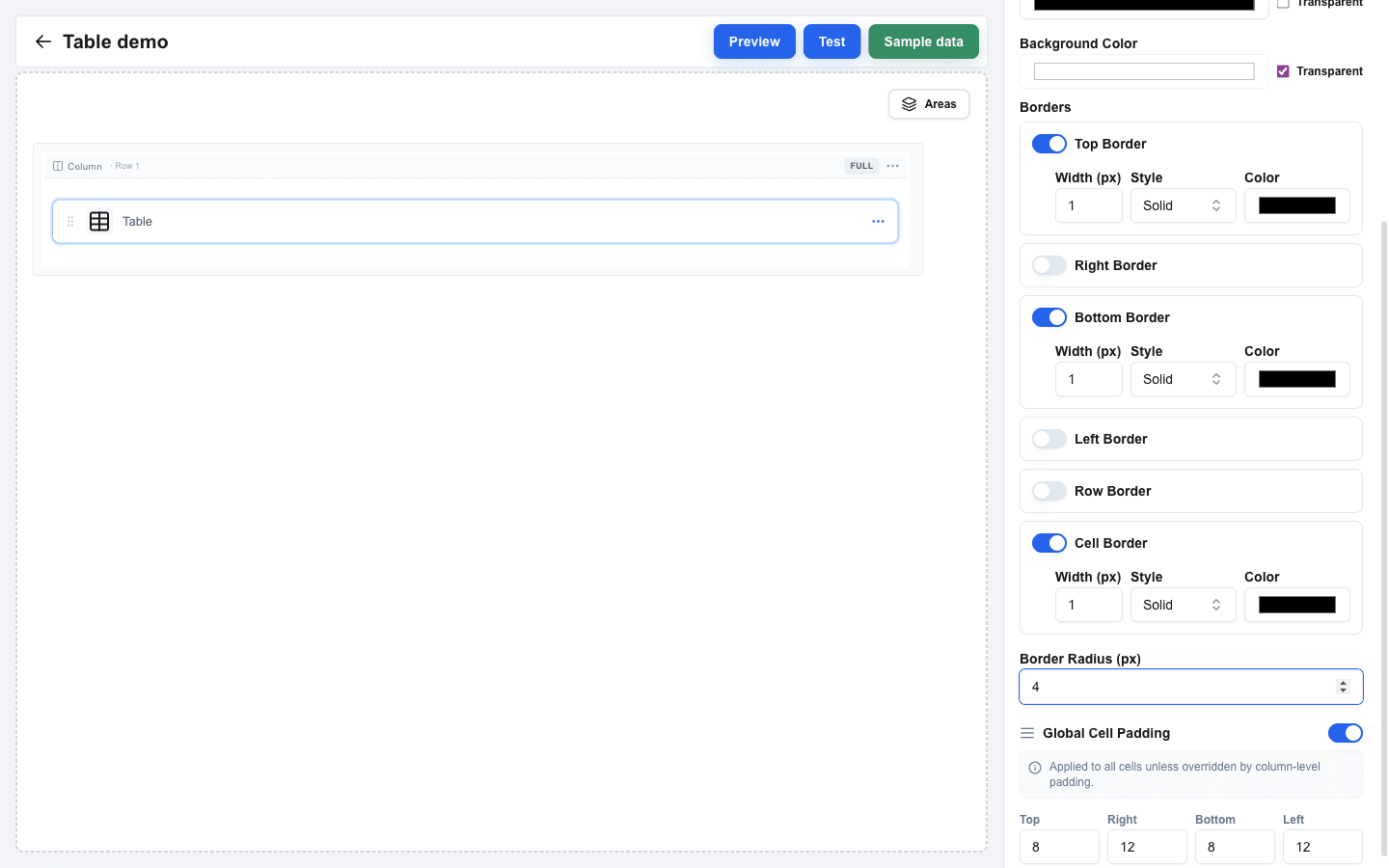
The Table block adds three controls inside its Borders section on top of the four side borders:
- Row border -- lines between rows (same Width / Style / Color controls).
- Cell border -- lines between cells (same controls).
- Global Cell Padding -- when on, four pixel inputs (Top / Right / Bottom / Left) apply to every cell unless a column overrides them via its own Styling > Cell Padding.
Border Radius
Border Radius (px) rounds the block's corners. A value of 0 leaves them square; large values produce circular shapes (useful for Avatar and Image).
Padding
Padding adds space between the block's content and its outer edge -- once a border is drawn, padding is the distance between the border and the text. Each side has its own pixel input: Top (Px), Right (Px), Bottom (Px), Left (Px). Defaults to 0 on every side.
Turn the All padding switch on to drive all four sides from a single Padding (px) input. The four per-side inputs are hidden while All padding is on; turning it back off restores them with their previous values.
Overriding Global Styles
When the view has Enable Global Styles turned on with a font size or font colour set, every block inherits those values by default.
To override a global value on a specific block:
- In the block's Style sub-tab, look for a
Global: <value>badge next to Font Size (px) or Font Color -- for exampleGlobal: 16px, or for the colour a small swatch followed by the hex code. - A Use custom style switch sits beneath the badge. Turn it on, and the block's own input becomes editable.
- Type the per-block value.
When the switch is off, the block uses the global value and its own input is disabled. The same Use custom style label is used for both Font Size and Font Color overrides; the switch's effect is local to the field it sits beside.
See Using Global Styles for the dialog itself and the per-row gap overrides.