Appearance
How to Use the HTML Block
Type: How-to | Audience: Advanced end-user | Goal: Embed custom HTML content
Adding an HTML Block
- Hover the gap between two rows and click the
+button to add a row (pick any layout in the Add row dialog). - Click an empty column inside the row, then pick HTML in the Add block dialog.
- Click the new block to open its settings in the sidebar.
Writing HTML Content
Enter your HTML markup in the HTML field. The field accepts whatever you paste -- there is no validation in the builder itself.
Pasting from ChatGPT or similar tools Pasted content is normalised before it is saved: smart quotes (
""'') become straight quotes, en/em dashes (–—) become hyphens, non-breaking spaces become regular spaces, and zero-width characters and Windows line endings are stripped. This prevents invisible artefacts from breaking your markup. Valid HTML entities like&are left untouched.
When the view renders, the HTML is run through a sanitiser. Only a fixed allowlist of tags survives:
p, span, div, br, hr, h1--h6, ul / ol / li, dl / dt / dd, table / thead / tbody / tfoot / tr / th / td / caption / colgroup / col, a, img, figure, figcaption, details, summary, plus inline-formatting tags (strong, b, em, i, u, s, strike, del, ins, sub, sup, small, mark, abbr, code, pre, blockquote).
Allowed attributes: href, src, alt, title, width, height, colspan, rowspan, and style (so inline CSS is supported).
Anything else -- <script>, <iframe>, custom elements, event handlers, unsupported attributes -- is stripped at render time.
Using Placeholders in HTML
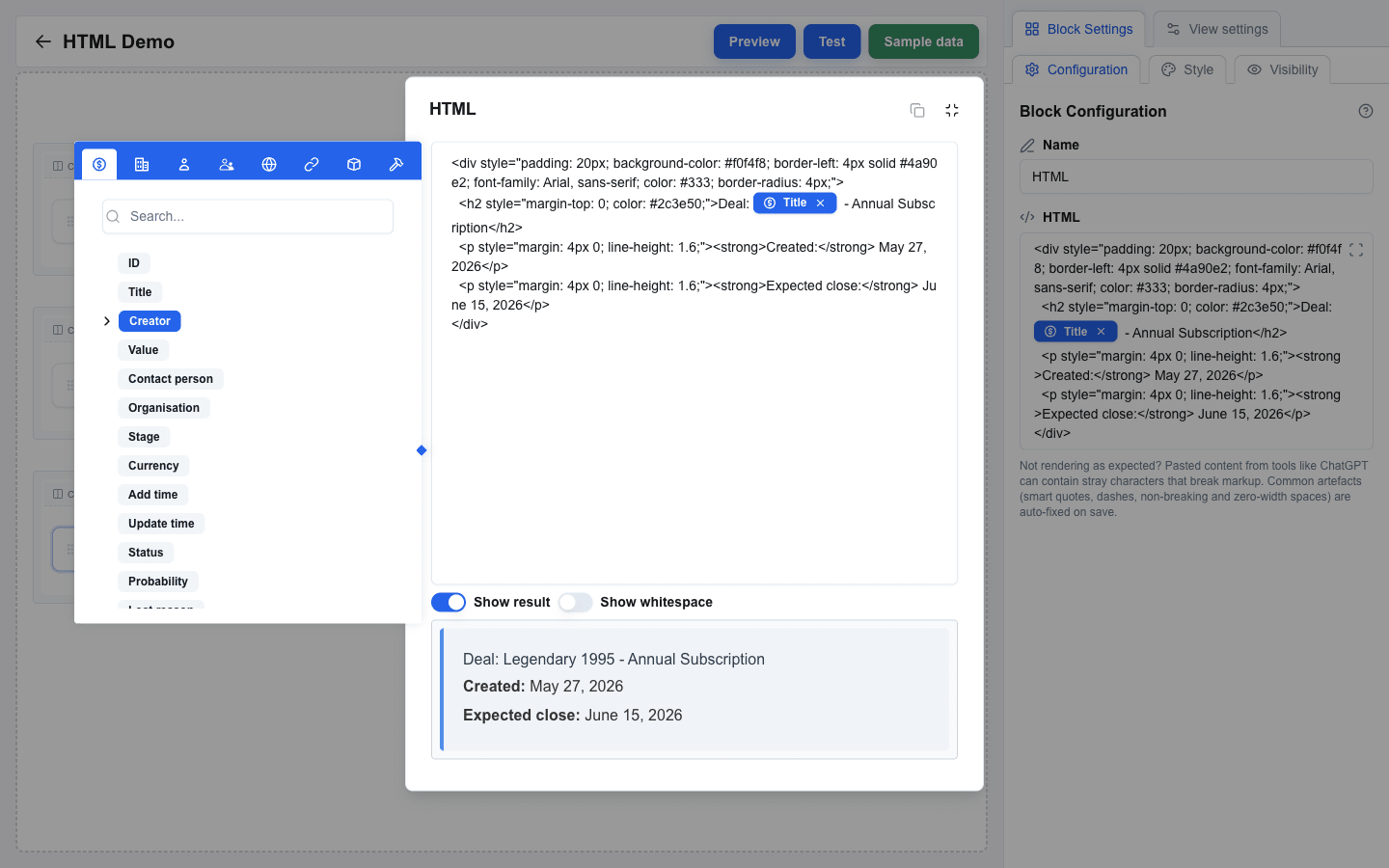
You can mix dynamic data into your HTML using resource.field placeholder syntax. The HTML field is a Data Picker input, so you can also click a field in the Data Picker to insert it as a tag; either way the compiled output is the curly-brace placeholder. For example:
html
<div>
  <h3>{{deal.title}}</h3>
  <p>Value: {{deal.value}} {{deal.currency}}</p>
</div>
The placeholders are resolved at render time with actual data from your data sources.

Filling the Row with Cards
An HTML block is as wide as its content by default, so markup such as width:100% or width:33% is measured against that content, not against the row. To let cards share the whole row:
- Select the HTML block.
- In Block Settings, turn on Full width. The block now fills its column.
- Put the cards in a wrapping flex container, and give every card an equal share with a floor at its own content width:
html
<div style="display:flex;flex-wrap:wrap;gap:0.75em">
  <div style="flex:1 1 0;min-width:max-content;border:1px solid #E5E7EB;border-radius:8px;padding:0.75em">
    <strong>{{won_by_month.0.month}}</strong>
    <div>{{won_by_month.0.won}}</div>
  </div>
  <div style="flex:1 1 0;min-width:max-content;border:1px solid #E5E7EB;border-radius:8px;padding:0.75em">
    <strong>{{won_by_month.1.month}}</strong>
    <div>{{won_by_month.1.won}}</div>
  </div>
  <div style="flex:1 1 0;min-width:max-content;border:1px solid #E5E7EB;border-radius:8px;padding:0.75em">
    <strong>{{won_by_month.2.month}}</strong>
    <div>{{won_by_month.2.won}}</div>
  </div>
</div>
flex:1 1 0 gives every card the same share of the row. min-width:max-content stops a card from getting narrower than its content, and flex-wrap:wrap then moves the cards that do not fit onto the next line. The layout needs no pixel widths: in a wide panel the cards sit side by side, and in a narrow panel they stack.
With Full width off, the same markup shrinks to the width of the cards' content.
Preview
Switch to Preview mode to see the rendered HTML output. Disallowed markup is removed during sanitisation and Data Picker placeholders are replaced with the values of the chosen Pipedrive resource.

Previewing without leaving the dialog
Click the expand icon on the HTML field and toggle Show result to render the compiled HTML inside the dialog itself — no need to switch to Preview mode. The dialog applies the same sanitiser as the live view, so anything that would be stripped in production is also stripped here.