Appearance
How to Use Alert and Badge Blocks
Type: How-to | Audience: End-user | Goal: Add notification alerts and status badges
Alert Block
- Hover the gap between two rows and click the
+button to add a row, then click an empty column and pick Alert in the Add block dialog. - Click the new block to open its settings in the sidebar.
Setting the Variant
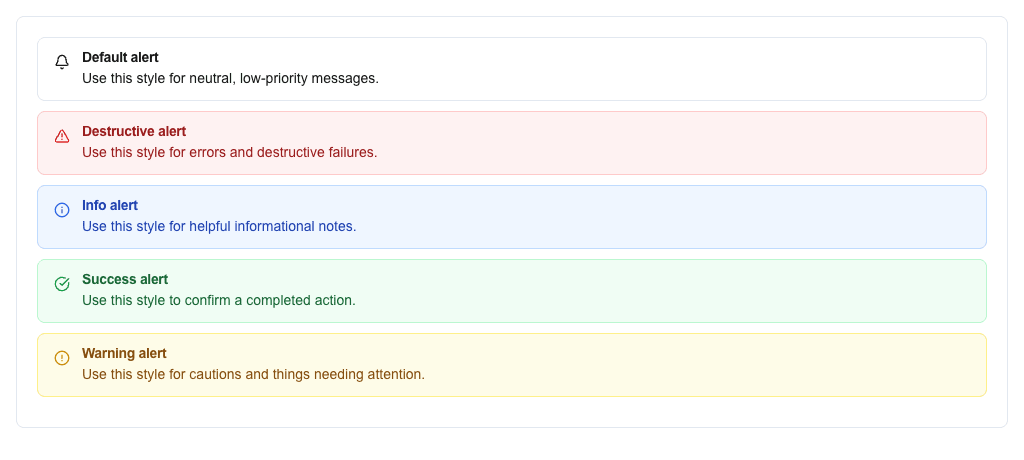
The variant controls the alert's visual style. The Variant card has two tabs:
Select tab (default): Pick a variant from the dropdown:
- Default -- neutral style
- Destructive -- red, for errors
- Info -- blue, for informational messages
- Success -- green, for confirmations
- Warning -- yellow/amber, for caution
Data tab: Use the Data Picker to bind the variant to a data field. The field value must be one of: default, destructive, info, success, warning.

Title and Description
- Title (Optional): Use the Data Picker to set the alert title. You can type static text or pick a dynamic value from your data source using resource.field syntax.
- Description: Use the Data Picker to set the alert body text. Same static/dynamic options as title.
Badge Block
- Hover the gap between two rows and click the
+button to add a row, then click an empty column and pick Badge in the Add block dialog. - Click the new block to open its settings in the sidebar.
Setting the Variant
Like Alerts, Badges have Select and Data tabs in the Variant card.
Static variants available:
- Default, Destructive, Info, Success, Warning, Secondary, Outline, Pink, Violet, Light Blue, Disabled
In the Data tab, use the Data Picker to bind the variant to a data field. Valid values: default, destructive, info, success, warning, secondary, outline, pink, violet, lightBlue, disabled.
Setting the Value
Use the Text field to set the badge text. You can type static text or use the Data Picker with resource.field to pull values dynamically from your data source.
