Appearance
How to Use Hover Cards
Type: How-to | Audience: End-user | Goal: Add tooltip-style hoverable cards
Adding a Hover Card Block
- Hover the gap between two rows and click the
+button to add a row (pick any layout in the Add row dialog). - Click an empty column inside the row, then pick Hover Card in the Add block dialog.
- Click the new block to open its settings in the sidebar.
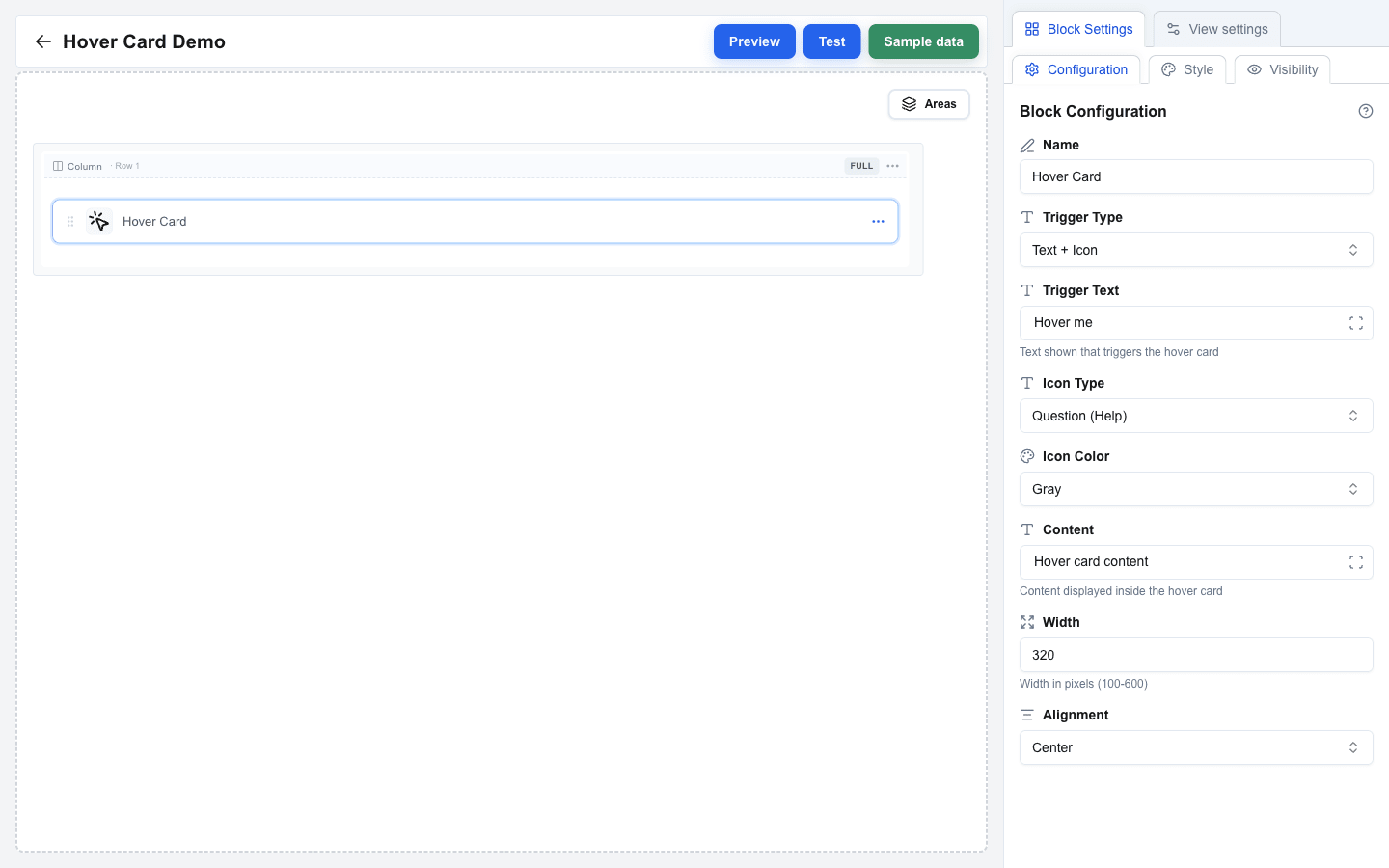
Trigger Type
Choose what the user hovers over to reveal the card. Set Trigger Type to:
- Text Only — displays trigger text only (default)
- Icon Only — displays an icon only
- Text + Icon — displays both text and an icon
When the trigger includes text, fill the Trigger Text field. You can use static text or bind it dynamically with the Data Picker.
Icon Configuration
When the trigger type includes an icon (Icon Only or Text + Icon), the sidebar shows two extra fields:
- Icon Type — pick the icon style: Warning (Triangle), Info (Exclamation), or Question (Help). Default: Question (Help).
- Icon Color — pick the icon color: Gray, Red, Yellow, Blue, or Green. Default: Gray.
Content, Width, Alignment
- Content — the hover card body content. Use static text or the Data Picker for dynamic values.
- Width — set the card width in pixels (100–600). Default: 320.
- Alignment — set card alignment relative to the trigger: Start, Center, or End. Default: Center.