Appearance
Snapshots
Type: How-to | Audience: Interface builder user | Goal: Take a copy of an interface and return the interface to it
A snapshot is a copy of all the views and all the variables of one interface. Take a snapshot before a big change. If the change breaks something, restore the snapshot and the interface is back in the state of the snapshot. A snapshot does not hold the OneClick settings of the interface (URL, token, headers, fields, visibility).
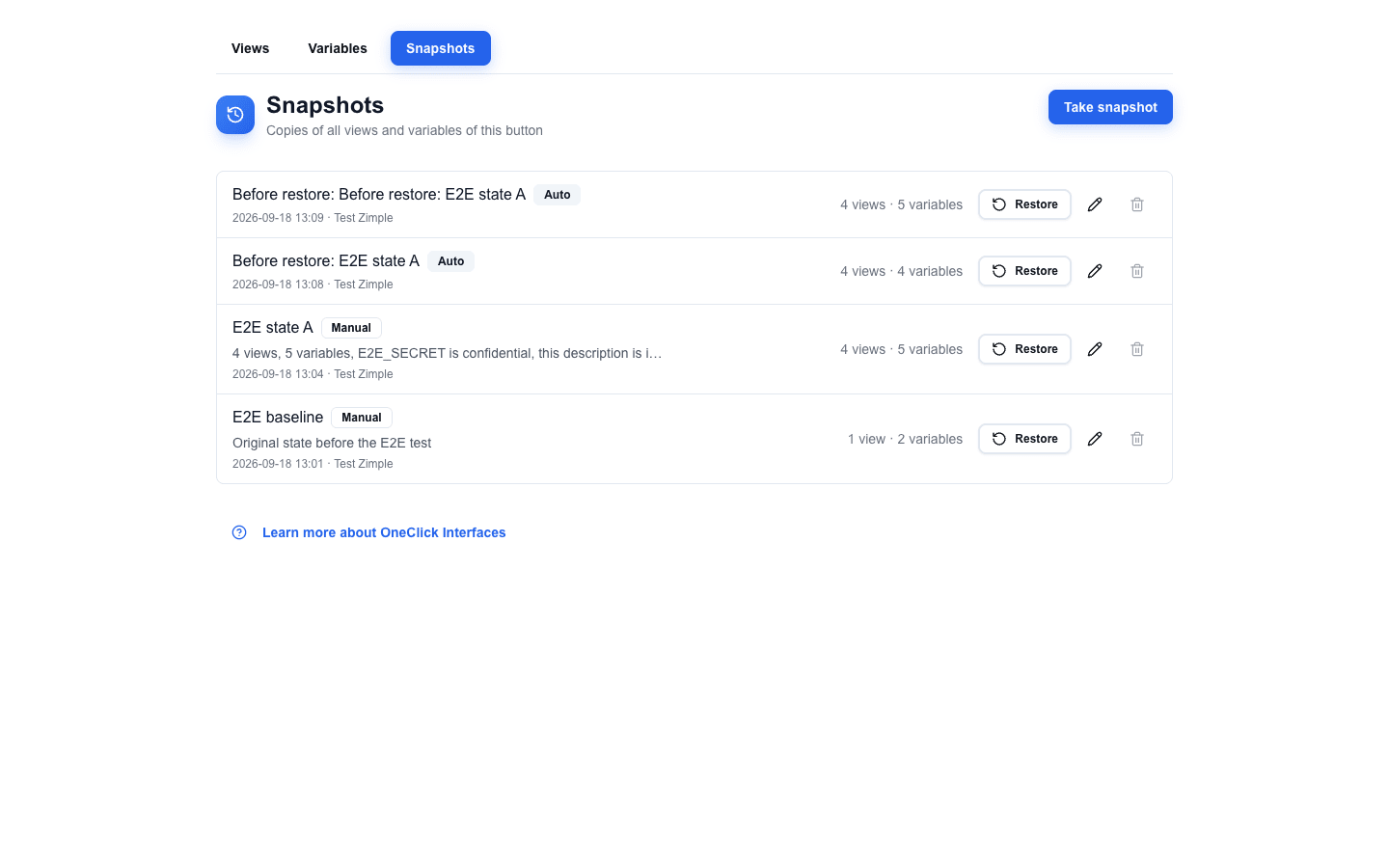
Open the Snapshots tab on the home screen, next to Views and Variables.
Taking a snapshot
- Click Take snapshot.
- Optionally type a Name and a Description. An empty name saves the snapshot as
Snapshot <yyyy-MM-dd HH:mm>. - Click Take snapshot in the dialog.
The snapshot holds each view and each variable as a whole: for a view, for example its layout, sample data, data source URL and method, additional data, active flag, default view flag, name and description; for a variable, its key, value, type, resource, confidential flag and creator. Confidential values stay encrypted in the snapshot. The content of a snapshot never changes after you take it.
The snapshot list
The list shows the snapshots of the current interface, newest first. Each row shows:
- The name and a Manual or Auto badge. An Auto snapshot is the one a restore takes automatically (see Undoing a restore).
- The description, truncated to one line. Hover it to see the full text.
- The creation time and the user who took the snapshot.
- The size, for example
4 views · 5 variables. - Restore, Edit snapshot (pencil) and Delete snapshot (trash).
Restoring a snapshot
A restore returns all the views and variables of the interface to the state of the snapshot:
- Views and variables made after the snapshot are removed.
- Views and variables deleted after the snapshot come back, with their original ids. References to a restored view from other views keep working.
- Views and variables changed after the snapshot change back.
- Confidential variables of other admins stay as they are. See Variables and snapshot restore.
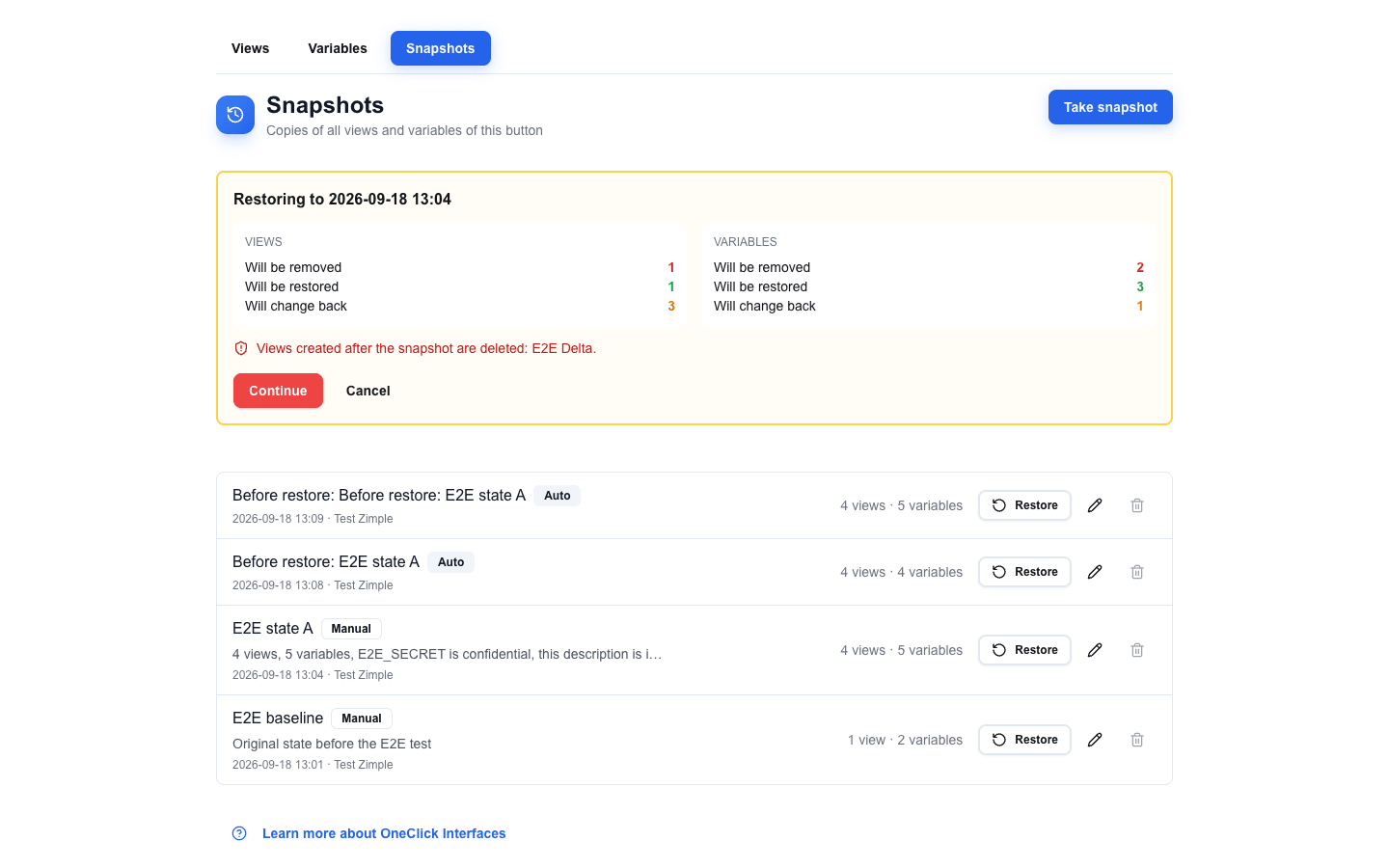
Click Restore on the snapshot row. A summary card opens above the list, titled Restoring to <snapshot time>.
Check the counts. For views and for variables, the card shows how many Will be removed, Will be restored and Will change back. A red line lists the views that the restore deletes. If confidential variables of other admins stay as they are, a separate line lists their keys.
Click Continue, or Cancel to close the card without changes.
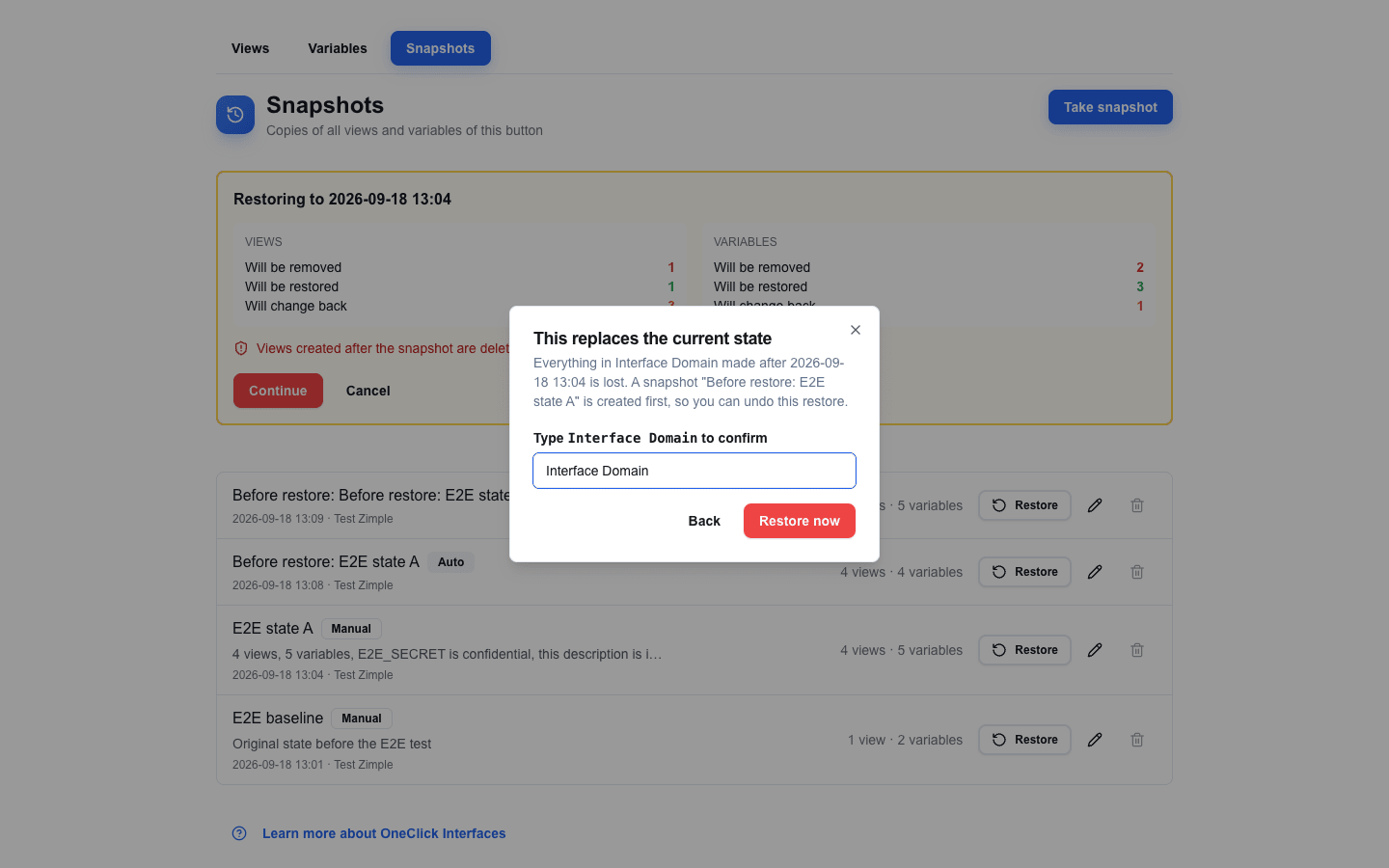
The dialog This replaces the current state opens. Type the name of the interface exactly as shown, with the same upper and lower case letters.
Click Restore now. Restore now stays disabled until the name matches. Click Back to return to the summary card.
After the restore, a toast confirms it and the Views and Variables tabs show the restored data.
A restore is all or nothing. If it fails, nothing changes and one of these toasts appears:
| Toast | Cause |
|---|---|
| Restore failed. No changes were made. | The restore failed. The summary card stays open, so you can try again. |
| Snapshot no longer exists. No changes were made. | Somebody deleted the snapshot in another session. The list refreshes. |
| Button no longer exists. | The interface was deleted. The app returns to the OneClick settings. |
Undoing a restore
Before every restore, a snapshot named Before restore: <snapshot name> is taken automatically. It has the Auto badge and holds the state that the restore replaced. To undo a restore, restore that Auto snapshot.
Editing and deleting a snapshot
- Edit snapshot (pencil) changes the name and the description. The copied views and variables do not change. The name cannot be empty.
- Delete snapshot (trash) asks for confirmation and then deletes the snapshot permanently. This cannot be undone.
Any admin can edit, delete and restore any snapshot of the interface, also Auto snapshots and snapshots taken by other admins. When the interface is deleted, its snapshots are deleted too.