Appearance
How to Add a Navigation Bar
Type: How-to | Audience: End-user | Goal: Configure a navbar with links, a title, and a logo
Adding a Navbar Block
- Hover the gap between two rows and click the
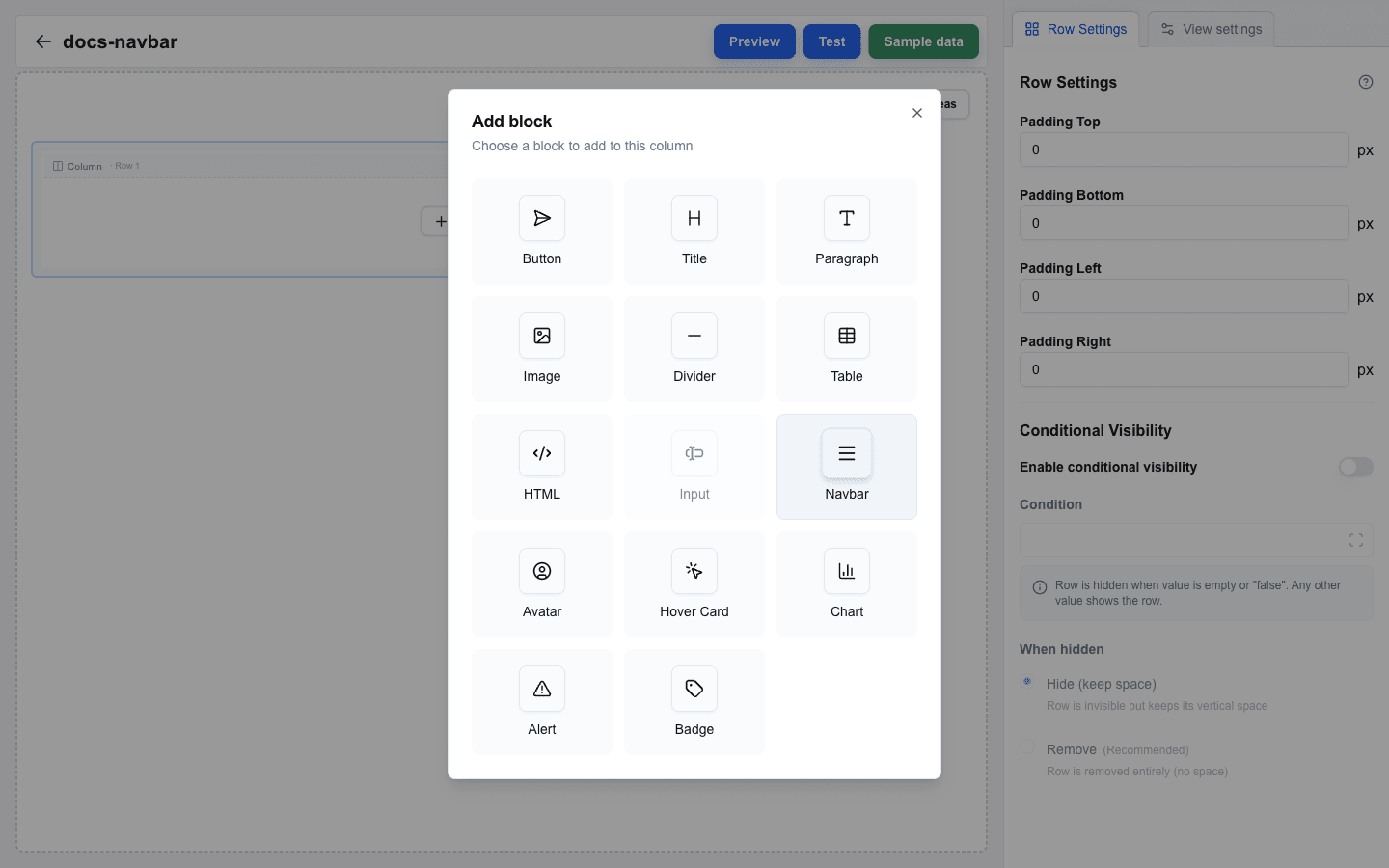
+button to add a row — usually a full-width row at the top of the view. - Click an empty column inside the row, then pick Navbar in the Add block dialog.
- Click the new block to open its settings in the sidebar.
Adding Links
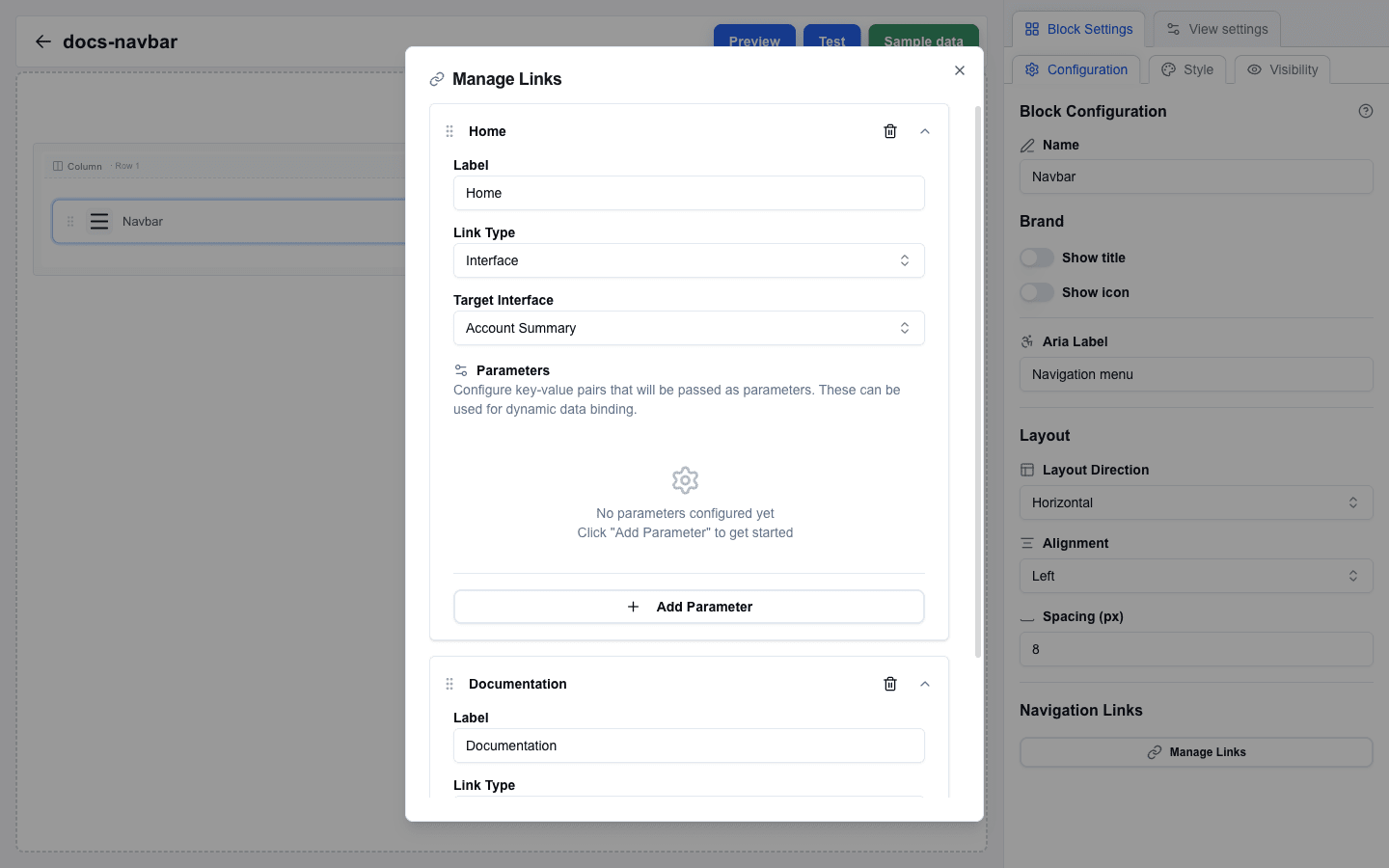
Scroll the sidebar to the Navigation Links section and click Manage Links. A dialog opens where you can add and reorder links.
- Inside the dialog, click Add to create a new link. The link expands into an editable card.
- Fill in the link fields:
- Label — the text shown to the user. Required.
- Link Type — pick Interface to navigate to another view inside this interface, or External URL to open an external address.
- For Interface links: pick the destination from the Target Interface dropdown and optionally add Parameters (key-value pairs passed to the target view).
- For External URL links: enter the address in the URL field. The URL field supports the Data Picker.
- Drag the grip handle on the left of each link card to reorder links.
Styling Links
Each link card has a Variant dropdown that controls the link's visual style. The options are the same as on the Button block: Default, Link, Destructive, Outline, Secondary, Ghost, and Custom.
Leave the dropdown on Navbar default to keep the classic navbar look. Note that picking Ghost explicitly is not the same as Navbar default — an explicit variant styles the link entirely on its own.
Custom colors
Pick Custom to choose the colors yourself:
- Set Text Color with the color picker. Required.
- Set Background Color. Required — or check Transparent for no background.
- Optionally check Enable next to Hover Background Color and pick the background color shown while hovering.
Same style for every link
Set up one link the way you want, then click Apply to all links. This copies that link's Variant and custom colors onto every other link. The button appears when the navbar has more than one link.
Brand: Title and Logo
Both the title and the logo are configured inside the Brand section at the top of the sidebar.
Title
Turn on Show title to display a title in the navbar.
- Title Text — the title string.
- Font Size (px) — between 12 and 48.
- Font Weight — Normal, Medium, Semibold, or Bold.
- Title Color — the title's color (color picker).
Logo
Turn on Show logo to display a logo image.
- Image URL — the logo image URL.
- Alt Text — alternative text for screen readers and for when the image fails to load.
- Width (px) — between 16 and 200.
- Height (px) — between 16 and 200.
Layout
The Layout section controls how items are arranged inside the navbar.
- Layout Direction — Horizontal (links in a row) or Vertical (links stacked).
- Alignment — Left, Center, Right, or Space Between.
- Spacing (px) — gap between items, 0 to 50.
Accessibility
- Aria Label — screen-reader name for the navigation region. Default placeholder: "Navigation menu".
