Appearance
Using Areas to Group Rows
Type: How-to | Audience: Interface builder user | Goal: Group rows into named areas, control their visibility, and repeat them for each item in your data
What is an Area?
An area is a named group of rows in your view. Areas let you:
- Visually organise sections of a view on the canvas (each area has a colour).
- Show or hide a whole section at once with a single condition.
- Repeat a whole section for every item in a list -- for example, render one card per deal, one row per attachment.
Each area has:
- A Name for identification.
- A list of Rows it contains (you pick them from the row selector).
- A Color for visual distinction on the canvas.
- Optional Conditional Visibility settings.
- Optional Loop settings.
Creating an Area
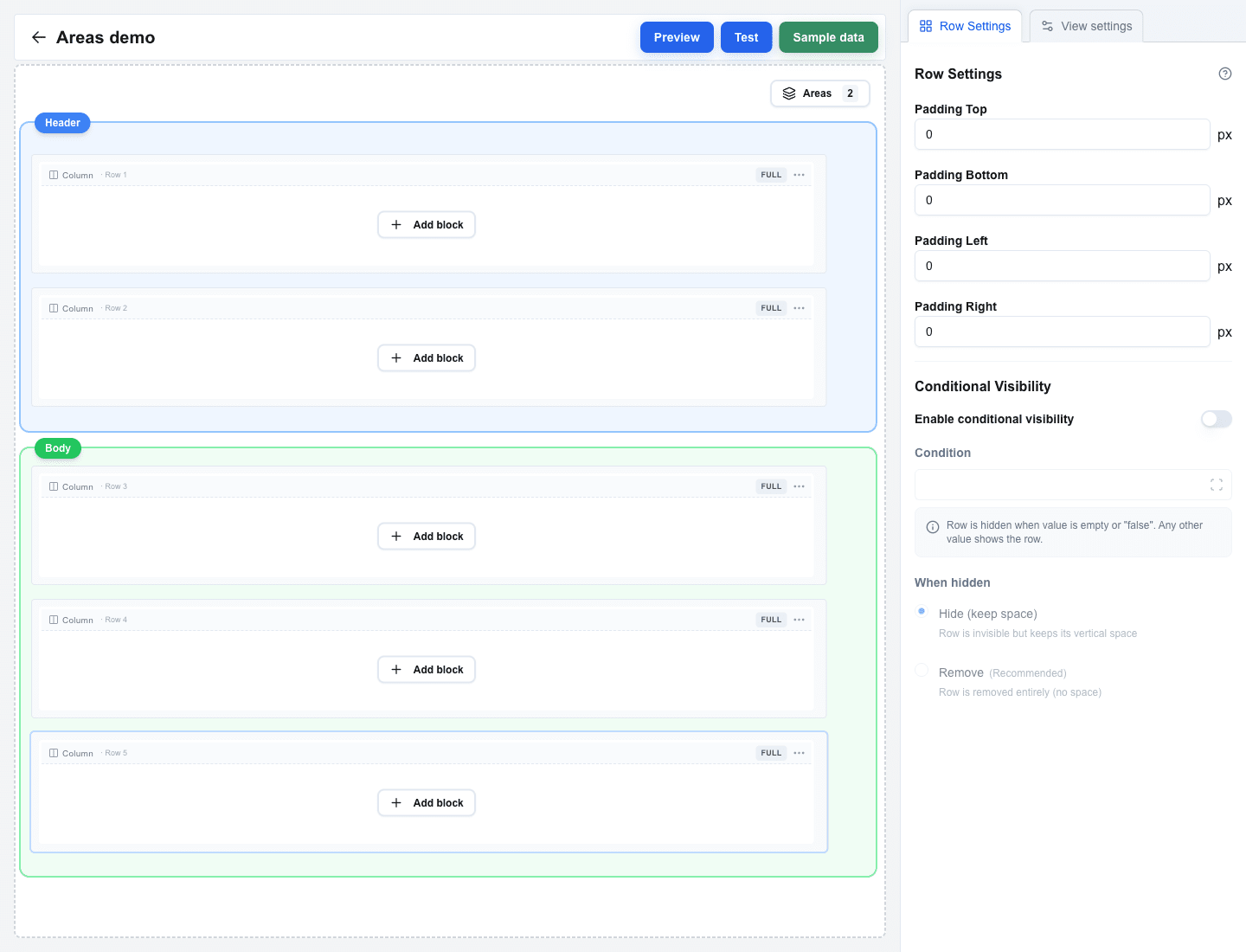
- Click the Areas button (top-right of the canvas, the badge shows how many areas the view already has).
- Add a new area from the list and give it a Name that describes the section (for example,
Header,Body,Line items,Summary). - Build up the row range:
- Click numbered row buttons in the Rows visual selector to toggle them in or out. Rows already owned by another area appear in that area's colour and are disabled (areas cannot overlap).
- Use the Add Row N (above/below) quick-action buttons that appear for adjacent unowned rows.
The area appears as a coloured overlay around the selected rows, with a labelled badge above the first row. Clicking that badge selects the area and opens Area Settings.
Switching Between Areas
When the view has more than one area, the top of Area Settings shows a dropdown next to the Area Settings title. Open it to jump straight to another area; the canvas scrolls to the area's first row.
Area Colours
Pick a colour from the swatches in Area Settings to tell areas apart on the canvas. The colour only affects the builder -- end users of the view never see it. The eight available colours, in order, are:
- Blue (default)
- Green
- Purple
- Orange
- Red
- Teal
- Pink
- Gray
Conditional Visibility
You can show or hide a whole area based on data.
- Open Area Settings by clicking the area's badge on the canvas.
- Toggle Enable conditional visibility on.
- In Condition, use the Data Picker to build an expression. The area is hidden when the expression evaluates to an empty string or
"false"; any other value shows it. - Pick a When hidden mode:
- Hide (keep space) -- rows become invisible but keep their vertical space in the layout.
- Remove (Recommended) -- rows are removed entirely; no gap is left.
Looping an Area
A loop makes the whole area repeat -- once per item in a list, or a fixed number of times. This is how you render "one row per record" in a view.
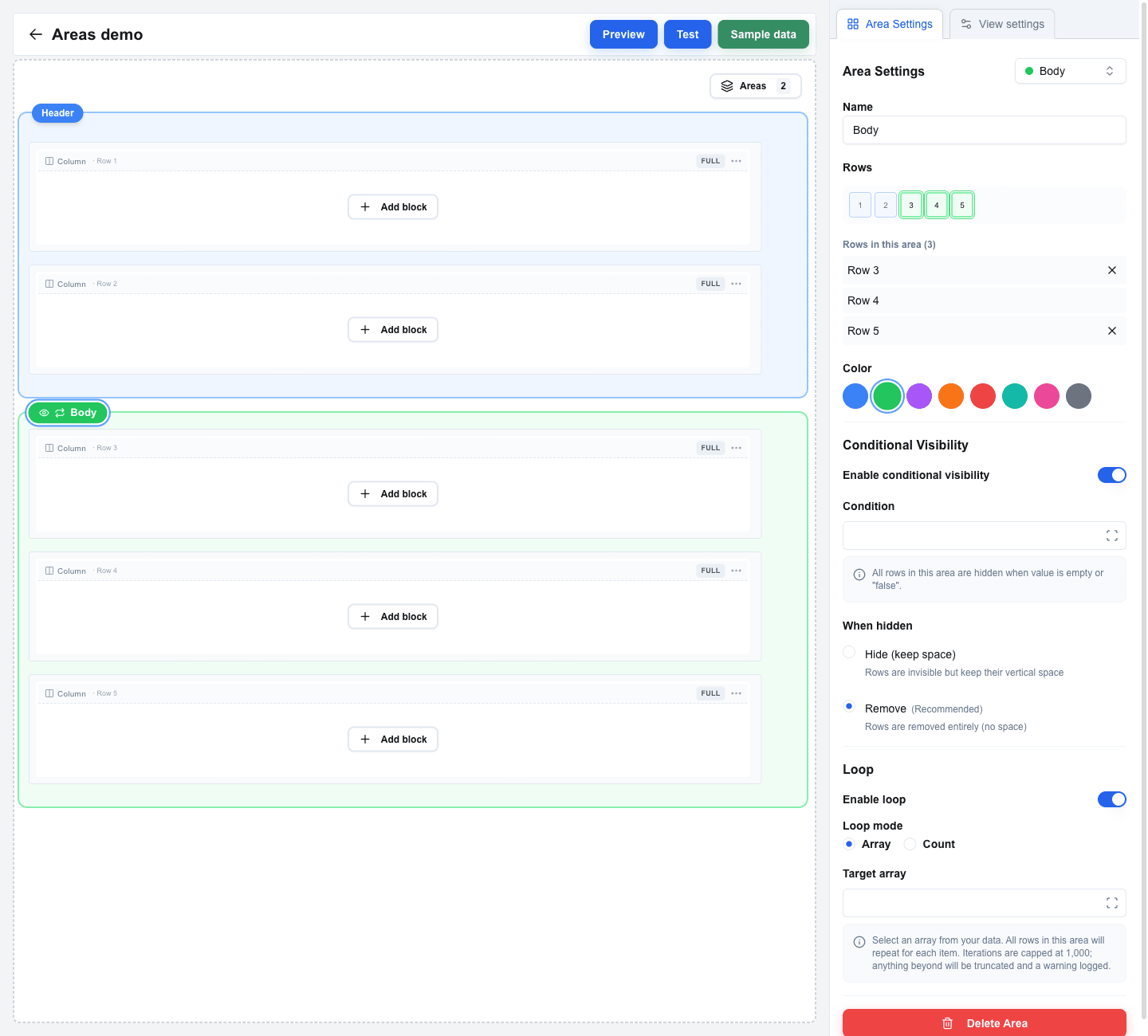
- Open Area Settings and scroll to the Loop section.
- Toggle Enable loop on.
- Pick a Loop mode:
- Array -- repeat once for each item in a data array.
- Count -- repeat a fixed number of times.
Array mode
Use Array mode when you have a list of records (for example, deals, products, line items) and want the area to appear once per record.
- Set Loop mode to Array.
- Fill Target array with the Data Picker -- pick an array from your data source (for example,
dealsor an API response field).
The rows inside the area are rendered once for each item in the array. Inside the area, Data Picker placeholders resolve against the current iteration's item, so a placeholder like item.title shows a different title in each repetition.
If the target array is empty, the area renders nothing (every row inside is hidden).
Count mode
Use Count mode when you want the area to repeat a known number of times regardless of whether there is a matching list.
- Set Loop mode to Count.
- Fill Loop count with the Data Picker -- pick a number from your data, or type a literal number.
The rows inside the area are rendered that many times.
Iteration index
Inside a looping area you can reference the current iteration number (starting at 1) via the Data Picker's loop item tab -- the icon is a repeat / loop symbol and the tab only appears inside a looping area. Use it to number items, conditionally style the first or last one, or drive other logic.
Iteration cap
A single looping area is capped at 1,000 iterations. If the target array or count would produce more, the extras are dropped and a warning is written to the browser console. If you hit the cap, reduce the list length or count in your data source.
Forms inside a looping area
If the looped rows contain form inputs, each iteration renders its own copy of every input. The first iteration keeps the original field names; later iterations submit under _loop_1, _loop_2, … suffixes. The submission also carries an oc_loop array — one object per iteration — so your endpoint has one predictable place to read the looped values. See Form Submission Types for the exact payload shapes.
Preventing Overlap
Areas cannot overlap. The row selector disables buttons for rows already owned by another area, and the Add Row N quick-actions only show for adjacent unowned rows. Resize or delete the conflicting area before adding it to a new one.
Deleting an Area
Click Delete Area at the bottom of Area Settings. This removes the area grouping only -- the rows themselves stay on the canvas.