Appearance
Managing Interface Variables
Type: How-to | Audience: End-user | Goal: Create, use, and manage variables
Variables Page
Open the Variables tab from the home screen. The page header reads Environment Variables and lists every variable defined for the current interface, with a stats line showing how many are confidential and how many are Pipedrive fields.

Creating a Variable
The Add Variable button in the top-right is a dropdown with two options:
- Normal -- a key-value pair you fill in yourself (e.g. an API base URL or token).
- Pipedrive Field -- a variable that resolves to the value of a chosen Pipedrive field on the current resource.
Normal variable
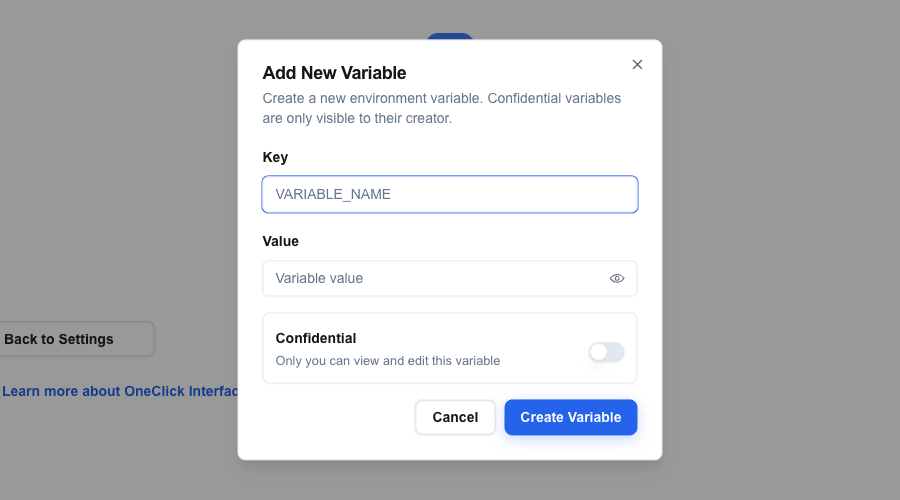
Pick Normal to open the Add New Variable dialog and fill in:
- Key -- a unique identifier (referenced in the Data Picker as key). Required.
- Value -- the variable's content. Required. The field uses a password-style input with a show/hide toggle.
- Confidential -- toggle on to mask the value in the builder UI and restrict editing/deletion to its creator. (All variable values are encrypted at rest, regardless of this toggle.)
Click Create Variable to save.
Pipedrive Field variable
Pick Pipedrive Field to open the Add Pipedrive Field Variable dialog and fill in:
- Resource Type -- choose Deal, Person, or Organization.
- Pipedrive Field -- pick a field from the searchable list.
- Variable Name -- defaults to the field's display name. Edit if you want a shorter key.
The dialog also shows the resolved Field code as a preview. Click Create Variable to save. The variable's value is resolved at render time from the current deal/person/organization context.
Confidential Variables
All variable values are encrypted at rest in the database. The Confidential toggle adds two extra protections on top of that:
- The value is masked (
••••••••••••) in the variables list. Only the creator can reveal it with the eye icon. Other users see the mask with no eye icon, and the copy button is not shown for confidential variables. - Only the creator can edit or delete the variable. Other users see the row but the action icons are disabled.
The variable still works the same way at render time: the encrypted value is decrypted server-side and used in placeholders. Use confidential variables for API keys, tokens, and other sensitive data.
Using in Data Picker
- Open any Data Picker field in the builder.
- Switch to the Variable tab (the icon-only tab in the picker's top bar).
- Click a variable to insert it as a tag. The compiled syntax is your_key.
Variables are resolved server-side at render time, so confidential values are never exposed in the client.
Editing and Deleting
Hover a variable card to reveal the action icons on the right:
- Edit (pencil) -- modify the key, value, or confidential flag.
- Delete (trash) -- removes the variable after a confirmation dialog.
Permissions: only the user who created a confidential variable can edit or delete it. Non-confidential variables can be modified by any user with access to the interface.
Variables and snapshot restore
A snapshot holds every variable of the interface, confidential values included. The values stay encrypted in the snapshot. A restore returns the variables to the state of the snapshot, with the same creator rule as editing:
- Your own confidential variables are restored like all other variables.
- Confidential variables of other admins stay as they are. The restore does not change their value and does not delete them, also when the snapshot does not have them. The restore preview lists their keys in a separate line (for example "2 confidential variables of other admins stay as they are: api_token, slack_webhook_token.") and does not count them in the Variables totals.
- If the snapshot has a variable with the same id or the same key as such a kept variable (the key match ignores case), the restore skips the snapshot variable. So each key is on one variable after the restore.