Appearance
Creating a New View
Type: How-to | Audience: End-user | Goal: Add views to an interface
Interface Views Page
Open the views list for an interface from the interface management page (the Interface Domain > Interface Views breadcrumb). The page shows every view in the interface as a card with its name, description, row count, and the Start badge on whichever card is the main view.
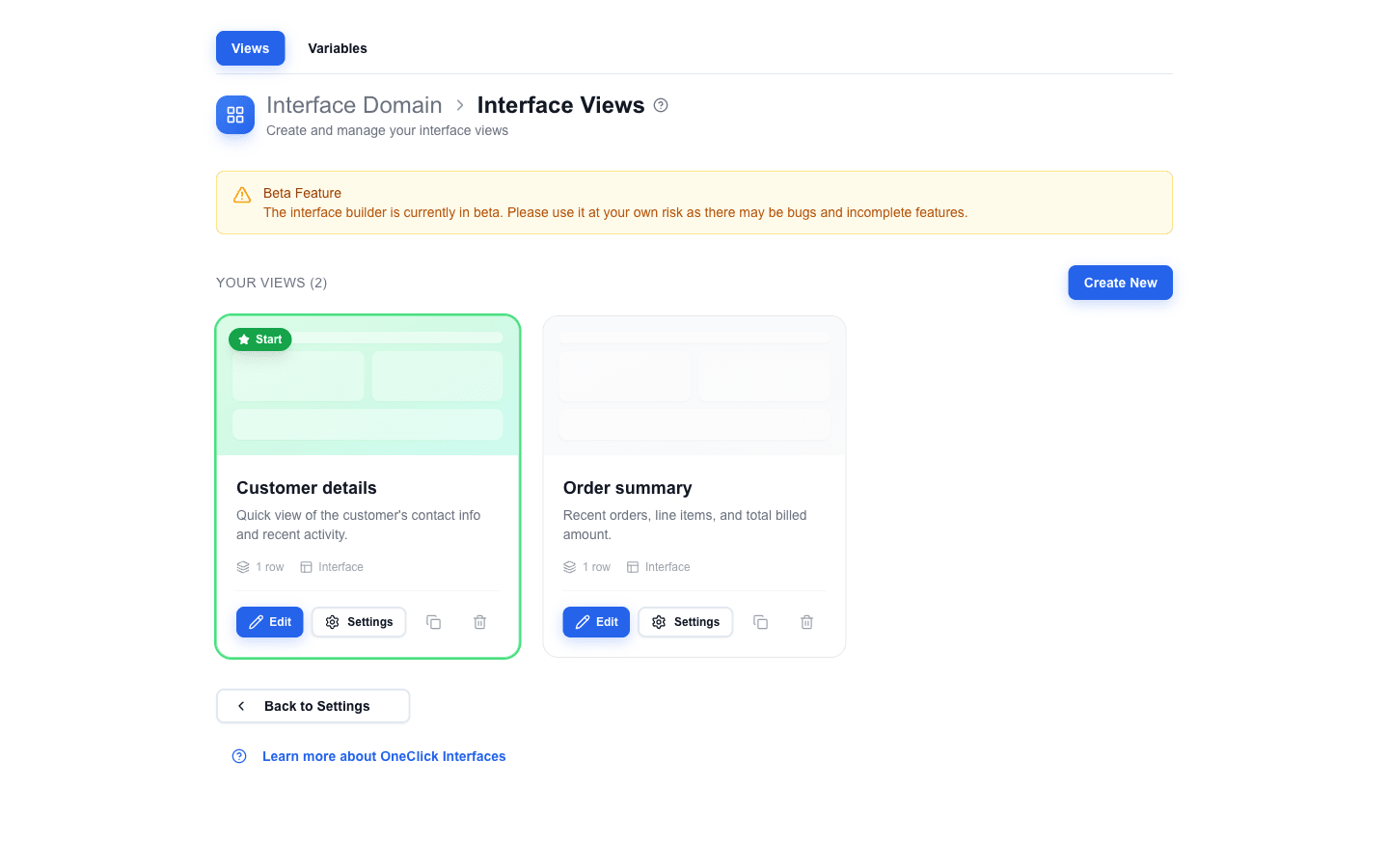
Creating a New View
- Click Create New in the top-right of the Your Views section.
- The Create new view dialog opens. Fill in:
- Name -- a unique, descriptive name. The name is used in navigation references (action buttons, navbar links, form-after-submit selectors) and in the view-selector dropdowns inside the builder. Choose clear names like
Customer details,Order summary, orEdit form. - Description -- optional context shown on the view card.
- Default view -- when on, this view becomes the interface's main view (see Main View below). The first view of an interface is forced to be the default and the toggle is disabled.
- Name -- a unique, descriptive name. The name is used in navigation references (action buttons, navbar links, form-after-submit selectors) and in the view-selector dropdowns inside the builder. Choose clear names like
- Click Create. The view is created with an empty canvas and the builder opens automatically.
Editing the View in the Builder
Click Edit on a view card (or open a view from the breadcrumbs) to start working on it in the builder. From there you can:
- Add rows and blocks.
- Configure data bindings via the Data Picker.
- Set Global Styles for view-wide font, colour, and gap defaults.
- Configure Areas to group rows for shared visibility or looping.
Each view has its own independent layout, rows, blocks, and settings. Edits auto-save -- there is no separate save or publish step. See Saving for the auto-save and validation rules that apply.
Card Actions
Each view card has four action buttons:
| Button | What it does |
|---|---|
| Edit | Opens the view in the builder. |
| Settings | Opens the Edit view dialog. Same fields as Create new view plus a read-only ID -- use this dialog to rename, edit the description, or change which view is the main view. |
| Copy (clipboard icon) | Duplicates the view inside the same interface. The copy is never the main view. |
| Delete (trash icon) | Removes the view after a confirmation prompt. |
Main View
The main view is the one that opens when a user clicks the OneClick button in Pipedrive. In the views list it is highlighted with a green border and a Start badge (star icon) on the card preview.
To change which view is the main view:
- Click Settings on the view card you want to promote.
- In the Edit view dialog, turn on the Default view switch.
- Save.
Only one view can be the main view at a time -- enabling Default view on a different card automatically clears it on the previous main view. Other views are reached through navigation actions: Action Buttons, Navbar links, Table action columns, and form submissions. See Navigating Between Views for setup details.