Appearance
Testing a View with Real Data
Type: How-to | Audience: Interface builder user | Goal: Render your view against live Pipedrive records and external data sources
The builder's Test mode renders your view with real data while you are editing it. Use it to verify that placeholders resolve, forms submit correctly, and conditional visibility behaves as expected -- before anyone else opens the view.
Interface Builder has no separate publish step. Every edit you make is auto-saved and goes live immediately for anyone who opens the view in Pipedrive, so Test mode is the safest place to experiment.
Opening Test Mode
- Open the view in the builder.
- Click the Test button in the top bar (next to Preview / Sample data).
The builder switches to Test mode: a single toolbar runs along the top of the canvas, with the rendered view below it.
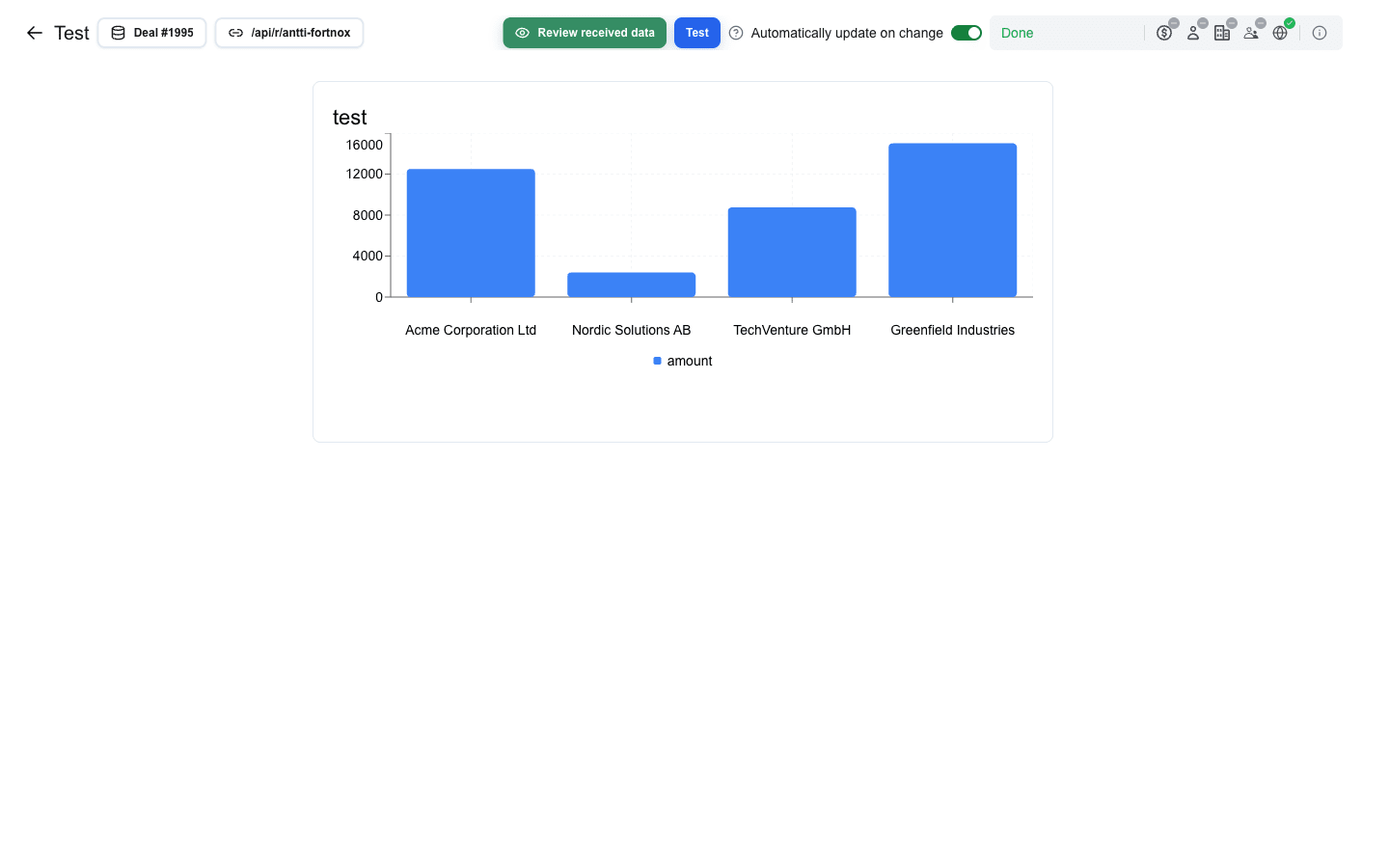
The back arrow on the left returns to the builder.
Picking a Pipedrive Record
The toolbar shows the active resource as a button labelled <Resource> #<ID> (for example, Deal #1995). Click it to open the Pipedrive resource dialog and pick a different record.
- Pick a resource type -- deal, person, or organization.
- Pick a specific record from the list.
- Close the dialog.
The preview reloads with that record's data. Every Data Picker placeholder bound to a Pipedrive field (for example title) resolves to the real value.
A floating window button has no record to pick, so its Test and Preview toolbars do not show the resource button at all.
Tweaking the External Data Source
If your view has a Data Source URL configured, click the URL button on the toolbar (Link icon, label is the path of the configured URL). The View parameter dialog opens and lets you tweak the request without editing the saved view configuration:
- URL path -- override the path the test calls.
- Query parameters -- add, edit, or remove key/value pairs. Duplicate keys collapse into a single row whose value reads
(multiple).
Closing the dialog re-runs the request and re-renders the view.
Reviewing the Backend Response
Click Review received data (eye icon, green button) to see the JSON your data source actually returned, along with the HTTP status. Use this when placeholders look empty or wrong -- it tells you whether the backend sent what you expected. The dialog is empty until a backend response arrives -- it never falls back to your saved Sample data. If your view has no data source configured, switch to Preview to see how Sample data renders.
Manual vs Automatic Reload
The Automatically update on change switch on the right of the toolbar controls when reloads happen.
- On (default) -- the preview reloads automatically whenever you change the resource, the URL path, or any query parameter.
- Off -- changes are buffered. Click the Test action button to fetch the data and re-render manually. Useful when you are making many small edits.
Your preference is stored in browser localStorage (autoloadEnabled), so it persists across sessions.
What Test Mode Is Not
- It does not gate your edits. There is no publish step -- whatever you have saved in the builder is already what users see. Test mode is just a convenient way to render the same view with real records while you keep editing.
- It does not replace real end-user validation -- the preview runs in the builder, not in the Pipedrive panel where your users actually see the view.
Troubleshooting
- Toast
Request timed out. No custom data received.-- your Data Source URL backend did not respond within ~20 seconds. Check your backend logs. - Toast
Data loading failed (status 500)-- your Data Source URL returned a non-2xx status. The status code is shown in the toast. - Placeholders show literal text -- the data needed to resolve them is missing. Check that you selected a Pipedrive record, or that your Data Source URL returned the fields you expect. Use Review received data to confirm what arrived.
See External Data Source for configuring the URL that Test mode calls.