Appearance
Using the Data Picker
Type: How-to | Audience: End-user | Goal: Insert dynamic data into block settings
This guide covers the everyday picker workflow. For the full breakdown of every tab, type filter, and badge — see the Data Picker reference.
Inserting Your First Placeholder
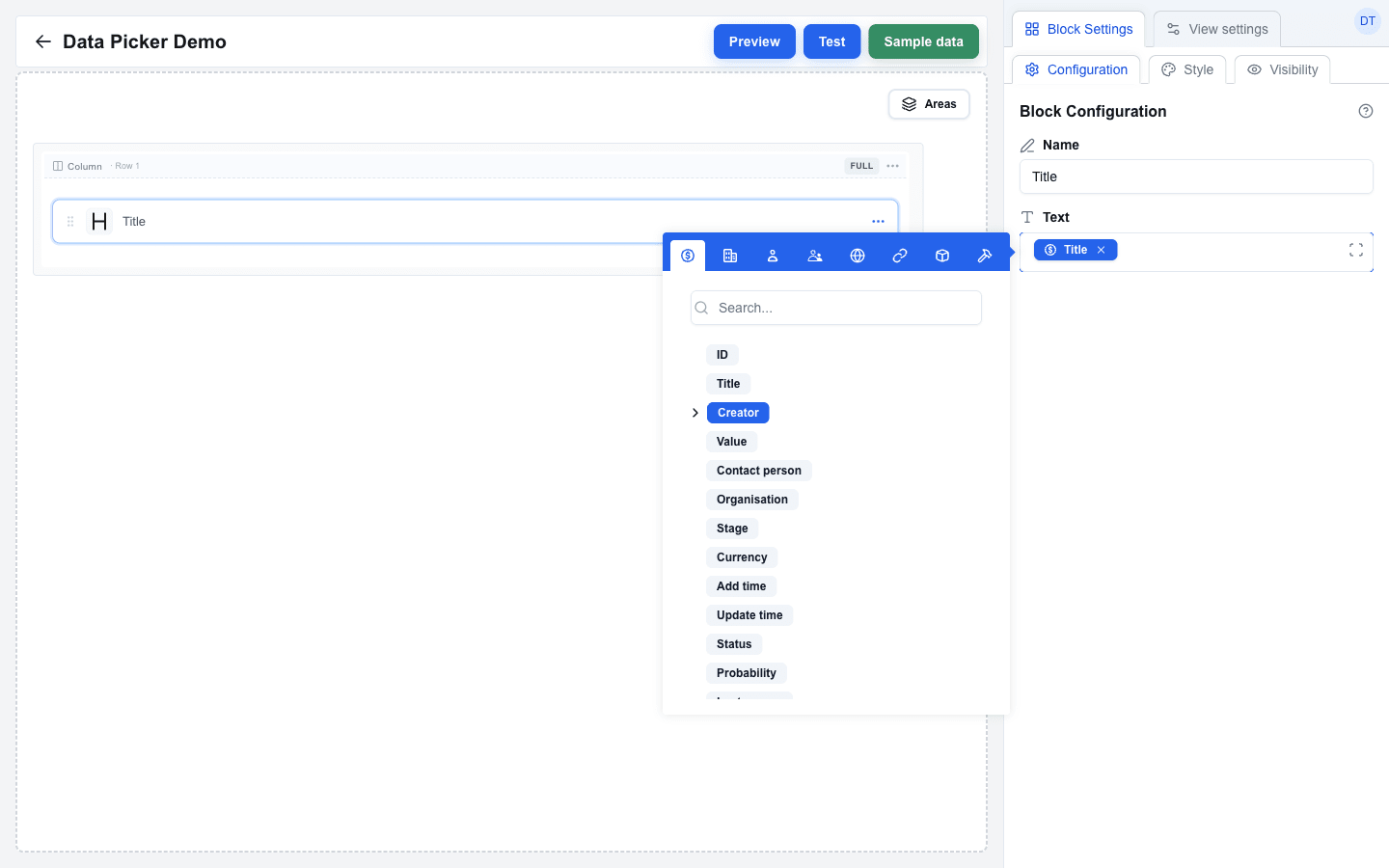
- Click into any block setting that supports the Data Picker — for example a Title block's Text field.
- The picker opens as a tooltip beside the field.
- Pick the tab whose data you want (Deal, Organization, Person, User, Custom, Search Params, Variable, Functions, Context, or — inside a looping area — Loop item).
- Click a field in the tree. A blue badge appears in the field as a single unit; the placeholder it represents (for example title) is what gets resolved at render time.
On a floating window button the Deal, Organization and Person tabs are not in the strip at all, because that button's views get no Pipedrive record.
Combining Static Text and Placeholders
You can mix plain text with badges in the same field. Type freely before, between, and after badges — the picker treats text as text and badges as atomic units.
A typical Paragraph Value might read:
Deal: title — value currencyAt render time the three placeholders resolve to live values from the deal record (for example Deal: Legendary 1995 — 3193 EUR).
Removing a Placeholder
Three ways:
- Click the small × on the badge.
- Place the cursor after the badge and press Backspace — the whole badge disappears in one keystroke.
- Select across the badge and type — the badge is replaced by whatever you type.
Editing Complex Expressions in the Larger Dialog
Once a field has more than one or two placeholders — or when you start mixing in functions like if, formatCurrency, or daysBetween — the inline picker gets cramped. Click the expand icon at the right edge of the Data Picker input to open the same field in a larger dialog. Toggle Show result to preview the rendered value (resolved against the active sample data) and Show whitespace to make spaces visible. For the HTML block specifically, Show result renders the compiled output as actual HTML (using the same sanitiser as the live view) so you can see the visual result without switching to Preview mode — see How to Use the HTML Block.
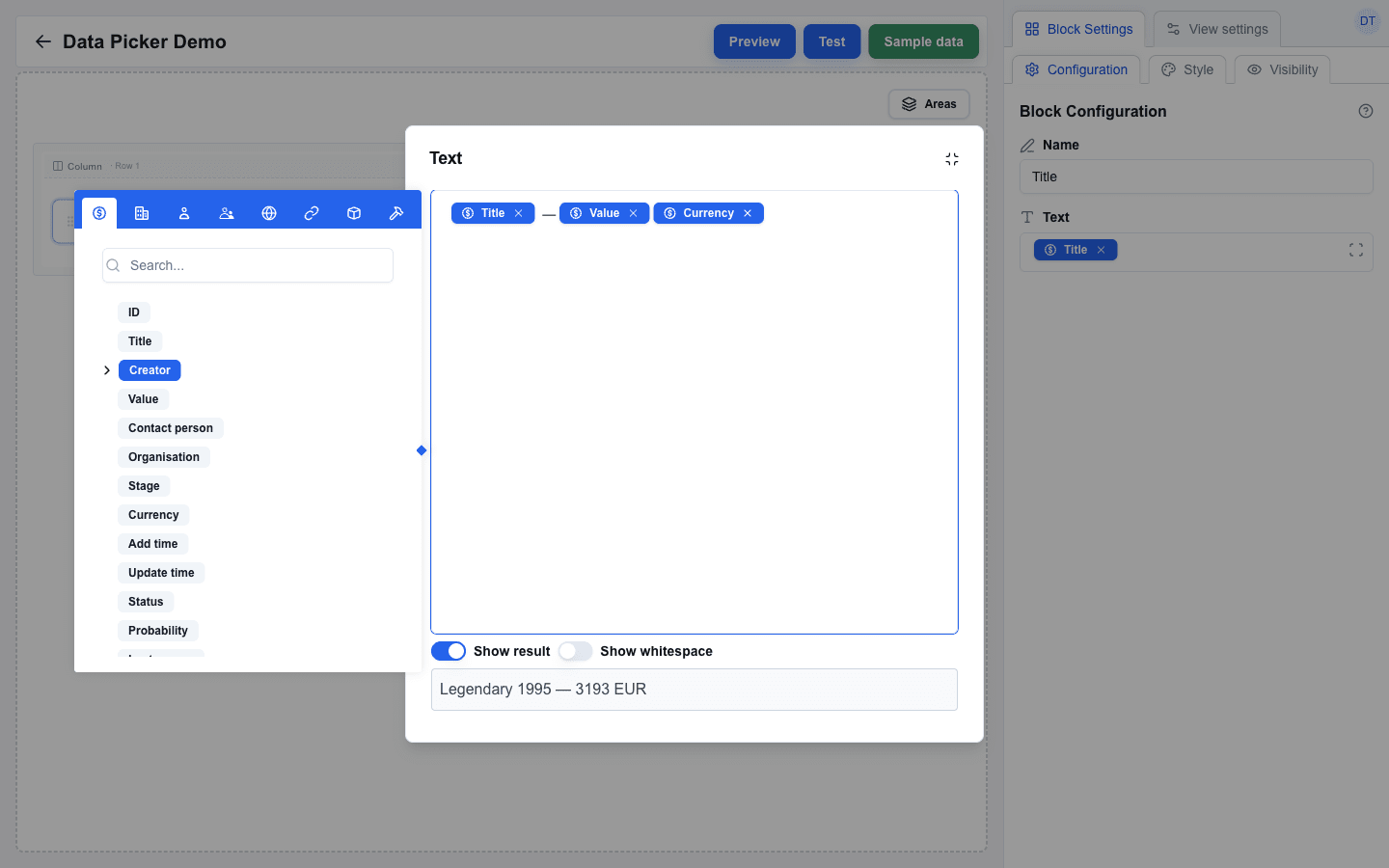
The dialog ignores clicks outside, so you can keep clicking around the canvas without losing your edits — only the minimize icon (top right) closes it.
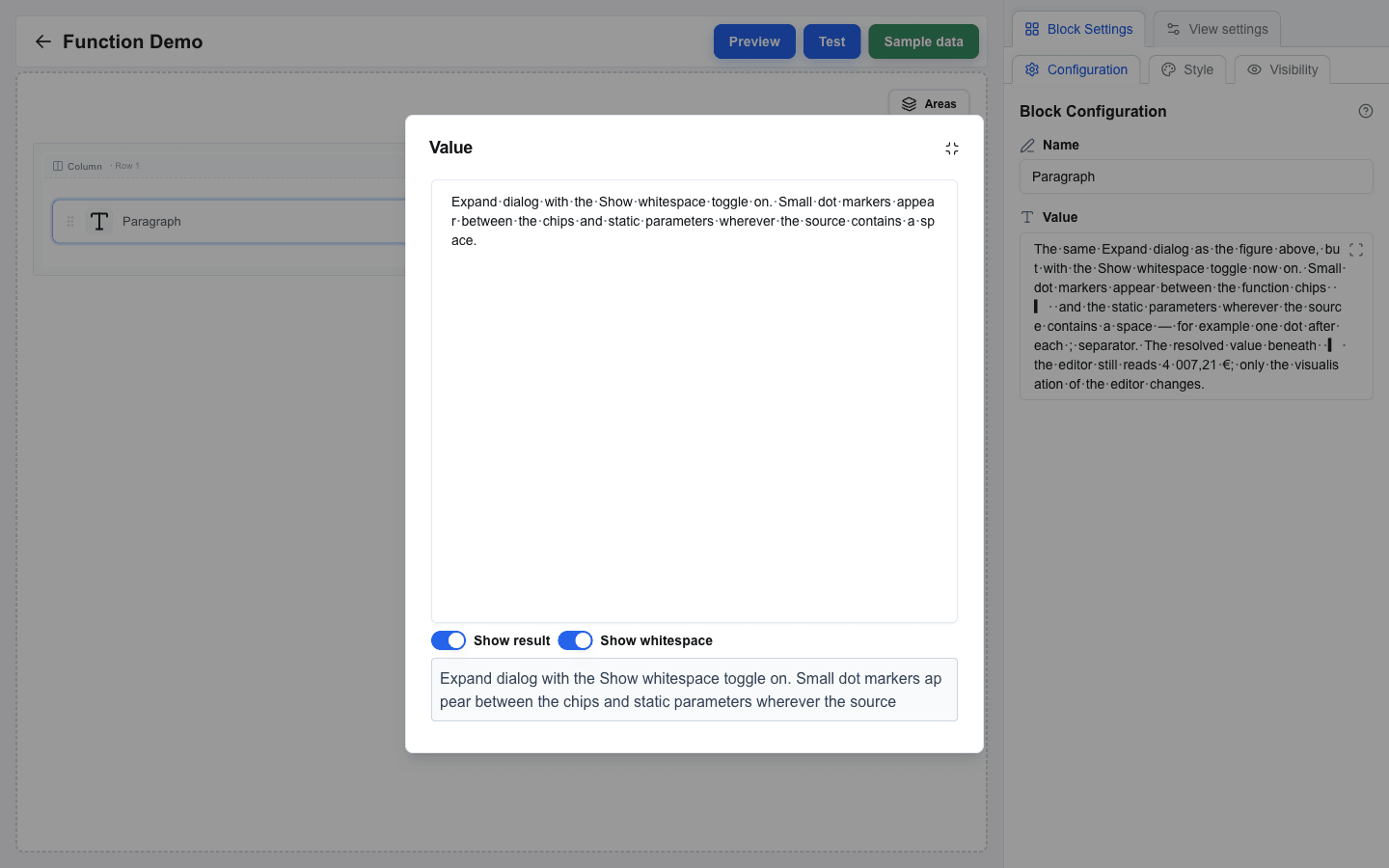
Show whitespace is useful when something looks "off" in the rendered output and you suspect a stray or missing space — for example a placeholder that touches the next word, or two spaces between values. Switch the toggle on to see every space in the field as a small dot. The toggle is a global preference that applies to every Data Picker field in the builder and is remembered across reloads, unlike Show result which is set per field.
Working Inside a Looping Area
When the field is inside an area with looping enabled, the picker grows an extra Loop item tab (a repeat icon). Open it to:
- pick a field of the current iteration's array item (the
indexfield is shown last in the list) — placeholders resolve per repetition, so products.name reads a different product on each loop; - pick
index— the iteration number, starting at 1.
If the field is not inside a looping area, the Loop item tab does not appear.
Type-Filtered Contexts
Some block settings only accept a specific data type. The picker greys out fields that do not match:
- Table > Target Array and Area > Loop > Target array accept only arrays.
- Visibility > Condition accepts any value but is most useful with strings or booleans.
- Most text-based settings exclude objects from the clickable set — clicking an object's badge only expands its children.
You do not choose the filter manually — the surrounding setting decides it for you.
Reusing the Last-Opened Tab
The picker remembers which tab you opened last across fields. If you spend a session inserting Deal fields, the next picker you open also lands on the Deal tab. Switch tabs once and that becomes the new default. Useful when you are building a row of similar inputs.