Appearance
Data Picker
Type: Reference | Audience: Interface builder user
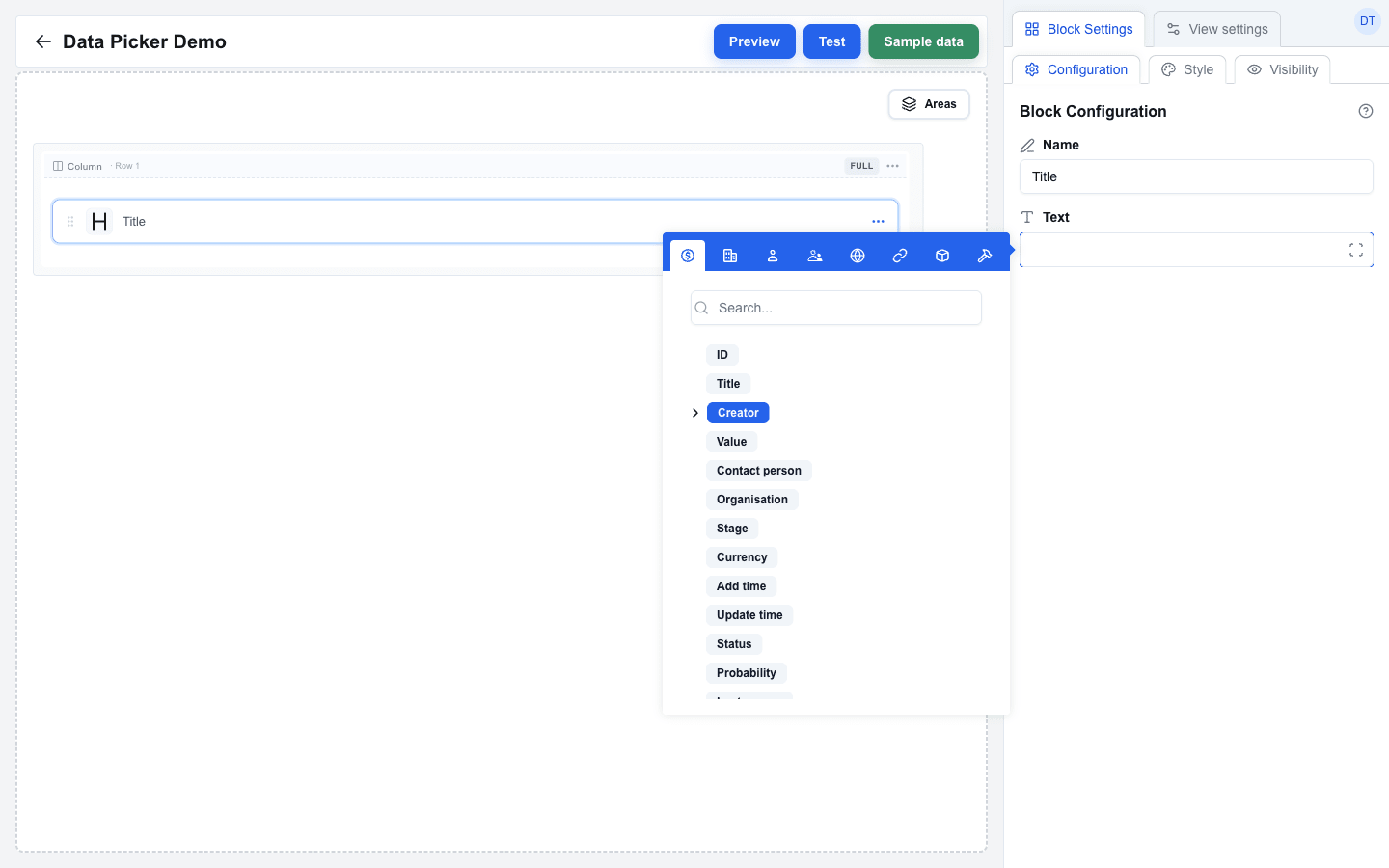
The Data Picker is the tool you use to insert dynamic data into any block setting. It opens as a tooltip next to the field you click into. Every field in the builder that says "supports the Data Picker" opens this picker.
Tabs
The picker shows up to ten tabs at the top, each a different data source:
| Tab | What you find there |
|---|---|
| Deal | The current Pipedrive deal's fields (title, value, owner, and so on). |
| Organization | The current organization's fields. |
| Person | The current person's fields. |
| User | The logged-in Pipedrive user's details. |
| Custom | Any data returned from the view's View URL call. |
| Search Params | URL parameters passed into the view (from a button, a form, or a navbar link). |
| Variable | Interface-level variables you have defined. |
| Functions | Built-in functions and helper keywords. |
| Loop item | The current iteration's data. Appears only when the field sits inside a looping area. |
| Context | The four System context values that say where the view runs — resource_id, resource, company_id and user_id — plus one View reference per view of the same button. |
Not every tab is available in every context — for example, the Custom tab does not appear when you are configuring the View URL itself. The picker remembers which tab you opened last.
On a floating window button the Deal, Organization and Person tabs are gone and the Context tab offers only company_id, user_id and the View references, because that button's views get no Pipedrive record.
Browsing Fields
For the resource tabs (Deal, Organization, Person, User, Custom, Search Params), the picker shows an expandable tree. Each field can be:
- Clicked to insert its placeholder into the input — for example title.
- Expanded if it is a nested object, so you can drill down. For example the deal owner is an object: expand Creator (
owner_id), then click Name, to insert owner_id.name. - Searched for by name, using the Search… box at the top of the tab.
Object fields are expand-only by default — clicking the badge body itself does not insert the whole object, only the chevron expands its children.
Example values on the Pipedrive tabs
The Deal, Organization and Person tabs show, beside each key, what that key holds in the Preview record — the record the Preview and the Show result line already run against. The picker names that record at the top of the tab, for example Example values from Deal #42. You change the record in the Preview or in the Test view, and the picker follows; no key and no saved placeholder changes with it.
The record is fetched when you open one of those tabs, so opening a view costs nothing until you do.
A long value is cut on the screen at 40 characters, and hovering it shows the whole of it. Double-click a value to copy the whole of it to the clipboard, cut or not — the clipboard never gets the shortened text. An item count such as 8 items, and the dash of a key that is empty on the record, are drawn in place of a value rather than being one, so they copy nothing.
One record does not reach every tab. A chosen deal reaches its organization and its person; a chosen person reaches its organization only. A tab the record does not reach lists its keys as it always does, and says so once at the top instead of showing an empty column. The same line reports a record that could not be loaded — the default Deal #1 usually does not exist — and the keys stay selectable.
The User tab never shows a value, because those keys are filled from the user who runs the view. Inside the Deal, Organization and Person trees, the owner (owner_id) — and, on a deal, the creator (creator_user_id) — shows the user the fetched record points at, and never the placeholder user the tree's shape is built from.
The Variable tab shows a flat list of the view's variables. Confidential variables are hidden unless the current context is allowed to see them.
A variable that is not confidential shows its value beside its key, the same way every other example value is shown. A confidential variable never shows its value here, not even to the person who created it — open the variables page to read it.
Context Tab
The Context tab offers the values that describe where a view runs rather than the data it shows. It holds two kinds: the four System context values, and one View reference per view of the same button.
System context
Four values that identify the run:
| Value | What it resolves to |
|---|---|
resource_id | The id of the record the view was opened for. In the builder it follows the Pipedrive resource selector. |
resource | The type of that record — deal, organization or person. |
company_id | The Pipedrive company id of the signed-in user. |
user_id | The id of the signed-in user. While you build, this is your own id; every end user later sends theirs. |
Each one is shown with the value this run would actually send, beside its key, so you can see what you are picking before you pick it. resource_id and resource follow the Pipedrive resource selector, and company_id and user_id come from your own session.
They carry the same names the URL Button sends in its metadata envelope, because they are the same four values. The tab is most useful in the View URL, where a fetch has to be scoped to this company, this user and this record.
A receiving service must not authorize on these values
A System context value picked into a URL or a header passes through the browser, so a user can change it before the request leaves. The company_id and user_id of the URL Button's metadata envelope are written by the server and cannot be. Use the envelope, not these values, to decide who may see what.
View references
Below the four System context values, the tab lists every view of the button you are editing. Each entry is view_ plus the view's own name, so a view called main reads as view_main and a view called Asiakas tiedot reads as view_Asiakas tiedot. The name is shown exactly as the sidebar shows it, spaces and accents included.
Picking one inserts a chip that resolves to that view's id — the value you need for a link, a URL parameter or a Request action that points at another view. You no longer have to look the id up by hand.
What a reference stores is the id, never the name:
- Renaming a view breaks nothing. The reference still points at the same view, and the chip re-reads the current name — a view renamed from
maintoasiakastiedotshows asview_asiakastiedoteverywhere it is used. - Deleting a view is visible. Every chip pointing at a view that no longer exists turns grey, the same way a chip for a deleted variable does, so you find the broken reference in the builder. In the Preview and in the Test view that reference also resolves to nothing at all, so a test run shows the gap instead of a dead id.
A deleted view still resolves on the render side
The builder knows every view of the button, so it can tell you a reference is stale. The rendered view does not — it loads only itself — so there a reference always resolves to the id it stores. Fix the grey chips in the builder; do not expect the rendered view to hide them for you.
Only views of the button you are editing are offered. A view of another button would open in the wrong button's context, with that button's Sample data, View URL and variables.
How the tab behaves
The tab behaves like the resource tabs: it has the same search box — useful on a button with many views — and it is filtered by what the field accepts. A field that takes only a number offers resource_id, company_id and user_id, and a Target Array field — which accepts arrays only — does not show the tab at all.
Functions Tab
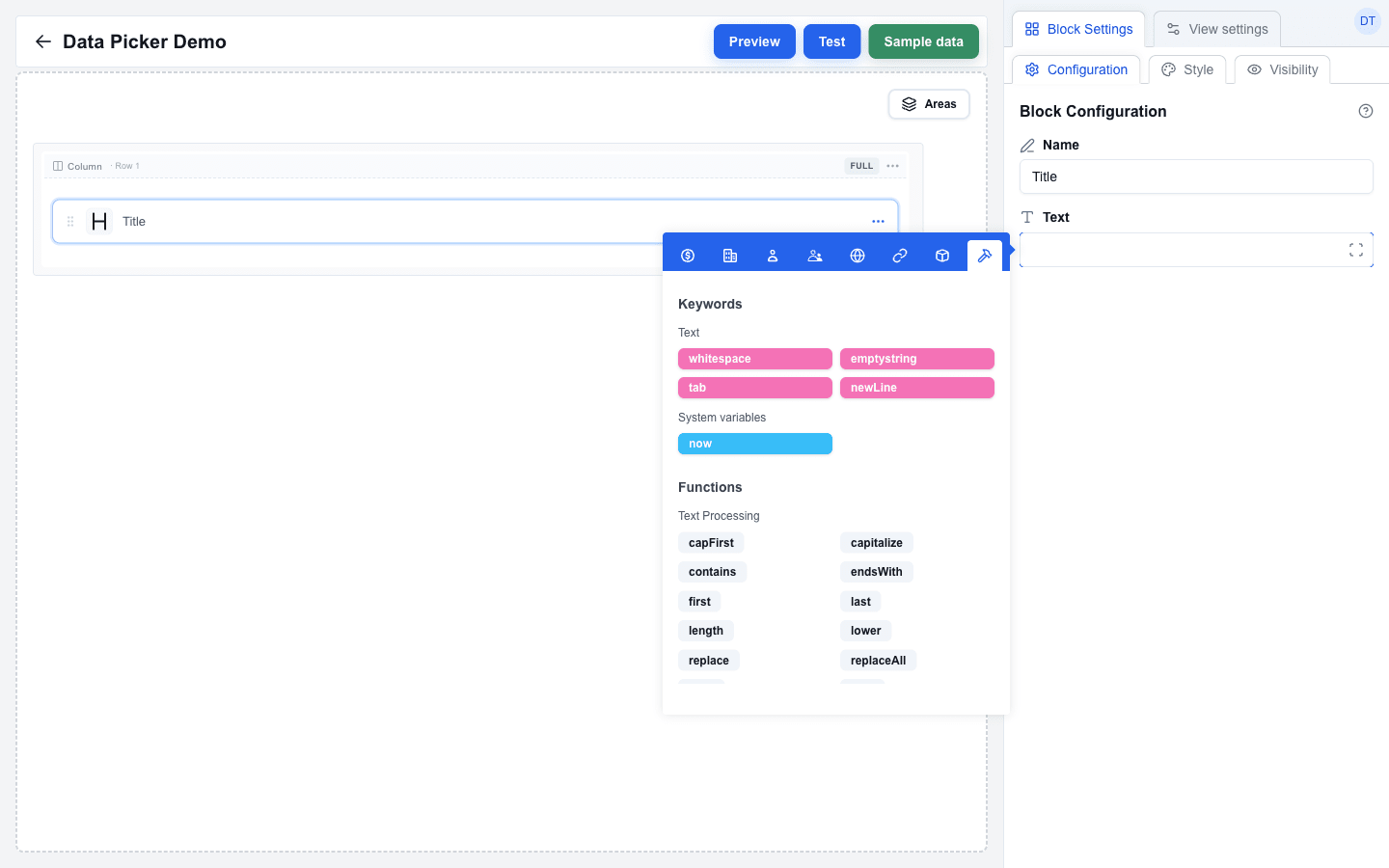
The Functions tab is laid out as two sections:
- Keywords — system text variables (
whitespace,emptystring,tab,newLine) and system variables (now). - Functions — helper functions grouped by category: Text Processing, Mathematics, Logic & Comparison, Data Validation, Date & Time, Data Manipulation.
Hover any function badge to see its description and usage tooltip on the right.
Loop Item Tab
When the field is inside a looping area, the picker gains an extra Loop item tab (a repeat icon). Its content depends on the loop mode:
- Array mode — the fields of the current iteration's array item, plus a synthetic
indexfield at the end. Clickindexto insert the iteration number (starting at 1). - Count mode — only the
indexfield, since there is no per-item data.
Placeholders inserted from this tab are scoped to the current iteration, so each repetition of the area resolves to a different value.
Inserting a Field
- Click into any field that supports the Data Picker.
- The Data Picker tooltip appears.
- Pick the tab that has the data you want.
- Click the field. The placeholder appears inside the input as a small blue "badge".
- You can keep typing around the badge — text before and after is kept as plain text.
You can insert multiple placeholders into the same field. For example, a Paragraph Value can read:
Deal: title - Value: value currencyAt render time each placeholder is replaced with the live value from the matching data source.
Type Filters
In some contexts, the picker only accepts certain types of fields:
| Filter | What it allows |
|---|---|
| String | Text values. |
| Number | Numeric values. |
| Boolean | True / false. |
| Object | Nested structures. |
| Array | Lists (for example a Table block's Target Array or an Area's Loop target array). |
Fields that do not match the active filter are greyed out. Object fields are excluded from the clickable set by default — they always behave as expand-only — unless the surrounding context explicitly accepts objects.
Expand Dialog
Each Data Picker input has a small expand icon at its right edge that opens a bigger editor in a centred dialog. Use it when you are building a complex expression with multiple placeholders and functions that does not fit comfortably in the small input.
Working with Inserted Placeholders
Every placeholder and function call you insert shows up as a small badge inside the input, not as raw … text. Badges behave as a single unit:
- Backspace deletes the whole badge.
- Select-and-replace swaps the badge out in one step.
- You can type plain text freely before, between, and after badges.