Appearance
Table Block
Type: Reference | Audience: Interface builder user
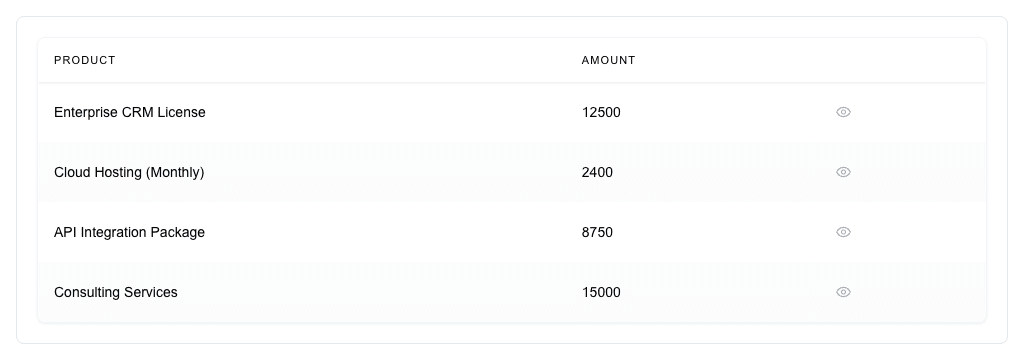
The Table block shows a grid of data sourced from an array. It supports value columns, action columns, sub-row expansion, and per-column sorting.
Top-Level Settings
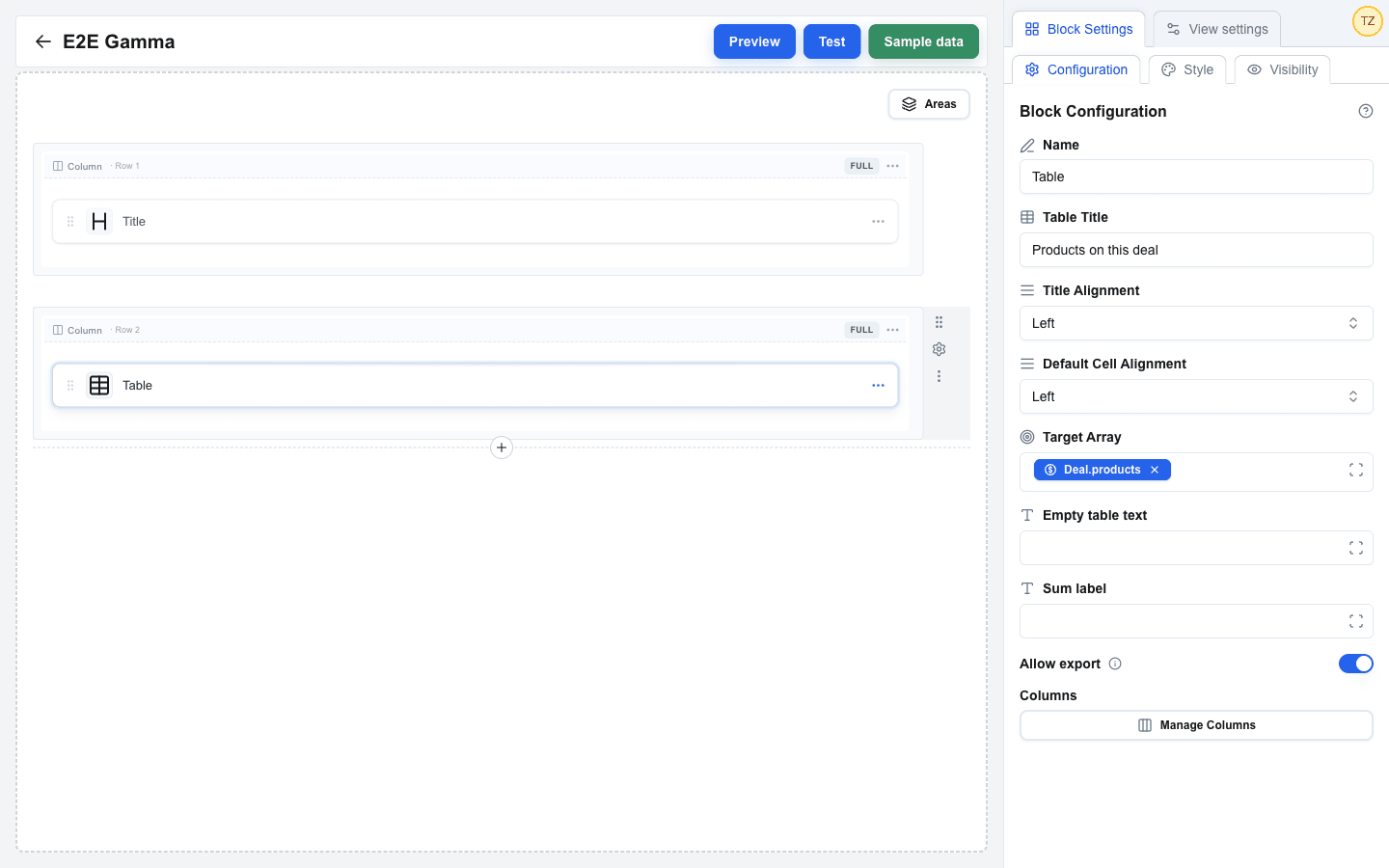
Click the table block to open its settings. The Configuration sub-tab shows these fields, in this order:
| Setting | Description |
|---|---|
| Table Title | Optional title shown above the table. Plain text: the Data Picker is not available here, and a typed placeholder shows as written. |
| Title Alignment | Left, Center, or Right -- how the title is aligned above the table. |
| Default Cell Alignment | Left, Center, or Right -- the default horizontal alignment for all cells unless a column overrides it. |
| Target Array | The data source. Must resolve to a single array -- for example resource.items. Required. The Data Picker is restricted to array-type fields. |
| Empty table text | Message shown when the Target Array is empty (max 255 characters). Supports the Data Picker. |
| Sum label | Optional text for the Sum row. Supports the Data Picker. It renders in the first visible column that has no sum of its own, action columns included. When every visible column has a sum, the label has nowhere to go and is left out. |
| Allow export | Off by default. When on, an Export menu appears on its own right-aligned row between the Table Title and the table, from which the reader downloads the table as a CSV file or copies it to the clipboard. See Table export. |
| Manage Columns | Button that opens the column editor (see below). |
Manage Columns
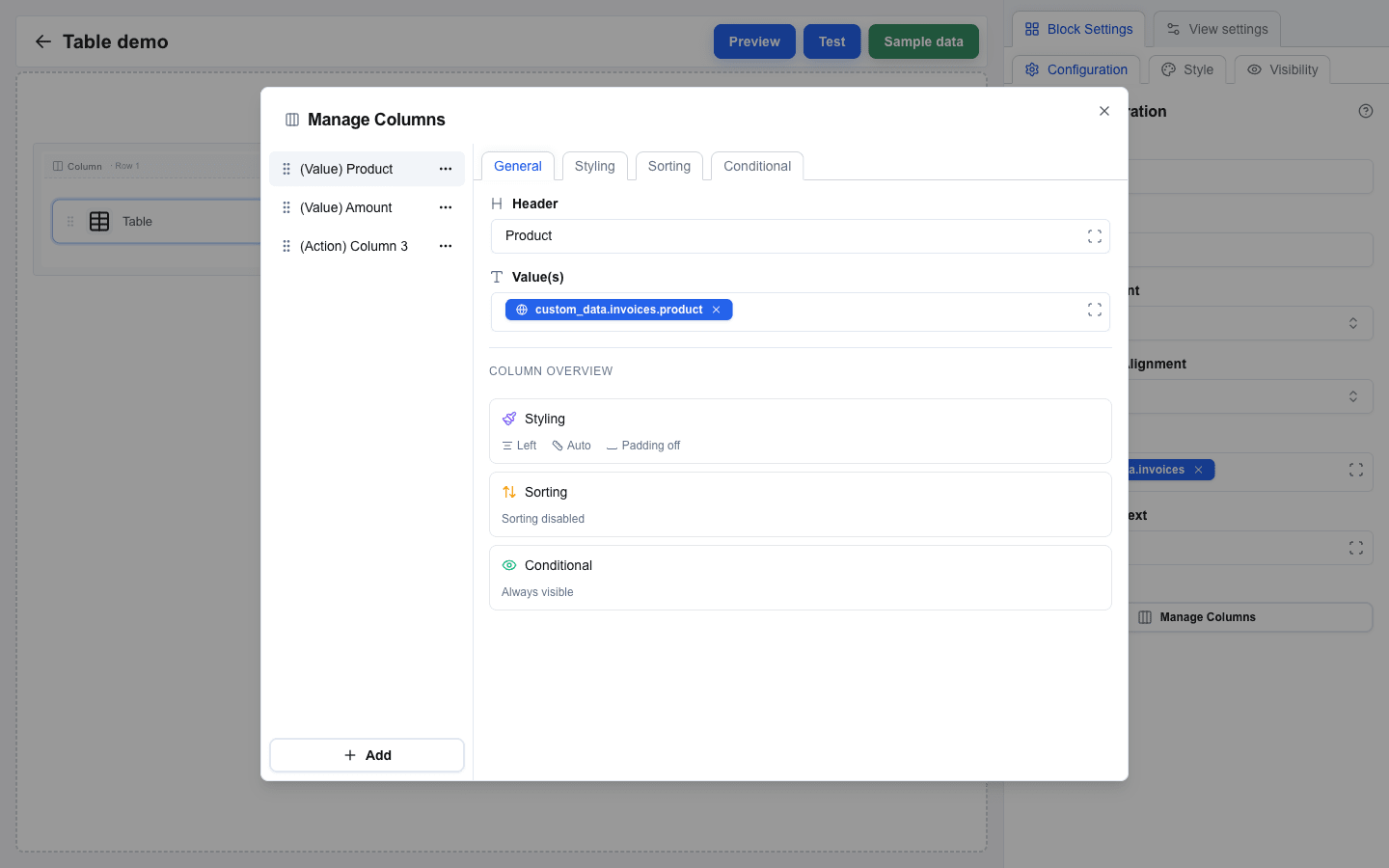
Clicking Manage Columns opens a dialog with two panels:
- Left panel -- the column list with a per-column ... menu (Copy / Delete) and a drag handle to reorder. The bottom Add button opens a dropdown with three choices: Add value column, Add action column, Add subrow. The Add subrow entry is disabled when the table already contains a subrow column (only one is allowed per table).
- Right panel -- the settings for the selected column, organised into tabs: General, Styling, Sorting, Sum, Hover card, and Conditional. The Sum and Hover card tabs are offered on value columns only. The General tab also shows a Column Overview with summary cards for Styling, Sorting, and Conditional; clicking a card jumps to that tab.
Column Types
Each column is one of three kinds. The fields under General depend on the kind.
Value Column
A value column shows one data field per row.
| Field (General tab) | Description |
|---|---|
| Header | The column's header text. Supports the Data Picker. Required. |
| Value(s) | The path to the field within each row item (for example name or price). Supports the Data Picker. Required. |
The resolved value renders as HTML through the same sanitiser and allow lists as the HTML block. Links behave differently from the HTML block:
- Every
aopens in a new tab withrel="noopener noreferrer". Atargetin the markup is overwritten. - An
awhosehrefis empty, whitespace, missing or a bare#renders as its text only. Ajavascript:URL is removed first, so it renders as text too. An anchor such as#sectionstays a link.
The same rules apply to subrow cells.
Action Column
An action column renders one button per configured action, repeated for each row. A button shows an icon, a text label, or both.
| Field (General tab) | Description |
|---|---|
| Header | The column's header text. Supports the Data Picker. |
| Actions | The list of action buttons for each row. Click Add Action to append; each action is its own collapsible section (see below). |
Each action inside an action column has:
| Setting | Description |
|---|---|
| Icon | Pick from the grouped set: Actions (View, Edit, Delete, Add, Copy, Play, Refresh, External link), Navigation (Arrow up, Arrow down, Arrow left, Arrow right, Chevron up, Chevron down, Chevron left, Chevron right), Communication (Mail, Send, Phone, Message, Bell, User), Files (File, Folder, Download, Upload, Image, Attachment, Print, Archive), Status (Check, Close, Warning, Info, Clock, Star, Heart, Lock, Unlock), or Custom (Custom), the last group in the list. Required unless the action has a Label: the picker offers No icon only while the Label holds text. Clearing the Label removes that choice and writes the View icon back, so an action is never left with neither. |
| Custom icon | Custom image URL. Shown when Icon is Custom and supports the Data Picker. |
| Label | Optional text shown beside the icon. Supports the Data Picker and resolves per row, so two rows can show different texts. An empty resolved label leaves the button icon-only. Shown when Action Type is selected. |
| Icon position | Choose Before the text (default) or After the text. Shown only when the action has both an Icon and a Label. Only the icon moves; the text keeps its place, and the request state icons (spinner, tick, cross) appear at the same position. |
| Action Type | Pick Go to view (navigate within the interface), Go to URL (open a URL), or Send request (send a POST without leaving the table). |
| View Name | Destination view dropdown. Shown when Action Type is Go to view. |
| Params | Key/value pairs passed to the destination view. Shown when Action Type is Go to view. |
| URL | Destination URL. Shown when Action Type is Go to URL. Supports the Data Picker. |
| Request URL | Absolute HTTP or HTTPS endpoint. Shown when Action Type is Send request. Supports the Data Picker for per-row values. |
| Body Data | Optional JSON payload, configured as JSON or key-value pairs. Supports per-row Data Picker values. Include the row's identifier because OneClick metadata identifies the view resource, not the row. Empty means no configured body. |
| Omit OneClick metadata envelope | Off by default. When off, OneClick sends Body Data alongside its metadata envelope. When on, it sends only Body Data for third-party endpoints that expect a bare payload. |
| Disabled | Shown when Action Type is Send request. A Data Picker expression evaluated per row. When the resolved value is true, yes, or 1 (case-insensitive, surrounding spaces ignored), the button starts disabled with the Muted appearance, regardless of Disabled appearance. Any other value — including empty — leaves the button enabled. A row disabled this way shows no row-level warnings, so an empty resolved Request URL on such a row is not an error. The value re-resolves on every data refresh, so an endpoint that returns a truthy value keeps the row disabled across page reloads. |
| Disable button | For Send request, choose Never (default), After click, or After successful response. After-click actions stay disabled even when the request fails; after-success actions can be retried after failure. The spent state survives sorting, but resets on a page reload — including the reload that Refresh after success triggers. |
| Disable scope | Shown when Disable button is not Never. Choose Clicked button only (default) or Same action on all rows. Same-action scope affects the same action position in this action column; neighboring actions and other columns remain active. Other affected rows use the Muted appearance. |
| Disabled appearance | Shown when Disable button is not Never. Choose Neutral (default), Success, or Destructive for the clicked button's spent state. |
| Refresh after success | Off by default. When on, a successful request reloads the page after a short delay, so the confirmation tick and toast stay visible. The scroll position is restored after the data loads. Failed requests do not reload; redirect responses navigate without reloading. |
| Require confirmation | Shown when Action Type is Send request. Off by default. When on, the row's button opens a confirmation dialog and sends the request only after the reader confirms it. Cancel and Escape send nothing and leave the button as it was. A disabled button never opens the dialog. |
| Title, Description | The dialog's question and its optional explanation. Shown when Require confirmation is on. The first enable fills in "Are you sure?". Both accept Data Picker values and resolve per row, so the dialog can name the row: Delete {{order_name}}? shows each row's own order. A title that resolves empty falls back to "Are you sure?"; a description that resolves empty is left out of the dialog. |
| Confirm Button Label, Confirm Button Variant | The label and the appearance of the confirming choice. Defaults to "Confirm" and Default. |
| Cancel Button Label, Cancel Button Variant | The label and the appearance of the cancelling choice. Defaults to "Cancel" and Outline. |
Every action needs an Icon or a Label. An action with neither is rejected by the settings panel and renders a warning instead of the button in every row.
A Label that resolves empty on a single row is handled by the Icon: the row falls back to the icon-only button. Without an Icon that row has nothing left to show, so it renders the same row-level warning an empty resolved Request URL renders. Fix it by widening the Data Picker path or by picking an Icon for the rows that have no text.
The resolved Label becomes the button's accessible name. Without a Label, a Request action reads as Send request: <column header> as before.
Labels are presentation only. The outgoing request is unchanged: the OneClick metadata still sends button_name as the action column's header, falling back to the column key when the header is empty.
Subrow Column
A subrow column expands nested data as child rows under each row.
| Field (General tab) | Description |
|---|---|
| Value(s) | The path to the nested array inside each row item. Required. |
Subrow columns have no Header, no actions, and no Sorting tab. Only one subrow column is allowed per table.
Styling Tab (per column)
| Setting | Description |
|---|---|
| Width | Optional column width -- a number (pixels) or a percentage. Leave empty for Auto. |
| Cell Alignment | Override the table's Default Cell Alignment for this column (Left / Center / Right). |
| Cell Padding | Switch. When on, four pixel inputs (Top / Right / Bottom / Left) appear and override the table-level padding for this column. |
Sorting Tab (per column)
Subrow columns do not have this tab.
| Setting | Description |
|---|---|
| Allow sorting | Switch that lets users sort by this column. |
| Sort by this column | Checkbox. Makes this the default sort column when the table loads. Shown when Allow sorting is on. |
| Sort direction | Ascending or Descending -- the default sort order. Shown when Sort by this column is on. |
| Custom sort value | Switch. When on, a Sort value Data Picker appears. Use this to sort by a different field than the one displayed -- for example sort by a raw number while displaying a formatted currency. |
Sum Tab (per column)
Value columns only. Action and subrow columns have no Sum tab.
An enabled sum adds one cell to the Sum row, a footer row at the bottom of the table. The total covers every row of the Target Array. Sorting reorders rows only, so it never changes a total. A table with no rows shows no Sum row.
Every field on this tab carries an info icon beside its label. Hover it, or reach it with the keyboard, for the same explanation given here.
| Setting | Description |
|---|---|
| Show sum | Switch. Adds a Sum row cell under this column. Turning it off clears the tab's other fields. |
| Sum value | The field each row is totalled from. Supports the Data Picker. Point it at the raw source value, not the formatted cell -- non-numeric values are skipped. Required when Show sum is on. Shown when Show sum is on. |
| Format | Plain number (default) or Currency. Plain renders the total as it is, with no rounding. Currency renders it through the Locale and the Currency below. Shown when Show sum is on. |
| Locale | The locale of the currency format, for example fi-FI. It decides the digit grouping, the decimal separator, and the place of the symbol. Supports the Data Picker. Required in the currency format. Shown when Format is Currency. |
| Currency | The ISO 4217 code of the currency format, for example EUR. Supports the Data Picker. Required in the currency format. Shown when Format is Currency. |
| Prefix | Optional text before the finished total, in both formats. Supports the Data Picker. No space is added -- write Total with the trailing space. Shown when Show sum is on. |
| Suffix | Optional text after the finished total, in both formats. Supports the Data Picker. No space is added -- write / month with the leading space. Shown when Show sum is on. |
A currency format the browser cannot honour -- an empty or unknown Locale or Currency -- renders no total at all, and the Prefix and the Suffix then have nothing to wrap. Switching Format back to Plain number clears the Locale and the Currency, but keeps the Prefix and the Suffix.
Hover Card Tab (per column)
Value columns only. Action and subrow columns have no Hover card tab.
A Cell hover card is extra content that opens when a reader hovers a cell's value with the pointer. The field resolves per row, so each row's card says something about that row.
| Setting | Description |
|---|---|
| Hover card | Optional. The card content. Supports the Data Picker and compiler functions, and spans several lines. HTML is allowed. |
How the card renders:
- A row whose card has content shows the cell value with a dotted underline. Hover the value to open the card. The card stays open while the pointer is over it, so the reader can click a link in it.
- A row whose card resolves to nothing shows no underline and no card. A row whose cell value resolves to nothing shows no card either: the card hangs on the value's text. To show a card on such a row, give the value a text such as a dash.
- The content renders as sanitised HTML, with the same rules as a cell: every link opens in a new tab, and an empty link renders as its text.
- The card has a fixed maximum width. It opens above the value. When there is no room above, it opens below. It moves sideways to stay on the screen.
- The card opens for a pointer only. A touch or a keyboard does not open it, so do not put information there that a reader cannot do without. Put that in a column of its own.
- Table export does not include the card.
Conditional Tab (per column)
| Setting | Description |
|---|---|
| Enable conditional visibility | Turns visibility rules on or off for this column. |
| Condition | A Data Picker expression evaluated at render time. The column is hidden when the value is empty or "false". |
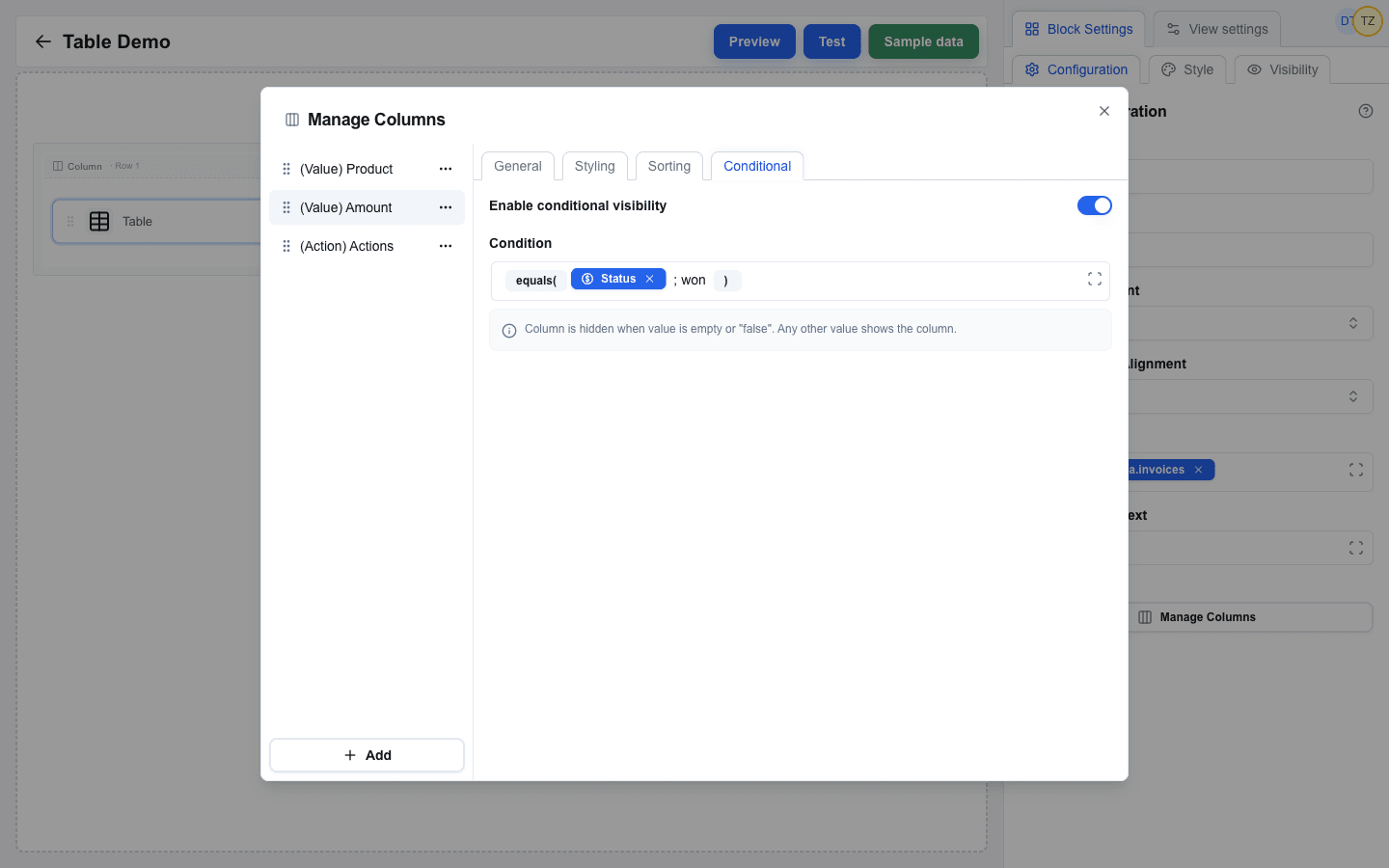
Table export
Allow export is off by default, so a table built before the setting existed shows no Export control. With it on, an Export menu renders on its own right-aligned row after the Table Title and before the table. It stays visible while the Target Array has no rows, but is disabled: there is nothing to export.
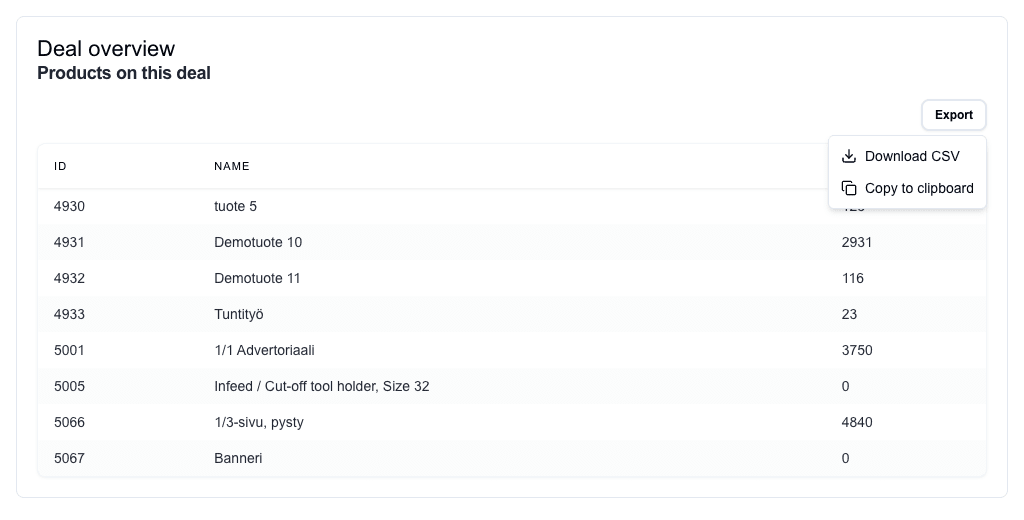
Download CSV writes the file in the browser. No request leaves the page.
What the file carries:
- Every row of the Target Array, in the sorting the reader sees. Sorting the table and exporting again writes the rows in the new order.
- The visible value columns only, in the order they render. A column hidden by its Conditional tab is left out, and so are action columns, the subrow column, the Cell hover cards and the Sum row.
- Each cell as its resolved display text: HTML markup removed, entities decoded, visible line breaks kept. A link exports as its text; the URL is not written. A missing value writes an empty cell. Text that is not renderable markup, such as
a < b, exports as the literal text even though the table renders a parse error for it.
How the file is written:
- A comma delimiter, CRLF rows and UTF-8 with a BOM, so Excel opens it in the right encoding.
- A value carrying a comma, a quote or a line break is quoted, and a quote inside it is doubled.
- A header or a cell that opens with
=,+,-or@is written with a leading apostrophe, so the spreadsheet reads it as text and never runs it as a formula. A negative number therefore reads as text in the exported file. - The file is named
<table-title>-<YYYY-MM-DD>.csv, with the title reduced to letters, digits and dashes and the date read from the reader's own clock. A table with no title exports astable-export-<YYYY-MM-DD>.csv.
Copy to clipboard
Copy to clipboard puts the same rows and the same columns on the clipboard, tab separated, ready to paste into Excel or Google Sheets. Nothing is downloaded and no request leaves the page.
What differs from the file:
- Tabs separate the cells. A value carrying a tab, a quote or a line break is quoted, and a quote inside it is doubled. A comma no longer forces quoting.
- No BOM is written, because the clipboard carries text and not bytes, and no row terminator ends the last row, which would paste an empty row.
Everything else is the same: the row order on screen, the visible value columns, the resolved display text, the line breaks, the empty cells and the leading apostrophe on a cell that opens with =, +, - or @.
The clipboard is written with the browser Clipboard API. A view rendered inside an iframe may have no clipboard permission, and a hidden textarea then copies the text instead. Either way the menu closes, and the reader sees Copied <count> rows to clipboard, counting the data rows and not the header. When no way to copy works, the menu closes and an error message says the copy failed.
Validation
- Target Array must reference exactly one array. The builder shows an error if the field is empty, contains a non-array value, or references multiple arrays.
- Value(s) is required on value and subrow columns; Header is required on value columns.
- Custom sort value requires a non-empty Sort value path.
- Show sum requires a non-empty Sum value path.
- The currency Format requires a non-empty Locale and a non-empty Currency.
- A Request URL must resolve to an absolute HTTP or HTTPS URL on each row.
- Non-empty Body Data must resolve to valid JSON on each row.
- Column key values must be unique across all value columns in the table.
Borders and Padding
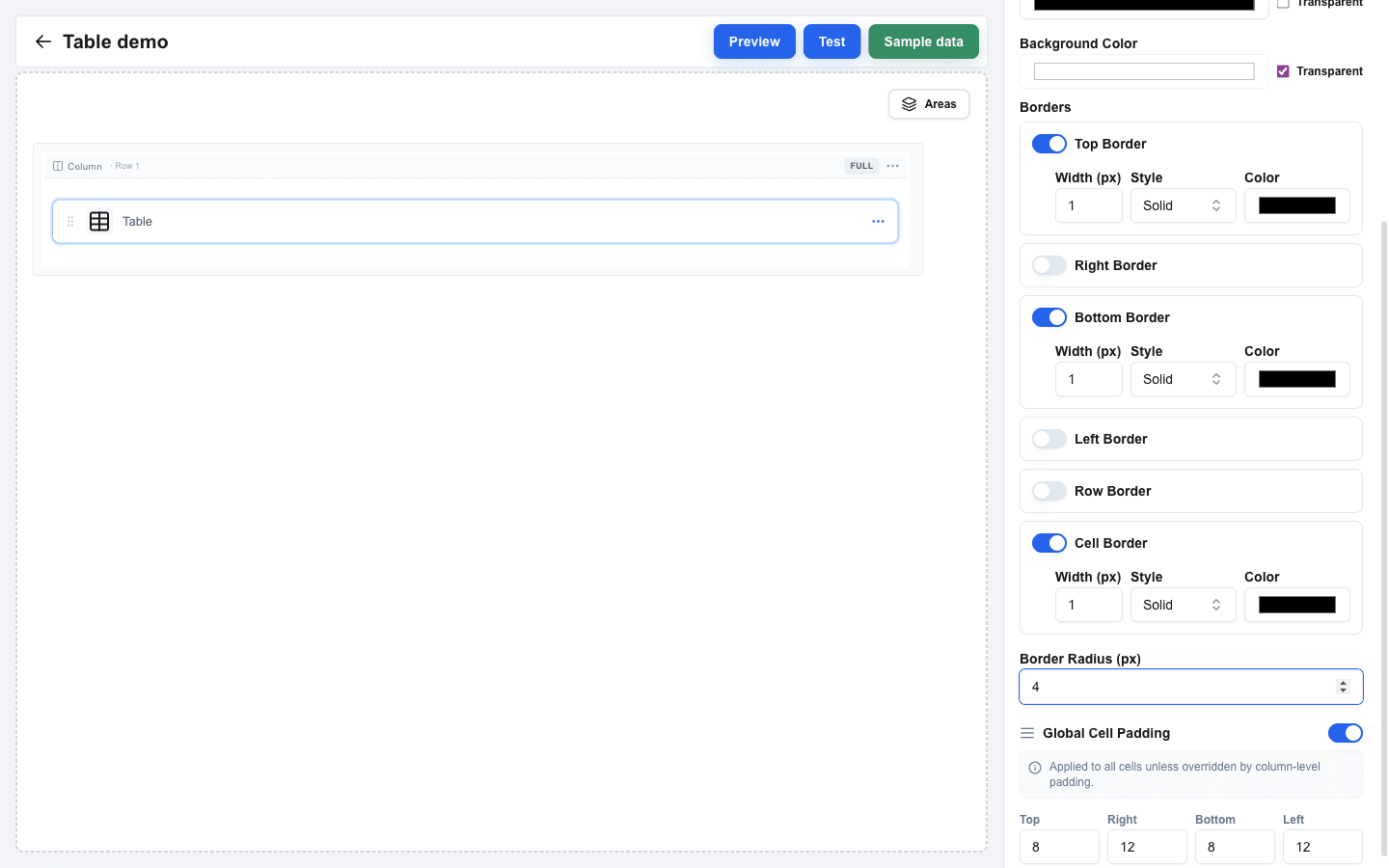
Open the block's Style sub-tab to configure borders and padding. The Table block adds three extra controls on top of the standard block borders:
- Row border -- enable/disable, width (px), style, and color for the lines between rows.
- Cell border -- enable/disable, width (px), style, and color for the lines between cells.
- Global Cell Padding -- switch. When on, four pixel inputs (Top / Right / Bottom / Left) apply to every cell unless a column overrides them via its own Styling > Cell Padding.
The regular block border (Top, Right, Bottom, Left) still applies to the outer table frame. See Block Styles for the standard border controls.
Style and Visibility
The Table block uses the standard Style sub-tab (background, borders, radius, plus the table-specific borders and padding above) and Visibility sub-tab in Block Settings, the same as every other block. See Block Styles and Conditional Visibility.