Appearance
Chart Block
Type: Reference | Audience: Interface builder user
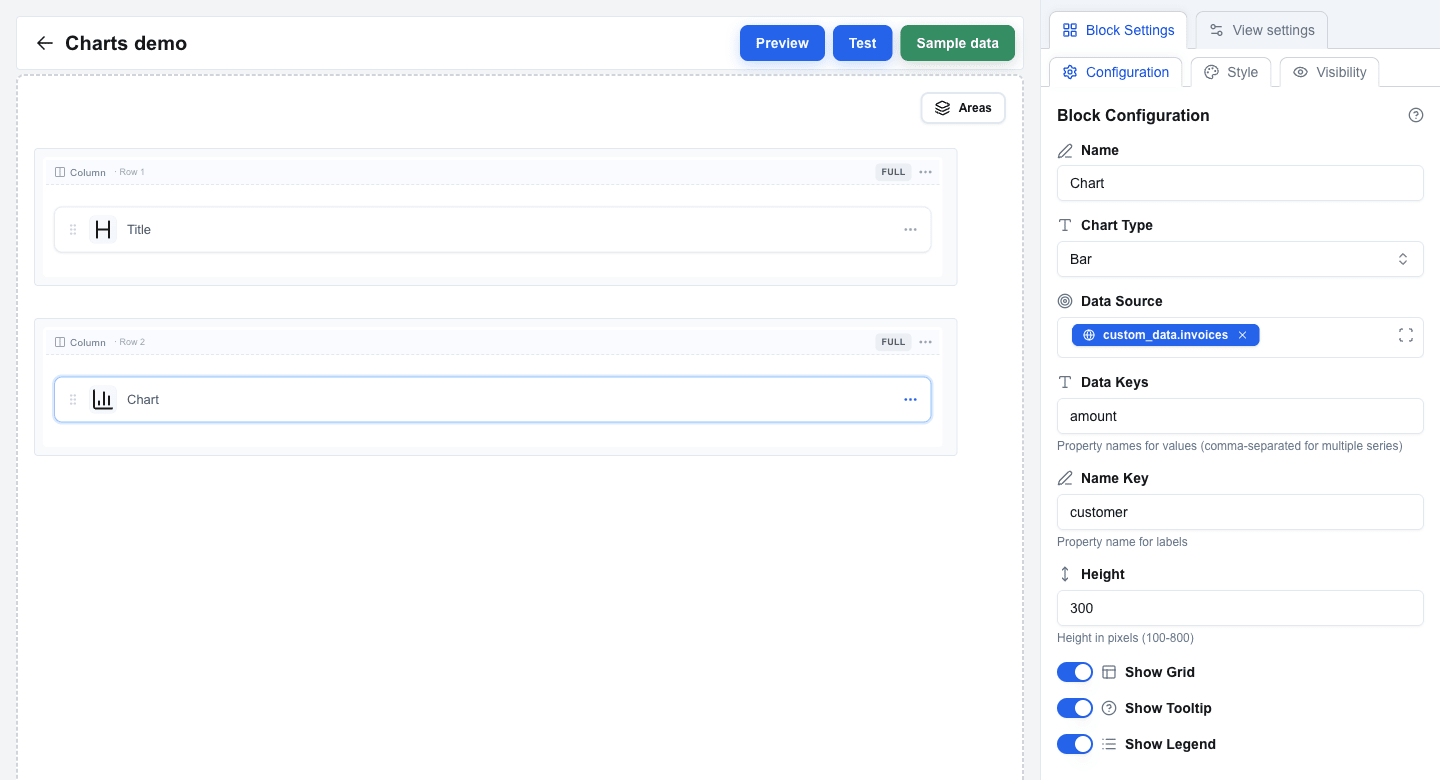
The Chart block renders a bar, line, area, or pie chart from an array in your data.

Settings
| Setting | Description |
|---|---|
| Chart Type | Pick Bar, Line, Area, or Pie (default: Bar). |
| Data Source | Bind to an array using the Data Picker. Each item in the array becomes a data point. |
| Data Keys | Property names to plot, comma-separated. One name for a single series (for example amount), multiple for a multi-series chart (for example desktop,mobile). Default: value. |
| Name Key | The property used for the category label on the X axis or pie segment (for example customer or name). Default: name. |
| Height | Chart height in pixels, between 100 and 800 (default: 300). |
| Show Grid | Show background grid lines. On by default. |
| Show Tooltip | Show a tooltip when hovering a data point. On by default. |
| Show Legend | Show a legend below the chart. Off by default. |
Data Shape
Data Source must resolve to an array of objects. Each object needs:
- A property whose name matches Name Key -- this is the category label.
- One or more properties whose names match the entries in Data Keys -- these are the numeric values plotted.
Single-series example (matches the chart above):
json
[
  { "customer": "Acme Corporation Ltd", "amount": 12500 },
  { "customer": "Nordic Solutions AB", "amount": 2400 },
  { "customer": "TechVenture GmbH", "amount": 8750 },
  { "customer": "Greenfield Industries", "amount": 15000 }
]
With Name Key = customer and Data Keys = amount, this renders one bar per customer.
Multi-series example:
json
[
  { "name": "Jan", "desktop": 186, "mobile": 80 },
  { "name": "Feb", "desktop": 305, "mobile": 200 }
]
With Name Key = name and Data Keys = desktop,mobile, the same data renders as a two-series chart with one bar (or line/area) per series per month.
Style and Visibility
The Chart block uses the standard Style sub-tab (background, borders, radius) and Visibility sub-tab in Block Settings, the same as every other block. See Block Styles and Conditional Visibility.