Appearance
Areas
Type: Reference | Audience: Interface builder user
An Area groups consecutive rows on the canvas so they share visibility rules and, optionally, a loop. Areas appear as coloured overlays in the builder -- the colour is a builder aid only and is never visible to end users.
See Using Areas for a step-by-step guide.
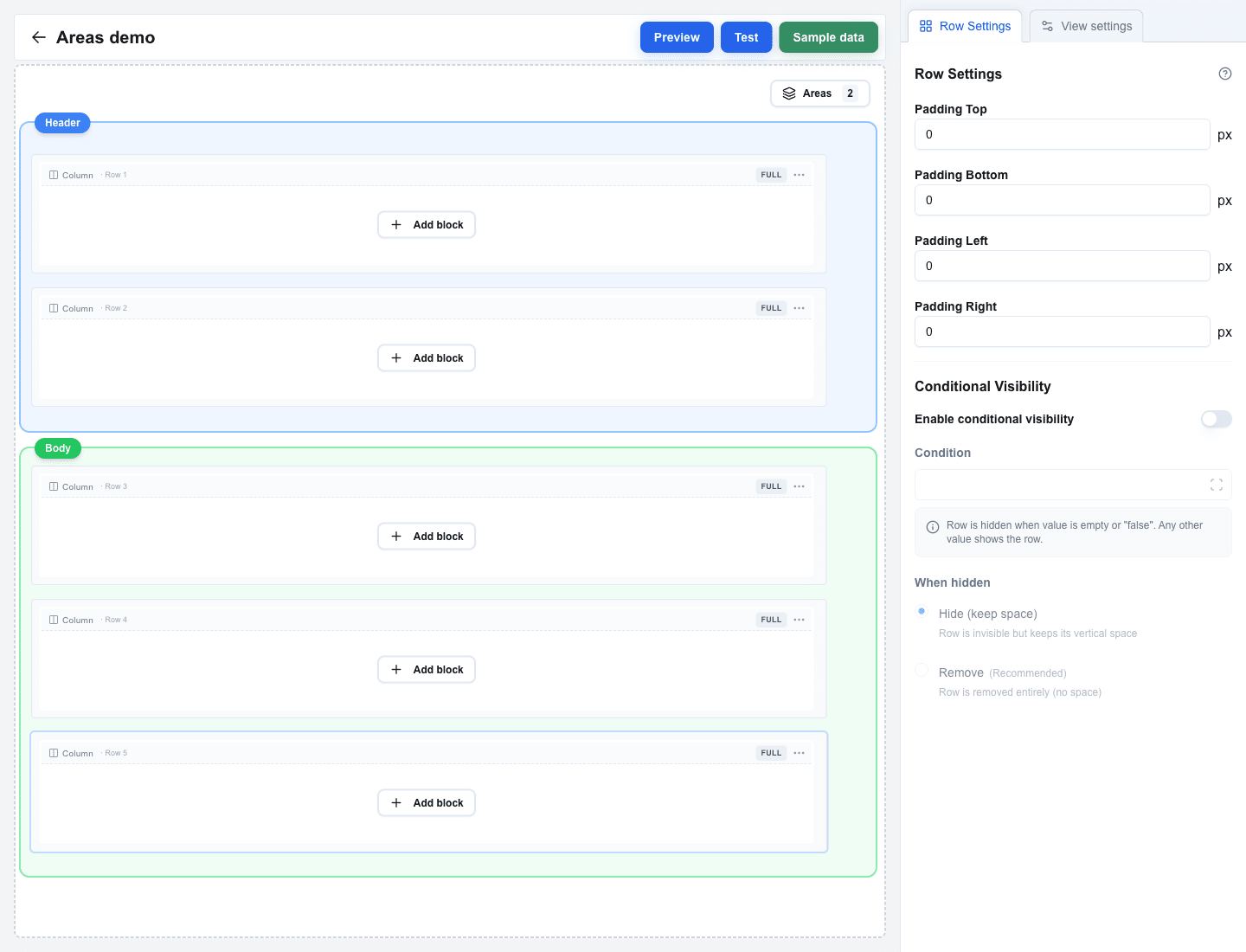
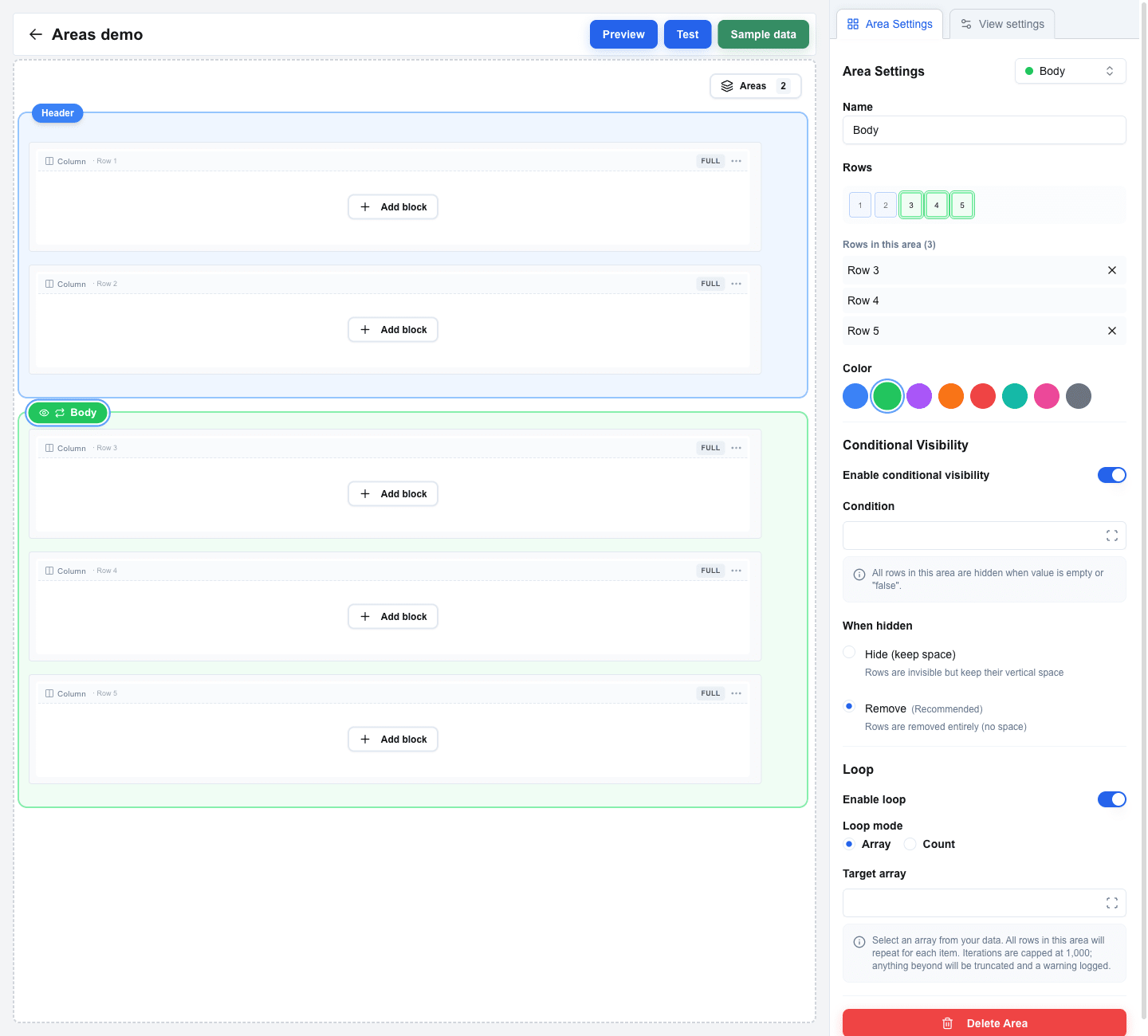
Area Settings
Open Area Settings by clicking an area's badge on the canvas. The panel has the following sections.
Basics
| Setting | Description |
|---|---|
| Name | A name for the area, shown on the badge above it. |
| Rows | The rows the area covers. Edit by toggling row numbers in the visual row selector at the top of the panel, or by clicking the Add Row N (above/below) buttons that appear for adjacent unowned rows. Only the area's edge rows can be removed -- areas must stay contiguous. |
| Color | The area's colour on the canvas. Pick Blue (default), Green, Purple, Orange, Red, Teal, Pink, or Gray. Colour is a builder-only aid. |
Conditional Visibility
Toggle Enable conditional visibility to show or hide the whole area based on data.
| Setting | Description |
|---|---|
| Condition | A Data Picker expression. The area is hidden when this resolves to empty or "false". |
| Hide (keep space) | The rows disappear but their vertical space stays reserved. |
| Remove (Recommended) | The rows are removed entirely; the layout closes up. |
Loop
Toggle Enable loop to repeat the area's rows either per item in an array, or a fixed number of times.
| Setting | Description |
|---|---|
| Loop mode | Pick Array (repeat once per item in an array) or Count (repeat a fixed number of times). |
| Target array | Shown in Array mode. Pick an array from your data via the Data Picker. |
| Loop count | Shown in Count mode. Enter a number or bind it via the Data Picker. |
In Array mode, Data Picker tags inside the looped rows resolve against the current iteration's item. In Count mode they stay bound to the view's normal data.
A loop index (starting from 1) is exposed inside the loop through the loopItem tab in the Data Picker -- use it to show a sequence number or detect the first/last iteration. The loopItem tab only appears when the cursor is inside a looping area.
Cap: a single area loops at most 1000 times. Iterations beyond that are dropped and a warning is logged in the browser console.
Forms inside a loop: looped form inputs submit under suffixed names (name, name_loop_1, name_loop_2, …) and the submission payload additionally carries an oc_loop array with one object per iteration. See Form Submission Types for the exact shapes.
Delete Area
The Delete Area button at the bottom of the panel removes the area but leaves the rows in place on the canvas.
Rules
- Areas cannot overlap. If you try to extend an area into rows that already belong to another area, the change is rejected.
- Rows inside an area stay reorderable -- moving them within the area is fine; dragging them out detaches them from the area.