Appearance
Rows, Columns, and Layouts
Type: Reference | Audience: Interface builder user
A view is built by stacking rows. Each row has one or more columns, and every column can hold one block. This page lists all the layout choices the builder offers and every setting you can adjust on a row or column.

Adding a Row
Hover the gap between two rows (or above the first row) to reveal a small + button. Click it to open the Add row dialog and pick the layout for the new row.
| Layout | Columns | Column widths |
|---|---|---|
| Full width | 1 | 100% |
| Two columns | 2 | 50% / 50% |
| Three columns | 3 | 33% / 33% / 33% |
| Sidebar left | 2 | 25% / 75% |
| Sidebar right | 2 | 75% / 25% |
| Form | — | Adds a Form Start + Form End marker pair (hidden when you are already inside a form) |
Each option in the dialog shows a small visual preview of its column widths.

Reordering and Removing Rows
- Reorder — grab a row and drag it up or down on the canvas. The row's position updates immediately.
- Delete — open the row's "..." menu and choose Delete.
Row Settings
Open a row's "..." menu (the vertical dots button on the right of the row) and choose Settings to open the Row Settings panel.
Padding
Four numeric fields set the padding around the row's content (values in pixels):
- Padding Top
- Padding Bottom
- Padding Left
- Padding Right
Gap overrides
If the view has a global Row Gap or Column Gap applied, two toggles appear so you can exclude this specific row from the global value:
- Exclude from global row gap — only appears when a global Row Gap is set on the view.
- Exclude from global column gap — only appears when a global Column Gap is set on the view.
Turn them on when you want the row to sit flush against its neighbours (or its columns to sit flush against each other) despite the global spacing.
Conditional Visibility
The Conditional Visibility section lets you show or hide the row based on data.
- Turn on the Enable conditional visibility switch.
- In the Condition field, enter a Data Picker expression. The row is hidden when the expression resolves to an empty value or
"false". - Pick what happens when the condition hides the row:
- Hide (keep space) — the row disappears but its vertical space stays reserved.
- Remove (Recommended) — the row is removed entirely (the layout closes up).

Column Settings
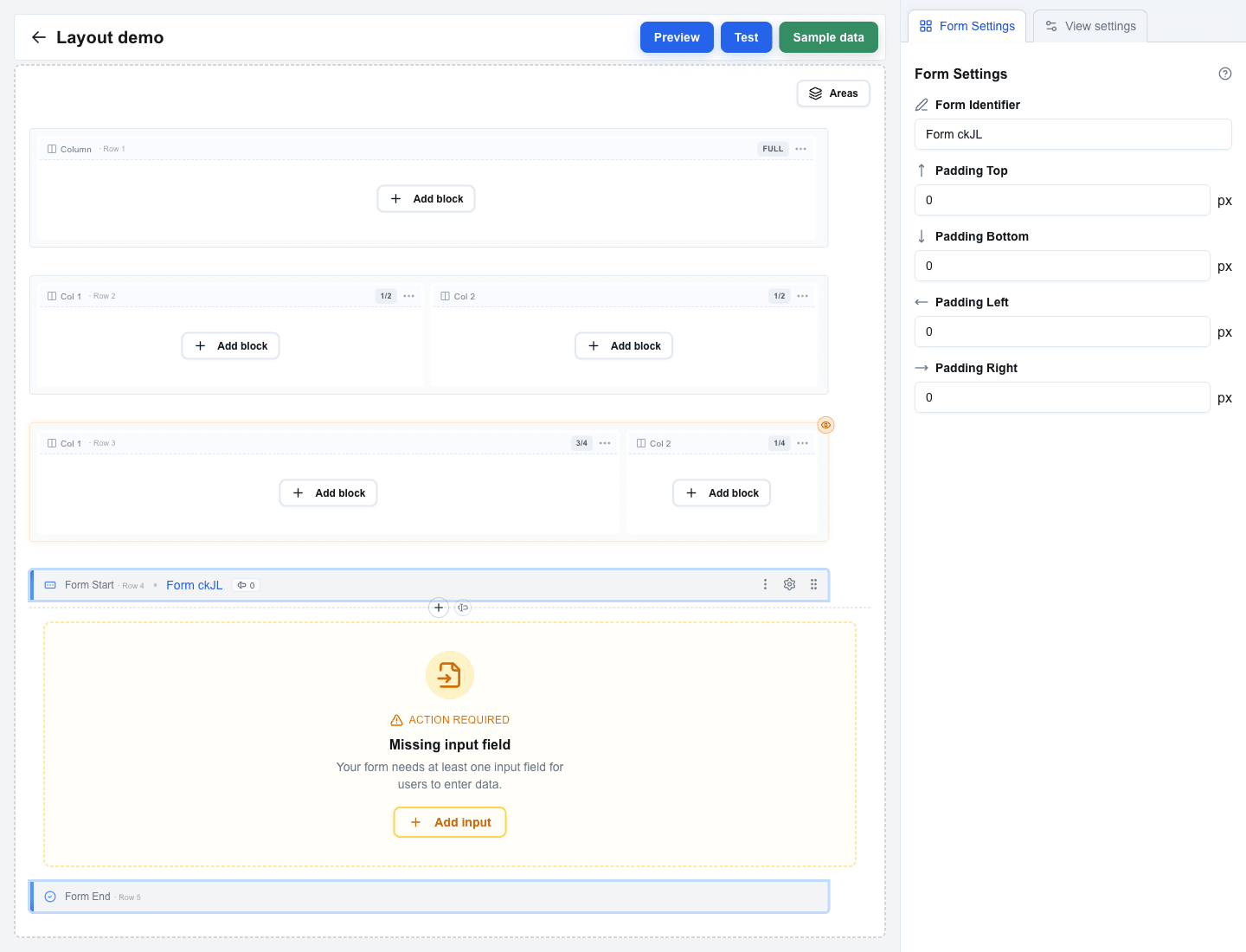
Every column in a row has a small column indicator bar above it showing the column label (for example "Col 1") and a width badge ("Full", "1/2", "25%", etc.). Click the column label to open the Column Settings panel.
Padding
- Padding Top
- Padding Bottom
- Padding Left
- Padding Right
All four are pixel values, same as on rows.
Width
The Width control lets you pick how wide this column is. The options are:
- Auto — the column sizes itself based on the layout (equal share with other auto columns in the row).
- % — a percentage of the row's width (for example 25%).
- px — a fixed width in pixels (for example 200px).
Alignment
Two dropdowns place the column's content horizontally and vertically inside the column:
- Horizontal Align — Left, Center, or Right.
- Vertical Align — Top, Middle, or Bottom.
If the row has multiple columns, an Apply style to all columns action copies this column's padding, width, and alignment onto the others.

Form Rows
Picking Form in the Add row dialog creates two special marker rows on the canvas:
- Form Start — shown at the top of the form, with a coloured accent on the left edge and the form name displayed inline in blue.
- Form End — shown at the bottom of the form with the same accent.
Every regular row placed between them belongs to that form. Clicking either marker opens the Form Settings tab in the sidebar. See Settings Panel reference for what Form Settings contains.
The Whole View
From top to bottom, a view is:
- A vertical stack of rows.
- Rows may be grouped into Areas that share a visibility rule — see Areas.
- Each row contains one or more columns; each column contains at most one block.
- Two rows act as form boundaries (Form Start / Form End) when you add a form.
Everything above is configurable through the builder UI — no file or JSON editing needed.