Appearance
What is Interface Builder?
Type: Explanation | Audience: All users | Goal: Conceptual overview of the application
Interface Builder as Part of OneClick
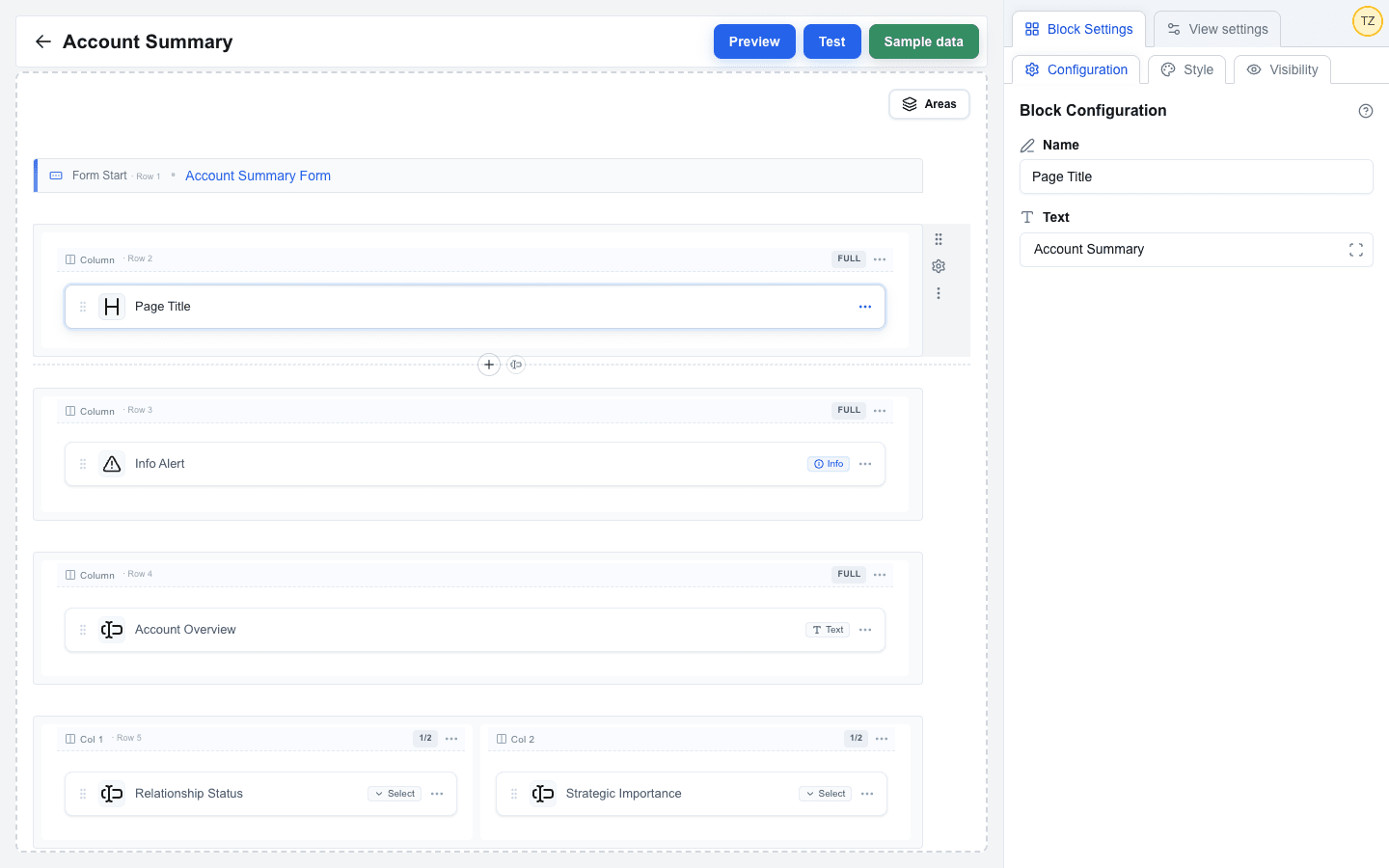
OneClick is a Pipedrive marketplace app for automation and customization. Interface Builder is a module within OneClick that lets you create custom views -- visual pages that appear inside Pipedrive when a user clicks a OneClick button.
These views are not standalone websites. They are embedded directly in Pipedrive's UI, tied to the deal, person, or organization the user is looking at.
Why Custom Views in Pipedrive?
Pipedrive offers limited native customization for its UI. Interface Builder fills that gap by letting you create:
- Custom forms that collect data and send it to your API or update Pipedrive fields.
- Dashboards with charts, tables, and data displays.
- Data views showing deal details, customer profiles, or organization info.
- Multi-step workflows where buttons navigate between views.
No coding is required. You build everything in a drag-and-drop editor.
Use Cases
- Invoicing: a "Create invoice" form on the deal view that posts to your billing endpoint, paired with a list of all open invoices on the organisation view — both reachable without leaving Pipedrive.
- CRM process visualization: deal overviews, customer profiles, account plans.
- Data collection: forms that update deal fields, create persons, or post to external APIs.
- Reporting: charts and tables pulling data from Pipedrive or external sources.
- Guided workflows: multi-view sequences where each step collects or displays different information.
Do You Need a Backend?
Not always. A view that just renders Pipedrive data — deal overviews, customer profiles, simple dashboards using fields and variables — needs nothing else. Interface Builder fetches the Pipedrive context automatically and resolves placeholders at render time.
You will likely need a backend when the view does any of the following:
- Submits a form somewhere other than Pipedrive (Form Submit Button → Submit URL).
- Has a URL button that POSTs to an external endpoint or returns a toast or redirect from your own logic.
- Loads external data via the view's API endpoint (View settings → Configure URL) — Pipedrive can give you the deal, but anything else (invoices, support tickets, weather, internal databases) has to come from somewhere.
The backend can be:
- Code you write — any language, any framework. Expose HTTP endpoints that accept JSON and return the response shapes documented under HTTP Response Format.
- A no-code automation platform like Make, Zapier, or n8n. These let you build the endpoint visually and chain steps (look up a record, transform it, send an email, return a JSON response). For most form posts, URL-button calls, and view data fetches, this is the fastest path — no servers to operate, no deployment pipeline.
Core Concepts
- Interface -- A collection of views attached to a OneClick button. When a user clicks the button, the interface opens on the main view.
- View -- A single page within an interface. An interface can have multiple views linked together via navigation buttons.
- Row -- A horizontal layout container. Each row has one or more columns (full width, two columns, three columns, sidebar layouts, or a Form). Rows are the basic structural unit.
- Block -- A UI component placed inside a row column. Available block types: Button, Title, Paragraph, Image, Divider, Table, HTML, Input, Navbar, Avatar, Hover Card, Chart, Alert, and Badge (14 in total).
- Area -- A named group of consecutive rows. Areas let you apply a single visibility condition to a whole section, and repeat the section once per item in an array (looping).
- Form -- A group of rows bounded by Form Start and Form End marker rows on the canvas, with at least one Input block and at least one Form Submit Button that sends the collected data. Forms can also include Form Reset buttons.
User Roles
- Builder -- The person who creates and configures interfaces using the drag-and-drop editor. This is typically an admin or operations team member.
- End user -- The person who interacts with the finished interface inside Pipedrive. They see the rendered view, fill in forms, click buttons, and view data.
Available Data
When an interface opens from a OneClick button, it automatically has access to contextual data:
- Deal data -- title, value, currency, owner, products, custom fields.
- Person data -- name, email, phone, organization, custom fields.
- Organization data -- name, address, custom fields.
- User data -- information about the currently logged-in Pipedrive user.
- Variables -- key/value pairs you configure per interface.
- Search params -- URL parameters passed between views (for example from form submissions or button navigation).
- External data -- data fetched from an API endpoint you configure for the view via View settings > Configure URL (see External Data Source). The response fields appear in the Data Picker's Custom tab.
Saving and Validation
Interface Builder saves automatically. There is no publish step -- whatever you have saved in the builder is what end users see the next time they open the interface. Before each save the builder runs a structural validation pass and blocks save until any issues are resolved (for example a form without a submit button, or an Input outside a form). See Saving for the full set of rules.