Appearance
Securing Your Endpoint
Type: Explanation | Audience: Backend developer / integrator | Goal: Understand why your endpoint needs authentication and how to verify that requests really come from Interface Builder
When your interface fetches data from a custom endpoint or submits a form to one, you control that endpoint. Interface Builder gives you tools to identify itself in every request — but it is your responsibility to actually verify that identity on the server. This page explains why, and how.
Why this matters
Your endpoint is on the public internet. Even though the request is made server-side by the Interface Builder backend, not from the user's browser, the URL still reaches your server over plain HTTPS. Anyone who learns the URL — through a leaked log, a screenshot, an old Slack message, or a guess — can call it directly.
If your endpoint accepts requests without checking the caller, anyone can:
- Read data your endpoint returns (deal information, customer records, internal status).
- Trigger side effects — create records, send emails, run a Make scenario, charge an API quota.
- Submit forged form data and have it stored as if a real user filled it.
- Flood the endpoint with traffic and run up your bill.
The interface itself does not protect the endpoint. It is just one of many possible callers, and the only thing standing between bad actors and your data is whatever check your endpoint code performs on each request.
How Interface Builder helps
Interface Builder attaches headers to every outgoing request at two layers — see OneClick-Level Headers for the full mechanism. The relevant pieces for security are:
- Reserved system headers.
x-oc-user-idandx-oc-company-idare set automatically. They tell you who in Pipedrive triggered the call — useful as input to authorisation, but not as authentication on their own. - OneClick button headers. Configured once on the OneClick button (Pipedrive → OneClick → Edit Button → Headers), encrypted at rest, sent on every request the interface makes. This is the right place for a long-lived shared secret.
- Per-call headers. Set on a single View URL, form submission, or URL button. Useful when one specific call needs an extra value.
The system headers tell you the context. The OneClick button headers are how you prove the call is genuinely yours.
WARNING
Do not trust x-oc-company-id, x-oc-user-id, or any other header on its own. Headers can be set by anyone calling your endpoint directly. They are only meaningful after you have authenticated the caller with a shared secret you control.
Recommended setup: a shared-secret header
The simplest and most robust pattern is a static API token in a header. One token per OneClick button, stored on the button, checked on every request.
1. Generate a strong random token
bash
openssl rand -hex 32This produces a 64-character hex string. Treat it like a password — store it in your secret manager (1Password, Doppler, your platform's env vars).
2. Add the token to the OneClick button
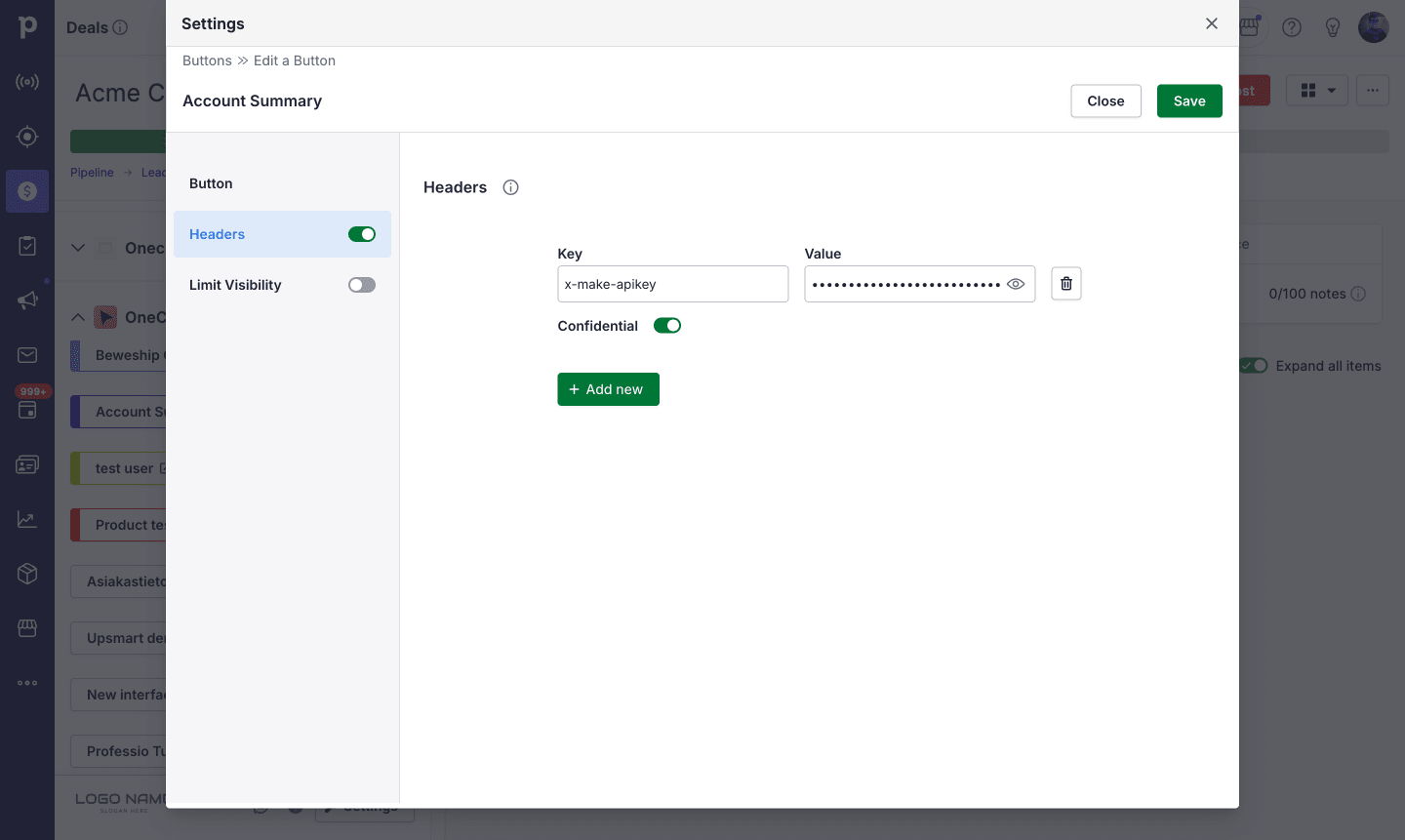
In Pipedrive, open OneClick → Edit Button → Headers. Add a new row:
- Key:
x-api-token(or whatever name you like, as long as it is not reserved with thex-oc-prefix). If your endpoint is a Make webhook, usex-make-apikeyso Make's built-in API-key check picks it up automatically — see step 3 below. - Value: the token from step 1
Turn the Headers master toggle on. The token is encrypted at rest on the button and added to every request the interface sends.
The per-row Confidential toggle visible in the screenshot below is a Pipedrive-side UI option that affects how the value is displayed in the OneClick admin form. It does not change what your endpoint receives — header values are encrypted at rest and decrypted on every outgoing request regardless of this toggle.
3. Check the token on your endpoint
Reject anything without a matching token before doing any other work:
Node.js / Express
js
app.post("/my-endpoint", (req, res) => {
  if (req.header("x-api-token") !== process.env.OC_TOKEN) {
    return res.status(401).end();
  }
  // …handle the request
});
Make.com
Make's Webhook module has built-in API-key authentication — no Filter or Router needed. In the webhook's settings, click + Add API key, give the keychain a name, and paste the token. Make then expects every incoming request to carry the token in the x-make-apikey header and rejects anything else with a 403 before the scenario runs. Use x-make-apikey as the header name on the OneClick button to match.
Multiple API keys can be attached to the same webhook, which lets you rotate without downtime.
n8n
Place an IF node right after the Webhook trigger. Compare $headers["x-api-token"] to a credential. Route the false branch to a node that returns a 401 response.
That is it. With those three steps, no caller without your token can do anything against your endpoint.
Multiple endpoints? Use per-call headers
Setting the token on the OneClick button works perfectly when every call from the interface lands on the same endpoint (or different paths of the same backend that share a secret). The token is sent automatically and you do not have to think about it.
The moment your interface talks to more than one distinct endpoint — for example, one Make scenario for "load deal data", a different scenario for "submit a form", and a third for "trigger an action via URL button" — give each one its own token.
To do this, configure the token per call instead of (or in addition to) on the OneClick button:
- View URL — open the view's data source dialog and add the header under Manage Headers.
- Form Submit URL — open the submit button's settings and add the header under Manage Headers.
- URL Button — open the URL button's settings and add the header under Headers.
Per-call headers are sent on top of the OneClick button headers, so you can use both layers together: a shared header on the button (e.g. a tenant identifier sent everywhere), plus a per-call token specific to each endpoint.
Store each token as an Interface Builder variable
Pasting raw tokens straight into every header field works, but it scatters secrets across many block settings and makes them harder to rotate or audit. Interface Builder has its own Environment Variables system that solves this — store each token there once, then reference it from any header.
For each endpoint:
- Open the Variables tab and click Add Variable → Normal.
- Give it a key like
make_deal_token, paste the token as the value, and turn Confidential on. All variable values — confidential or not — are encrypted at rest. The Confidential flag adds two extra protections: the value is masked in the builder UI for everyone, and only the user who created it can edit or delete it. - In the per-call header field for that endpoint (View URL → Manage Headers, the form's Submit URL → Manage Headers, or the URL button's Headers), set the value via the Data Picker: make_deal_token.
Header values accept * placeholders only — other Data Picker resources (deal.*, organization.*, searchparams.*, …) are silently dropped. At request time the variable is decrypted and substituted in. Rotating a token becomes a single edit on the Variables page, with no need to touch any block.
See Managing Interface Variables for full details.
Things to avoid
- Tokens in the URL. Query parameters end up in server access logs, browser history, referer headers, and proxy logs. Always use a header.
- Reusing the same token across many buttons. When you need to rotate one, you have to rotate everywhere. Generate a separate token per button.
- Sending the token back in the response. Logs and error trackers can capture response bodies.
- Trusting
x-oc-*headers without a shared-secret check first. Anyone can putx-oc-company-id: 123on a request to your URL. The header is only trustworthy once you know the caller is genuinely Interface Builder.
Further reading
- External Data Flow — how a request travels from the browser through the Interface Builder backend to your endpoint
- Architecture: OneClick-Level Headers — full description of the header layering system
- View Data Source reference — complete table of headers and request shapes
- External: Make — Webhooks app documentation — covers the built-in API-key authentication used in the Make example above
- External: OWASP API Security Top 10 — broken authentication and broken object-level authorisation are the two failures this page is built to prevent