Appearance
How Interface Builder Works
Type: Explanation | Audience: Interface builder user | Goal: Understand how the system connects to Pipedrive and what data is available
Interface Builder in the OneClick Ecosystem
OneClick is a Pipedrive marketplace app. Interface Builder is a module within it that provides a visual editor for creating custom views.
The flow works like this:
- You install OneClick in Pipedrive.
- From OneClick's Settings → Buttons tab, you create a new Interface button and attach an interface to it.
- When a Pipedrive user clicks that button on a deal, person, or organization page, the interface opens in place.
- The view renders with live data from the resource the user opened it from.
Where the Builder Lives
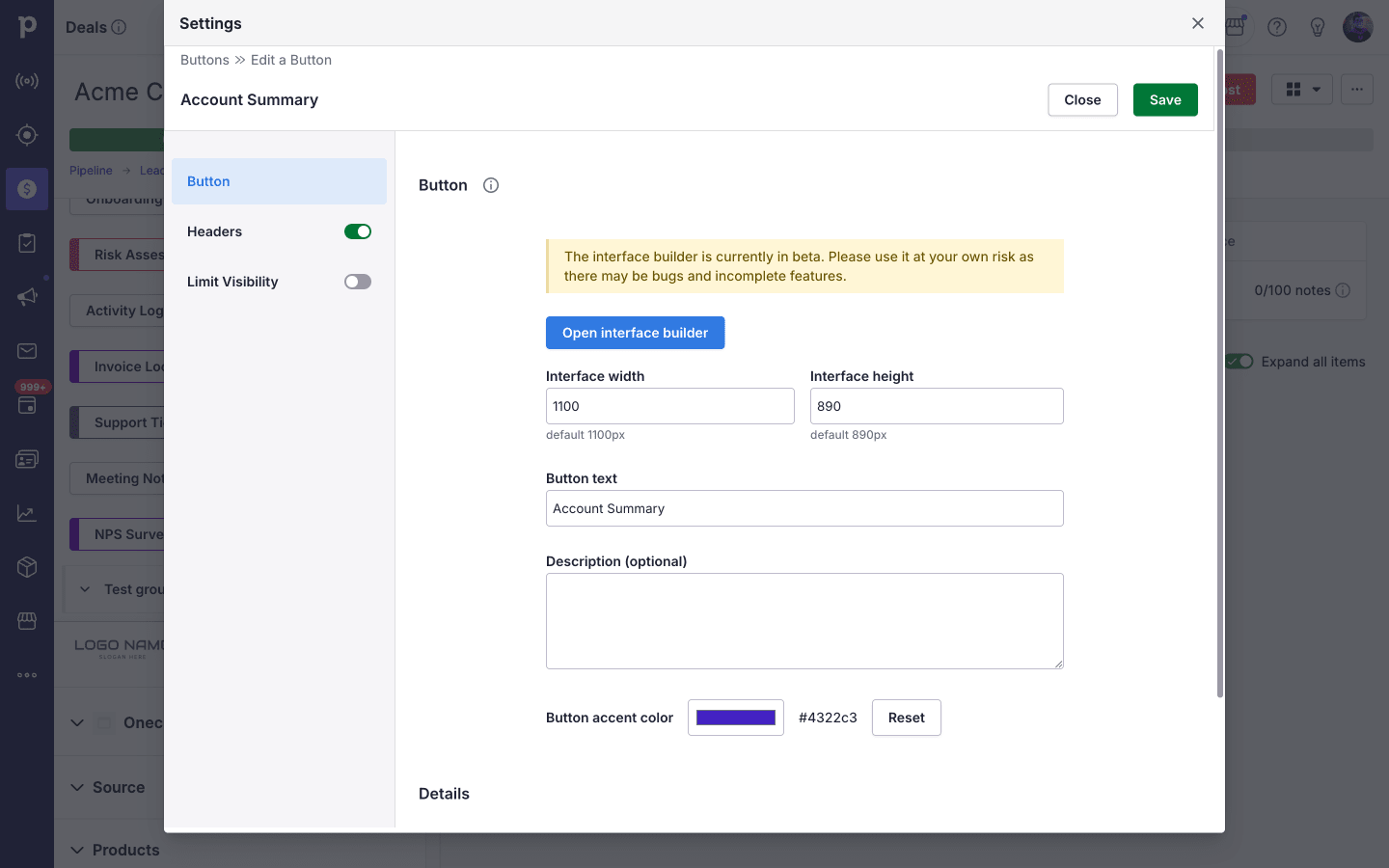
Interface Builder is reached from OneClick's settings, on the Buttons tab. From there, Create new → Interface button creates a new Interface button. Editing any existing Interface button opens its configuration page, where the Open interface builder button launches the visual editor for that interface. The same page also exposes the interface canvas size (default 1100 × 890), the button text shown to end users, an optional description, and a button accent colour.
How Views Connect to Pipedrive Resources
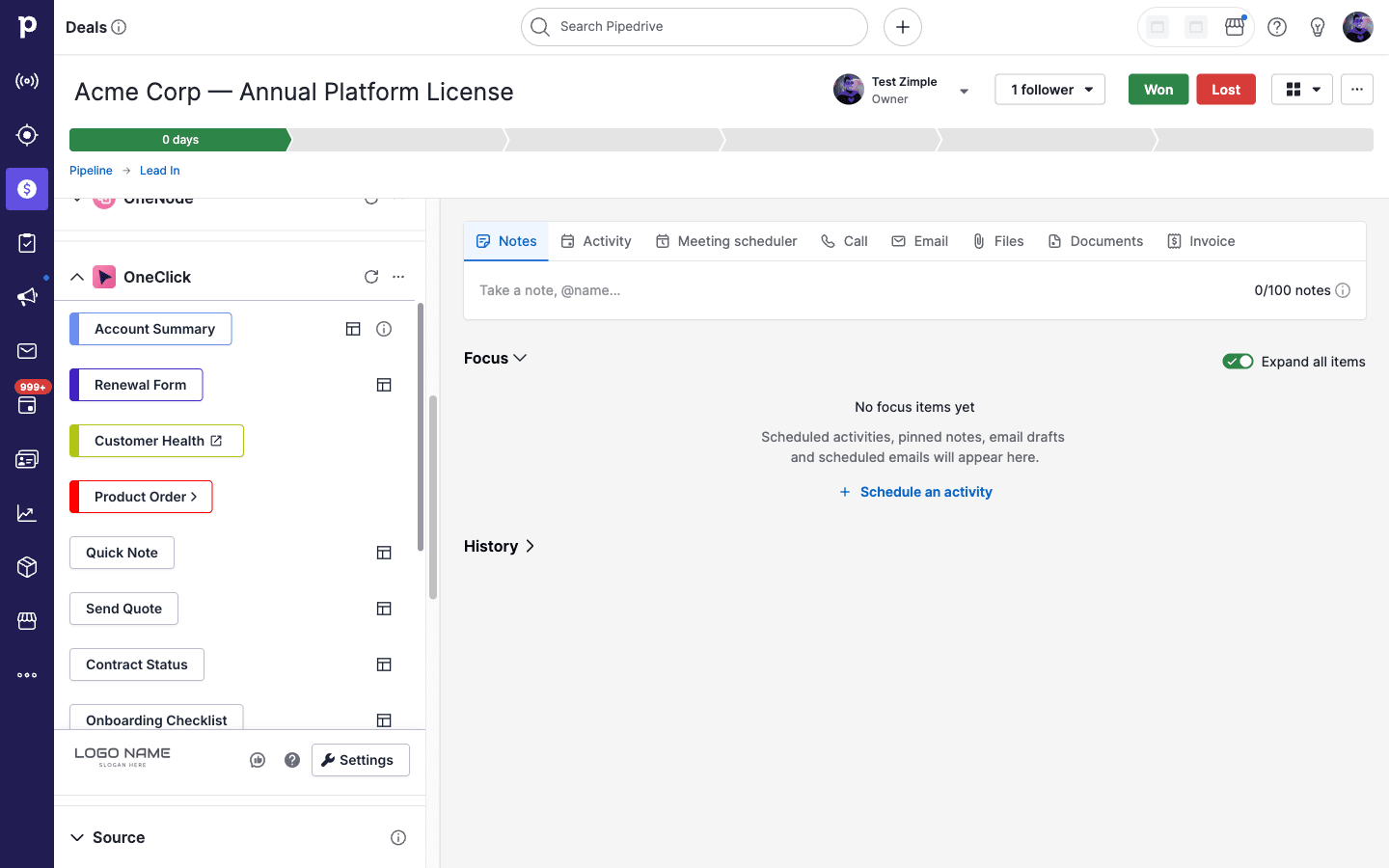
When a Pipedrive user opens an Interface button from a record (deal, person, or organization), Pipedrive passes the resource type and record ID to the view as URL parameters, alongside a button ID and an event ID. The OneClick button itself is configured for a specific resource type when you create it, so a button placed on the deal page always opens its interface bound to a deal record.
This is what makes the views contextual. A view opened from Deal #42 displays Deal #42's title, value, owner, and custom fields automatically — you do not have to fetch the record yourself.
The one exception is a floating window button, which floats over Pipedrive instead of sitting on a record page and therefore passes its views no resource type and no record ID.
What Data is Available
Inside the builder, you reference data through the Data Picker. The available sources are:
- Deal data: title, value, currency, owner, products, and every custom field defined in your Pipedrive.
- Person data: name, email, phone, associated organization, and custom fields.
- Organization data: name, address, and custom fields.
- User data: information about the currently logged-in Pipedrive user.
- Variables: per-interface key/value pairs, useful for configuration values.
- Search params: URL parameters carried between views — typically form data or button parameters from a previous view.
- External data (Source Data): data fetched from an API endpoint you configure for the view (URL, HTTP method, headers, query parameters, and an optional response path). See the External Data Source guide.
- Loop item: when a row sits inside a looping area, the current iteration's data is also available via the picker.
Builder, Preview, Test, and Rendered Views
Interface Builder has three view modes inside the editor, plus the live rendered view that end users see:
- Builder — the drag-and-drop editor where you construct the interface. Data Picker placeholders (like title) appear as their badge representation, not resolved values.
- Preview — same canvas, but the view is rendered against the active sample resource so placeholders resolve to live values. Pipedrive fields (title, …) resolve against the active deal, person, or organization, while * resolves against your saved Sample data — Preview never calls the view's external data source URL. This is the fastest way to verify layout and data display without leaving the builder.
- Test — a more complete simulation that runs the view as a real render, including the Pipedrive request flow. Use Test to exercise interactions that require a real round-trip (form submissions, navigation between views).
- Rendered view — what end users actually see when they click the OneClick button inside Pipedrive. This is the same code path Test exercises, just opened from a real Pipedrive context.
OneClick-Level Headers
Every HTTP request an interface makes — the View URL fetch, a form submission, a URL button's POST — is built from headers at two layers:
- OneClick button headers, configured outside the builder on the OneClick Edit a Button page (sidebar → Headers, with a master toggle that turns the whole set on or off). These are stored encrypted on the button itself.
- Per-call headers, configured inside the builder on the specific request (View URL → Manage Headers, the submit button's Submit URL → Manage Headers, the URL button's Headers section).
When the toggle on the OneClick button is on, every outgoing request automatically carries the OneClick-level headers in addition to any headers you set per call. This lets you configure a single API token (or signing header, or tenant header) once on the button and have every request the interface makes inherit it.
The reserved x-oc-user-id, x-oc-company-id, and x-oc-event-id keys are always set by the system and cannot be overridden from either layer. The builder also rejects per-call header keys that start with x-oc- so the two systems do not collide.
If you only need a header on one specific call, set it per call. If you need it everywhere, set it on the OneClick button.
See Securing Your Endpoint for the threat model and the recommended way to verify that requests really come from your interface.
Saving
Changes are auto-saved as you build. There is no publish step and no draft mode — every save immediately becomes the live version users see when they open the OneClick button.
Every save is immediately live
Preview and Test modes inside the builder render against the same saved data, so they do not insulate end users from in-progress edits — they only let you load real records inside the builder. For risk-free experimentation, copy the OneClick button in Pipedrive and edit the copy's interface; switch users over to the new button when the changes are ready.
Before each save, the builder validates the view — for example, every form must have a matching Form Start and Form End pair, at least one input inside the form, and at least one submit button pointing at it. If validation fails, warnings appear on the canvas with quick actions to fix them, and the save is blocked until the errors are resolved. A broken view therefore never reaches end users.
View Layout Structure
A view is composed of rows stacked vertically. When you add a row, you pick one of these layouts:
- Full width (100%) — one column.
- Two columns (50/50) — equal split.
- Three columns (33/33/33) — equal thirds.
- Sidebar left (25/75) — narrow left, wide right.
- Sidebar right (75/25) — wide left, narrow right.
- Form — a special layout that creates a Form Start / Form End pair for collecting input.
Each column in a row holds one block. Rows can be grouped into Areas for batch visibility control and looping. Padding, alignment, and gap settings are configurable at the row, column, and view-wide level.