Appearance
Saving
Type: How-to | Audience: End-user | Goal: Understand how saves reach end users and which validation rules have to pass
Auto-Save
Interface Builder saves automatically. After you stop editing for a brief moment, the change is written to the server -- there is no save button and no publish step. You do not push a view live; it is live. The moment a save completes, anyone opening the view in Pipedrive sees your latest edits.
Every save is immediately live
Preview and Test modes inside the builder render against the same saved data — they do not isolate changes from end users. Anyone opening the OneClick button while you're editing sees your in-progress edits. See External Data Flow for what each mode does and does not call.
For risk-free experimentation, copy the OneClick button in Pipedrive and edit the copy's interface, then point users at the new button when the changes are ready.
Validation
Before each save the builder runs a validation pass over the whole view -- rows, blocks, forms, and every setting. If something is wrong, an Action required card appears on the canvas with a quick-fix button, and the save is blocked until you resolve the issue. This means a broken view never reaches end users.
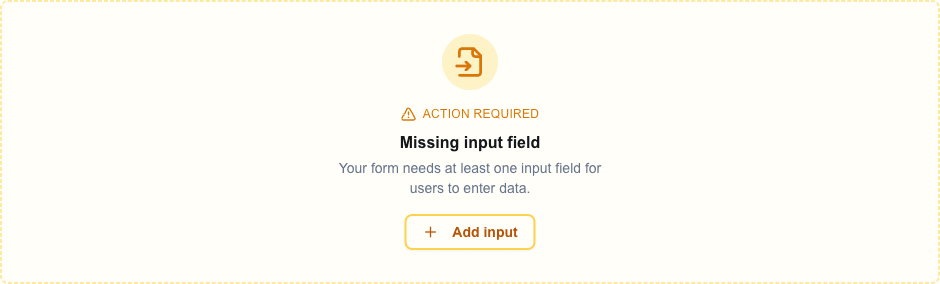
The card icon, title, description, and quick-fix button vary by issue. For incomplete forms the card title is Missing input field (with an Add input button) or Missing submit button (with an Add submit button button); other issues surface as inline errors next to the affected field in Block Settings.
Common Validation Errors
These messages come straight from the validation layer. Each one blocks save until fixed.
| Error | Cause | Fix |
|---|---|---|
| Form requires at least one submit button | A form has no submit button. | Add a Button block with Button Type = Form Submit Button and pick this form in the Form dropdown. |
| Form requires at least one input field | A form has no Input blocks. | Add at least one Input block between Form Start and Form End. |
| Form start requires a corresponding form end | A Form Start row exists without a matching Form End. | Add the Form End row, or delete the orphan Form Start. |
| Input field must be inside a form | An Input block sits outside any form. | Move it between a Form Start and Form End row. |
| Input name must be unique | Two Input blocks share the same internal name (usually from copy-paste). | Delete one and re-add it so the builder generates a unique name. |
| Submit button requires a form to exist / Reset button requires a form to exist | A Form Submit or Form Reset Button points at a Form Identifier that does not exist. | Create a form with that identifier or pick an existing form. |
| URL is required | A URL Button or external Navbar link, or a Submit URL on a JSON / Multipart form, has no URL set. | Fill the missing URL field. |
| You can't use the file input type because the form doesn't submit anything -- it opens a new view with the input values as search parameters. | A form with file inputs uses Open view with form data as its Form Type. | Remove the file input or change Form Type to JSON or Multipart/Form-Data. |
Testing a Live View
Once a save completes, the view is live. To test it the way users see it:
- Use Test mode inside the builder (the Test button in the top bar) to run the view with real records.
- Or open the OneClick button in Pipedrive to see exactly what users see.
Either way verifies:
- Layout and styling.
- Data Picker placeholders resolve correctly.
- Form submissions work.
- View navigation behaves as expected.
- Conditional visibility rules behave as expected.
Main View
An interface can contain more than one view. The main view is the one that opens when a user clicks the OneClick button in Pipedrive. It is highlighted in the views list with a green border and a Start badge (star icon) on the card preview.
To change which view is the main view, click the Settings button on a view card to open the Interface Settings dialog, then turn on the Default view switch. Only one view can be the main view at a time -- enabling Default view on a different card automatically clears it on the previous main view. Users reach the other views through navigation (Action Buttons, Navbar links, or form submissions).