Appearance
How to Configure Tables
Type: How-to | Audience: End-user | Goal: Set up table data source, columns, and actions
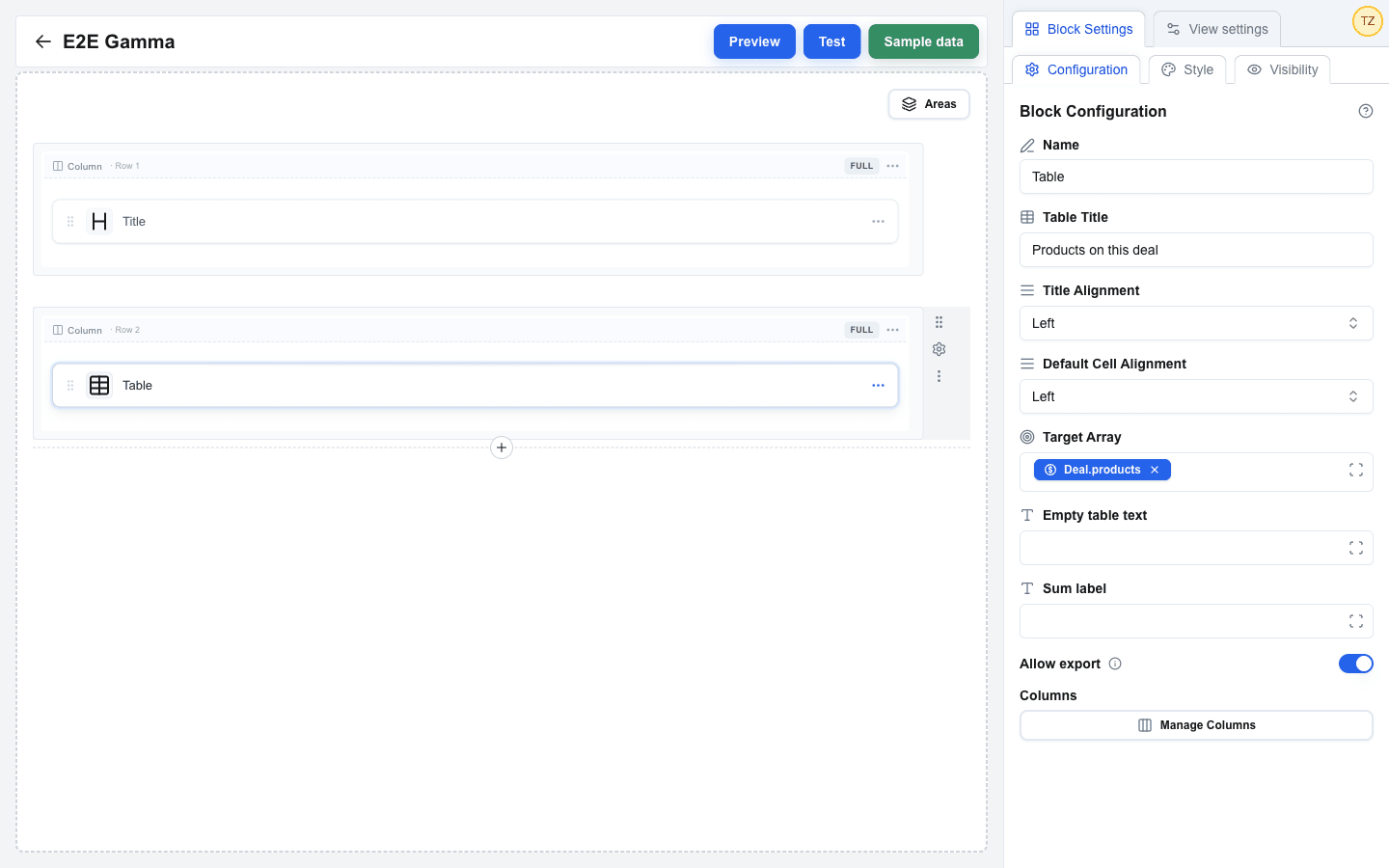
Adding a Table Block
- Hover the gap between two rows and click the
+button to add a row -- a full-width layout works best for tables. - Click an empty column inside the row, then pick Table in the Add block dialog.
- Click the new block to open its settings in the sidebar.
Top-Level Configuration
The Block Settings sidebar's Configuration sub-tab contains the table-wide fields, in this order:
| Setting | Description |
|---|---|
| Table Title | Optional title shown above the table. Plain text: the Data Picker is not available here, and a typed placeholder shows as written. |
| Title Alignment | Left, Center, or Right. |
| Default Cell Alignment | Left, Center, or Right -- the default horizontal alignment for every cell unless a column overrides it. |
| Target Array | The data source. Bind it to a single array via the Data Picker (for example resource.items). Required. |
| Empty table text | Message shown when the Target Array is empty (max 255 characters). Supports the Data Picker. |
| Sum label | Optional text for the Sum row, for example Total. Supports the Data Picker. It renders in the first visible column that has no sum of its own. |
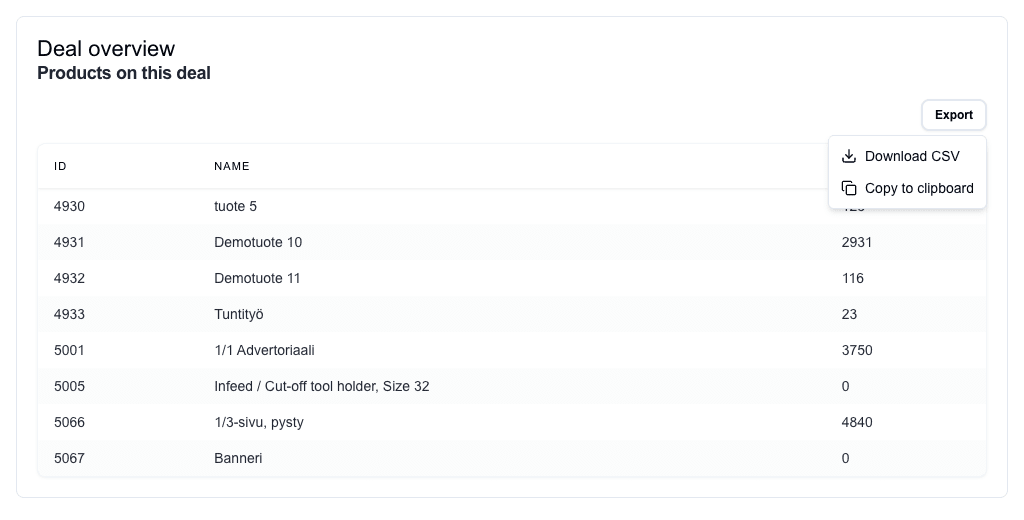
| Allow export | Switch, off by default. When on, an Export menu renders above the table, from which a reader downloads the table as a CSV file or copies it to the clipboard. See Let a Reader Export the Table. |
| Manage Columns | Button that opens the column editor (see below). |
Managing Columns
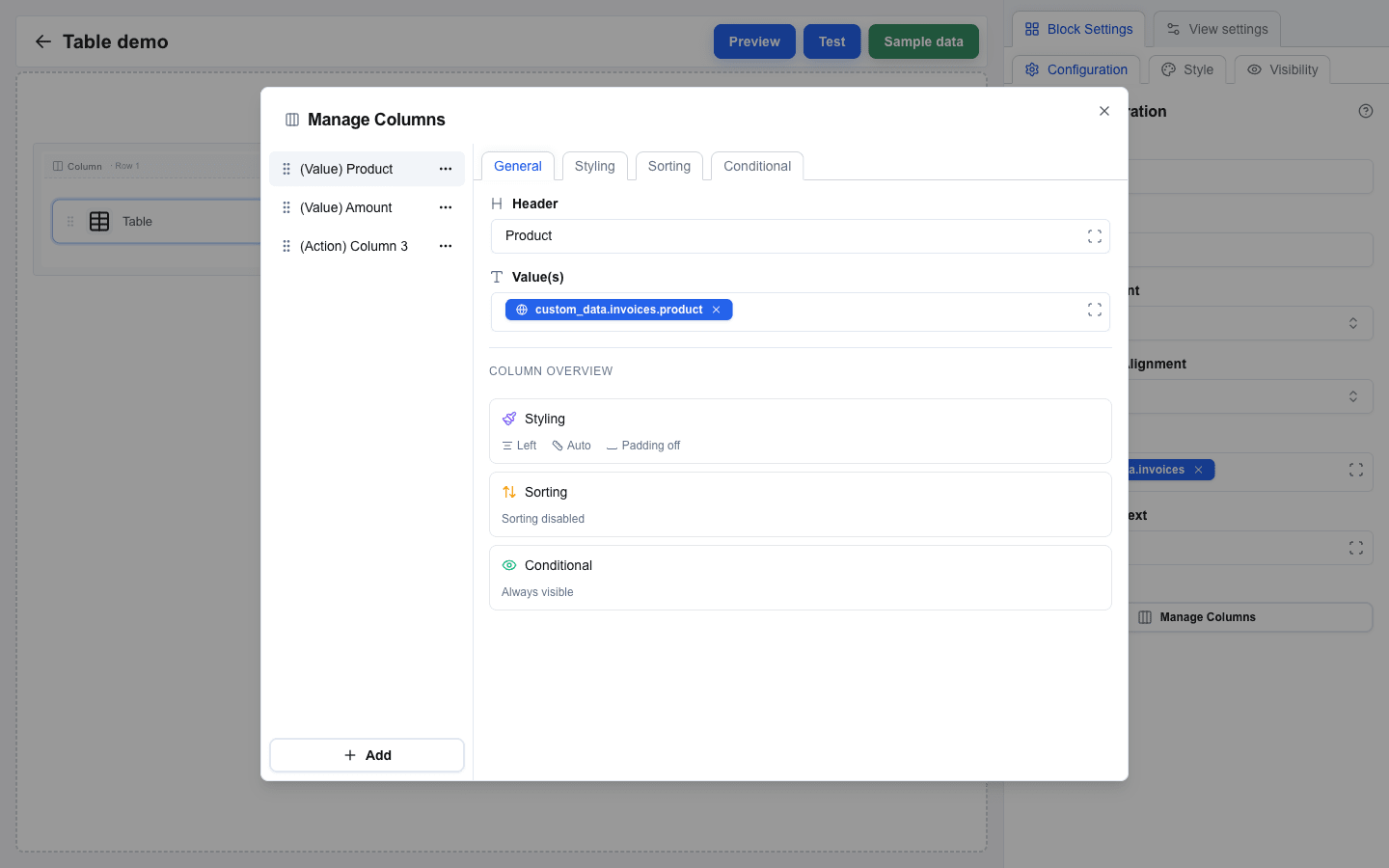
Clicking Manage Columns opens a dialog with two panels:
- Left panel -- the column list with a per-column ... menu (Copy / Delete) and a drag handle to reorder. The bottom Add button opens a dropdown with Add value column, Add action column, and Add subrow (subrow is disabled if the table already has one -- only one is allowed).
- Right panel -- the settings for the selected column, organised into tabs: General, Styling, Sorting, Sum (value columns only), and Conditional. The General tab also shows a Column Overview with summary cards for Styling, Sorting, and Conditional that double as shortcuts to those tabs.
Each column has an internal identifier (key) that the builder generates automatically -- it is never edited from the UI.
Value Column (General tab)
| Field | Description |
|---|---|
| Header | Column header text. Supports the Data Picker. Required. |
| Value(s) | Path to the field within each row item (for example name or price). Supports the Data Picker. The resolved value renders as sanitised HTML. Required. |
Link a Cell
- Open the value column's General tab.
- Write an
atag under Value(s) and put the Data Picker fields inside it, for example<a href="{{website}}">{{name}}</a>. - Switch to Preview mode and click a cell to check the link.
Each row resolves its own link, and every link opens in a new tab. A row whose URL resolves empty, or to a bare #, shows the text without a link, so rows with no website still show the name.
Action Column (General tab)
An action column renders one button per configured action, repeated for each row. A button shows an icon, a text label, or both.
| Field | Description |
|---|---|
| Header | Column header text. Supports the Data Picker. |
| Actions | The list of action buttons for each row. Click Add Action to append; each action is its own collapsible block. |
Each action has:
| Setting | Description |
|---|---|
| Icon | Pick from grouped Actions, Communication, Files, and Status icons, including navigation, messaging, file, and state symbols. Required unless the action has a Label; the No icon choice appears only while the Label holds text. |
| Custom icon | Custom image URL. Shown when Icon is Custom and supports the Data Picker. |
| Label | Optional button text. Supports the Data Picker and resolves per row, so each row can show its own text. Shown after you pick an Action Type. |
| Icon position | Before the text (default) or After the text. Shown only when the action has both an Icon and a Label. |
| Action Type | Go to view (navigate within the interface), Go to URL (open a URL), or Send request (send a POST without leaving the table). |
| View Name | Destination view dropdown. Shown when Action Type is Go to view. |
| Params | Key/value pairs passed to the destination view. Shown when Action Type is Go to view. |
| URL | Destination URL. Shown when Action Type is Go to URL. Supports the Data Picker. |
| Request URL | Absolute HTTP or HTTPS endpoint. Shown when Action Type is Send request. Supports the Data Picker for per-row values. |
| Body Data | Optional JSON payload. Configure it as JSON or key-value pairs and use the Data Picker for row values. Include the row's identifier because OneClick metadata identifies the view resource, not the row. Leave empty to send no configured body. |
| Omit OneClick metadata envelope | Leave off to send Body Data alongside OneClick metadata. Turn on to send only Body Data to an endpoint that expects a bare payload. |
| Disabled | Data Picker expression evaluated per row. A row resolving to true, yes, or 1 starts with a muted, unclickable button; any other value keeps it enabled. |
| Disable button | Choose Never, After click, or After successful response. |
| Disable scope | When disabling is enabled, affect only the clicked button or the same configured action on every row. |
| Disabled appearance | Choose Neutral, Success, or Destructive for the clicked button's disabled state. Other rows use Muted. |
| Refresh after success | Reload the view after a successful request and restore its scroll position. Redirect responses navigate instead. |
| Require confirmation | Shown when Action Type is Send request. Turn on to ask the reader before the request is sent. |
| Title, Description | The dialog's question and its optional explanation. Both support the Data Picker and resolve per row. |
| Confirm Button Label, Confirm Button Variant | The confirming choice. Defaults to "Confirm" and Default. |
| Cancel Button Label, Cancel Button Variant | The cancelling choice. Defaults to "Cancel" and Outline. |
Label a Row Action
- Add an action column, click Add Action, and pick an Action Type. The Label field appears after the type is set.
- Write the button text under Label. Use the Data Picker for per-row text, for example
Open {{order_name}}. - Optional: set Icon position to After the text when the icon belongs on the right. Only the icon moves; the text keeps its place.
- Optional: for a text-only button, open the Icon picker and choose No icon. The choice is offered only while the Label holds text, and clearing the Label writes the View icon back.
Labels work on all three action types. On a Send request action the progress, success, and failure icons replace the icon only — the text stays in place while the request runs.
A Label that resolves empty on some rows leaves those rows icon-only. Without an Icon, such a row shows a warning instead of the button, because there is nothing left to render. Either widen the Data Picker path or keep an Icon for the rows that have no text.
The label is presentation only. It becomes the button's accessible name, but the request payload is unchanged: OneClick metadata still sends button_name as the action column's header.
Send a Request from a Table Row
- Add an action column, click Add Action, and set Action Type to Send request.
- Enter an absolute HTTP or HTTPS Request URL. Use the Data Picker to insert values from the current row.
- Optional: configure valid JSON under Body Data. Include the row identifier because OneClick metadata identifies the view resource, not the table row.
- Enable Omit OneClick metadata envelope only when the endpoint expects the Body Data as a bare payload.
- Optional: bind Disabled to a Data Picker value when some rows must start disabled. A row whose value resolves to
true,yes, or1renders a muted button that cannot be clicked; any other value keeps the button enabled. Combined with Refresh after success, an endpoint that flags the row as disabled in the refreshed data keeps it disabled even after a page reload. - Configure Disable button, Disable scope, and Disabled appearance when duplicate requests must be prevented.
- Enable Refresh after success when the view should reload after a successful response.
- Optional: turn on Require confirmation when an accidental click must not send the request. See Confirm a Request Action below.
- Test the action in the Test view. Request actions are disabled in Preview and work only in the Test and published views.
A Request action sends a POST through the Interface Builder backend. The clicked icon shows progress, then brief success or error feedback. Response messages appear as toasts; a response containing a redirect opens its target view. See HTTP Response Format.
OneClick-level and system headers are included automatically; Request actions do not support per-action headers. Protect the endpoint as described in Securing Your Endpoint.
Confirm a Request Action
Use a confirmation when a click deletes, sends, or approves something. Only Send request actions offer it; Go to view and Go to URL open something the reader can leave again.
- Open the action and turn on Require confirmation. The first enable fills in "Are you sure?", Confirm, and Cancel, so the dialog is usable right away.
- Write the Title as the question the reader answers. Use the Data Picker to name the row:
Delete order {{order_name}}?asks about that row's own order. - Optional: add a Description for what the request will do. It also supports the Data Picker and resolves per row.
- Optional: set Confirm Button Label and Confirm Button Variant — pick Destructive for a delete — and the matching Cancel fields.
- Test the action in the Test view: the dialog must open, and the request must reach your endpoint only after Confirm.
The dialog is a gate in front of the request, not a report on it. Confirm sends the request once and the row's icon reports progress, success, or failure as usual. Cancel and Escape send nothing and change nothing — including the Disable button state, which starts only after Confirm, so a cancelled dialog leaves the button usable.
A row that the Disabled expression pre-disables never opens the dialog. A Title that resolves empty falls back to "Are you sure?", and a Description that resolves empty is left out of the dialog. The Confirm and Cancel labels are plain text and do not support the Data Picker.
Subrow Column (General tab)
A subrow column expands nested data as child rows under each row.
| Field | Description |
|---|---|
| Value(s) | The path to the nested array inside each row item. Required. |
Subrow columns have no Header, no actions, and no Sorting tab. Only one subrow column is allowed per table.
Per-Column Styling Tab
| Setting | Description |
|---|---|
| Width | Optional column width -- a number (pixels) or a percentage. Leave empty for Auto. |
| Cell Alignment | Override the table's Default Cell Alignment for this column (Left / Center / Right). |
| Cell Padding | Switch. When on, four pixel inputs (Top / Right / Bottom / Left) appear and override the table-level padding for this column. |
Per-Column Sorting Tab
Subrow columns do not have this tab.
| Setting | Description |
|---|---|
| Allow sorting | Switch that lets users sort by this column. |
| Sort by this column | Checkbox. Makes this the default sort column when the table loads. Shown when Allow sorting is on. |
| Sort direction | Ascending or Descending -- the default sort order. Shown when Sort by this column is on. |
| Custom sort value | Switch. When on, a Sort value Data Picker appears. Use this to sort by a different field than the one displayed (for example sort by a raw number while displaying a formatted currency). |
Per-Column Sum Tab
Value columns only. An enabled sum adds one cell to the Sum row at the bottom of the table. The total covers every row of the Target Array, so sorting never changes it, and a table with no rows shows no Sum row.
Every field on this tab has an info icon beside its label. Hover it, or reach it with the keyboard, to read what the field does without leaving the builder.
Total a Column
- Select the value column in Manage Columns and open the Sum tab.
- Turn Show sum on.
- Bind Sum value to the raw source field of the row -- for example the number behind a formatted price. Non-numeric values are skipped, so a field holding
"1 200 €"totals to nothing. - Leave Format at Plain number, or pick Currency.
- Close the dialog and check the table's bottom row.
Format the Total as Currency
- Set Format to Currency.
- Fill in Locale -- for example
fi-FIfor space grouping, a decimal comma, and a trailing symbol, oren-USfor comma grouping, a decimal point, and a leading symbol. The Locale never decides which currency is shown, only how it is written. - Fill in Currency with the ISO 4217 code -- for example
EURorSEK.
An empty or unknown Locale or Currency renders no total at all. If the Sum row cell stays blank, check these two fields first.
Wrap the Total in Text
- Write Prefix for text before the total, and Suffix for text after it.
- Add the spacing yourself:
Totalneeds the trailing space, and/ monthneeds the leading space.
Both apply in the plain format and in the currency format, and both accept Data Picker values. Switching Format back to Plain number clears the Locale and the Currency, but keeps the Prefix and the Suffix.
Name the Sum Row
Set the table-level Sum label in the Configuration sub-tab -- the column tabs have no label field. The label renders in the first visible column that has no sum, action columns included. When every visible column has a sum, the label has nowhere to go and is left out.
Per-Column Hover Card Tab
Value columns only. The tab has one optional field, Hover card: content that opens when a reader hovers a cell's value with the pointer. See Hover Card Tab for the rules.
Add a Hover Card to a Column
- Open the value column's Hover card tab.
- Write the card under Hover card. Put the Data Picker fields of the row item inside it, for example
<b>{{owner}}</b><br><a href="{{profile_url}}">Profile</a>. HTML is allowed. - Switch to Preview mode and hover a cell's value.
Each row resolves its own card. A row whose card or value resolves to nothing shows no underline and no card. The card opens for a pointer only, and table export does not include it.
Per-Column Conditional Tab
| Setting | Description |
|---|---|
| Enable conditional visibility | Turns visibility rules on or off for this column. |
| Condition | A Data Picker expression evaluated at render time. The column is hidden when the value is empty or "false". |
Let a Reader Export the Table
- Select the Table block and open the Configuration sub-tab.
- Turn Allow export on.
An Export menu now renders on its own right-aligned row between the Table Title and the table. It offers the reader two ways out:
- Download CSV writes a
<table-title>-<YYYY-MM-DD>.csvfile in the browser. - Copy to clipboard puts the same table on the clipboard, tab separated, ready to paste into Excel or Google Sheets.
Both carry every row of the Target Array in the sorting the reader sees, and the visible value columns only. Action columns, the subrow column, a column hidden by its Conditional tab, the Cell hover cards and the Sum row are all left out. Nothing is requested from the server: the export is built from the table already on screen.
The menu stays visible while the Target Array is empty, but is disabled. For the exact file format, see Table export in the reference.
Borders and Padding
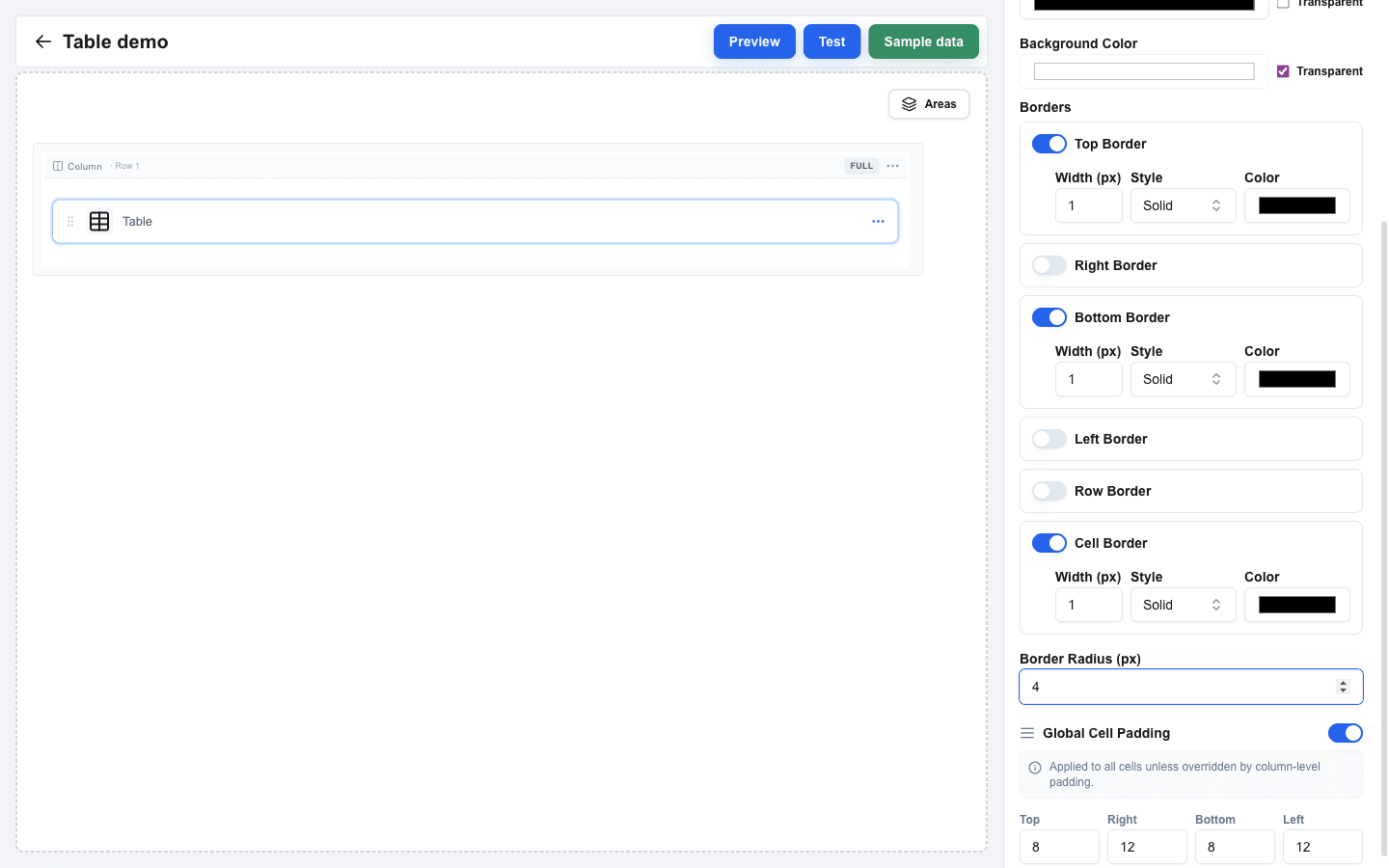
Open the block's Style sub-tab to configure the table's borders and the table-only padding control:
- Top / Right / Bottom / Left Border -- the standard outer-frame borders, each with Width / Style / Color.
- Row border -- lines between rows, same controls.
- Cell border -- lines between cells, same controls.
- Global Cell Padding -- switch. When on, four pixel inputs (Top / Right / Bottom / Left) apply to every cell unless a column overrides them via its own Styling > Cell Padding.
Style and Visibility
The Table block uses the standard Style sub-tab (background, borders, radius, plus the table-specific borders and padding above) and Visibility sub-tab in Block Settings, the same as every other block. See Block Styles and Conditional Visibility.
For the full per-field reference, see the Table block reference.