Appearance
Using Global Styles
Type: How-to | Audience: End-user | Goal: Apply consistent styling across the whole view
Opening Global Styles
- Click the View settings tab in the right panel.
- Click the Global Styles button. The badge next to the button shows the current state -- Off, On (no values set), or On (N/4 set).
- The Global Styles dialog opens.
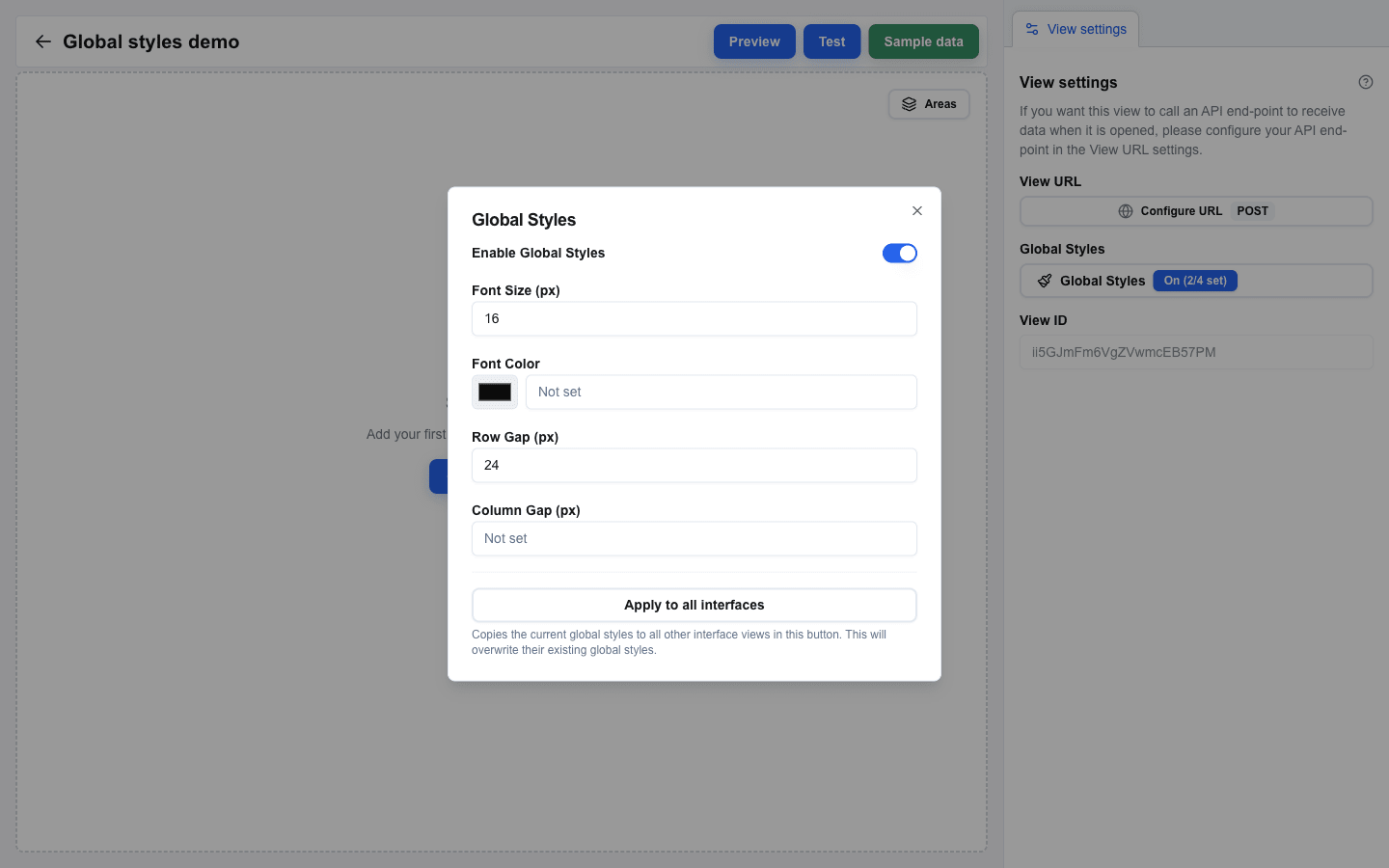
Configuring Styles
The dialog has a master switch at the top:
- Enable Global Styles -- when off, the rest of the dialog is dimmed and none of the values apply. The values you set are kept, so you can re-enable later without losing them.
Below the switch, four fields set the view-wide defaults. Leave any field empty (the placeholder reads Not set) to skip that default. The badge on the dialog tracks how many of the four are configured.
| Setting | Description |
|---|---|
| Font Size (px) | Default text size, applied to every block. |
| Font Color | Default text colour. Set via the colour picker or by typing a hex value; click Clear to reset. |
| Row Gap (px) | Vertical spacing between rows. |
| Column Gap (px) | Horizontal spacing between columns inside a row. |
Apply to All Views
Click Apply to all interfaces at the bottom of the dialog to copy the current Global Styles to every other view in this interface. This overwrites their existing Global Styles and is disabled until Enable Global Styles is on.
Load from the Main View
On non-main views, Load from main interface appears below Apply to all interfaces. Click it to copy Global Styles from the main view into the one you are editing. The current values are replaced.
Overriding Global Styles on a Single Block
Individual blocks can opt out of the global font size and font colour:
- Select a block and open its Style sub-tab.
- When a global value is active, a
Global: <value>badge appears next to Font Size (px) or Font Color -- for exampleGlobal: 14px, or for the colour a small swatch followed by the hex code. - A Use custom style switch shows up next to the badge. Turn it on, and the block's own input becomes editable so you can override the global value just for this block.
The Use custom style label is the same for both fields; the switch's effect is local to the field it sits beside.
Overriding Global Gaps on a Row
Rows can opt out of the global row gap and column gap from Row Settings:
- Exclude from global row gap -- only appears when Row Gap is set globally. Detaches this row from the global vertical spacing.
- Exclude from global column gap -- only appears when Column Gap is set globally. Detaches this row's columns from the global horizontal spacing.