Appearance
Using Search Parameters
Type: How-to | Audience: End-user | Goal: Pass and use URL parameters
What are Search Params?
Search params are URL query parameters available inside the interface at render time. Use them to pass data between views, between buttons, or from external sources via the URL.
Passing Params
Via Action Button
- Add a Button block and set Button Type to Action Button.
- Set Action Type to go to view and pick the target view from the View Name dropdown.
- Click Handle params under Parameters and add key / value pairs.
- Values support the Data Picker, so you can pass dynamic data like id.
Via Navbar Link
- Add a Navbar block, click Manage Links, and add or edit a link.
- Set Link Type to Interface and pick the target view from Target Interface.
- In the link's Parameters section, click Add Parameter to append key / value rows. Values support the Data Picker.
Via Table Action Column
A Table action column's per-action settings include a Params key / value editor. Each row's data plus those params are forwarded as search parameters when the action is clicked.
Via Form Submission
There are two ways a form can pass values as search params on the navigation that follows submission.
Wait for response or JSON / Multipart-Form-Data with Select view
- Configure a Form Submit Button with After submission set to Select view (and Form Type JSON or Multipart/Form-Data).
- Optionally add explicit Parameters rows -- key / value pairs sent alongside.
- Turn on Use input values as search params to also forward every form input value as a search parameter on the navigation. Each input's internal
namebecomes the parameter key, and the user-entered value becomes the value.
Open view with form data
- Set Form Type to Open view with form data on the submit button.
- The Submit URL and After submission settings hide; submission no longer makes an HTTP request.
- On submit, every form input value is forwarded to the chosen view as a URL search parameter and the navigation runs immediately. Useful for multi-step wizards or filter views.
Via URL Button
URL Buttons that open a custom URL or another OneClick interface let you append query parameters to the request:
- Click the Button URL button on the URL Button settings to open the URL Configuration dialog.
- In the Query Parameters card click Add Parameter and fill in key / value pairs. Values support the Data Picker.
- The pairs are appended to the target URL when the button is clicked.
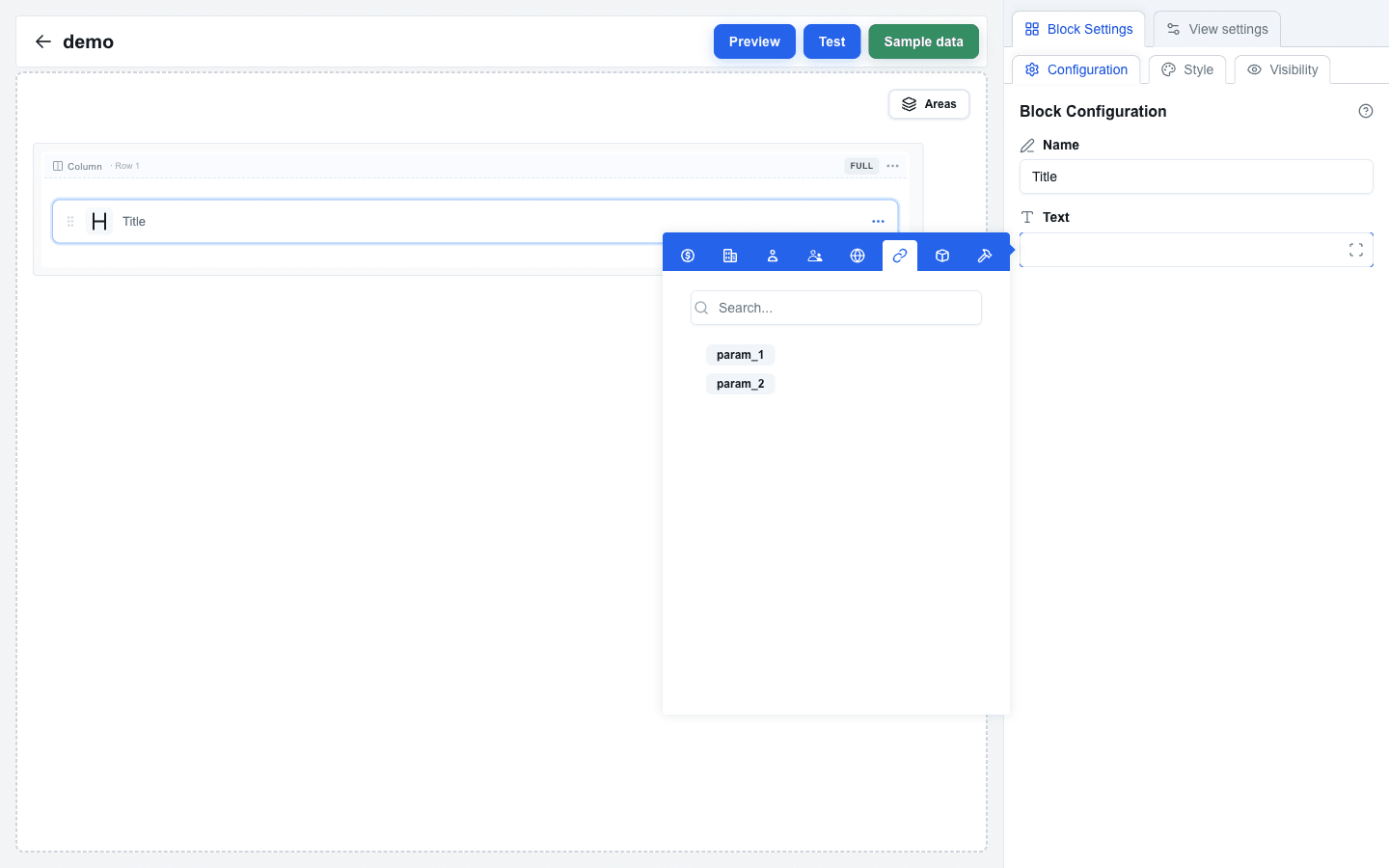
Accessing in Data Picker
- Open any Data Picker field.
- Switch to the searchparams tab (icon-only -- the link icon, with tooltip
searchparams). - Click a parameter to insert it. The chip compiles to a <key> placeholder at render time.
The list inside the tab shows every search parameter currently present on the URL plus any that have been declared as expected by buttons elsewhere in the interface (so you can bind to them before they actually arrive).