Appearance
Displaying Pipedrive Data in Your Interface
Type: Tutorial | Audience: End-user | Goal: Bind Pipedrive resource data to blocks using the Data Picker
What is Data Binding?
Interfaces display data from Pipedrive resources -- deals, persons, organizations, and more. Instead of typing fixed text, you bind a block's text input to a field through the Data Picker, and the field's current value is rendered at run time.
The Data Picker inserts each field as a small blue tag into the editor. The compiled syntax behind the tag is resource.field (for example title), but in the builder you do not type that syntax yourself -- you click the tag you want and the editor renders it as a tag.
Opening the Data Picker
- Select a block on the canvas (for example, a Title or Paragraph block).
- In the Block Settings panel, find a Data Picker-enabled input: Title's Text field, Paragraph's Value field, and similar fields on other blocks.
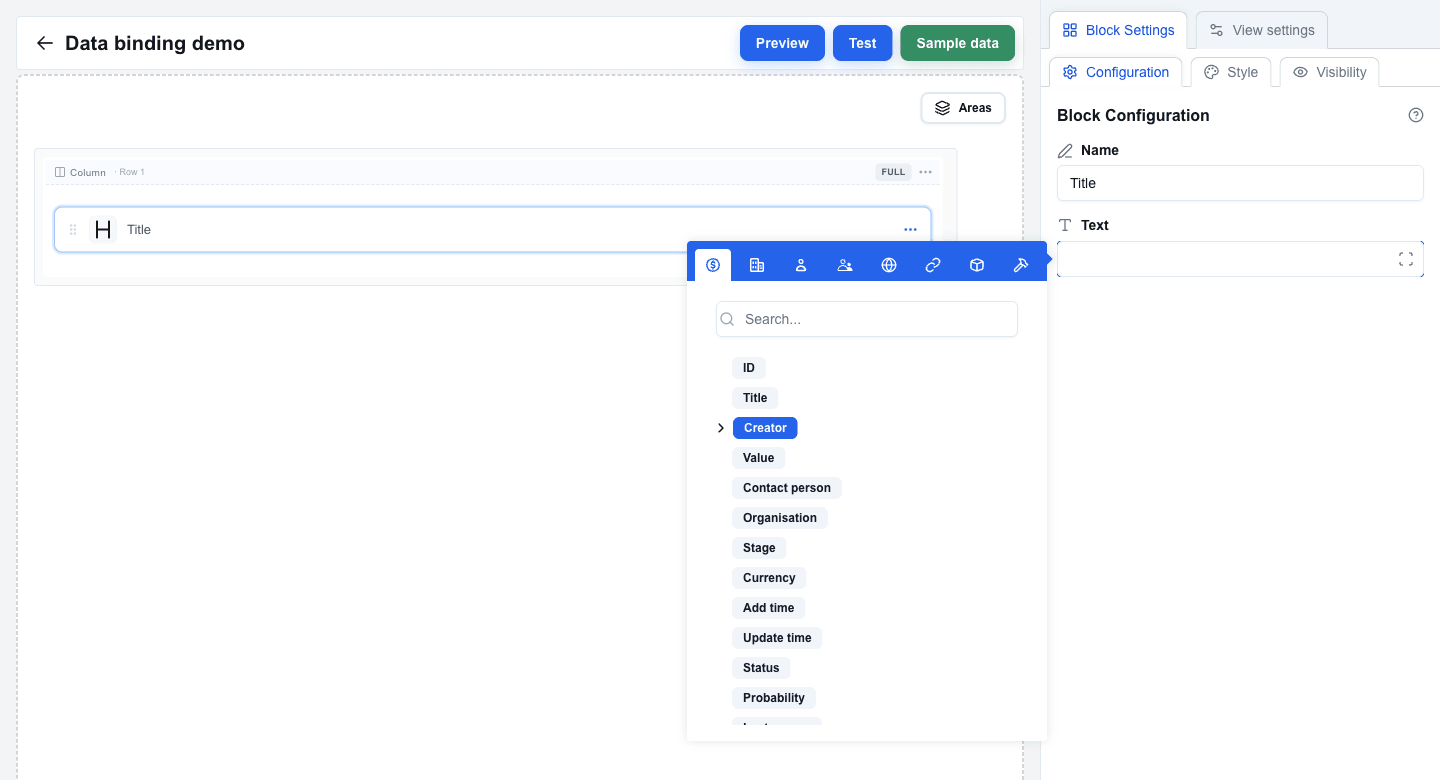
- Click inside the input. A Data Picker tooltip appears next to the field.
- The tooltip's top bar contains an icon-only row of tabs:
- Deal -- deal fields (title, value, currency, owner, ...)
- Organization -- organization fields (name, address, ...)
- Person -- person fields (name, email, phone, ...)
- User -- the current logged-in user
- Custom -- the JSON payload returned by your view's API endpoint or your saved Sample data
- Search Params -- URL parameters passed in from another view
- Variable -- interface-level variables you define in the Variables tab
- Functions -- built-in helper functions
Browsing Available Data
- Click a tab to see the fields for that resource.
- Simple fields (such as
titleorvalue) can be clicked directly to insert them as a tag. - Nested fields are expandable. For example, the deal's owner is an object -- expand it to pick
owner_id.name. - The Data Picker remembers which tab you last opened.
Binding a Deal Title to a Title Block
- Add a Title block to your canvas (or select an existing one).
- In Block Settings, click the Text field. The Data Picker opens.
- Select the Deal tab.
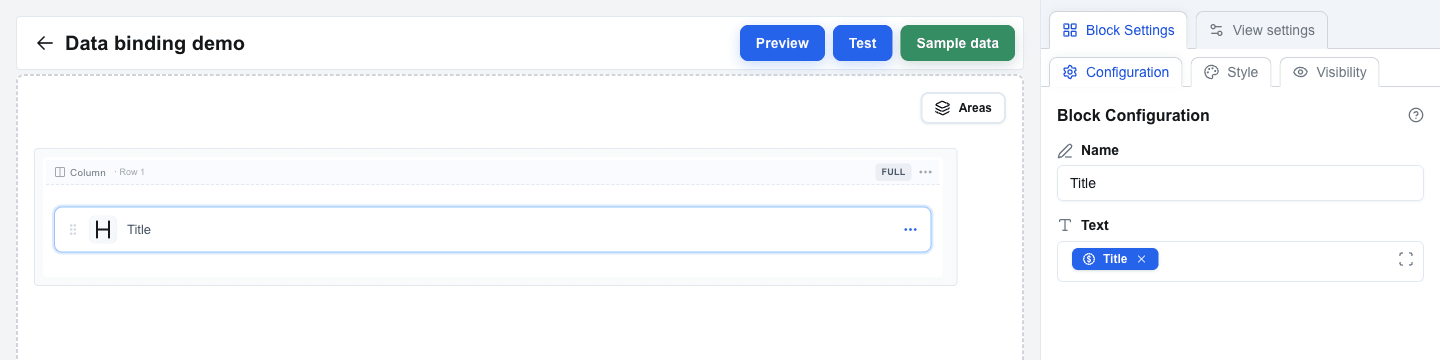
- Click on Title.
- A blue Title tag is inserted into the Text field. The compiled value is title, but you don't see the curly-brace syntax -- you see the tag.
Combining Static Text and Dynamic Data
You can mix typed text with multiple tags in a single field.
- Add a Paragraph block and select it.
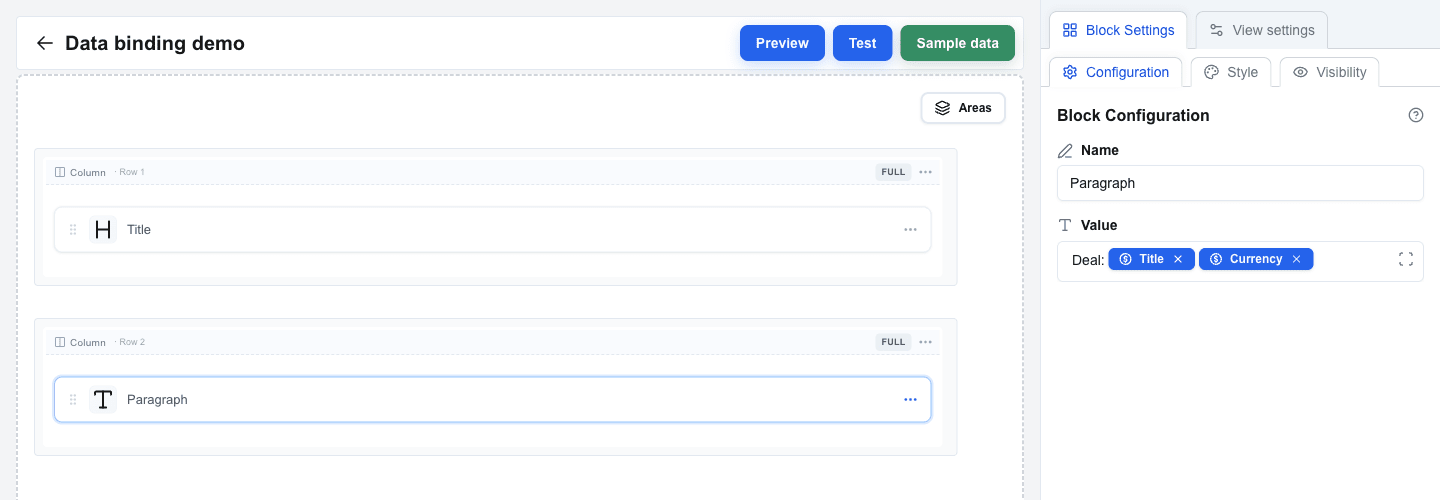
- In the Value field, type:
Deal: - Open the Data Picker and insert the deal Title tag.
- Insert the deal Currency tag right after it (or with a space between them).
The editor now shows: Deal: followed by a Title tag and a Currency tag. The compiled output is Deal: {{deal.title}} {{deal.currency}}.
This technique works in any Data Picker-enabled field across all block types.
Testing with Real Data
- Click Preview in the top bar to switch to Preview mode.
- In the Preview top bar, next to the Preview title, there is a Pipedrive resource button labelled with the active resource (for example
Deal #1995). Click it to open the Pipedrive resource dialog and pick a different deal, person, or organization from your account. - The system fetches the real data for the selected resource and replaces every Data Picker tag with the actual value.
- Your Title and Paragraph blocks render with live Pipedrive data.
If a tag references a resource that is not present (for example a person tag when no person is linked), the rendered value may be empty.

Understanding Data Types
The Data Picker organises fields by data type:
- String -- text values such as names, titles, emails.
- Number -- numeric values such as deal amounts and phone numbers.
- Object -- nested structures (for example
deal.owner_idcontainingname,email, ...). Expand the object to pick a sub-field; the resulting tag follows the path. - Array -- lists of items (for example deal products). Arrays are used by blocks that iterate, such as the Table block (covered in a later tutorial).
When you pick a sub-field of an object, the Data Picker creates a tag that renders the dotted path (for example owner_id.name).
Summary
In this tutorial you learned to:
- Bind block fields by inserting Data Picker tags instead of typing placeholder syntax
- Browse the eight Data Picker tabs (Deal, Organization, Person, User, Custom, Search Params, Variable, Functions)
- Mix static text and multiple tags in a single field
- Preview your interface with a chosen Pipedrive resource via the Preview top-bar dialog
- Work with nested object fields by expanding them in the Data Picker